
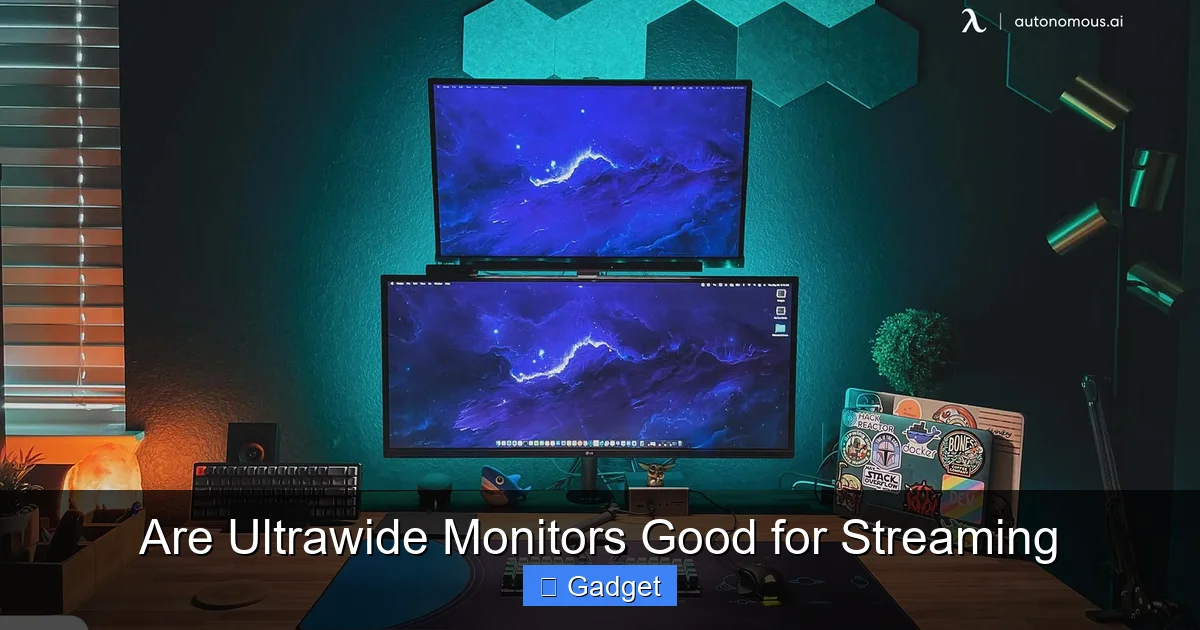
Ultrawide monitors can be fantastic for streaming, offering a more immersive viewing experience for your audience and increased on-screen real estate for your setup. However, they come with unique challenges, particularly regarding aspect ratios and content compatibility. This guide will walk you through understanding the pros and cons, and how to leverage an ultrawide for a compelling stream.
Are Ultrawide Monitors Good for Streaming?
So, you’re a streamer, or you’re thinking about becoming one. You’ve got your webcam, your microphone, your streaming software, and now you’re eyeing your next big upgrade: a monitor. You’ve seen those super-wide displays, and they look pretty slick. But the big question is, “Are ultrawide monitors good for streaming?”
This is a question many aspiring and established streamers grapple with. The allure of that expansive, panoramic view is undeniable, but whether it translates into a better streaming experience for both you and your audience is the real challenge. In this comprehensive guide, we’ll break down everything you need to know. We’ll explore the advantages, the significant drawbacks, and how to set up an ultrawide monitor for a successful stream. By the end, you’ll have a clear picture of whether an ultrawide monitor is the right choice for your streaming setup.
Contents
- 1 Key Takeaways
- 2 Understanding Ultrawide Monitors
- 3 The Pros of Using an Ultrawide Monitor for Streaming
- 4 The Cons and Challenges of Using an Ultrawide Monitor for Streaming
- 5 Setting Up Your Ultrawide Monitor for Streaming
- 6 Troubleshooting Common Ultrawide Streaming Issues
- 7 Conclusion: Is an Ultrawide Monitor Good for Streaming?
Key Takeaways
- Enhanced Viewer Immersion: The expansive aspect ratio of an ultrawide monitor can draw viewers deeper into your content, making games and productivity tasks feel more engaging.
- Expanded Workspace for Streamers: An ultrawide provides ample room for your streaming software, chat, alerts, and gameplay, reducing the need for multiple monitors.
- Aspect Ratio Challenges: Streaming at a native ultrawide aspect ratio (21:9) can result in black bars for viewers on standard 16:9 displays, potentially detracting from their experience.
- Content Compatibility is Crucial: Not all games or applications are optimized for ultrawide resolutions, which can lead to stretching, distortion, or cut-off elements.
- Technical Considerations for Streaming: You’ll need to configure your streaming software (OBS, Streamlabs, etc.) to handle the ultrawide resolution, either by streaming at native resolution or downscaling.
- Potential for Higher Hardware Demands: Running games and applications at higher ultrawide resolutions can demand more powerful graphics hardware.
- Cost Factor: Ultrawide monitors can be more expensive than their standard counterparts, representing a significant investment for streamers.
Understanding Ultrawide Monitors
Before diving into the streaming aspects, let’s get a clear understanding of what an ultrawide monitor is. Standard monitors typically have an aspect ratio of 16:9, meaning for every 16 units of width, there are 9 units of height. Think of your TV – that’s likely a 16:9 display.
Ultrawide monitors, on the other hand, commonly sport a 21:9 aspect ratio. This extra width provides a significantly wider field of view. The most common resolutions for ultrawide monitors are 2560×1080 (WFHD) and 3440×1440 (WQHD), with even wider options like 3840×1600 and 5120×2160 available for those seeking the ultimate panoramic experience. This extra horizontal space is what makes them appealing for productivity and, potentially, for streaming.
The Pros of Using an Ultrawide Monitor for Streaming
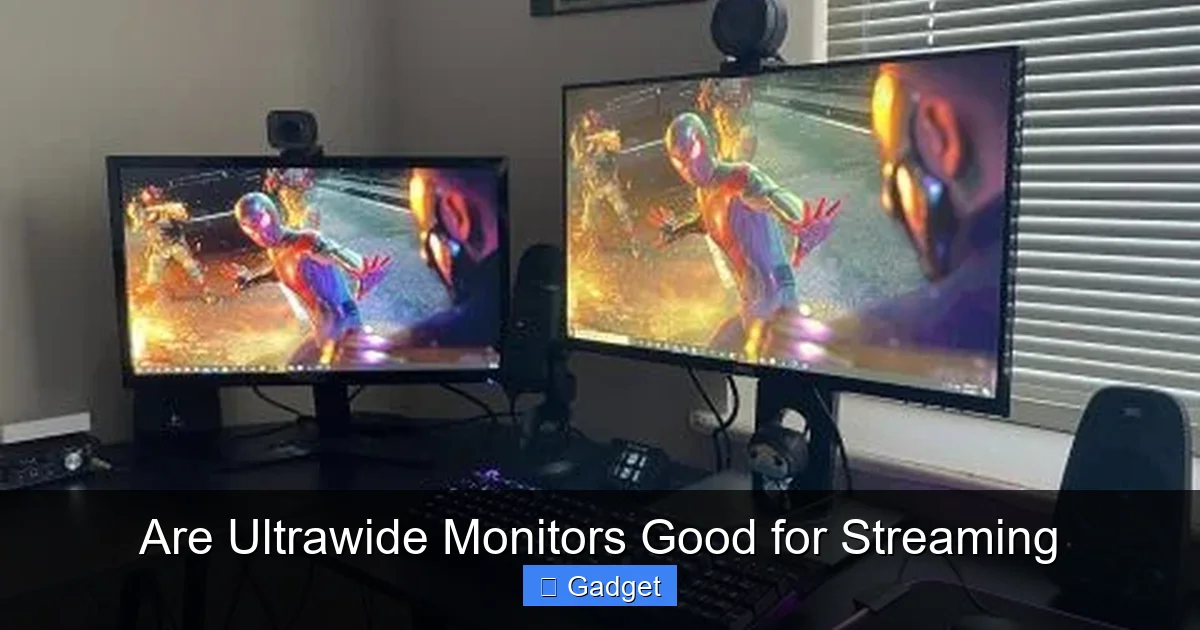
Visual guide about Are Ultrawide Monitors Good for Streaming
Image source: media.cnn.com
There are several compelling reasons why a streamer might consider an ultrawide monitor. Let’s explore these benefits.
1. Enhanced Viewer Immersion
The most immediate benefit of an ultrawide monitor for streaming is the increased immersion it offers. When you’re playing a game or showcasing a creative application that supports ultrawide resolutions, your viewers get to see more of the action without any cropping. This can make games feel more expansive and engaging, drawing the audience deeper into your content. Imagine a sprawling open-world game; an ultrawide can capture more of that breathtaking scenery.
2. Expanded Workspace for Streamers
For streamers, screen real estate is king. Juggling your game or application, streaming software (like OBS Studio or Streamlabs Desktop), chat windows, alert boxes, and other overlays can quickly become cramped on a standard 16:9 monitor, often necessitating a dual-monitor setup.
An ultrawide monitor can consolidate much of this onto a single, massive display. You can have your game taking up the central portion, your streaming software neatly arranged to one side, your chat window on the other, and still have room to spare. This can lead to a more organized and less distracting streaming environment for you, the streamer. Fewer windows to Alt-Tab between means a smoother, more responsive stream.
3. Unique Aesthetic and Presentation
A full ultrawide gameplay experience can offer a visually distinct and appealing look to your stream. It can set your content apart from others who are using standard resolutions. If you’re a streamer who focuses on visually rich games or creative workflows, an ultrawide can showcase your work in a more impressive light.
4. Improved Productivity for Non-Streaming Tasks
While this guide is about streaming, many streamers also use their setup for other tasks. Ultrawide monitors excel at multitasking for everyday computer use. Having multiple documents, browser tabs, or creative software windows open side-by-side without overlap can significantly boost productivity. This is a bonus if you use your streaming PC for other work. For more on optimizing your workspace, check out our guide on what is the best monitor size for gaming.
The Cons and Challenges of Using an Ultrawide Monitor for Streaming
While the benefits are attractive, it’s crucial to acknowledge the significant challenges that come with using an ultrawide monitor for streaming. These can impact both your setup and your audience’s viewing experience.
1. Aspect Ratio Mismatch and Black Bars
This is the biggest hurdle. Most viewers watching streams on platforms like Twitch or YouTube are using standard 16:9 monitors or devices. If you stream your gameplay in its native 21:9 ultrawide resolution, your viewers will see black bars on the sides of your stream. This is because the streaming platform or their player will letterbox your content to fit their 16:9 display.
While this doesn’t necessarily ruin the experience, it means less of their screen is being used for your content. Some viewers find these black bars distracting. You’re essentially taking up less of their viewing real estate than a streamer using a native 16:9 resolution.
2. Content Compatibility Issues
Not all games and applications are designed with ultrawide resolutions in mind.
* Stretching and Distortion: Some older games or poorly optimized titles might stretch the image horizontally to fill the ultrawide display, leading to distorted graphics, especially on characters and UI elements.
* Cut-off UI Elements: In other cases, user interface (UI) elements, like health bars, minimaps, or crucial information, might be cut off at the edges, making them unreadable or inaccessible during gameplay.
* Gameplay Disadvantage: Some competitive games might even offer a slight advantage to players using standard 16:9 resolutions because certain in-game elements (like the field of view for enemies) can be manipulated with ultrawide aspect ratios, sometimes leading to unfair advantages or even bans.
You might find yourself having to play games in a windowed mode or forcing a 16:9 resolution within the game to ensure proper display, which can negate some of the ultrawide’s appeal.
3. Technical Configuration Complexity
Getting your ultrawide monitor to work seamlessly with your streaming software requires careful setup. You’ll need to decide how you want to capture and present your display.
* **Streaming at Native Ultrawide Resolution (21:9):** As mentioned, this will result in black bars for most viewers.
* **Downscaling to 16:9:** You can configure your streaming software to capture your ultrawide desktop but then downscale the output to a 16:9 resolution (e.g., 1920×1080) for streaming. This ensures your viewers don’t see black bars. However, this requires your GPU to render the game at the higher ultrawide resolution and then downscale it, which can be more demanding. You’ll need to experiment with capture methods in OBS/Streamlabs to achieve a clean 16:9 output without stretching or letterboxing from your side.
4. Hardware Demands
Running games and applications at higher ultrawide resolutions (especially 3440×1440 or higher) requires a more powerful graphics card and CPU. Your hardware needs to push more pixels horizontally. If your current PC is on the lower end, you might struggle to maintain smooth frame rates in demanding games at ultrawide resolutions, which is crucial for a good streaming experience. Understanding what makes a monitor good for gaming can help you balance performance and visual quality.
5. Cost Investment
Ultrawide monitors are generally more expensive than their 16:9 counterparts of similar size and specifications. If you’re on a tight budget, investing in a good quality 16:9 monitor might be a more sensible first step. To understand why these monitors carry a premium, read our article on why ultrawide monitors are more expensive.
Setting Up Your Ultrawide Monitor for Streaming
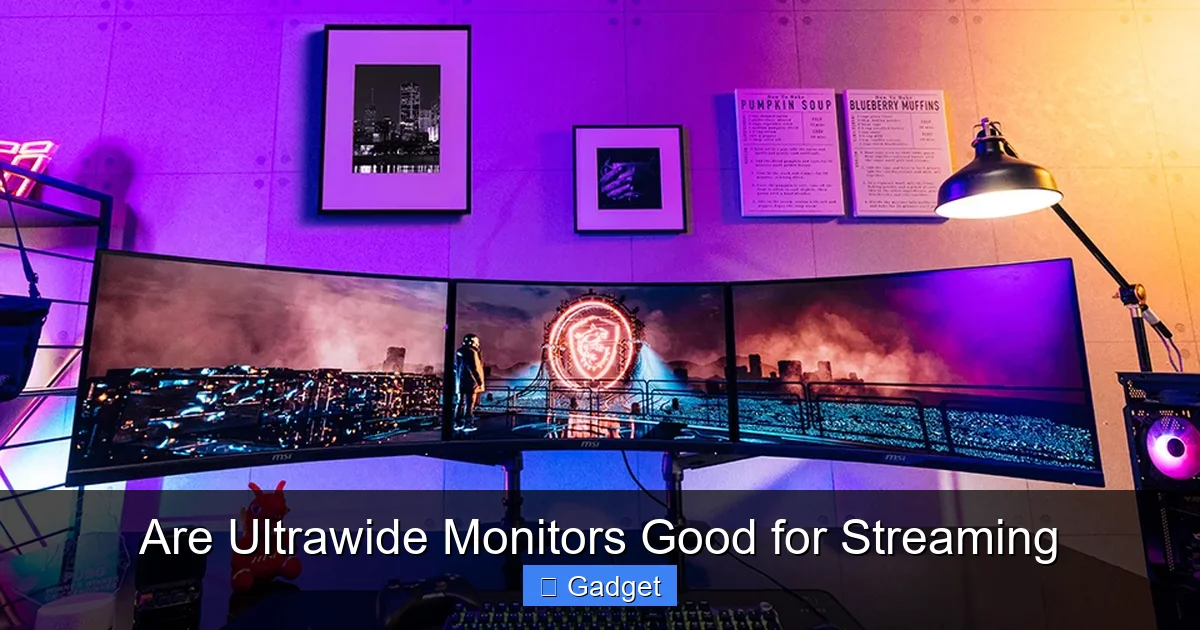
Visual guide about Are Ultrawide Monitors Good for Streaming
Image source: storage-asset.msi.com
If you’ve weighed the pros and cons and decided that an ultrawide monitor is the right fit for you, here’s how to set it up for streaming.
Step 1: Choose the Right Ultrawide Monitor
Not all ultrawide monitors are created equal. Consider:
* Resolution: 3440×1440 (WQHD) is a popular sweet spot, offering a good balance of detail and performance. 2560×1080 (WFHD) is more budget-friendly and less demanding.
* Refresh Rate: For gaming, a higher refresh rate (120Hz, 144Hz, or more) is essential for smooth visuals.
* Panel Type: IPS panels generally offer better color accuracy and viewing angles, while VA panels often provide better contrast.
* **Curvature: Many ultrawide monitors are curved, which can enhance immersion and reduce eye strain by bringing the edges of the screen closer to you.
Step 2: Configure Your Game/Application Settings
Before you even think about streaming software, ensure your game or application is set up correctly.
* Check for Ultrawide Support: Launch the game and go into its video or display settings. Look for resolution options that match your ultrawide monitor (e.g., 3440×1440).
* Address Compatibility Issues: If the game has known issues with ultrawide resolutions (UI cut-offs, stretching), you might need to:
* Find community-made patches or mods.
* Force a 16:9 resolution within the game settings (e.g., 2560×1440 for a 16:9 output) and let your streaming software handle the scaling.
* Run the game in borderless windowed mode at the correct resolution, then capture that window.
Step 3: Configure Your Streaming Software (OBS Studio / Streamlabs Desktop)
This is where you dictate how your stream will appear to your viewers. The goal is usually to provide a comfortable 16:9 viewing experience.
Option A: Capture in Ultrawide, Downscale for Stream (Recommended for Best Quality)
This method captures your entire ultrawide desktop but then outputs to a 16:9 resolution for your viewers.
* **Set your Base (Canvas) Resolution:** In OBS/Streamlabs, go to Settings > Video. Set your “Base (Canvas) Resolution” to your monitor’s native ultrawide resolution (e.g., 3440×1440). This is the resolution of your entire workspace.
* **Set your Output (Scaled) Resolution:** Set your “Output (Scaled) Resolution” to a standard 16:9 resolution like 1920×1080 (1080p) or 1280×720 (720p).
* **Configure Sources:**
* **Display Capture:** If you use “Display Capture” to capture your entire monitor, it will capture the full ultrawide. The software will then automatically downscale it to your output resolution. You might need to add a “Crop/Pad” filter to remove any potential letterboxing that your OS or game might introduce if you’re forcing a specific aspect ratio.
* **Game Capture:** If using “Game Capture,” ensure it’s capturing the game correctly. The output will then be scaled.
* **Window Capture:** You might use “Window Capture” for specific applications. Ensure the window itself is being captured correctly.
* **Experiment with Cropping/Padding:** Sometimes, if you’re capturing a game that forces a 16:9 aspect ratio even on an ultrawide display, you might end up with black bars *within* your ultrawide capture. You’ll need to use the “Crop/Pad” filter in OBS/Streamlabs to remove these black bars before the downscaling happens. This ensures your viewers get a full 16:9 frame without unwanted black bars from your end.
Option B: Stream in Native Ultrawide (21:9)
This is simpler in terms of software configuration but less ideal for most viewers.
* **Set your Base (Canvas) Resolution:** Set this to your monitor’s native ultrawide resolution (e.g., 3440×1440).
* **Set your Output (Scaled) Resolution:** Set this to a 21:9 resolution that matches your monitor (e.g., 3440×1440).
* Viewer Experience: Your viewers will see black bars on the sides. This is generally not recommended unless you have a very specific niche audience that prefers this format.
Important Notes for Configuration:
* **Bitrate:** Streaming at higher resolutions like 3440×1440 requires a higher bitrate for a clean image. Ensure your internet upload speed is sufficient.
* **Encoder Settings:** Experiment with your encoder settings (x264 vs. NVENC/AMD VCE) and presets to find a balance between quality and performance. Downscaling can be CPU-intensive.
* **Preview Your Stream:** Always do test recordings or private streams to see exactly how your content appears to viewers before going live.
Step 4: Arrange Your Layout and Overlays
With an ultrawide, you have a lot of space to work with.
* **Game Placement:** Decide where your game will sit. Center-screen is common, but you might have it slightly off-center if you’re using the sides for other things.
* **Chat and Alerts:** Place your chat window, follower alerts, donation goals, and other widgets in the wider areas of your screen. Arrange them so they are easily visible to you but don’t obstruct too much of your gameplay for viewers.
* **Streaming Software:** Keep your streaming software (OBS, Streamlabs) on the same monitor. You can shrink it down and place it in a corner where it’s accessible but not intrusive.
Troubleshooting Common Ultrawide Streaming Issues
Even with careful setup, you might encounter problems. Here are a few common ones:
Issue: Black bars on the sides of my stream (when I don’t want them).
* **Cause:** Your streaming software is outputting a 16:9 resolution, but the content you’re capturing includes black bars from the game or OS.
* **Solution:** Use the “Crop/Pad” filter in OBS/Streamlabs. Select the source (e.g., Game Capture, Display Capture) and apply the filter. You’ll need to adjust the crop values until the black bars are removed from the capture *before* it’s scaled to your output resolution.
Issue: My game looks stretched or distorted.
* **Cause:** The game is forcing an ultrawide resolution but is stretching the image rather than adapting it.
* **Solution:**
* Check the game’s graphics settings for aspect ratio options or specific ultrawide support.
* Try forcing a 16:9 resolution within the game’s settings and then capturing that.
* Look for ultrawide patches or mods for the game.
Issue: Performance is low, and my stream is lagging.
* **Cause:** Your hardware is struggling to render at ultrawide resolutions, especially when downscaling for streaming.
* **Solution:**
* Lower in-game graphics settings.
* Consider streaming at a lower output resolution (e.g., 720p instead of 1080p).
* Ensure your encoder settings in OBS/Streamlabs are optimized (e.g., a slower preset for better quality if your CPU can handle it).
* Upgrade your hardware if possible.
Issue: UI elements are cut off in my game.
* **Cause:** The game is not optimized for ultrawide aspect ratios.
* **Solution:**
* Use a forced 16:9 resolution in-game.
* Look for ultrawide patches or mods.
* If it’s a minor issue, you might be able to reposition UI elements if the game allows.
Conclusion: Is an Ultrawide Monitor Good for Streaming?
The answer, like most things in tech, is: **it depends.**
An ultrawide monitor can be a fantastic tool for streamers, offering a more immersive visual experience for viewers and an expanded, more organized workspace for the streamer. The panoramic view can elevate gameplay and creative showcases.
However, the significant challenges of aspect ratio mismatches, content compatibility issues, and the need for careful technical configuration mean it’s not a straightforward upgrade for everyone. If you primarily play games that are well-optimized for ultrawide, or if you value the extra workspace for your streaming software and chat above all else, then an ultrawide monitor can indeed be a game-changer for your stream.
If you’re a streamer who prioritizes a seamless 16:9 viewing experience for the broadest audience, or if you play a wide variety of older or less-optimized games, you might find a standard 16:9 monitor to be a more practical and less troublesome choice.
Ultimately, weigh the benefits against the drawbacks, consider your budget, your PC’s capabilities, and the types of content you stream. With careful planning and configuration, an ultrawide monitor can absolutely contribute to a compelling and professional-looking stream.
