

To make your own ringtone on Android, simply use a built-in editor or a third-party app like Ringtone Maker. **You can easily trim your favorite song or sound and set it as your ringtone in minutes.** Knowing how to make own ringtone android allows you to personalize your device effortlessly. Just select your audio, edit it to your liking, and save it—your custom ringtone is ready to use. This simple process makes your Android experience more unique and fun.

How to Make Your Own Ringtone on Android
Creating your own ringtone on an Android device is a fun and easy way to personalize your phone. Instead of using the default ringtones that come with your device, making a custom ringtone allows you to select your favorite song, sound effect, or recording. This guide will walk you through the entire process step-by-step, from choosing the right audio file to setting it as your ringtone. Whether you’re a beginner or just looking for a new way to make your phone stand out, this article covers everything you need to know about how to make your own ringtone on Android.
Understanding the Basics of Ringtones
Before diving into the how-to steps, it’s helpful to understand what a ringtone actually is and how it works on an Android device. A ringtone is simply an audio file that plays when someone calls or sends a message. Android phones support a variety of audio formats, but the most common ones for ringtones are MP3, WAV, and OGG.
Making your own ringtone involves selecting or creating an audio file, editing it to fit within the ringtone length, and then saving it to your phone’s ringtone folder. It’s a straightforward process that gives you full control over your phone’s sound profile.
Choosing the Right Audio Files
The first step is selecting the audio you want to turn into a ringtone. Here are some tips:
- Use your favorite songs: Pick a song or a specific part of a song that you find catchy or meaningful.
- Select sound effects: For fun, you can use sound effects or short clips from movies or shows.
- Record your own sound: Record your voice or any sound using your phone’s microphone.
When choosing an audio file, keep these points in mind:
- File format: Ensure your audio is in a supported format such as MP3 or WAV.
- File size: Keep it reasonably small; large files may take longer to edit or transfer.
- Length of clip: Ringtones should ideally be 20-30 seconds long. Most phones cut the sound if it’s longer.
Getting Your Audio Files onto Your Phone
If your audio files are stored on your computer, you’ll need to transfer them to your Android device. Here’s how:
Using a USB Cable
- Connect your phone to your computer with a USB cable.
- On your phone, select “File Transfer” mode if prompted.
- Open your computer’s file explorer and locate your phone.
- Copy the audio files into the “Music” or “Ringtones” folder.
- Disconnect your phone safely once the transfer is complete.
Using Cloud Storage
- Upload your audio files to a cloud service like Google Drive or Dropbox from your computer.
- Open the cloud app on your Android phone.
- Download the audio files to your device.
- Move or copy them to the “Ringtones” folder using a file manager app.
Editing Audio Files for Ringtone Use
Most audio clips are longer than the ideal ringtone length. Therefore, editing is essential. You want to cut the clip to the part that sounds best and fits within 20 to 30 seconds.
Using Built-in Editors
Many Android devices come with a basic audio editor in the Music or Files app. Here’s how to use it:
- Open your audio file with the app.
- Find the “Trim” or “Cut” option.
- Select the start and end points of your desired ringtone segment.
- Save the trimmed version as a new file.
Using Third-Party Apps
If the built-in editor doesn’t meet your needs, you can download free apps like Ringtone Maker or MP3 Cutter. Here’s the general process:
- Download and install your preferred app from the Google Play Store.
- Open the app and load your audio file.
- Use the waveform display to select the segment you want.
- Preview the selection to ensure it’s the right part.
- Save the segment as a new ringtone file.
Saving and Organizing Your Ringtone Files
Once you’ve created your custom ringtone, it’s important to save it properly:
- Make sure the file is saved in the “Ringtones” folder on your device. Sometimes, Android automatically detects files stored here and lists them as options.
- If you saved your file elsewhere, you might need to move it to the “Ringtones” folder using a file manager app.
Organizing your ringtones in the right folder ensures quick access when you want to set or change your ringtone later.
Setting Your Custom Ringtone on Android
Now that your ringtone file is ready, it’s time to set it as your default ringtone or assign it to specific contacts.
Using Settings Menu
Follow these steps:
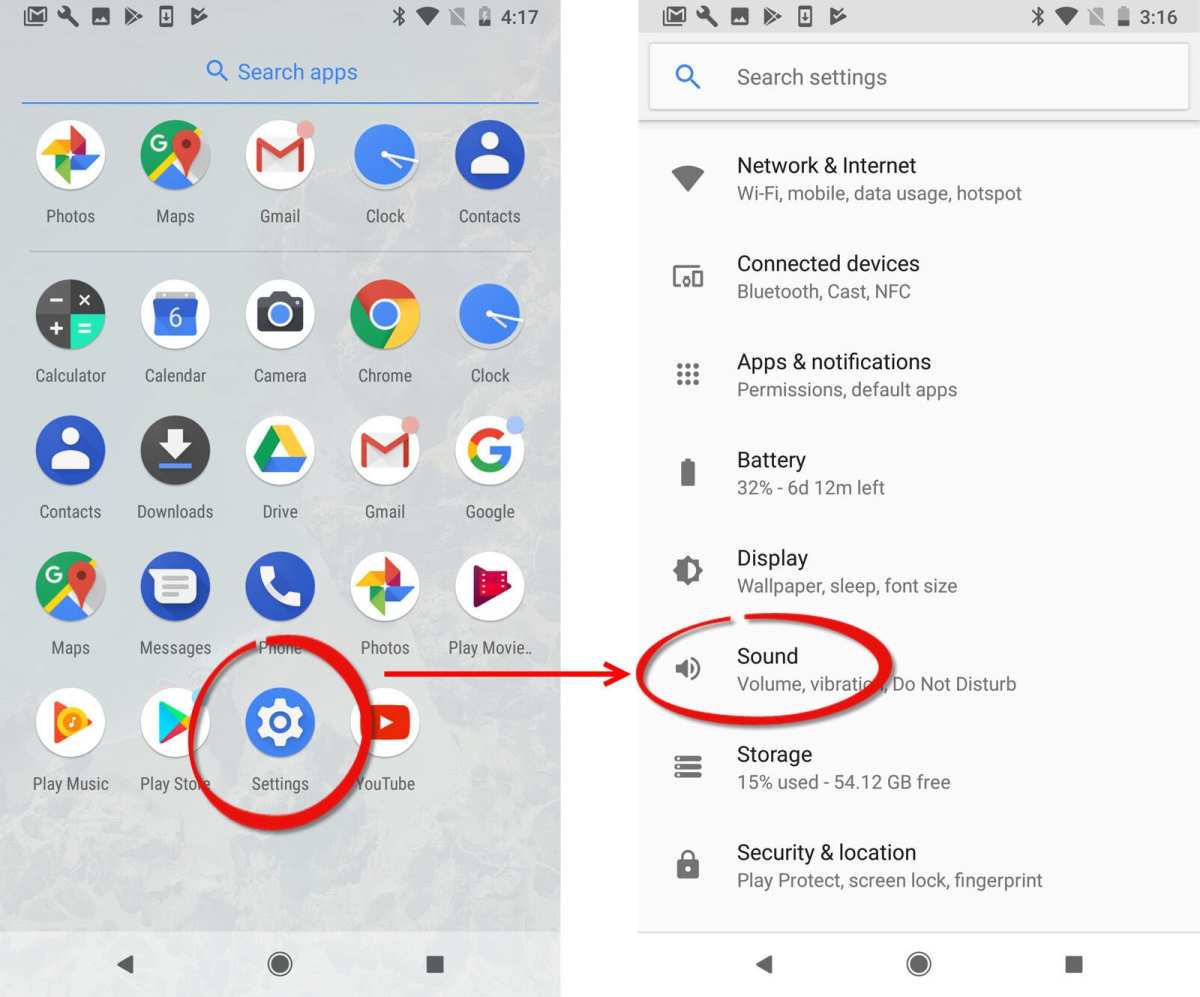
- Open the “Settings” app on your Android device.
- Navigate to “Sound” or “Sound & Vibration.”
- Tap “Ringtone” or “Phone Ringtone.”
- A list of available ringtones will appear. Tap “Add” or “My Ringtone” depending on your device.
- Locate your custom ringtone file. If it doesn’t appear, refresh or restart your device.
- Select the ringtone and confirm.
Assigning Ringtones to Specific Contacts
You can also set different ringtones for individual contacts:
- Open the Contacts app or Phone app.
- Select the contact you want to customize.
- Tap the “Edit” option.
- Look for “Ringtone” or “Default Ringtone.” This may be under “More options.”
- Choose your custom ringtone from the list.
- Save the changes.
Tips for Creating the Perfect Custom Ringtone
Making the perfect ringtone involves more than just cutting a snippet of music. Here are some helpful tips:
- Keep it simple: A clear, catchy sound works better for calls.
- Avoid long intros: People prefer hearing the actual sound quickly after the call comes in.
- Test your ringtone: Play it a few times to see if it’s loud and distinct enough.
- Use high-quality files: Better audio quality results in a better ringtone sound.
Common Issues and Troubleshooting
Sometimes, setting or creating a ringtone can lead to issues. Here are common problems and how to fix them:
- Ringtone not appearing in the list: Restart your device or rescan for new ringtones.
- File format error: Convert your audio to MP3 or WAV using online converters or apps.
- Audio too long: Make sure your clip is within 20-30 seconds.
- Unable to set ringtone: Check app permissions; ensure your file is stored in the correct folder.
Making your own ringtone on Android is a simple process that adds a personal touch to your device. Once you get the hang of selecting, editing, and setting your favorite sound, you can change your ringtone as often as you like. Enjoy customizing your phone and making it truly yours!
Frequently Asked Questions
How can I cut a specific part of a song to set as my ringtone on Android?
To cut a specific part of a song, you can use a mobile ringtone maker app or a dedicated audio editing tool. Upload or select the song within the app, then use the trimming feature to select the start and end points of the desired section. Save the edited clip, and then set it as your ringtone through your device’s sound settings.
What steps do I follow to add new ringtones to my Android device?
First, transfer your custom ringtone file to your Android device via USB, email, or cloud storage. Locate the file in your device’s storage using a file manager app. Move the file to the ‘Ringtones’ folder, then go to your device’s sound settings. From there, select ‘Ringtone’ and choose your new file from the list of available options.
How can I ensure the ringtone file is compatible with my Android device?
Make sure your ringtone file is in a widely supported format, such as MP3 or OGG. Check the sample rate and bit rate to ensure they are within acceptable ranges for Android. Use an audio converter if needed to change the file format or optimize the audio quality before setting it as a ringtone.
Is it possible to set different ringtones for specific contacts on Android?
Yes, most Android devices allow you to assign unique ringtones to individual contacts. Open your contacts app, select the contact you want to customize, then tap the edit option. Look for the ringtone setting and choose the desired audio file from your saved ringtones. Save the changes, and the contact will have its custom ringtone.
Can I create a ringtone from a YouTube video on Android?
Yes, but you’ll need to extract the audio first. Use a YouTube-to-MP3 converter app or website to download the audio track of the video. Once you have the audio file, trim or edit it into the desired ringtone length using an editing app. Then, transfer the final file to your device and set it as your ringtone through the sound settings.
Final Thoughts
To make your own ringtone on Android, start by selecting a sound or recording your own. Use a free audio editing app to trim the file to your desired length. Save the edited clip in your device’s storage.
Next, go to your phone’s Settings and find the Sound & Vibration menu. Tap on Ringtone and browse for your custom file. Select it to set as your new ringtone.
In conclusion, making your own ringtone Android is simple and personalized. You just need to choose, edit, and set your favorite sound. This process ensures your ringtone is unique and tailored to your style.
