

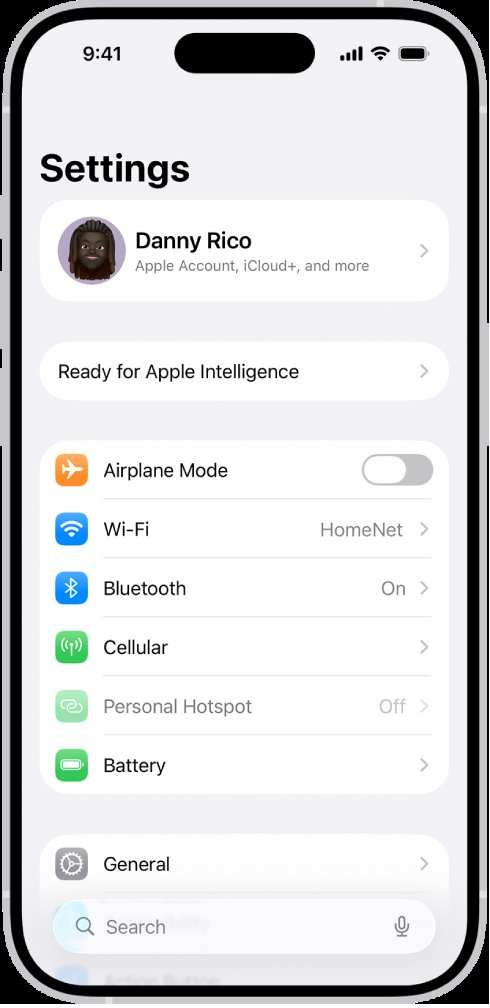
If you’re wondering how to customize your iPhone quickly, the answer lies in adjusting your iPhone setting. **Setting up your iPhone properly can make your daily tasks much easier.** Whether you want better privacy controls or personalized notifications, knowing where to find these options helps you get the most out of your device.
Navigating through settings might seem complex at first, but a few simple steps can simplify the process. This guide offers straightforward tips to enhance your iPhone experience with minimal effort.

Comprehensive Guide to iPhone Settings: How to Customize Your Device for the Best Experience
Your iPhone is more than just a phone; it’s a powerful device that can be tailored to fit your needs perfectly. From changing your display preferences to managing privacy settings, understanding how to navigate and modify iPhone settings can make your daily routines smoother. In this detailed guide, we’ll explore every corner of your device’s settings menu, giving you the knowledge to optimize your iPhone for work, play, and everything in between.
Getting Started with Basic iPhone Settings
Before diving into the more advanced features, it’s essential to understand the foundational settings that impact everyday use. These include adjusting your Wi-Fi and Bluetooth connections, managing notifications, and customizing your display.
Setting Up Wi-Fi and Cellular Data
Connecting to reliable internet is the first step to using your iPhone effectively. To set up Wi-Fi:
- Open the Settings app on your iPhone.
- Tap on Wi-Fi.
- Toggle the Wi-Fi switch to On.
- Select your preferred network from the list of available networks.
- Enter the password if prompted, then tap Join.
For cellular data:
- Go to Settings > Cellular.
- Ensure that the switch is turned on.
- Check your data plan and monitor your usage to avoid extra charges.
Managing Notifications
Notifications alert you to messages, updates, and app activities. To customize them:
- Open Settings and tap on Notifications.
- Select an app to view notification options.
- Choose how you want notifications to appear—lock screen, notification center, banners, or all.
- Decide whether notifications should make sounds or show badges.
Adjusting Display Settings
Your display affects how you see content and interact with your device. Key options include:
- Brightness: Modify in Settings > Display & Brightness. You can enable auto-brightness to let your iPhone adapt to ambient light.
- Text Size and Display Zoom: Adjust font size in Settings > Display & Text Size. Enable Display Zoom for bigger icons and text.
- Night Mode: In Display & Brightness, turn on Night Shift to reduce blue light, which helps reduce eye strain at night.
Personalizing Your iPhone with Accessibility Settings
Accessibility features help make your iPhone easier to use, especially if you have specific needs or preferences. These settings can improve visibility, hearing, and motor control.
Visual Accessibility Options
Improve your display experience:
- VoiceOver: Reads screen content aloud. Enable in Settings > Accessibility > VoiceOver.
- Magnifier: Acts as a digital magnifying glass. Turn it on in Settings > Accessibility > Magnifier.
- Display & Text Size: Adjust contrast, color filters, or reduce transparency to enhance readability.
Hearing and Voice Control
- Sound Recognition: Alerts you to specific sounds like doorbells or sirens. Find it under Settings > Accessibility > Sound Recognition.
- Voice Control: Use your voice to navigate your iPhone. Enable in Settings > Accessibility > Voice Control.
Motor and Physical Accessibility
- AssistiveTouch: Provides an on-screen menu for common gestures or hardware button functions.
- Switch Control: Allows control via external switches or adaptive devices.
- Touch Accommodations: Adjust touch sensitivity if you experience difficulties with taps or swipes.
Managing Privacy and Security Settings
Keeping your information safe is crucial. Your iPhone offers multiple options to control data sharing, app permissions, and security measures.
Privacy Settings
Control which apps have access to your camera, microphone, location, and contacts:
- Navigate to Settings > Privacy.
- Select the category you want to modify, for example, Location Services.
- Choose apps and set permissions to Never, Ask Next Time, or While Using the App.
Security Features
Protect your device with these options:
- Passcode and Face ID: Set or change your passcode in Settings > Face ID & Passcode.
- Find My iPhone: Enable in Settings > Apple ID > Find My. This feature helps locate your device if lost.
- Two-Factor Authentication: Adds an extra layer of security to your Apple ID. Find it in Settings > [Your Name] > Password & Security.
Customizing Notification Settings
Notifications can get overwhelming if not managed properly. Learn how to control what alerts you receive and how they appear.
Organizing Notifications
To make notifications more manageable:
- Open Settings > Notifications.
- Tap on each app to customize its notification style.
- Select the preferred alert style: Lock Screen, Notification Center, or Banners.
- Decide whether notifications should produce sounds or appear as badges on app icons.
Setting Focus Modes
Focus modes help you stay concentrated by limiting notifications during specific times or activities. To set up:
- Go to Settings > Focus.
- Tap + Add to create a new focus profile, such as Work or Sleep.
- Select which notifications and apps are allowed during this mode.
- Set a schedule or enable manual activation for better control.
Optimizing Display & Brightness for Better Visuals
Adjusting your display settings enhances your viewing comfort and improves the overall user experience.
Using Night Shift and True Tone
Night Shift reduces blue light emitted by the screen at night, helping reduce eye fatigue. To activate:
- Navigate to Settings > Display & Brightness.
- Tap on Night Shift and schedule it or enable it manually.
True Tone automatically adjusts color and intensity based on ambient lighting, making visuals appear more natural. Enable this in the same menu.
Auto-Lock and Screen Timeout
Set an appropriate time for your screen to turn off automatically:
- Go to Settings > Display & Brightness.
- Tap Auto-Lock and choose a time that suits your usage pattern.
Exploring Advanced Settings for Power Users
If you like fine-tuning your iPhone, several advanced options can help you get the most out of your device.
Battery Optimization
Extend your battery life by adjusting the following:
- Enable Low Power Mode in Settings > Battery.
- Check Battery Usage to see which apps consume the most power and manage screen time accordingly.
Customizing Control Center
The Control Center gives quick access to essential features. To personalize it:
- Navigate to Settings > Control Center.
- Add or remove controls like Screen Recording, Dark Mode, or Accessibility Shortcuts.
- Rearrange controls for easy access.
Using Shortcuts for Automation
The Shortcuts app enables automation for repetitive tasks:
- Open the Shortcuts app from your home screen.
- Create new shortcuts to perform multiple actions with a single tap or Siri command.
- Set up automations that trigger based on time, location, or device state.
Whether managing notifications, customizing display options, or securing your data, your iPhone settings menu offers a wealth of options to customize your device. Take your time exploring each feature; the more familiar you become with these options, the more you’ll enjoy using your iPhone.
Frequently Asked Questions
How can I customize notifications on my iPhone?
You can personalize your notifications by going to Settings > Notifications. From there, select the app you want to modify. You can choose how notifications appear, whether you want banners, alerts, or none, and toggle sounds or badges. Adjusting these settings helps you manage interruptions and stay informed on your terms.
What is the process to change the display settings on my iPhone?
To change display settings, open Settings and tap on Display & Brightness. Here, you can adjust the brightness level, toggle Dark Mode, and set your preferred font size. These options help improve visibility and make your device more comfortable to use daily.
How do I set up privacy controls on my iPhone?
Navigate to Settings > Privacy to manage your privacy settings. You can control app permissions for location, contacts, photos, and more. Review and update these permissions regularly to protect your data while allowing apps to function correctly.
Can I customize the control center on my iPhone?
Yes, you can customize the Control Center by heading to Settings > Control Center. Tap Customize Controls to add or remove shortcuts like screen recording, flashlight, or volume controls. This customization helps you access frequently used features quickly.
How do I manage app permissions for background activity?
To control background activity, open Settings > General > Background App Refresh. Turn it off for apps that don’t need to update content in the background, which can save battery life and improve performance. You can also enable or disable this feature for individual apps based on your usage.
Final Thoughts
In summary, understanding the iPhone setting options helps you personalize your device for better efficiency. Adjusting privacy, notifications, and display settings allows for a smoother experience. Spend some time exploring these options to optimize your iPhone. The iPhone setting is essential for tailoring your phone to meet your daily needs. Taking control of these settings ensures your device functions exactly as you want.
