

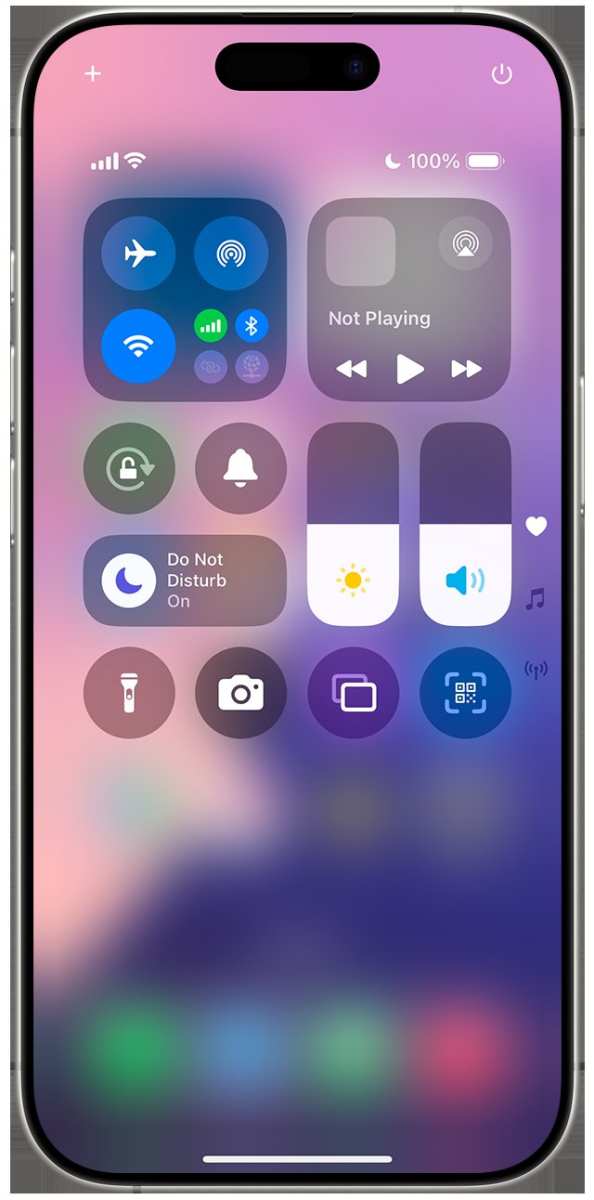
If your iPhone keeps buzzing at the wrong moments, the solution is simple: turn on Do Not Disturb. The ‘iPhone setting do not disturb’ feature helps you stay focused or relax without interruptions. Activating it is quick and easy, ensuring notifications only come through when you’re ready. Whether for a meeting or bedtime, adjusting this setting offers peace of mind. Keep reading to see how you can customize Do Not Disturb and take control of your iPhone experience.

Understanding the iPhone Setting Do Not Disturb
If you own an iPhone, you’ve probably come across the “Do Not Disturb” feature at some point. It’s a handy setting that helps you take a break from notifications, calls, and alerts so you can focus or rest without interruptions. This article explores all you need to know about the iPhone setting Do Not Disturb, including how to turn it on, customize its options, and make the most of its features to suit your daily routine.
What Is the iPhone Setting Do Not Disturb?
The Do Not Disturb feature on your iPhone is designed to silence notifications, calls, and alerts during specific times or under certain conditions. When enabled, your phone stops ringing, vibrating, or lighting up for incoming notifications, helping you concentrate during work, sleep peacefully at night, or enjoy personal time without interruptions. This setting is especially useful in maintaining a balance between staying connected and taking time out for yourself.
Some common reasons to use Do Not Disturb include:
- Sleeping or resting periods to avoid disturbances
- Focus time during work or study sessions
- Important meetings where interruptions are unwelcome
- Holding quiet time during personal or family activities
How to Turn On and Off Do Not Disturb on Your iPhone
Getting started with Do Not Disturb on your iPhone is simple. You can activate it quickly through the Control Center or via Settings for more customized options.
Using Control Center
To quickly turn on Do Not Disturb:
- Swipe down from the upper-right corner of your iPhone (or swipe up from the bottom on older models) to access the Control Center.
- Look for the moon icon, which represents Do Not Disturb.
- Tap the moon icon to toggle Do Not Disturb on or off.
Once activated, the icon turns a darker or filled version, indicating that the feature is active.
Using Settings Menu
For more control over how Do Not Disturb works:
- Open the Settings app on your iPhone.
- Scroll down and tap on “Do Not Disturb.”
- Switch the toggle to turn it on or off.
- Explore additional options such as scheduled activation, allowed calls, and more.
Customizing Do Not Disturb Settings
Your iPhone allows extensive customization of Do Not Disturb to fit your lifestyle. Here are some important options you should know about:
Scheduled Activation
You can set Do Not Disturb to turn on automatically during certain hours, such as overnight or during specific work hours.
- In Settings > Do Not Disturb, toggle on “Scheduled.”
- Set your preferred start and end times.
- This ensures Do Not Disturb activates and deactivates without your manual intervention.
Allow Calls From Certain People
Sometimes, you want to remain reachable to important contacts even when Do Not Disturb is on.
- In the Do Not Disturb settings, tap on “Allow Calls From.”
- Select options such as “Everyone,” “Favorites,” or specific groups.
- This way, only calls from selected people will ring through while others stay silent.
Repeated Calls
If someone calls twice within three minutes, your iPhone can ring through even in Do Not Disturb mode.
- In Settings > Do Not Disturb, toggle on “Repeated Calls.”
- This feature is helpful for emergencies or urgent situations.
Silence Settings
Choose whether your iPhone should be silent always or only when the device is locked.
- In Settings > Do Not Disturb, select either “Always” or “While iPhone is Locked.”
- Make sure to pick an option that aligns with your preferences for notifications while using your device or sleeping.
Using Focus Modes as a Modern Alternative
Starting with iOS 15, Apple introduced Focus modes, which include Do Not Disturb as one of the options. Focus modes add a layer of customization beyond simple silencing.
What Are Focus Modes?
Focus modes allow you to create personalized profiles for different activities such as work, personal time, fitness, or sleep. Each mode can have customized settings like notifications, app permissions, and screen appearance.
Setting Up a Focus Mode
To set up:
- Open Settings and tap on “Focus.”
- Choose from existing modes like Do Not Disturb, or tap “+” to create a new one.
- Name your Focus mode and customize which notifications and apps are allowed.
- Set a schedule or automation to activate automatically.
Managing Focus Modes
Focus modes give you quick access via Control Center, and you can switch between modes or customize them to fit your needs.
Benefits of Using Do Not Disturb Effectively
Maximizing the benefits of Do Not Disturb depends on how carefully you tailor its settings. Here are some key advantages:
- Reducing distractions during work or study sessions
- Ensuring peaceful sleep without unwanted alerts
- Maintaining privacy during important meetings or personal time
- Controlling when and how you stay connected or disconnected
To truly enjoy these benefits for longer, consider creating different profiles for various activities and adjusting settings accordingly.
Common Troubleshooting Tips for Do Not Disturb
Sometimes, Do Not Disturb may not work as expected. Here are some tips:
- Check that your scheduled times are correctly set and not conflicting with other settings.
- Ensure that your device isn’t connected to a Focus mode that overrides Do Not Disturb.
- Verify that the “Repeat Calls” feature is configured if you want emergency calls to ring through.
- Restart your iPhone if you notice glitches or if the feature isn’t activating automatically.
Integrating Do Not Disturb with Other iPhone Features
The Do Not Disturb setting works well with other features to give you a fully customized experience.
Notification Settings
Adjust app-specific notification settings to limit alerts even when Do Not Disturb is off or during specific periods.
Alarm and Timer Usage
Set alarms and timers that can override Do Not Disturb, ensuring you wake up or stay on schedule regardless of settings.
Smart Home Integration
Use Siri commands to activate or deactivate Do Not Disturb, making it easier to manage without unlocking your device.
Final Thoughts on Managing Do Not Disturb Effectively
Using the Do Not Disturb feature wisely helps you control your digital environment. It allows you to create periods of uninterrupted focus, restful sleep, or private time without missing out on critical notifications. Experiment with different settings and combinations, such as scheduled times and allowed contacts, to tailor the feature perfectly to your daily routine.
With the addition of Focus modes, managing your time and attention becomes even more flexible. These tools enable you to balance connectivity with personal well-being, making your iPhone a helpful companion rather than a source of constant distraction. Remember to review your settings periodically to ensure they still match how you want to use your device, and enjoy a healthier approach to digital interruptions.
Frequently Asked Questions
How can I customize the Do Not Disturb schedule on my iPhone?
To set a specific schedule for Do Not Disturb, go to Settings > Focus > Do Not Disturb. Tap on the “Add Schedule or Automation” option and choose the time and days you want the feature to activate automatically. This helps you avoid interruptions during your work hours or sleep without manually turning it on and off each time.
What should I do if my iPhone still rings despite enabling Do Not Disturb?
If your iPhone continues to ring, check if you have allowed calls from certain contacts or repeated calls settings. Go to Settings > Focus > Do Not Disturb > Allowed Notifications, and ensure no contacts or call exceptions are enabled. Also, verify if the feature is turned on at the right times and that your device isn’t in a different focus mode.
Can I allow specific contacts to bypass Do Not Disturb on my iPhone?
Yes, you can permit certain contacts to reach you even when Do Not Disturb is active. Open Settings > Focus > Do Not Disturb > Allowed Notifications. Tap on “People” and select contacts you want to receive calls or messages from during this mode. This feature ensures you stay reachable for important contacts while minimizing disturbances.
How do I quickly turn off Do Not Disturb using the Control Center?
You can disable Do Not Disturb swiftly by opening the Control Center. On iPhone models with Face ID, swipe down from the upper-right corner. On models with a Home button, swipe up from the bottom. Tap the moon icon to toggle Do Not Disturb off, stopping all silent modes immediately.
Is there a way to schedule Do Not Disturb for specific locations?
Yes, you can set location-based triggers for Do Not Disturb. Navigate to Settings > Focus > Do Not Disturb, then tap on “Add Location.” Choose a location such as your home or office, and set it to activate Do Not Disturb automatically when you arrive there. This feature helps you manage notifications seamlessly based on where you are.
Final Thoughts
In summary, the ‘iphone setting do not disturb’ feature provides an easy way to manage your notifications and maintain focus. Adjusting these settings helps reduce interruptions during meetings or rest hours. Quickly accessing Do Not Disturb ensures you stay in control of your device. Using this feature smartly enhances your daily productivity and peace of mind.
