Is Ultrawide Monitor Good for Programming
This guide explores whether ultrawide monitors are a good fit for programming. We’ll dive into the benefits like enhanced multitasking and immersive coding environments, alongside potential downsides such as cost and software compatibility. Ultimately, you’ll understand if an ultrawide monitor can significantly boost your programming workflow. 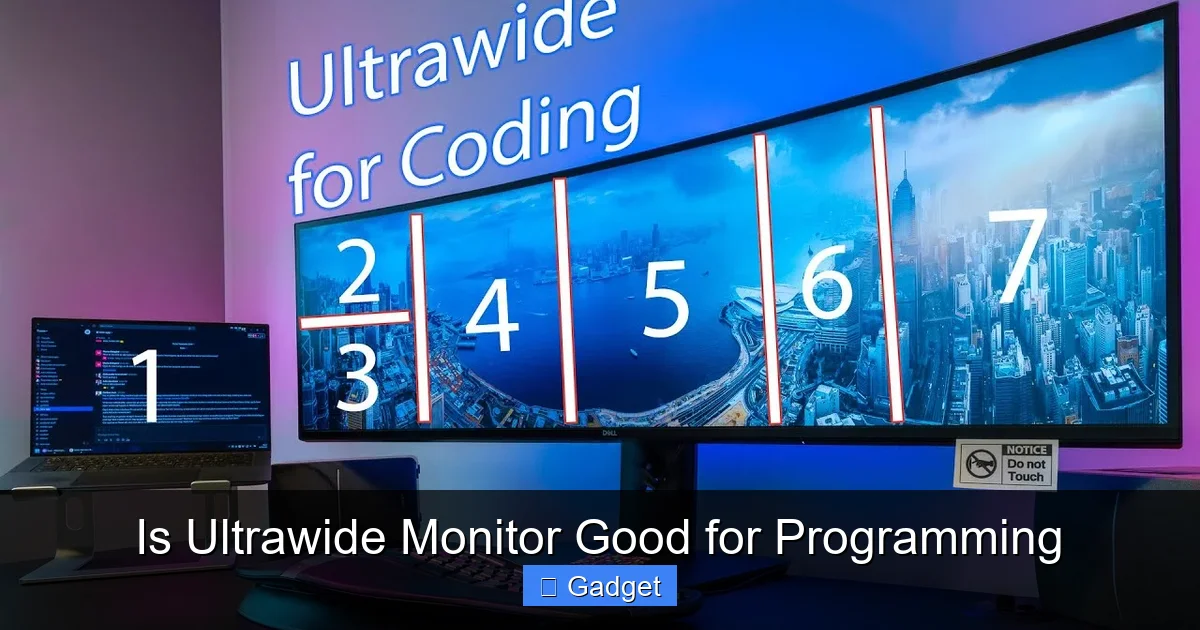 The primary appeal of an ultrawide monitor for programming is the sheer amount of screen real estate it provides. This can lead to significant improvements in productivity and workflow.
 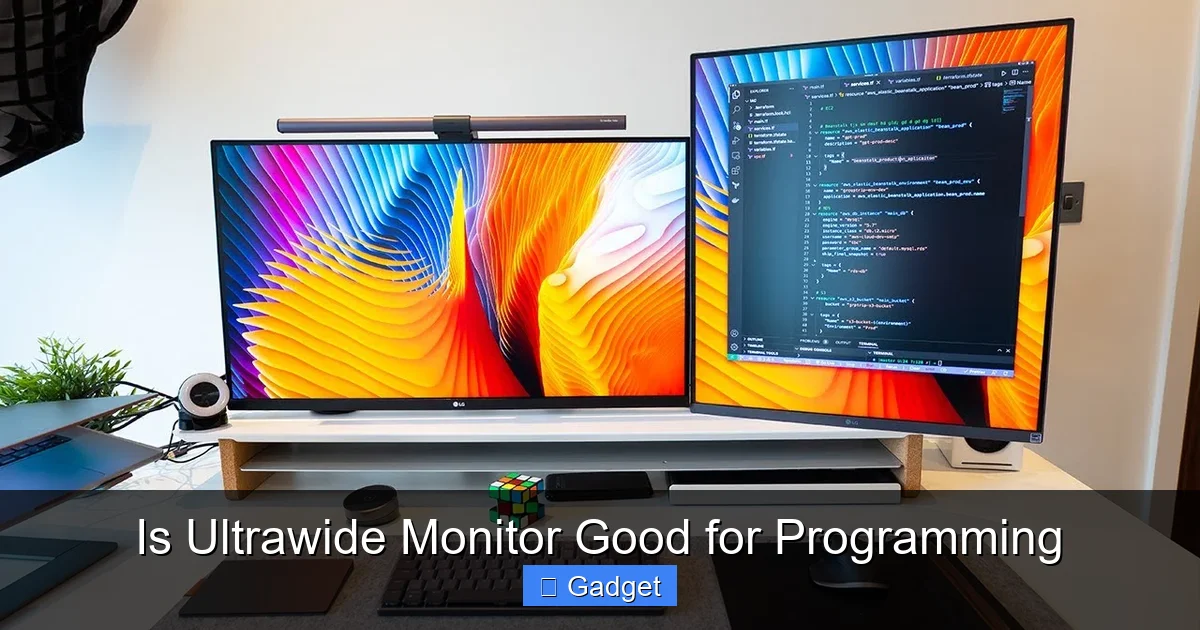 Despite the compelling advantages, ultrawide monitors are not without their drawbacks, and it’s crucial to consider these before making a purchase.
  If you decide an ultrawide monitor is right for you, here are some tips to maximize its benefits.
Key Takeaways
- Enhanced Multitasking: Ultrawide monitors offer ample screen real estate, allowing you to display multiple windows side-by-side without constant switching, ideal for code editors, documentation, and terminals.
- Immersive Coding Experience: The panoramic view can create a more focused and immersive coding environment, reducing eye strain and keeping your workflow centralized.
- Potential for Neck Strain: The wide aspect ratio can lead to neck strain if not positioned correctly, requiring careful desk setup and monitor placement.
- Software Compatibility: While most modern applications support ultrawide resolutions, some older or niche software might not scale properly, leading to stretched or cropped interfaces.
- Cost Consideration: Ultrawide monitors generally come with a higher price tag compared to standard 16:9 displays of similar quality.
- GPU Requirements: Driving a higher resolution ultrawide monitor demands a capable graphics processing unit (GPU) to ensure smooth performance, especially for graphically intensive tasks.
Is Ultrawide Monitor Good for Programming?
As a programmer, your desk setup is more than just a place to work; it’s your command center. Every tool, every monitor, every peripheral plays a role in your efficiency and comfort. In recent years, ultrawide monitors have surged in popularity, not just for gaming and media consumption, but also for productivity-focused tasks. But are they truly a good investment for programming? This guide will help you understand if an ultrawide monitor is the right choice for your coding endeavors. We’ll explore the advantages and disadvantages, discuss how to make the most of one, and help you decide if this panoramic display will revolutionize your programming workflow.Understanding Ultrawide Monitors
Before we dive into the specifics of programming, let’s clarify what an ultrawide monitor is. Simply put, it’s a monitor with a wider aspect ratio than the standard 16:9. The most common ultrawide aspect ratios are 21:9 and 32:9. This means they are significantly wider than a typical Full HD (1920×1080) or even a 4K (3840×2160) monitor. Common resolutions for ultrawide monitors include 2560×1080 (UW-FHD), 3440×1440 (UW-QHD), and 5120×1440 (49-inch dual QHD). This extra width translates to more horizontal screen space, which is where the potential benefits for programming lie.The Advantages of Ultrawide Monitors for Programming
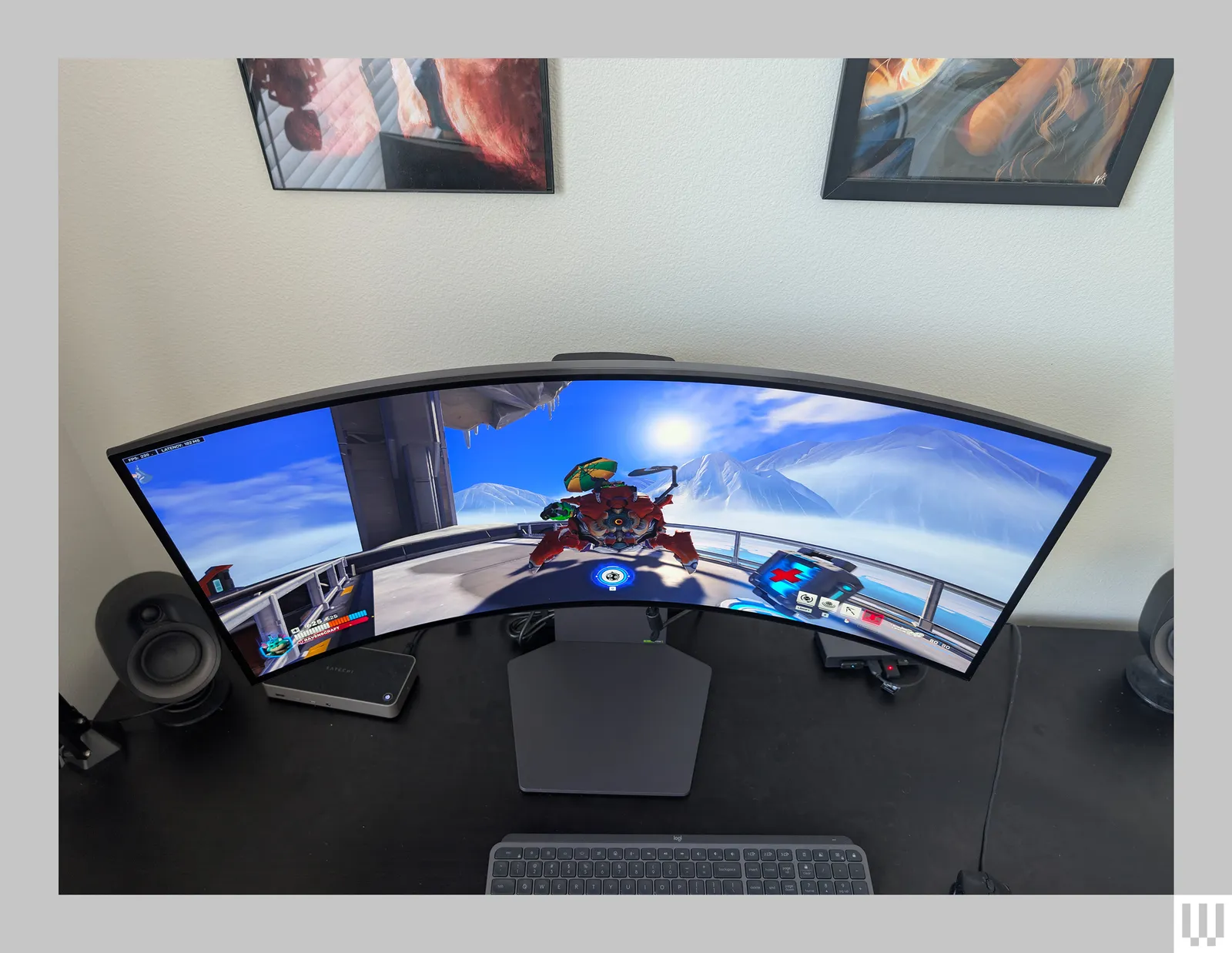
Visual guide about Is Ultrawide Monitor Good for Programming
Enhanced Multitasking and Window Management
This is arguably the biggest win for programmers. With a standard monitor, you’re often faced with a constant cycle of minimizing, maximizing, and switching between windows. An ultrawide display drastically reduces this friction.Side-by-Side Workflows
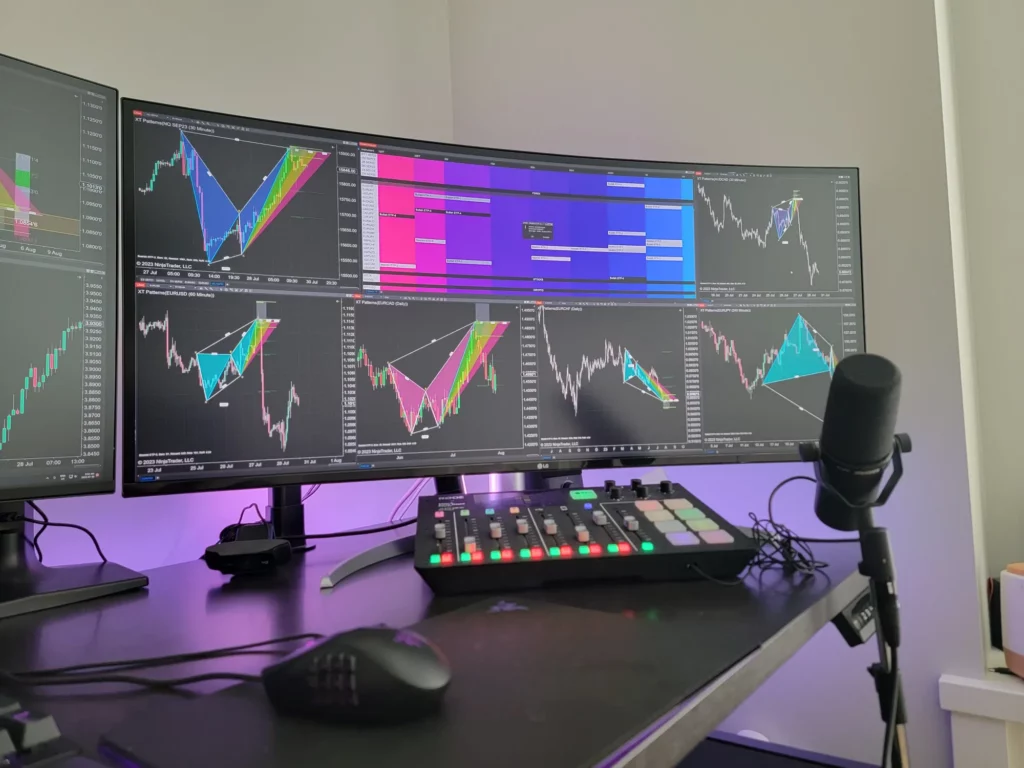
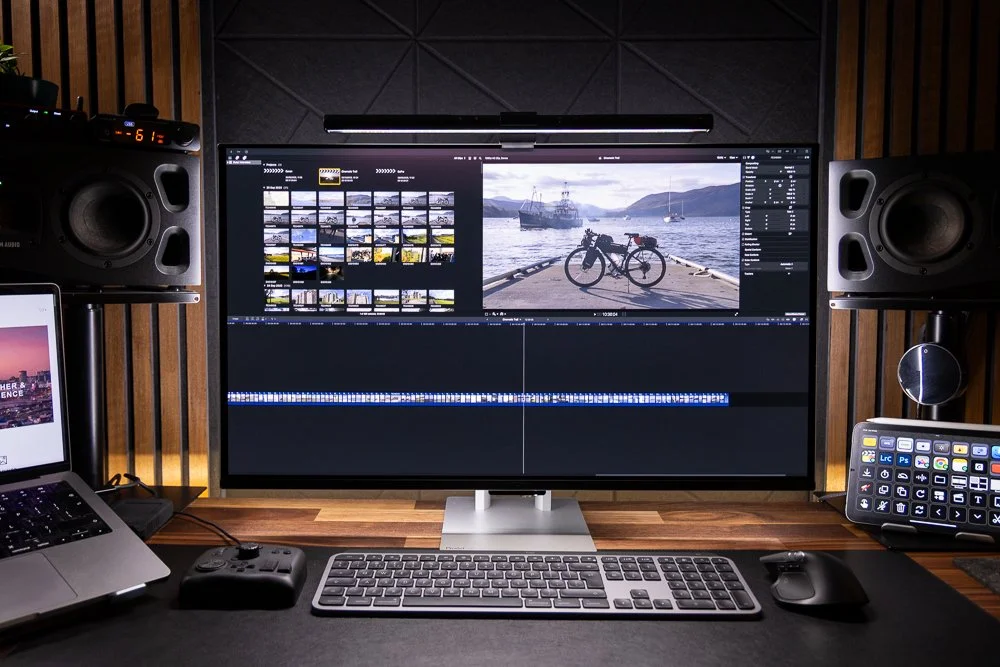
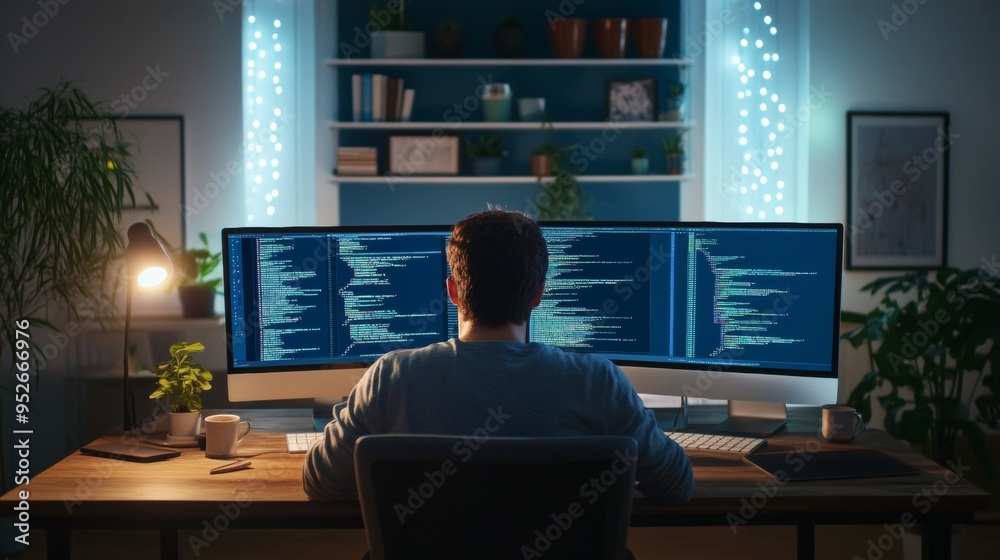
Imagine this: your code editor on one side, a web browser with documentation on the other, and your terminal window tucked neatly in between. On a standard 16:9 monitor, this often means one window is significantly shrunk or obscured. On an ultrawide, you can comfortably fit three or even four standard-sized windows side-by-side without overlap, making it much easier to reference APIs, consult documentation, or monitor your application’s output while you code. This seamless view of multiple crucial elements reduces context switching, a notorious productivity killer.Simplified Development Environments
Many IDEs (Integrated Development Environments) are designed with multiple panels and toolbars. An ultrawide monitor allows you to expand these panels, such as the file explorer, debugger, and output console, without them encroaching on your primary code editing area. This makes it easier to visualize your project structure and debug your code effectively. For more insights on optimizing your coding setup, check out our related post: Are Ultrawide Monitors Good for Coding?.Improved Focus and Reduced Eye Strain
While it might seem counterintuitive, the panoramic view can actually lead to a more focused and less fatiguing experience.Centralized Workspace
Instead of having multiple monitors spread out, forcing your eyes and head to dart around, an ultrawide monitor keeps your entire workspace within a single, comfortable viewing cone. This means less physical movement and potentially less mental fatigue from constant refocusing.Immersive Coding Experience
The wide aspect ratio can create a more immersive environment. When you’re deep in code, having a large, uninterrupted canvas can help you stay in the zone. It feels less like you’re working on a small screen and more like you’re engaged with your project. Some programmers find that the visual continuity of a single, wide screen enhances their flow state.Cost-Effectiveness (Compared to Multi-Monitor Setups)
While an ultrawide monitor can be more expensive than a single standard monitor, it can be a more cost-effective and simpler solution than setting up a dual or triple monitor system.Simplicity of Setup
Managing one ultrawide monitor is far simpler than dealing with multiple cables, stands, and monitor arms for a multi-monitor setup. You only need one display cable, one power cable, and one spot on your desk.Reduced Clutter
A single, large display often results in a cleaner, less cluttered desk setup, which can contribute to a more organized and productive workspace.The Disadvantages of Ultrawide Monitors for Programming
Visual guide about Is Ultrawide Monitor Good for Programming
Potential for Neck Strain and Ergonomic Challenges
The very width that makes ultrawide monitors appealing can also be a source of ergonomic issues if not managed properly.Peripheral Vision Strain
Because the screen is so wide, you might find yourself constantly turning your head to view content at the edges. Over time, this can lead to neck strain, discomfort, and even headaches. This is especially true if the monitor is placed too far away.Correct Positioning is Crucial
To mitigate this, proper desk setup is paramount. The monitor needs to be positioned at the correct distance and angle. Often, this means placing the center of the monitor directly in front of you and angling the sides slightly inward to form a gentle curve. Monitor arms can be particularly helpful in achieving the optimal ergonomic setup. Learn more about space requirements in our guide: How Much Desk Space Does an Ultrawide Monitor Need.Software Compatibility and Scaling Issues
While most modern software is well-behaved, you might encounter situations where applications don’t perfectly adapt to the ultrawide aspect ratio.Stretched or Cropped Interfaces
Some older applications, or even certain games and specialized software, might not natively support ultrawide resolutions. This can result in interfaces that appear stretched, with elements distorted, or in worse cases, content that is cropped off the sides. You might have to resort to running these applications in windowed mode at a lower resolution, defeating some of the purpose of the ultrawide.Operating System and Window Management Tools
While operating systems like Windows and macOS have improved their window management, effectively tiling windows on an ultrawide often benefits from third-party tools like FancyZones (part of Microsoft PowerToys) or Magnet. Without these, you might find yourself manually resizing windows more often than you’d like.Cost and GPU Demands
Ultrawide monitors represent a significant investment, and they also place higher demands on your computer’s hardware.Higher Price Point
Compared to standard 16:9 monitors of similar size and resolution, ultrawide displays generally carry a premium price tag. A good 34-inch UW-QHD monitor can cost as much as a high-end 27-inch 4K monitor, and even more if you opt for larger or higher-resolution models. For budget-conscious buyers, explore our recommendations: What Is the Best Budget Ultrawide Monitor.Graphics Card Requirements
Driving the higher pixel count of an ultrawide monitor, especially resolutions like 3440×1440 or 5120×1440, requires a more powerful graphics card (GPU). If your current GPU is on the older side or designed for basic tasks, you might experience lag, stuttering, or slower rendering, particularly if you engage in any graphics-intensive work or even high refresh rate gaming on the side.Reduced Vertical Space (for some resolutions)
It’s important to note that while ultrawide monitors offer more horizontal space, some resolutions, like 2560×1080, offer less vertical space than a standard 1920×1080 monitor. This means less room for code lines or web page content in the vertical dimension, which can be a drawback for some users. However, higher-resolution ultrawides like 3440×1440 offer more vertical pixels than 1080p monitors, making this less of an issue.Making the Most of Your Ultrawide Monitor for Programming
Visual guide about Is Ultrawide Monitor Good for Programming
Optimize Your Workspace
Ergonomics are key.Monitor Placement
Position the monitor so that the center of the screen is directly in front of you. Adjust the distance so that you can comfortably see the entire screen without excessive head turning. The ideal distance is typically an arm’s length away.Monitor Arm
A good monitor arm is almost essential for ultrawide monitors. It allows you to adjust the height, tilt, and swivel precisely, ensuring optimal viewing angles and reducing neck strain. It also frees up desk space.Curved vs. Flat Ultrawide
Many ultrawide monitors come with a subtle curve (e.g., 1000R or 1800R). A curved display can help reduce perceived distortion and eye strain by keeping the edges of the screen closer to your eyes, creating a more immersive and comfortable viewing experience. For programming, a gentle curve is often preferred.Leverage Window Management Tools
Don’t rely solely on your operating system’s default capabilities.PowerToys FancyZones (Windows)
This free utility from Microsoft allows you to create custom window layouts and snap windows into predefined zones. It’s incredibly powerful for organizing your ultrawide screen into logical sections for coding, terminals, and documentation.Magnet or Spectacle (macOS)
Similar to FancyZones, these applications enable sophisticated window snapping and resizing for macOS, making it easy to arrange multiple applications on your ultrawide display.Built-in OS Features
Even without third-party tools, you can utilize features like Snap Assist in Windows or Split View in macOS to divide your screen into segments.Configure Your IDE and Applications
Tailor your software to your new screen.Expand Panes
In your IDE, take advantage of the extra width to expand sidebars, debug consoles, and output windows. You can often keep your code editor as the primary focus while still having all necessary tools visible.Browser Tabs and Layouts
For web development, you can often have multiple browser windows open, showing different breakpoints or views of your website simultaneously.Consider the Resolution and Size
Not all ultrawides are created equal.UW-QHD (3440×1440) is a Sweet Spot
For most programmers, a 34-inch ultrawide with a 3440×1440 resolution offers a great balance of screen real estate, clarity, and performance demands. It provides ample horizontal space and more vertical pixels than a standard 1080p monitor.Larger and Wider (e.g., 49-inch Dual QHD)
For those who need maximum screen space, a 49-inch 5120×1440 monitor can act like two 27-inch QHD monitors side-by-side without a bezel in the middle. This is excellent for extreme multitasking but requires more desk space and a more powerful GPU.Troubleshooting Common Ultrawide Issues
Even with the best intentions, you might encounter a few bumps in the road.Applications Appear Stretched
Problem: An application’s interface looks distorted, with elements stretched horizontally. Solution: Check the application’s display settings. If it doesn’t support ultrawide resolutions, try running it in windowed mode and manually resizing it to your preferred aspect ratio. Alternatively, look for specific compatibility patches or consider a different application if it’s critical for your workflow.Performance Issues (Lag, Stuttering)
Problem: Your system feels sluggish, especially when multiple windows are open or during graphically intensive tasks. Solution: Ensure your graphics drivers are up to date. If the problem persists, your GPU may be the bottleneck. Consider upgrading your graphics card or reducing the refresh rate or resolution of your monitor if possible. Close unnecessary background applications.Window Management is Clunky
Problem: Manually resizing and positioning windows is tedious. Solution: Implement third-party window management tools like FancyZones (Windows) or Magnet (macOS). These tools are designed to make organizing your ultrawide screen effortless and efficient.Conclusion
So, is an ultrawide monitor good for programming? For many developers, the answer is a resounding yes. The significant increase in horizontal screen real estate offers unparalleled multitasking capabilities, allowing for more efficient workflows and a more immersive coding environment. The ability to keep your code editor, documentation, and terminal in view simultaneously without constant switching can drastically improve productivity. However, it’s not a universally perfect solution. Potential ergonomic challenges due to the width require careful desk setup and monitor positioning. Software compatibility issues can arise, though they are becoming less common. The higher cost and the need for a capable GPU are also important considerations. Ultimately, the decision depends on your individual programming style, your budget, and your willingness to adapt your workspace. If you crave more screen real estate for multitasking and value a centralized, immersive coding experience, an ultrawide monitor is a compelling option that can genuinely enhance your programming workflow. Invest wisely, set it up correctly, and you might find your coding experience transformed.
Similar Posts