How To Troubleshoot Macbook That Will Not Turn On
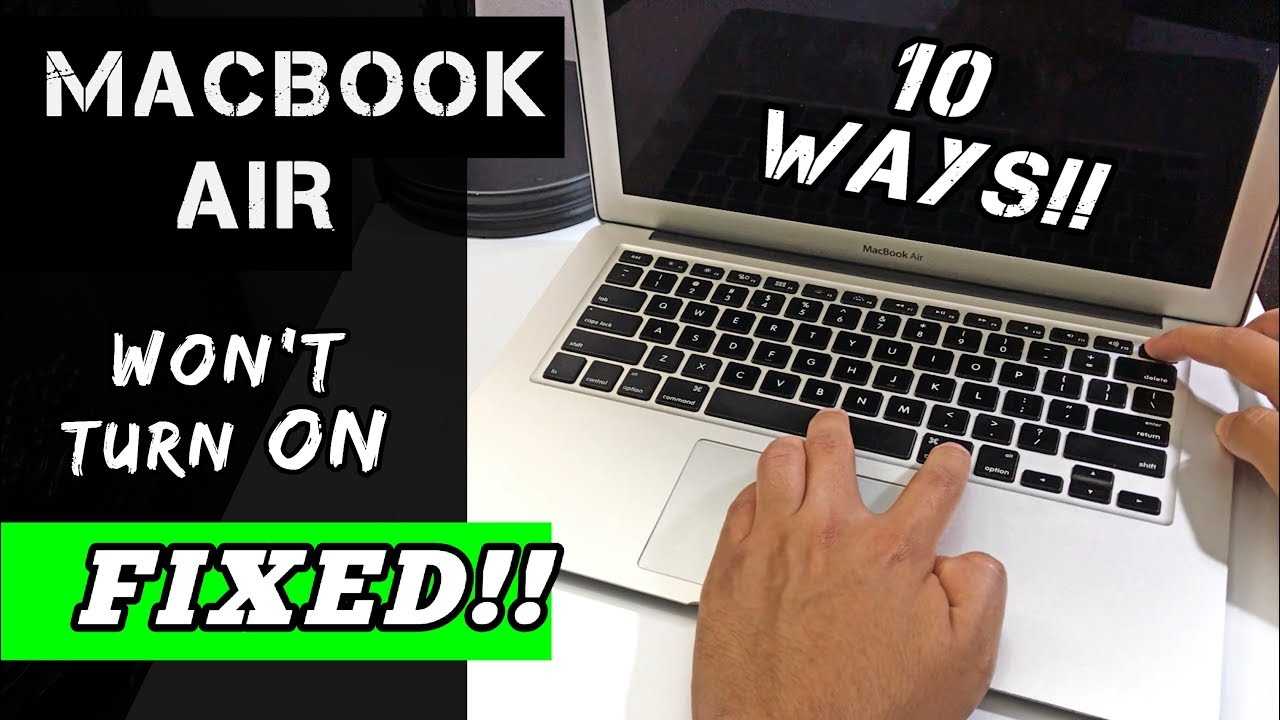

How to troubleshoot MacBook that will not turn on
Understanding the Basic Reasons Why a MacBook Won’t Turn On
When your MacBook fails to turn on, it can be due to several simple issues. These include power problems, hardware failures, or software glitches. Recognizing the possible causes helps narrow down the troubleshooting process effectively.Check the Power Source
First, ensure your MacBook is properly connected to a power source. Sometimes, the issue is as simple as a loose or faulty charger. Use the following steps:- Inspect the charging cable and adapter for any visible damage.
- Try connecting to a different power outlet to rule out outlet issues.
- Use a different charging cable and adapter if available to ensure they are functioning.
Perform a Basic Reset of Power
Resetting the power system can resolve minor glitches preventing the MacBook from starting. To do this:- Unplug the charger from your MacBook.
- If your MacBook has a removable battery, take it out (not applicable for newer models).
- Hold down the power button for at least 10 seconds.
- Reconnect the charger and attempt to turn on the device again.
Check for External Hardware Issues
External devices can interfere with startup processes. Disconnect all peripherals such as printers, external drives, or USB devices. Then, try turning on your MacBook. If it powers on, one of the peripherals might be causing the problem.Inspect the Battery Status
A drained or faulty battery can prevent your MacBook from powering on. Connect your MacBook to power and check if the charging indicator shows activity. If not, consider replacing the battery or seeking professional assistance.Handling MacBook with Non-Responsive Screen
Sometimes, your MacBook might turn on, but the screen remains black. Here’s what to try:- Adjust the brightness keys to see if the screen lights up.
- Press the Caps Lock key; if the LED indicator toggles, the system is responsive.
- Force a restart by pressing and holding the power button for 10 seconds.
Reset the System Management Controller (SMC)
The SMC controls hardware functions like power management and battery charging. Resetting it can fix power-related issues:- Shut down your MacBook.
- Connect your MagSafe or USB-C power adapter.
- Press and hold the Shift, Control, Option keys, and the power button simultaneously for 10 seconds.
- Release all keys and turn on your MacBook.
Reset the NVRAM or PRAM
NVRAM/PRAM stores certain settings that might prevent startup if corrupted. To reset:- Shut down your MacBook.
- Turn it on and immediately press and hold the Option, Command, P, and R keys.
- Hold these keys for about 20 seconds, during which your Mac may restart.
- Release the keys and see if the MacBook turns on normally.
Boot into Safe Mode
Safe Mode disables unnecessary software and performs a startup check. To enter Safe Mode:- Turn on your Mac and immediately press and hold the Shift key.
- Release the Shift key once the login window appears.
Use macOS Recovery Mode
Recovery mode allows you to repair disks or reinstall macOS:- Turn on your Mac and immediately press and hold Command and R keys.
- Keep holding until the Apple logo or spinning globe appears.
- Here, you can run Disk Utility to check disk health or reinstall macOS if necessary.
Run Disk Utility to Check Disk Health
A failing or corrupted disk can prevent startup:- Access macOS Recovery Mode as described above.
- Select Disk Utility from the menu.
- Choose your startup disk and click First Aid to scan and repair errors.
Reinstall macOS
Reinstalling macOS can fix corrupted system files preventing startup:- Boot into Recovery Mode.
- Select Reinstall macOS and follow the on-screen instructions.
- Ensure your MacBook is connected to power and has a stable internet connection.
Seek Professional Help
If none of the above steps work, hardware failure could be the cause. Common hardware issues include faulty logic boards, RAM problems, or defective storage components. Contact an Apple Store or authorized service provider for diagnosis and repair. Sometimes, replacing hardware parts is necessary to restore functionality.Additional Tips for Troubleshooting
- Keep your MacBook software up to date to avoid compatibility issues.
- Regularly back up your data to avoid loss during repairs.
- Avoid opening your MacBook unless you are trained, as it can void warranty or cause further damage.
MacBook won’t Turn on problem Fixed
Frequently Asked Questions
What steps can I take if my MacBook’s screen remains black and doesn’t respond?
First, ensure your MacBook is connected to power and check if the charger and cable are working properly. Press and hold the power button for about 10 seconds to see if the device responds. If the screen stays black, try resetting the System Management Controller (SMC) by shutting down the Mac, then holding the Shift + Control + Option keys along with the power button for a few seconds before releasing and turning it back on. Additionally, connecting your MacBook to an external display can help determine if the issue is with the screen itself or the internal hardware.
How can I determine if the startup disk is causing the issue?
Boot your MacBook into Recovery Mode by turning it on and holding Command + R immediately after hearing the startup sound. Once in Recovery Mode, select Disk Utility from the macOS Utilities window. Use Disk Utility to check the health of your startup disk and run First Aid to repair any errors. If Disk Utility reports issues it cannot fix, you might need to reinstall macOS or consider replacing the drive. Ensuring the disk is healthy is essential to solving startup problems related to storage.
What should I do if my MacBook’s battery is completely drained and it won’t turn on?
If your MacBook’s battery is fully discharged, connect it to a reliable power source using the appropriate charger. Leave it plugged in for at least 15-30 minutes before attempting to turn it on again. Sometimes, a completely drained battery requires a little time to gather enough charge for startup. If it still doesn’t turn on after charging, perform an SMC reset to clear any system glitches related to power management. This process can help your Mac recognize and respond to the power supply properly.
How can software issues prevent my MacBook from turning on properly?
If your MacBook has experienced recent software updates or installations, incompatible or corrupted files may block it from booting correctly. To address this, try booting into Safe Mode by holding the Shift key during startup. Safe Mode runs a check of your system and disables problematic software or extensions. If your Mac starts in Safe Mode, you can remove or update recent applications or updates. If it still won’t boot normally, consider reinstalling macOS without erasing your data from Recovery Mode to fix software-related startup problems.
When should I seek professional help for my MacBook that won’t turn on?
If you’ve tried all basic troubleshooting steps — such as checking power, resetting SMC and NVRAM, and running disk repairs — and your MacBook still doesn’t respond, it’s time to consult an Apple Authorized Service Provider or Apple Support. Hardware issues like motherboard failures, faulty RAM, or damaged internal components require professional diagnosis and repair. Visiting a certified technician ensures your device receives proper care and prevents further damage.
Final Thoughts
Troubleshooting a MacBook that will not turn on involves checking the power source first. Ensure the charger connects properly and the outlet works. Next, perform a force restart by holding the power button for several seconds. If these steps don’t work, reset the SMC or NVRAM to clear any hardware glitches. If the issue persists, inspect for hardware problems or visit an Apple Store for professional diagnosis. Remember, understanding these troubleshooting steps helps you quickly identify why your MacBook won’t turn on. How to troubleshoot MacBook that will not turn on is manageable with patience and the right approach.
Similar Posts































