How To Make App For Android: A Step-By-Step Guide
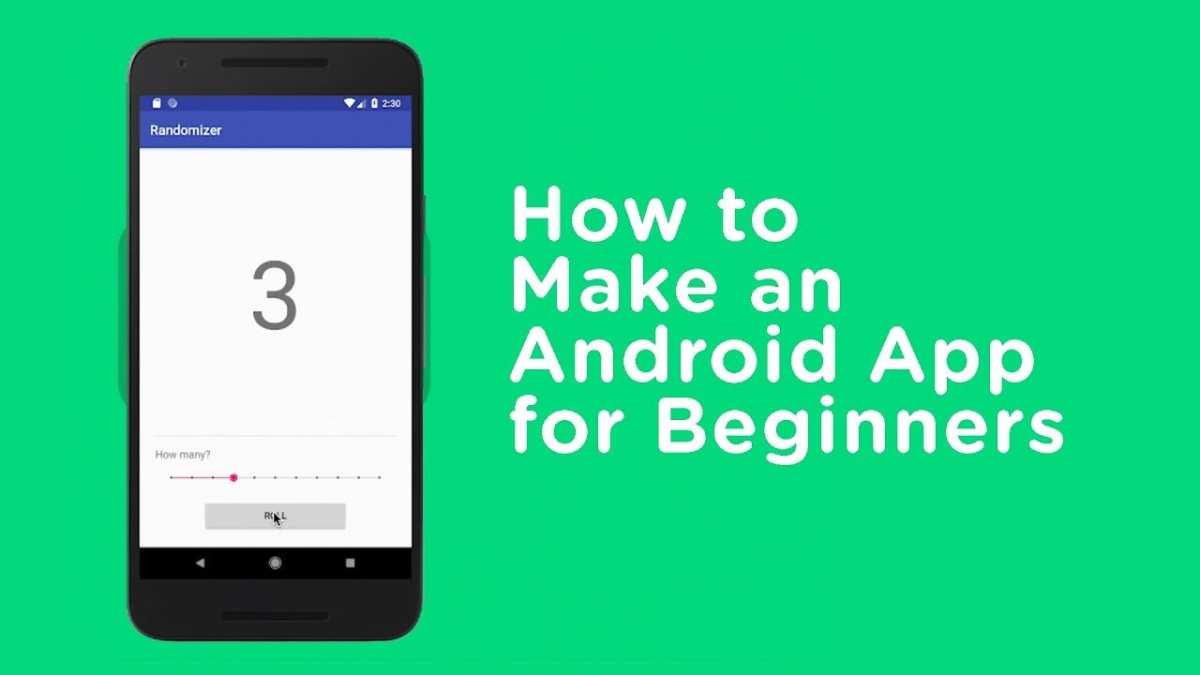
To make an app for Android, start by choosing the right development tools like Android Studio and learning Java or Kotlin. **You can create an app quickly by following step-by-step tutorials and practicing regularly.** Understanding user needs and planning your app’s features upfront makes the process smoother. Once you set up your environment, coding becomes more straightforward, and testing ensures your app runs seamlessly. Learning how to make an app for Android involves dedication, but with the right approach, you’ll have a functional app ready in no time.
How to Make an App for Android
Creating an Android app can seem like a big task, but breaking it down into clear steps makes it easier and more manageable. Whether you’re a beginner or have some experience with coding, this guide will walk you through the crucial parts of building your own Android application. From setting up your tools to launching your app on the Google Play Store, each step is designed to help you understand what’s involved and how to succeed.
Getting Started with Your Android App Development
Before diving into coding, you need to plan your app carefully. Think about what kind of app you want to create, who your target users are, and what features your app should have. Good planning saves time and helps you create a useful, user-friendly app.
- Define your app idea: What problem does your app solve, or what fun experience does it provide?
- Identify your audience: Who will use your app? Consider their age, tech skills, and interests.
- Sketch your app’s layout: Draw simple screens to visualize how users will navigate your app.
- List the features: Decide what features your app needs, like buttons, maps, or notifications.
Once you have a solid plan, you can move on to setting up your development environment. This means installing the right tools and preparing your workspace.
Tools Needed to Build an Android App
To develop an Android app, you’ll primarily use Android Studio, which is Google’s official IDE (Integrated Development Environment). It helps you write code, design screens, and test your app all in one place.
- Android Studio: Download it from the official website. It works on Windows, Mac, and Linux.
- Java or Kotlin: These are the programming languages used for Android apps. Kotlin is now the recommended language by Google for new projects.
- Android SDK: Software Development Kit that provides the tools and libraries needed to build Android apps.
- Emulators or physical device: For testing, you can use Android emulators built into Android Studio or test on an actual Android phone or tablet.
Setting up Android Studio is straightforward. Download the installer, follow the prompts, and ensure you install the SDK components. Once installed, launch Android Studio and start a new project.
Creating Your First Android App
Starting your first app may feel intimidating, but Android Studio offers templates that make it easier to get started.
Select a Project Template
When creating a new project:
- Select a simple template like “Empty Activity” for a basic app.
- Name your project and choose a package name (a unique ID for your app).
- Set the save location and the language you want to use (Kotlin or Java).
- Select the minimum Android version your app supports based on your target audience.
Once you click “Finish,” Android Studio generates a project with all the necessary files to get your app running.
Understanding the Main Components
Your app’s code mainly comes from these parts:
- Activity: This is a screen of your app. Each activity is like a page.
- Layout: XML files define how your app looks, like where buttons and images go.
- Java/Kotlin Code: Contains the instructions that make your app work.
You can open the “activity_main.xml” to change the design. To make the app interactive, write code in the “MainActivity” file.
Designing Your App’s User Interface
A good user interface (UI) makes your app easy and fun to use. Android Studio’s layout editor lets you drag and drop elements onto your screen.
Basic UI Elements
Here are common components to include:
- Buttons: Let users perform actions like submitting data or navigating.
- Text Fields: To input or display information.
- Images: Include icons, logos, or illustrations.
- Lists and Recyclers: Show multiple items, such as a list of contacts or products.
Make sure your interface is simple. Use contrast and clear labels so users understand what to do.
Design Tips for Better UI
- Use consistent colors and fonts.
- Avoid clutter—leave enough space between elements.
- Ensure buttons are large enough to tap easily.
- Test your design on different screen sizes.
Adding Functionality to Your App
Now it’s time to make your app do something. Writing code connects your UI to actions.
Responding to Button Clicks
In your “MainActivity” file, set up listeners that respond when a user taps buttons:
button.setOnClickListener(new View.OnClickListener() {
@Override
public void onClick(View v) {
    // Code to run when button is clicked
}
});
Replace the comment with actions like opening a new screen, showing a message, or saving data.
Saving User Data
You can store data locally using SharedPreferences or a small database called SQLite.
- SharedPreferences: Save simple key-value pairs like user settings.
- SQLite Database: Save complex data like lists or records.
Adding Advanced Features
As you become more experienced, you can add features like:
- Maps integration with Google Maps API.
- Camera access for taking photos.
- Push notifications for updates.
- In-app purchases or social media sharing.
Testing Your Android App
Before publishing, test your app thoroughly to fix bugs and improve performance.
Using Emulators
Android Studio provides virtual devices that mimic real phones with different screen sizes and Android versions.
- Create a new virtual device in the AVD (Android Virtual Device) Manager.
- Run your app on the emulator to see how it performs.
Testing on Real Devices
Testing on actual devices gives the most accurate results. Connect your Android phone via USB, enable developer options, and allow USB debugging.
Debugging Common Issues
Keep an eye out for:
- Name or package errors.
- Crashes or freezes during use.
- UI layout problems on different screen sizes.
Use Android Studio’s debugger and logcat window to identify and fix bugs.
Publishing Your App on Google Play
Once your app works well, you’re ready to share it with others.
Preparing for Launch
– Create a signed APK or App Bundle, which proves your app is authentic.
– Write a clear, enticing app description.
– Take high-quality screenshots and prepare an icon.
– Choose appropriate keywords to improve search visibility.
Uploading to the Google Play Store
– Set up a developer account on the Google Play Console.
– Fill out the app details, upload your APK or App Bundle.
– Set pricing and distribution options.
– Submit your app for review.
After approval, your app becomes available to millions of Android users worldwide.
Maintaining and Updating Your App
The work doesn’t stop after launching. Keep your app updated with new features, security patches, and bug fixes. Pay attention to user feedback to improve your app continually.
- Monitor app performance and crash reports.
- Respond to user reviews for better engagement.
- Test updates thoroughly before releasing.
Building an Android app is an ongoing process that involves planning, designing, coding, testing, and updating. By following these steps, you can create an app that not only works well but also provides value to users. With patience and practice, your app can reach a wide audience and make a positive impact.
Frequently Asked Questions
What are the essential tools needed to develop an Android app?
To develop an Android app, you need a computer with a reliable operating system, such as Windows, macOS, or Linux. Download and install Android Studio, which is the official integrated development environment (IDE) for Android. You should also have a basic understanding of Java or Kotlin programming languages, as these are primarily used for Android app development. Additionally, consider using an emulator within Android Studio to test your app on different device configurations or connect an actual Android device for testing purposes.
How do I design the user interface for my Android app?
Start by planning the layout and flow of your app using wireframes or sketches. Use Android Studio’s Layout Editor to create your app’s UI visually or write XML code directly for precise control. Focus on creating an intuitive and accessible interface by utilizing standard components like buttons, text fields, and navigation menus. Pay attention to responsive design so that your app looks good on various screen sizes and orientations. Test the interface frequently to ensure it provides a smooth user experience.
What are the steps to publish my Android app on the Google Play Store?
First, prepare your app by signing it with a secure key and creating a release build. Next, generate high-quality screenshots and a detailed app description to attract users. Create a developer account on the Google Play Console, which involves paying a one-time registration fee. Upload your app’s APK or App Bundle, fill out necessary details like content rating and pricing, and submit your app for review. Once approved, your app will be available for download on the Google Play Store. Regular updates and user feedback can help improve your app’s visibility and performance.
Final Thoughts
To make app for android, start by defining your app’s purpose and target audience. Choose the right development tools like Android Studio and familiarize yourself with coding languages such as Java or Kotlin. Design an intuitive user interface to enhance user experience. Test your app thoroughly on different devices before publishing. Knowing these steps simplifies the process and helps you create a successful Android application efficiently.

Similar Posts































