How To Connect External Monitors To A Macbook Efficiently
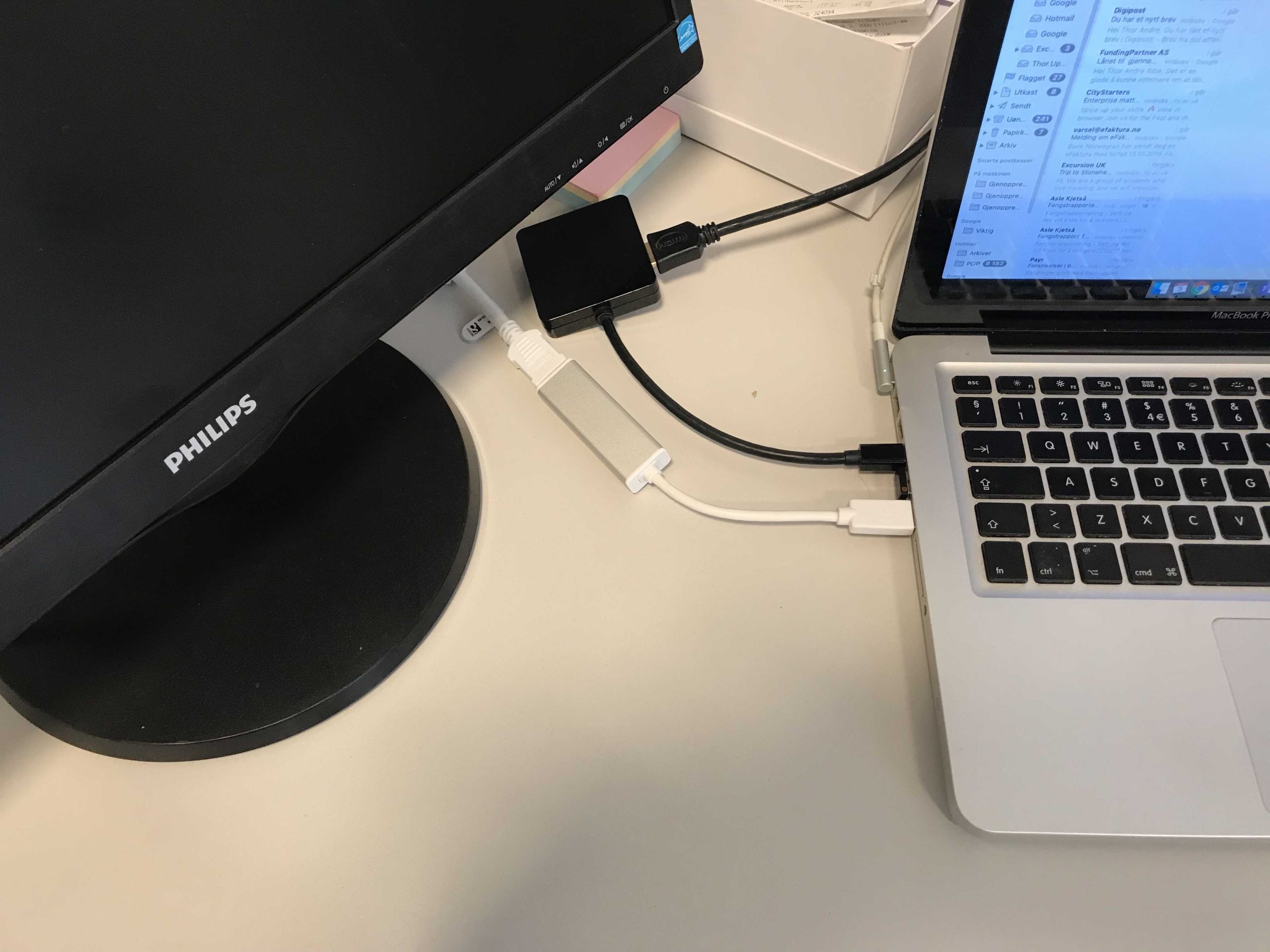

How to connect external monitors to a MacBook
Connecting external monitors to your MacBook can greatly improve your workspace and productivity. Whether you want to extend your desktop or mirror your display, understanding the steps involved is essential. In this section, we’ll explore all the necessary information to help you set up external monitors easily and efficiently.Understanding MacBook Compatibility with External Monitors
Not all MacBook models support the same number of external displays or types of connections. MacBook Air and MacBook Pro models have different hardware capabilities. Check your specific MacBook’s specifications to know how many monitors you can connect simultaneously. Most recent MacBook models feature Thunderbolt 3 or Thunderbolt 4 ports, which support high-resolution displays. Older models may have HDMI, Mini DisplayPort, or USB-C ports, so it’s important to identify your ports before shopping for adapters or cables.Types of Ports on MacBook and Their Uses
Knowing the port type on your MacBook helps determine the right connection method. Here’s a quick overview:- USB-C: Common on newer MacBooks, supports video output through compatible adapters.
- Thunderbolt 3 and 4: Supports high-speed data transfer and video output, compatible with various adapters.
- HDMI: Present on some MacBook Pro models, allows direct connection to HDMI monitors.
- Mini DisplayPort: Found on older models, supports high-resolution displays.
Options for Connecting External Monitors to Your MacBook
You have several options to connect external monitors, and the choice depends on your MacBook’s ports and your monitor’s inputs:- Using USB-C or Thunderbolt adapters: Convert from USB-C to HDMI, DisplayPort, or VGA.
- Direct HDMI connection: For MacBooks with built-in HDMI ports.
- Using multi-port adapters or docks: Expand connectivity options with multiple ports.
Connecting a Single External Monitor
Connecting one external monitor is straightforward with the right cable or adapter. First, identify the port on your MacBook and the input port on your monitor. Then, use an appropriate cable or adapter to make the connection. Ensure your monitor is powered on before connecting. Once connected, your MacBook should automatically recognize the monitor. If not, go to System Preferences and select Displays to manually detect it.Steps for Connecting a Single Monitor
- Identify your MacBook’s port type (USB-C, Thunderbolt, HDMI, etc.).
- Choose the correct cable or adapter compatible with both your MacBook and monitor.
- Connect the cable from your MacBook to the monitor.
- Power on the monitor and select the correct input source if needed.
- On your MacBook, go to System Preferences and click on Displays.
- Click Detect Displays if your monitor isn’t recognized automatically.
Connecting Multiple External Monitors
Connecting more than one external monitor depends on your MacBook model’s hardware capabilities. Many MacBook Pros support up to four displays, while MacBook Air models typically support only one external monitor. You’ll need compatible adapters or docks that support multiple outputs if your MacBook lacks multiple ports. For instance, a Thunderbolt dock can connect to several monitors through a single port.Steps for Connecting Multiple Monitors
- Check your MacBook’s maximum supported external displays.
- Gather the necessary adapters, docks, or hubs with multiple video outputs.
- Connect the dock or adapter to your MacBook using USB-C or Thunderbolt port.
- Connect each monitor to the dock or adapter with appropriate cables.
- Power on all monitors and select the correct input sources.
- Go to System Preferences >Displays to arrange or mirror the displays accordingly.
Configuring Display Settings
Proper configuration enhances your workspace and makes multi-monitor use seamless. Once the monitors are connected, adjusting display settings is crucial. Navigate to System Preferences >Displays. Here, you can choose to mirror the displays or extend your desktop. You can also arrange the monitors to match their physical placement. In the Display settings, you can specify resolution, brightness, and color profile. For higher resolutions, ensure your MacBook and monitors support the desired display quality.Troubleshooting Common Connection Issues
Sometimes, your MacBook may not recognize the external monitor. First, check all cable connections and ensure monitors are powered on. Restart your MacBook to refresh system recognition. If detection fails, try disconnecting and reconnecting the cables or adapters. Updating macOS can resolve compatibility issues with newer hardware. Additional troubleshooting steps include resetting the NVRAM or SMC on your MacBook. For persistent problems, consult Apple support or visit an authorized service provider.Best Practices for Connecting External Monitors
To maintain optimal performance, use high-quality cables and adapters compatible with your MacBook and monitors. Avoid cheap, unbranded cables which may cause signal loss or degraded resolution. Place monitors on stable surfaces at eye level to reduce neck strain. Adjust display settings for clarity and color accuracy. Regularly check for software updates to ensure compatibility. Using external monitors with your MacBook can make work and creative tasks much easier. Proper setup and configuration help you get the most out of your hardware.How to Connect an M1/M2 Apple Macbook Air to an External Monitor
Frequently Asked Questions
What types of adapters are necessary to connect external monitors to a MacBook?
Depending on your MacBook model and the monitor’s input ports, you’ll need specific adapters. For example, if your MacBook has USB-C ports, you may require USB-C to HDMI, DisplayPort, or VGA adapters. For older MacBook models with Thunderbolt 2 or Mini DisplayPort, use compatible adapters such as Thunderbolt to HDMI or Mini DisplayPort to VGA. Always choose high-quality adapters to ensure reliable video output and avoid compatibility issues.
How do I configure my MacBook to properly display on multiple monitors?
After connecting the monitors, go to the Apple menu and select System Preferences, then click on Displays. From there, you can arrange the monitors to match their physical placement. You can also choose to mirror your display or extend your desktop across multiple screens. Adjust resolution and scaling options individually for each monitor to optimize image quality and performance.
What should I do if my external monitor isn’t detected by my MacBook?
If your MacBook doesn’t recognize the monitor, first ensure all cables and adapters are securely connected. Restart your MacBook and reconnect the monitor. Check for any available software updates for your macOS and display drivers. You can also try resetting the NVRAM or SMC, as these resets can resolve hardware detection issues. If problems persist, test the monitor with another device to rule out hardware faults.
Can I connect more than one external monitor to my MacBook?
Many newer MacBook models support multiple external displays, but the number depends on the specific model and hardware capabilities. For example, MacBook Pro models with M1 chips typically support only one external monitor, while Intel-based MacBooks may support two or more. Use appropriate adapters and, if necessary, docking stations or hubs designed to handle multiple connections. Verify your MacBook’s specifications to confirm the supported number of external displays.
What are best practices for maintaining a stable connection with external monitors?
To ensure stable connections, always use high-quality cables and adapters that match your monitor’s input ports. Keep your macOS updated to the latest version for compatibility improvements. Avoid connecting and disconnecting cables repeatedly, as this can cause port damage over time. When setting up, position cables to prevent strain on ports, and regularly inspect connections for wear or damage. During use, keep your MacBook and monitors in a stable environment to minimize disconnections caused by movement or interference.
Final Thoughts
Connecting external monitors to a MacBook is straightforward with the right adapters and ports. First, identify the compatible port on your MacBook, whether it’s Thunderbolt, USB-C, or HDMI. Then, select an appropriate adapter or cable for your monitor’s input. Ensure your monitor is powered on and connected securely. Adjust display settings in System Preferences to optimize your workspace. How to connect external monitors to a MacBook involves choosing the right hardware and configuring your display settings. Follow these simple steps for a smooth setup experience.
Similar Posts































