How to Check Your Android Battery Status: Quick Tips!
Knowing the real‑time condition of your Android battery isn’t just about seeing a percentage. It’s the key to preventing unexpected shutdowns, spotting apps that secretly drain power, and extending the overall lifespan of your device. Whether you’re relying on your phone for work, navigation, or capturing family moments, a quick battery health check can save you from being stranded with a dead screen. This guide walks you through every built‑in tool, hidden menu, and third‑party resource you need to master your battery status—in just a few minutes.
How to Access Battery Settings on Any Android Phone
Most Android devices put battery information right in the Settings app, but the exact wording varies slightly between manufacturers. Here’s the universal route:
- Open the Settings app (the gear icon).
- Scroll down and tap Battery (on some phones it’s Battery & device care or Battery & performance).
- On the main Battery screen you’ll see the current charge level, an estimate of remaining usage time, and a list of power‑hungry apps.

Image source: www.pcmag.com
If your phone runs a heavy skin like Samsung One UI, Xiaomi MIUI, or OnePlus OxygenOS, you might need to tap Battery a second time to reach the detailed usage breakdown. On Google Pixel and other stock‑Android devices, the “Battery” entry goes straight to the full graph. Once inside, you’re ready to interpret what all that data actually means. For more on this, see our guide on how to check battery level on mini sound.
Interpreting Battery Usage Data
The battery usage screen is more than a chart—it’s a diagnostic tool. The graph plots your battery level over a 24‑hour period, and each sharp drop reveals when your phone was working hardest. Below the graph, you’ll find a list of apps and system services, each with a percentage showing how much battery it consumed since the last full charge.
Key details to look for:
- Screen‑on time (SOT): Many phones display this near the top. It tells you exactly how long the display was active, which is the single biggest drain on most devices.
- Background activity: Apps with high background usage are often syncing, tracking location, or pushing notifications while you’re not using them. Tapping an app shows you how many minutes it ran in the background.
- Temperature and wake‑ups: Some interfaces (like Samsung’s) show if an app abnormally woke the device or caused overheating. This can pinpoint misbehaving software instantly.
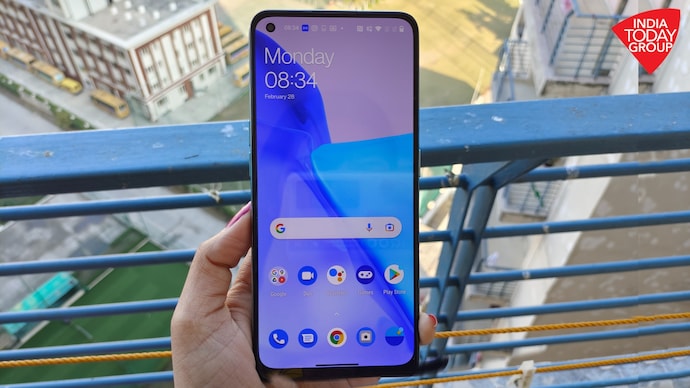
Image source: www.indiatoday.in
If you spot an app using 15% or more of your battery but you haven’t actively used it, consider restricting its background data or uninstalling it. For pre‑installed apps that cannot be removed, often disabling automatic system updates can stop them from repeatedly downloading and installing new versions in the background, which quietly consumes power. For more on this, see our guide on how to get android tv operator tier.
Checking Battery Health: Capacity and Wear
Battery health is about how much original capacity your battery still holds. A brand‑new 4,500 mAh battery might deliver 4,500 mAh; after a year of daily charging, it could drop to 4,000 mAh or less. Android doesn’t always show this directly, but several methods exist.
Built‑in methods (varies by brand)
- Samsung: Open the Samsung Members app, go to Support > Phone diagnostics > Battery status. It will display “Good,” “Normal,” or “Weak” along with a capacity measurement.
- Google Pixel: Dial
*#*#4636#*#*to open the Testing menu, then tap Battery information. Look for Charge counter and Capacity (the design capacity). Compare the two to see degradation. - OnePlus & Xiaomi: Some models show battery health in Settings > Battery > Battery health (or under Battery & performance). If missing, use the dialer code above.
Third‑party apps for every device
For a universal, detailed health report, download a reliable app like AccuBattery or GSam Battery Monitor. These apps measure actual charge current, estimate real capacity over multiple charge cycles, and alert you when wear exceeds 20%. AccuBattery, for example, recommends charging only to 80% to double the battery’s lifespan—a practice backed by battery research from Cadex Electronics.
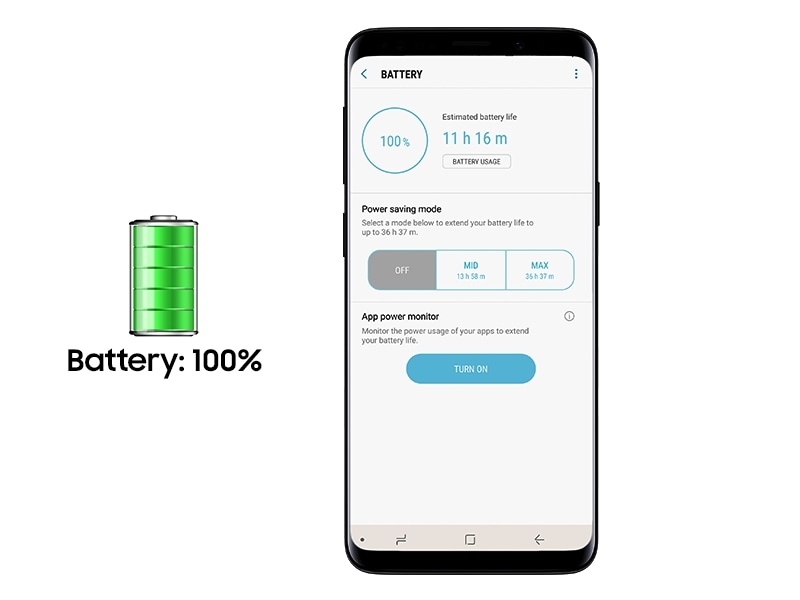
Image source: www.samsung.com
Understanding Charge Cycles and Battery Lifespan
A charge cycle isn’t just plugging in once. It’s using 100% of the battery’s capacity—whether that’s 50% one day and 50% the next, or 100% in one go. Modern lithium‑ion batteries are typically rated for 300–500 full cycles before they drop to 80% of original capacity. After that, the decline accelerates.
To preserve cycles:
- Keep the battery between 20% and 80% whenever possible. Deep discharges stress the cells.
- Avoid leaving the phone at 100% on the charger for hours. Some phones now have “Optimized Charging” that learns your routine and holds at 80% overnight, then tops up just before you wake.
- Heat is a battery’s enemy. Remove thick cases during charging, and never leave the phone in direct sunlight.
If you’ve ever wondered whether a subscription‑based security app is worth the cycles it consumes, know that some antivirus utilities constantly scan files and network traffic. If you’re not using one, removing an unnecessary antivirus app can free up both processor cycles and battery life.
Advanced Battery Information and Tools
For users who want engineer‑level data, Android’s hidden Developer Options and secret dialer codes provide a wealth of statistics.
Accessing Developer Options for battery stats
- Go to Settings > About phone.
- Tap Build number seven times. You’ll see a countdown message.
- Return to the main Settings screen and tap System > Developer options.
- Scroll to Battery (or Battery information). This tab shows the current charge counter, voltage, temperature, and even the battery’s technology.
You can also enable Show CPU usage to see real‑time load on the processor, which correlates strongly with battery drain.
Secret dialer codes
The code *#*#4636#*#* works on many devices and opens a Testing menu with Battery information and Usage statistics. Here you can see if the battery is charging, its health (if reported), and the voltage. On some phones, *#0228# also triggers a battery status readout.
Tips to Optimize Battery Life Right Now
Once you know your battery’s status, these immediate actions can add hours to your daily runtime.
| Action | How It Helps |
|---|---|
| Lower screen brightness | Display is the #1 drain. Set brightness to 40–50% indoors and enable adaptive brightness. |
| Enable battery saver | Automatically limits background activity, vibrations, and location services. Most phones offer a standard and an extreme mode. |
| Turn off always‑on display | Saves 5–10% per day. Disable under Settings > Lock screen. |
| Restrict background apps | Go to Battery > App power management (or Battery usage) and force‑stop or restrict apps you rarely use. |
| Disable unused connectivity | Bluetooth, Wi‑Fi scanning, and NFC all sip power. Turn them off from quick settings when not needed. |
| Use dark mode | On AMOLED screens, black pixels are off, saving up to 15% compared to light mode. |
| Shorten screen timeout | Set to 30 seconds. This simple change often yields the biggest battery gain. |
For persistent drain, companies that pre‑load apps can cause background data usage. Sometimes disabling automatic system updates on a metered connection prevents large downloads that eat both battery and data.
Maintaining Your Battery for the Long Haul
Day‑to‑day charging habits shape your battery’s longevity. Stick to these best practices:
- Use the original charger or a certified USB‑PD charger. Bargain cables can deliver incorrect voltage, accelerating wear.
- Charge in short bursts rather than letting it drop to 0%. Small top‑ups between 40% and 80% are less stressful than a full cycle.
- Keep the phone cool: Avoid charging under pillows or in hot cars. If the device feels hot, unplug and let it cool.
- Calibrate occasionally: Every 2–3 months, let the battery drain until the phone shuts off, then charge uninterrupted to 100%. This helps the software re‑calibrate the battery percentage reading.
When to replace the battery
Even with perfect care, all batteries age. Consider a replacement if you notice:
- Rapid drain (losing 20% in 30 minutes of light use).
- The phone shuts down at 10–20% unexpectedly.
- The battery swells and pushes the back cover or screen outward.
- Battery health apps report capacity below 80% of original.
Always visit an authorized service center for genuine parts. A poor‑quality replacement can damage the phone or even pose a safety risk.
Frequently Asked Questions
How do I check battery health on Android without an app?
On Samsung, use the Samsung Members diagnostics. On Pixel, dial *#*#4636#*#*. Many other brands show a “Battery health” option in Settings > Battery. If none of these work, a third‑party app like AccuBattery is the easiest fallback.
How do I know if my Android battery is bad?
Signs include fast draining, the phone shutting down at 20% or higher, overheating during normal use, and a swollen battery that physically distorts the device. You can also check the capacity in a diagnostic app; a reading below 80% of the design capacity indicates significant wear.
How do I see which apps are draining my battery?
Open Settings > Battery > Battery usage. The list shows each app’s percentage of drain since the last full charge. Tap an app to see how long it ran in the background and whether you can restrict it.
How can I make my Android battery last longer?
Lower the screen brightness, enable battery saver, turn off always‑on display, use dark mode, restrict background apps, and disable automatic updates on metered connections. Also, uninstall apps you never use—especially those that run in the background without your knowledge.
What is the battery saver mode and how does it work?
Battery saver limits CPU performance, pauses most background syncing, reduces vibrations, and lowers screen brightness. On most phones, you can activate it manually from quick settings, or set it to turn on automatically at 15% or 20%.
Can I replace my Android battery myself?
Many modern phones have sealed batteries that require special tools and adhesive. While it’s possible with a repair kit, doing so risks damaging the device and voids the warranty. It’s safer to have a professional handle the replacement.
Conclusion
Monitoring your Android battery status is no longer a guessing game. With the built‑in settings, hidden diagnostic menus, and a few well‑chosen apps, you can see exactly how much life your battery has left and which apps are stealing precious minutes. Combine that knowledge with smart charging habits and a few optimizations, and you’ll keep your phone running confidently from morning to night—without ever scrambling for an outlet. Check your battery health today, and make small changes that pay off in hundreds of extra cycles.

Similar Posts





















