How Ipad Keyboard Works: A Complete Explanation

Understanding How iPad Keyboard Works
Introduction to the iPad Keyboard
The iPad keyboard is a device that allows users to type quickly and efficiently on their iPads. It is designed to work seamlessly with the iPad’s operating system, iPadOS. The keyboard can be physical or virtual, offering different ways to input text and commands.Types of iPad Keyboards
There are primarily two types of keyboards used with iPads. The first is the **virtual keyboard**, which appears on the screen when you tap a text field. The second is the **physical keyboard**, which connects via Bluetooth or through a keyboard cover. Both types serve the same purpose but function differently.How the Virtual Keyboard Works
The virtual keyboard is built into iPadOS. When activated, it appears on the bottom of the screen, ready to accept input. It uses a touch-sensitive interface that detects where you press, translating those touches into characters or commands. The virtual keyboard adapts based on language, user preferences, and app requirements.Touch Detection and Input Recognition
Each key in the virtual keyboard is a touch-sensitive area. When you press a key, the screen registers the location and sends this data to the iPad’s processor. The system then interprets this as a specific character, such as a letter, number, or symbol.Adaptive Keyboard Features
The virtual keyboard can change layouts depending on the context. For example, it may switch to a numeric keypad when needed. Users can also customize the keyboard by adding third-party keyboards or enabling features like predictive text and autocorrect.How the Physical Keyboard Connects to the iPad
Physical keyboards connect to the iPad through Bluetooth or physical connectors like the Smart Connector. Bluetooth keyboards require pairing, which involves a simple setup process. The Smart Connector allows direct connection without batteries or pairing.Bluetooth Connection Process
When a Bluetooth keyboard is turned on, the iPad detects it via Bluetooth signals. Users then select the keyboard from a list of available devices, and pairing occurs. Once connected, the keyboard works immediately with minimal delay.Smart Connector Functionality
The Smart Connector uses a three-pin connection that supplies power and data between the iPad and compatible keyboards. These keyboards do not need batteries or Bluetooth pairing, making them a more straightforward option for some users.Keyboard Input Processing
Once connected, whether virtual or physical, the iPad processes keyboard input in real time. Each keystroke is sent as data to the device, which then displays the corresponding character on the screen.Key Mapping and Layout
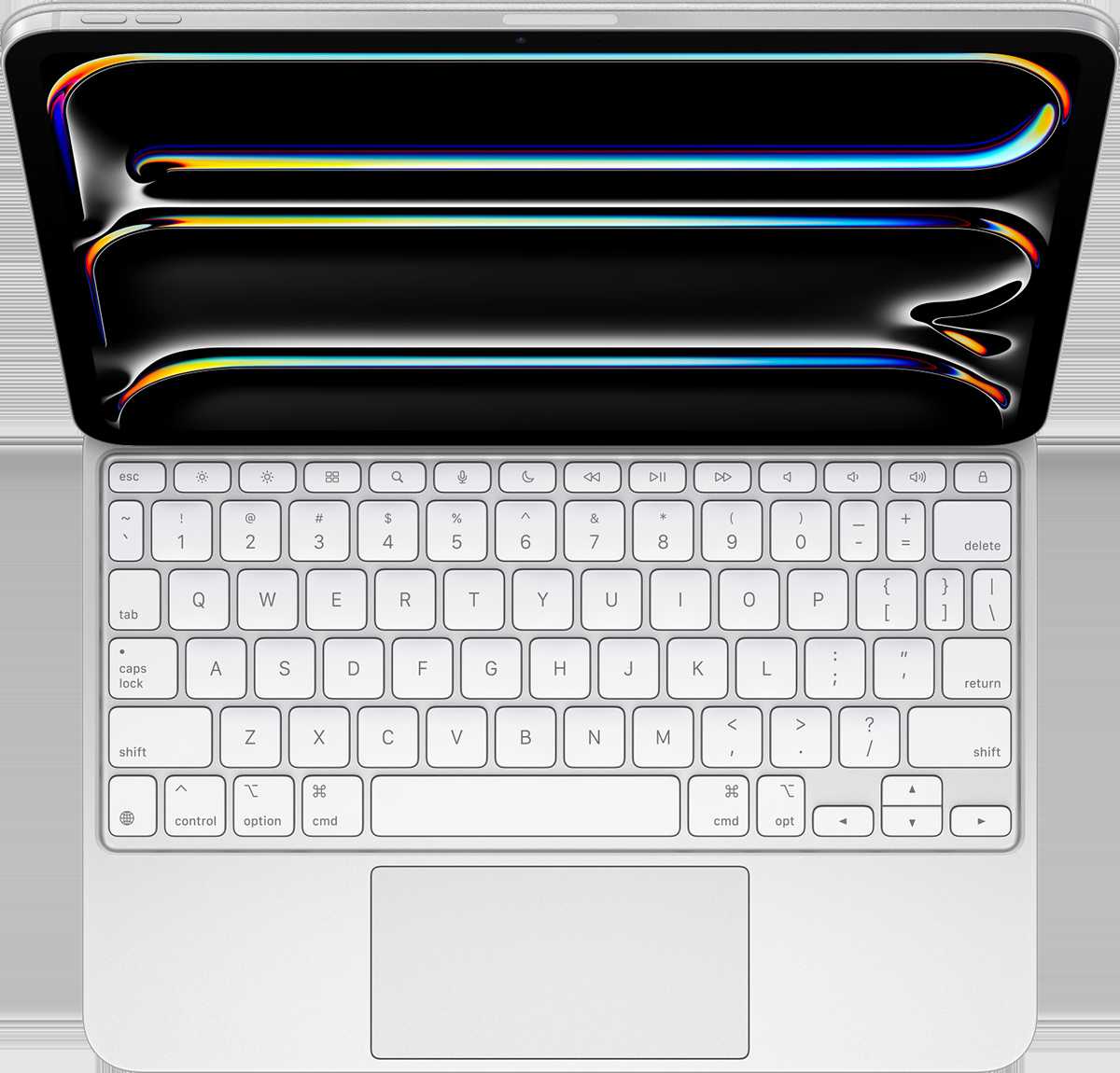
iPad keyboards follow standard layouts like QWERTY, but can also include function keys, shortcuts, and special symbols. The device maps each key to its function, ensuring consistent typing experience across applications.Handling Special Keys and Commands
Keys like *Enter*, *Backspace*, *Shift*, and *Function* perform specific tasks beyond character input. For example, pressing *Shift* capitalizes letters, while *Command* or *Control* keys can execute shortcuts like copying or pasting.Advanced Features of iPad Keyboard
iPad keyboards support several advanced features to improve usability. These include shortcuts, multi-language support, predictive text, and customization options.Keyboard Shortcuts
Using certain key combinations, users can execute commands quickly. For instance, pressing *Cmd + C* copies text, and *Cmd + V* pastes. These shortcuts work in most apps, speeding up productivity.Multi-language Support and Keyboard Switching
The iPad allows users to add multiple language keyboards. Swapping between different keyboards is simple, often through a dedicated key or gesture. This feature helps multilingual users type effortlessly across languages.Predictive Text and Autocorrect
The system suggests words as you type, based on context. Autocorrect fixes common typos, reducing errors. These features make typing faster and more accurate, especially on virtual keyboards.Understanding Keyboard Sensitivity and Feedback
The experience of typing depends on tactile feedback and sensitivity. Virtual keyboards use haptic feedback (if enabled) to simulate the feel of pressing real keys. Physical keyboards rely on mechanical or membrane switches.Haptic Feedback in Virtual Keyboards
Some iPads can provide vibration or tactile responses when a key is pressed, giving a sense of confirmation. This feature enhances typing confidence and reduces errors.Mechanical vs. Membrane Keys in Physical Keyboards
Mechanical keys offer better tactile feedback and durability, ideal for prolonged typing. Membrane keys are quieter and less expensive but may feel softer or less responsive.Customizing Your iPad Keyboard Experience
Users can personalize their keyboard settings for better comfort and efficiency. Settings include changing keyboard layout, enabling shortcuts, and adjusting feedback.Adding and Managing Third-Party Keyboards
You can download additional keyboards from the App Store. These third-party options might include different layouts, languages, or specialized input styles.Adjusting Key Repeat and Delay
The iPad allows users to set the speed of key repeat and how long a key must be pressed before repeating. These adjustments help prevent accidental multiple characters.Troubleshooting Common Keyboard Issues
Sometimes, an iPad keyboard may not work as expected. Typical problems include connection issues, unresponsive keys, or lag.Fixing Bluetooth Connection Problems
Ensure the keyboard is charged or has fresh batteries. Turn Bluetooth off and on again, or restart the iPad to resolve connectivity issues.Resetting Keyboard Settings
If keys are unresponsive, resetting keyboard settings in the iPad’s settings menu can help. This restores default configurations and resolves glitches.Future Innovations in iPad Keyboard Technology
Upcoming developments include more responsive touch interfaces, better keyboard layouts, and integration of AI features. These advancements aim to make typing more natural and efficient.Integration with Voice and Gesture Controls
Newer iPad models may combine keyboard input with voice commands and gestures, providing multi-modal ways to interact with the device.Enhanced Haptic and Feedback Systems
Future keyboards might include advanced haptic responses that mimic the feel of physical keys more closely, improving virtual typing experiences. In summary, understanding how the iPad keyboard works involves exploring its connection methods, input processing, and advanced features. Whether using the virtual keyboard or a physical one, each component plays a role in delivering an efficient typing experience. The technology continues to evolve, making iPad typing more intuitive, versatile, and user-friendly.How To Use iPad Magic Keyboard – Tutorial, Tips and TrackPad Gestures
Frequently Asked Questions
How does the iPad detect key presses on the keyboard?
The iPad uses a system called capacitive touch sensing to detect key presses. When you press a key, a small electrical change occurs on the keyboard’s surface. The iPad’s sensors detect this change and interpret it as a specific letter or command, allowing for real-time typing without the need for physical mechanical switches.
What role does Bluetooth play in connecting the iPad keyboard?
Bluetooth technology enables wireless communication between the iPad and compatible keyboards. When you turn on a Bluetooth keyboard, it enters pairing mode. The iPad detects the device and establishes a connection, allowing you to type seamlessly without cables. This wireless link also ensures low latency for comfortable typing experiences.
How does the iPad recognize different keyboard layouts and language settings?
The iPad adjusts to different keyboard layouts and language preferences through its settings menu. When you select a language or layout, the iPad updates its input configurations accordingly. The device recognizes the specific key arrangements and predicts text based on the selected language, providing a customized typing experience.
Can the iPad keyboard automatically adjust for different device orientations?
Yes, the iPad detects its orientation through built-in accelerometers. When you rotate the device from portrait to landscape mode, the keyboard adapts its layout to fit the new orientation. This automatic adjustment ensures comfortable typing regardless of how you hold your iPad.
Are there any specific features that enhance typing on an iPad keyboard?
Many iPad keyboards include features such as backlit keys for working in low light, shortcut keys for quick access to functions, and customizable keys for personalized commands. Some models also support trackpad functionality, which enables precise cursor control and improves overall productivity while typing.
Final Thoughts
The way iPad keyboard works combines hardware and software seamlessly. When you press a key, the keyboard sends a signal to the iPad’s processor, which interprets your input instantly. Bluetooth technology connects the keyboard wirelessly, providing smooth communication. The iPad’s software predicts words and corrects errors dynamically. In essence, understanding how iPad keyboard works helps users utilize it more efficiently. It responds quickly to your touches and adapts to your typing style. This integration of hardware and software ensures a fluid typing experience, making your digital tasks easier and faster.
Similar Posts