How Do I Connect Two Ultrawide Monitors
Ready to boost your productivity and immerse yourself in a wider digital workspace? This comprehensive guide will walk you through how to connect two ultrawide monitors seamlessly. We’ll cover essential hardware considerations, the different connection methods, and how to configure your system for optimal dual ultrawide performance. Get ready to experience a truly expansive desktop!
Connecting two ultrawide monitors can dramatically transform your computing experience. Whether you’re a gamer seeking an expansive field of view, a creative professional needing more screen real estate for your projects, or a power user who thrives on multitasking, a dual ultrawide setup is the ultimate goal. But how do you actually achieve this impressive display configuration? This guide will take you through every step, from understanding your hardware to optimizing your software settings. If you’re wondering what makes a monitor good for gaming, especially in ultrawide setups, we’ve got insights that tie directly into performance and visual clarity. Get ready to unlock the full potential of your dual ultrawide setup!
Why Go Dual Ultrawide?
Before we dive into the technicalities, let’s quickly touch on why this setup is so desirable. Ultrawide monitors, typically with aspect ratios like 21:9 or 32:9, offer a significantly wider field of view than standard 16:9 displays. When you combine two of these, you create an almost panoramic workspace that is exceptional for:
- Productivity: Imagine having multiple applications open side-by-side without any overlap. Code editors, spreadsheets, design software, and communication tools can all be readily visible and accessible.
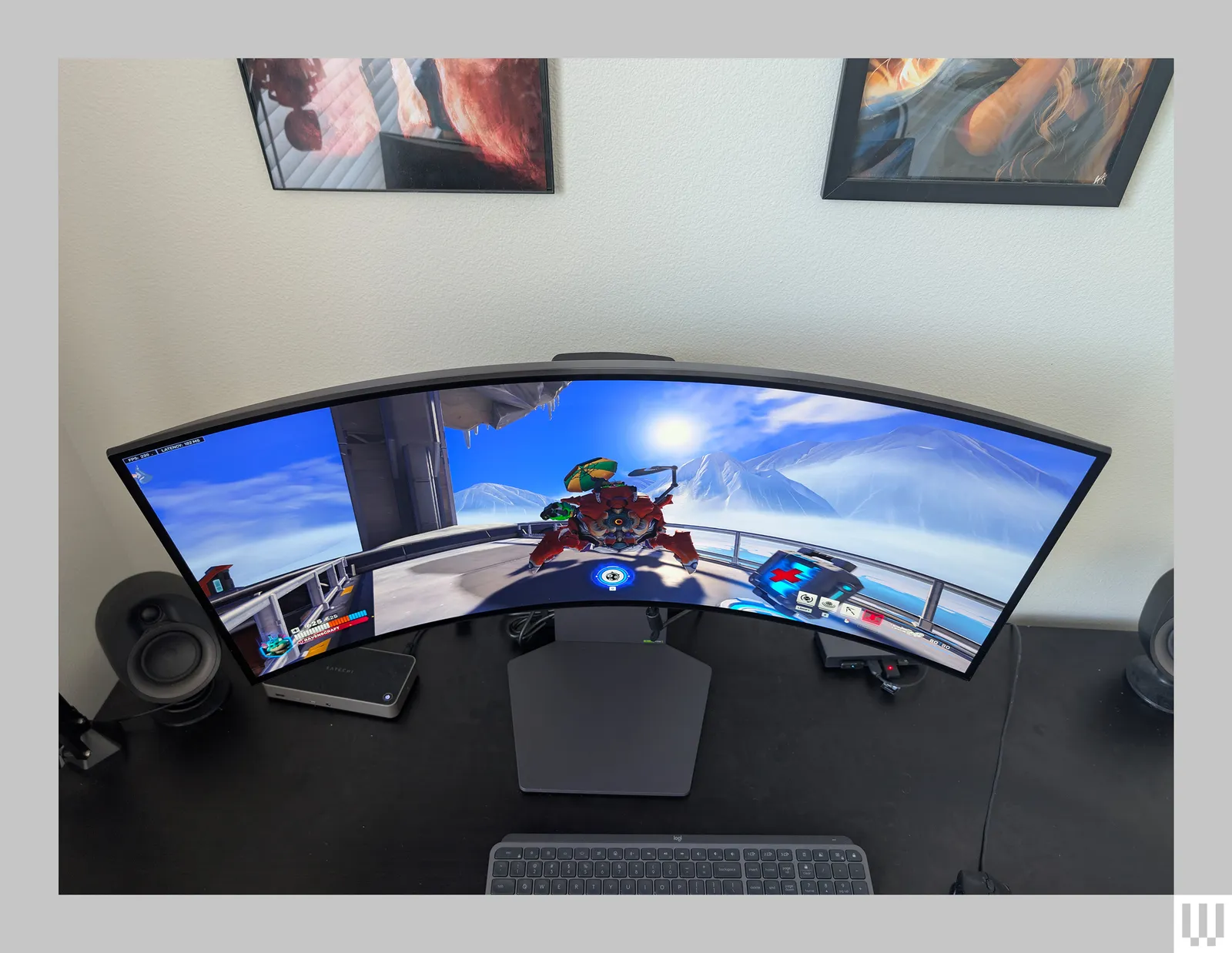
- Gaming: For supported games, a dual ultrawide setup can provide an incredibly immersive gaming experience, pulling you deeper into the virtual world. If you’re curious about whether an ultrawide monitor is better for racing games, the answer is often yes—especially when you factor in field of view and immersion.
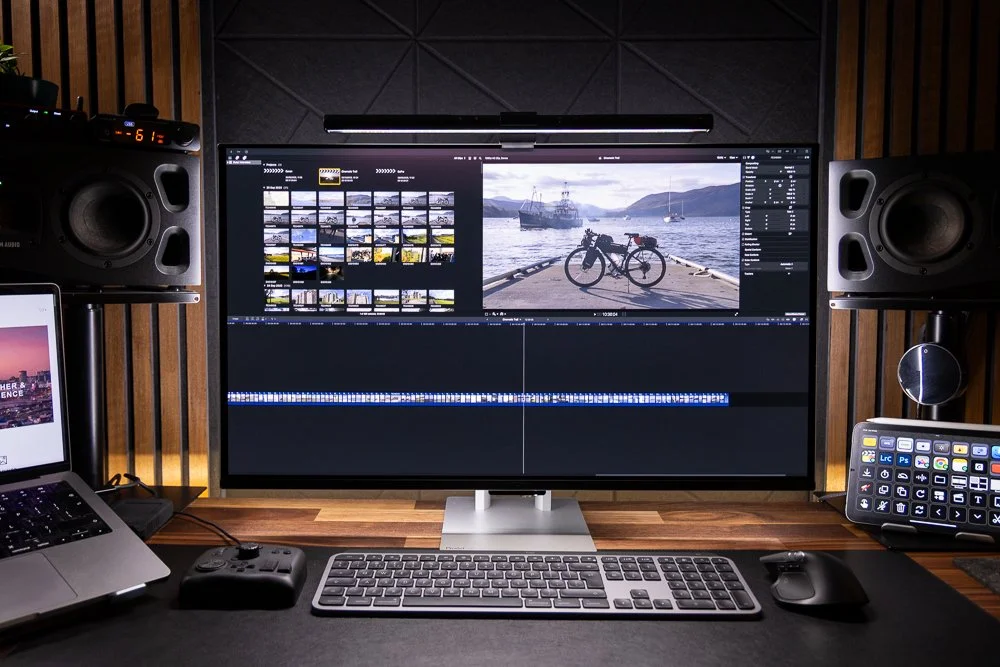
- Content Creation: Video editors, graphic designers, and animators can benefit immensely from the vast canvas, allowing for easier timeline management and tool visibility.
- Multitasking: Juggling several tasks becomes effortless. You can have a video call on one screen, your work document on another, and reference materials on a third.
Step 1: Assess Your Hardware Requirements
The first and most critical step in connecting two ultrawide monitors is ensuring your computer hardware can handle the load. This involves checking your graphics card (GPU), your motherboard, and even your power supply.
1.1 Graphics Card (GPU) Capabilities
Your GPU is the powerhouse that drives your displays. Connecting two ultrawide monitors means your GPU needs to render a massive number of pixels. Here’s what to look for:
- Video Output Ports: Check the physical ports on your graphics card. You’ll need at least two video output ports that match the input ports on your monitors. Common ports include DisplayPort (DP) and HDMI. Many modern GPUs have multiple DisplayPort outputs, which are generally preferred for higher resolutions and refresh rates.
- Resolution Support: Ultrawide monitors often have resolutions like 3440×1440 (QHD ultrawide) or even 5120×1440 (DQHD ultrawide). Ensure your GPU can support these resolutions simultaneously across two displays. Most mid-range to high-end GPUs released in the last few years will comfortably handle this.
- Refresh Rate Support: If you have high refresh rate monitors (e.g., 144Hz or 240Hz), your GPU needs to be powerful enough to drive them at those speeds, especially for gaming. Check the GPU’s specifications for its maximum supported refresh rates at various resolutions.
- Multi-Monitor Support: While most modern GPUs support multiple displays, it’s always worth checking the manufacturer’s specifications.
Practical Tip: If your current GPU doesn’t have enough suitable ports or the power to drive two ultrawide monitors, you might need to upgrade your graphics card.
1.2 Motherboard and CPU
While the GPU does the heavy lifting for display output, your CPU and motherboard play a role, especially if you’re considering using integrated graphics or have specific motherboard features.
- Integrated Graphics: Some CPUs have integrated graphics (iGPU). If you’re using an Intel CPU with Quick Sync or an AMD APU, these can sometimes drive displays. However, integrated graphics are generally less powerful than dedicated GPUs and may struggle with the demands of two ultrawide monitors, especially at high resolutions or refresh rates. It’s usually best to rely on a dedicated graphics card.
- Motherboard Ports: Your motherboard might have additional video output ports (e.g., HDMI, DisplayPort) if your CPU has integrated graphics. However, these typically use the iGPU, not your dedicated GPU.
1.3 Power Supply Unit (PSU)
A more powerful GPU, especially a high-end one, will draw more power. Ensure your power supply unit (PSU) has enough wattage to support your GPU and the rest of your system, particularly under heavy load when driving multiple high-resolution displays. Check the recommended PSU wattage for your specific graphics card.
Step 2: Choose Your Connection Method
The physical connection between your computer and your monitors is crucial. This involves selecting the right cables and understanding the ports.
2.1 Identifying Your Ports
Take a close look at the back of your computer and the rear of your monitors. You’ll see various ports. For our purposes, we’re interested in video output ports on your computer and video input ports on your monitors.
- Common Computer Video Outputs:
- DisplayPort (DP): The most versatile and often preferred option for high resolutions, high refresh rates, and features like G-Sync/FreeSync.
- HDMI: Widely used and compatible with many devices. HDMI 2.0 or later is recommended for 4K and ultrawide resolutions at decent refresh rates.
- USB-C (with DisplayPort Alternate Mode): Some USB-C ports can carry video signals. This is common on laptops and newer desktops. You might need an adapter or a USB-C to DisplayPort/HDMI cable.
- DVI/VGA: Older ports that are generally not suitable for the resolutions and refresh rates of modern ultrawide monitors. Avoid if possible.
- Common Monitor Video Inputs:
- DisplayPort (DP)
- HDMI
- USB-C (often with DisplayPort Alternate Mode or Thunderbolt)
2.2 Selecting the Right Cables
The quality of your cables can significantly impact performance. Using the wrong or low-quality cable can lead to:
- Flickering screens
- Lower resolutions than supported
- Lower refresh rates
- No signal at all
- DisplayPort Cables: For ultrawide monitors, especially those with high resolutions and refresh rates (e.g., 3440×1440 @ 144Hz), using DisplayPort 1.4 certified cables is highly recommended. These cables support higher bandwidth.
- HDMI Cables: If using HDMI, ensure you have HDMI 2.0 or HDMI 2.1 cables. HDMI 2.0 supports up to 4K at 60Hz, while HDMI 2.1 supports higher resolutions and refresh rates. Check your monitor’s specifications for its highest HDMI support.
- USB-C Cables: If connecting via USB-C, ensure the cable supports DisplayPort Alternate Mode (DP Alt Mode) or Thunderbolt 3/4. Not all USB-C cables are created equal.
Practical Tip: Always check the recommended cable specifications for your specific monitors and graphics card. Buying certified cables from reputable brands is a good investment.
2.3 Direct Connection vs. Docking Station/Hub
The simplest way to connect is directly from your GPU’s output ports to your monitors’ input ports.
- Direct Connection: Use two separate cables, one from your GPU to each monitor. This is the most straightforward and often the most stable method.
- Docking Station or Hub: If you have a laptop or a desktop with limited ports, a docking station or USB hub can be invaluable.
- How it works: A docking station connects to your computer via a single cable (usually USB-C or Thunderbolt) and provides multiple ports, including video outputs (DisplayPort, HDMI), USB-A ports, Ethernet, and audio jacks.
- Considerations for Docking Stations:
- Bandwidth: Ensure the docking station’s USB-C or Thunderbolt connection has sufficient bandwidth to support two ultrawide monitors at their desired resolutions and refresh rates. Thunderbolt 3 or 4 is generally preferred for high-performance multi-monitor setups.
- Port Configuration: Check if the docking station has the necessary DisplayPort or HDMI ports and if they support the required resolutions. Some docking stations have limitations on the number or type of displays they can drive simultaneously.
- Power Delivery: Many docking stations also provide power to your laptop through the same cable, reducing clutter.
Practical Tip: When using a docking station, always check its specifications against your monitors’ requirements and your computer’s capabilities.
Step 3: Physical Connections
Once you have your hardware assessed and know your connection method, it’s time to physically connect everything.
3.1 Powering Off Your System
Before plugging or unplugging any cables, it’s good practice to shut down your computer completely and unplug it from the power source. This prevents any potential electrical surges or damage to your components.
3.2 Connecting the Cables
- Connect the first monitor:
- Take your first video cable.
- Plug one end into a video output port on your graphics card (or docking station).
- Plug the other end into the corresponding video input port on your first ultrawide monitor.
- Connect the second monitor:
- Take your second video cable.
- Plug one end into another video output port on your graphics card (or docking station). Use a different port than the first connection if possible, especially if they are different types (e.g., one DP, one HDMI).
- Plug the other end into the corresponding video input port on your second ultrawide monitor.
- Connect power cables:
- Connect the power cables to both monitors and plug them into a power outlet or surge protector.
- Connect peripherals (optional):
- If using a docking station, connect your keyboard, mouse, and any other peripherals to the available ports on the dock.
3.3 Turning On Your System
- Plug your computer back into the power source.
- Turn on your monitors.
- Turn on your computer.
Your computer should boot up. Initially, you might see the display only on one monitor, or the operating system might detect both but arrange them in a default configuration. This is where software configuration comes in.
Step 4: Software Configuration and Setup
Once your monitors are physically connected and your computer is running, you need to tell your operating system how to use them. This involves adjusting display settings.
4.1 For Windows Users
- Access Display Settings:
- Right-click on an empty area of your desktop.
- Select “Display settings” from the context menu.
- Detect Displays:
- Windows should automatically detect your monitors. If not, scroll down and click the “Detect” button. You should see two monitor icons appear in the display settings window.
- Arrange Displays:
- Click and drag the monitor icons to match their physical arrangement on your desk. For example, if your second monitor is to the right of your primary monitor, drag its icon to the right of the first one. This ensures your mouse cursor moves logically between screens.
- Identify Displays: Click the “Identify” button to see which number corresponds to which physical monitor on your desk.
- Set as Main Display:
- Select the monitor you want to use as your primary display (where your taskbar, Start menu, and most icons will appear by default).
- Scroll down to the “Multiple displays” section and check the box that says “Make this my main display.”
- Adjust Resolution and Refresh Rate:
- For each monitor (click on its icon in the display settings), select it and scroll down to the “Display resolution” and “Refresh rate” options.
- Choose the native resolution for your ultrawide monitor (e.g., 3440×1440).
- Select the highest supported refresh rate for smooth visuals.
- Click “Keep changes” if prompted.
- Extend These Displays:
- Under the “Multiple displays” dropdown, ensure it is set to “Extend these displays.” This is the most common and useful setting for a dual ultrawide setup, allowing you to have different content on each screen. Other options include “Duplicate these displays” (which will likely force both monitors to a lower common resolution) and “Show only on 1” or “Show only on 2.”
4.2 For macOS Users
- Access System Preferences:
- Click the Apple menu in the top-left corner of your screen.
- Select “System Preferences” (or “System Settings” on newer macOS versions).
- Click on “Displays.”
- Arrange Displays:
- macOS should detect your monitors. You will see two display icons representing your monitors.
- Click and drag these icons to match their physical layout.
- A red bar will indicate the primary display. You can drag this red bar to the monitor you want to be your main display.
- Adjust Resolution and Refresh Rate:
- Click on each display icon to access its settings.
- Under “Resolution,” choose “Default for display” or “Scaled” to select a different resolution. For ultrawide monitors, ensure you select the native resolution for the sharpest image.
- You can also adjust the refresh rate if available.
- Use As:
- Ensure that under the “Use as” dropdown for each display, it is set to “Extended display.” This is the macOS equivalent of “Extend these displays.”
Practical Tip: If you’re experiencing issues, try restarting your computer after making display changes. Ensure your graphics drivers are up to date.
Step 5: Troubleshooting Common Issues
Even with the best hardware and setup, you might encounter problems. Here are some common issues and how to resolve them.
5.1 No Signal on One or Both Monitors
- Check Cables: Ensure all cables are securely plugged into both the computer and the monitors. Try reseating them.
- Try Different Ports: Connect each monitor to a different port on your graphics card to rule out a faulty port.
- Test Cables: If possible, try using different, known-good cables.
- Check Monitor Input: Ensure your monitor is set to the correct input source (e.g., DisplayPort 1, HDMI 2).
- Restart System: A simple restart can sometimes resolve detection issues.
5.2 Flickering or Artifacts on Screen
- Cable Quality: Low-quality or damaged cables are a common culprit. Use certified, high-bandwidth cables.
- Refresh Rate Mismatch: Ensure the refresh rate set in your OS matches what your monitor supports and what your GPU can handle. Try lowering the refresh rate temporarily.
- Graphics Drivers: Outdated or corrupted graphics drivers can cause display problems. Update your drivers to the latest version from the manufacturer’s website (NVIDIA, AMD, Intel).
- Overheating: Ensure your GPU is not overheating, which can cause artifacts. Check fan speeds and case ventilation.
5.3 Incorrect Resolution or Refresh Rate Options
- Graphics Drivers: This is often related to drivers. Ensure they are installed correctly and are up-to-date.
- Cable Limitations: The cable might not support the required bandwidth for the desired resolution and refresh rate.
- Monitor Firmware: In rare cases, a firmware update for your monitor might be available. Check the manufacturer’s support page.
5.4 One Monitor Not Detected After Sleep/Hibernate
- Update Graphics Drivers: This is a common fix for sleep/hibernate issues.
- Power Settings: Check your power management settings in Windows or macOS. Sometimes, aggressive power saving can cause detection problems.
- Disable Fast Startup (Windows): Fast Startup can sometimes interfere with hardware detection. You can find this in Power Options -> “Choose what the power buttons do” -> “Change settings that are currently unavailable” -> Uncheck “Turn on fast startup.”
Conclusion
Connecting two ultrawide monitors is an ambitious but rewarding upgrade for any computer setup. By carefully assessing your hardware, selecting the right cables, making secure physical connections, and configuring your operating system, you can create an incredibly expansive and productive digital workspace. Embrace the panoramic view, enjoy your enhanced multitasking capabilities, and immerse yourself in a more engaging computing experience. Happy dual-screening!
FAQs
Can I connect two ultrawide monitors to a laptop?
Yes, you can connect two ultrawide monitors to a laptop, but it heavily depends on your laptop’s capabilities. Look for a laptop with Thunderbolt 3/4 ports or multiple USB-C ports that support DisplayPort Alternate Mode. You may also need a compatible docking station or USB-C hub that can handle the bandwidth for two high-resolution displays.
What’s the difference between using DisplayPort and HDMI for ultrawide monitors?
DisplayPort generally offers higher bandwidth, making it more suitable for high resolutions and high refresh rates often found in ultrawide monitors. It also often has better support for adaptive sync technologies like G-Sync and FreeSync. HDMI 2.0 and later versions can also support these resolutions and refresh rates, but DisplayPort is often the preferred choice for demanding ultrawide setups.
Do I need a specific graphics card for two ultrawide monitors?
You need a graphics card that has sufficient output ports (at least two) and enough processing power to handle the combined resolution and refresh rates of your two ultrawide monitors. Most mid-range to high-end graphics cards from the last few years should be capable, but always check the card’s specifications for multi-monitor support and resolution limits.
How do I ensure the colors and settings are consistent between my two ultrawide monitors?
While operating system settings can align basic configurations, achieving perfect color consistency might require monitor-specific calibration using a colorimeter. You can adjust brightness, contrast, and color temperature individually through your monitor’s on-screen display (OSD) menus. Ensure you select the same color profile within your operating system if available.
Will connecting two ultrawide monitors affect my computer’s performance?
Yes, driving two ultrawide monitors requires significantly more graphical power than a single standard monitor. This can impact performance, especially in graphically intensive applications like gaming or video editing. Ensure your GPU is powerful enough to handle the load at your desired settings.
What if my monitors have different resolutions or refresh rates?
You can connect monitors with different specifications. However, for optimal performance and a seamless experience, it’s generally best to have identical or very similar monitors. If they differ, your system will likely default to the lowest common denominator for certain settings when duplicating displays, but when extending, each can run at its own optimal settings as long as your GPU and cables support it.
Key Takeaways
- Understand your hardware’s capabilities: Ensure your graphics card and motherboard support the resolution and refresh rates of your ultrawide monitors.
- Choose the right cables: The quality and type of cables (HDMI, DisplayPort) are crucial for stable and high-resolution connections.
- Identify your ports: Know what video output ports are available on your computer and what input ports your monitors have.
- Configure your display settings: Learn how to set up your operating system to recognize and arrange your dual ultrawide monitors correctly.
- Consider a docking station or hub: For laptops or systems with limited ports, a docking station can simplify connections.
- Troubleshoot common issues: Be prepared to address potential problems like flickering, incorrect resolutions, or detection errors.

Similar Posts