How Do I Activate the Floating Window?: Step-by-Step Guide
That's the kind of question that looks like it should have a one-sentence answer, doesn't it? Tap a button, enable a toggle, done. But the reality is messier.
How do I activate the floating window depends entirely on what device you're holding, what operating system it runs, and often which specific app you're trying to use. A Samsung Galaxy user gets a completely different set of options than someone on a Pixel or an iPhone.
As of 2026, there are at least seven major approaches to floating windows across Android, iOS, and Windows. And the most frustrating part? Most people try the wrong method first.
That's what we're going to fix here. We'll walk you through the exact path for your setup, step by step.
Quick Answer
Activating a floating window works differently by device and app. Check your phone brand first. Samsung users pull from the Edge Panel or long-press an app icon in Recents.
Xiaomi and OnePlus users find it in their multitasking settings. Pixel and stock Android phones use Picture-in-Picture mode. iPhone needs iOS 14 or later. Turn it on in Settings under General, then Picture in Picture.
Core Explanation / How It Works
Before we get into device-specific steps, it helps to understand what's actually happening under the hood. There are two different systems at play here, and mixing them up causes a lot of the confusion.
Picture-in-Picture (PiP) is the most common. It shrinks a video or navigation app into a small corner window that stays on top of everything else. You can drag it around but you can't resize it much.
Android added PiP in version 8.0. Apple added it in iOS 14. It's designed for passive content you glance at.
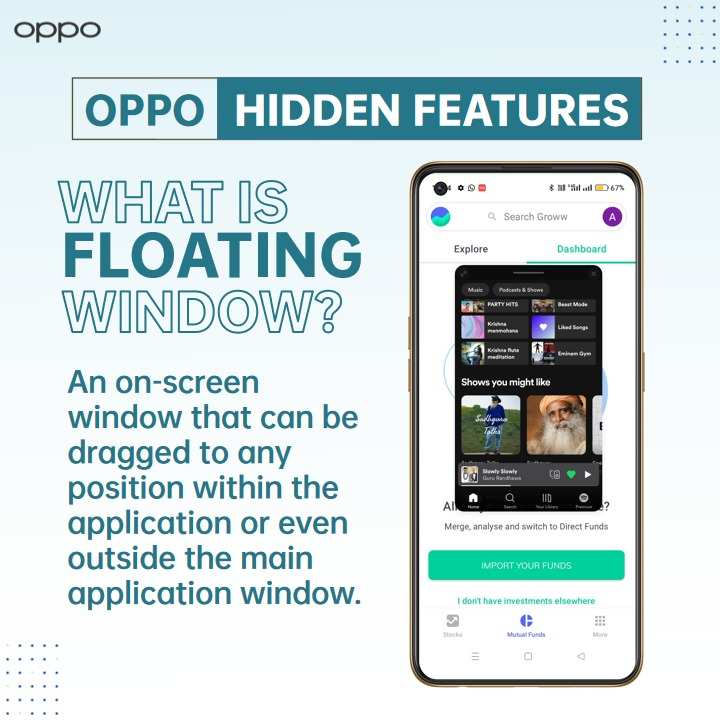
Floating window mode is different. It shrinks an entire app into a movable, resizable window. You can type into it, scroll through it, interact with it like a mini version of the full app.
Samsung calls this Pop-up View. Xiaomi calls it Floating Window. OnePlus calls it Quick Return.
It is a more powerful multitasking tool than PiP, and it requires specific manufacturer support.
The key difference: PiP works on almost any Android phone or iPhone. True floating windows depend on your phone brand and the app developer.
Decision Tree: Find Your Situation First
You don't need to read every section here. Find your situation below and jump straight to the branch that matches.
| If you have this device | Jump to this branch |
|---|---|
| Samsung Galaxy (One UI) | Branch A |
| Xiaomi, Redmi, OnePlus, Oppo, Realme | Branch B |
| Google Pixel, Motorola, Nokia, stock Android | Branch C |
| iPhone or iPad | Branch D |
| Windows PC or laptop | Branch E |
A few quick checks before you begin.
- What version of Android or iOS are you running? Android 8.0 or later is required for PiP. iOS 14 or later for iPhone.
- What app are you trying to turn into a floating window? YouTube requires a Premium subscription for PiP on mobile. Most other video apps support it for free.
- Is the feature turned on in your settings? We'll cover that in each branch. Many people skip the permissions step and wonder why nothing works.
Let's walk through the first scenario in detail.
Branch A: Samsung Galaxy Phones & Tablets (One UI)
Samsung has the most robust floating window system in the Android world. You have three ways to do it, and each one works best in a different situation.
Method 1: The Edge Panel Pop-up
This is the fastest route for most people. Swipe inward from the Edge Panel handle on the side of your screen. Find the app you want.
Tap and hold its icon, then drag it onto the screen. It opens as a floating window immediately.
This method works with almost any app. It is the closest thing to a universal floating window on any Android phone.
Method 2: The Recent Apps Menu
Open your recent apps overview. Tap the app icon at the top of the card. A menu pops up.
Select "Open in pop-up view." The app shrinks into a floating window.
This one is useful when you already have the app open and decide you want it floating. No need to go back to the home screen.
Method 3: Standard Picture-in-Picture
Some apps, like YouTube, Google Maps, and video players, will automatically switch to PiP when you press the home button while content is playing. You need to enable this in settings first.
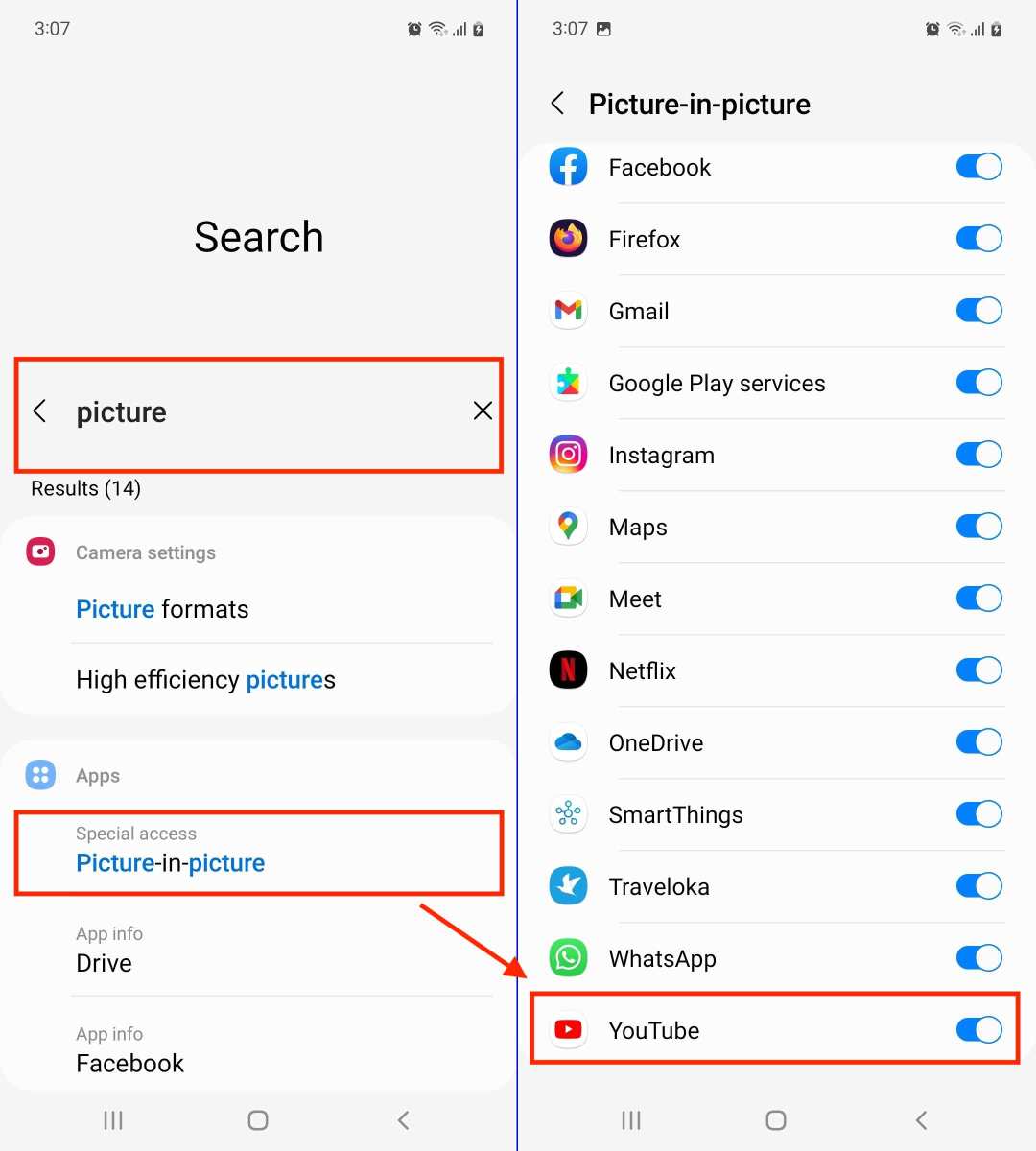
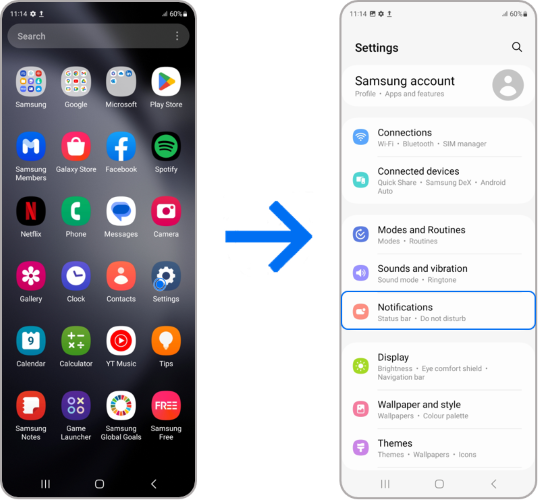
Go to Settings, then Apps, then tap the three dots in the corner and select Special Access. Find "Picture-in-Picture" and make sure it is toggled on for the apps you want.
If PiP isn't working, check that "Display over other apps" permission is enabled for that specific app.
Common Samsung-specific pitfalls:
- Some Samsung phones hide the Pop-up View option behind "Lab" features in Settings. On older One UI versions, you may need to enable "Multi window for all apps" in Developer Options.
- The Edge Panel must be turned on. Go to Settings, then Display, then Edge panels. If it's off, Method 1 won't work.
- You can drag the floating window by its top bar. Resize it by dragging the corners. Double-tap the top bar to maximize it. Swipe it off the bottom of the screen to close it.
Common Errors & How to Fix Them
Here is where most people get stuck. You follow the steps, you toggle the settings, and nothing happens. Let's fix the five most common issues.
"The floating window option is grayed out"
This almost always means the app does not support floating window mode. Not every app is designed to work this way. Games, banking apps, and full-screen video players often block it.
If the option is grayed in the Recent Apps menu, the app developer has disabled it.
The fix: try a different app. If you need that specific app to float, check whether the app has its own PiP setting. Some apps, like Google Maps, offer PiP inside their own settings menu.
"App doesn't support this feature"
This usually refers to Picture-in-PiP, not floating window mode. YouTube is the classic example. YouTube supports PiP, but only if you have YouTube Premium.
Free users on mobile do not get PiP, no matter what you toggle in settings.
The fix: either subscribe to the premium tier or use a different app. Other video platforms like VLC, Netflix, Disney+, and Twitch support PiP without a subscription.
"Overlay permission keeps turning off"
On Android 12 and later, the system may revoke overlay permissions for apps you don't use frequently. This is a security feature, not a bug.
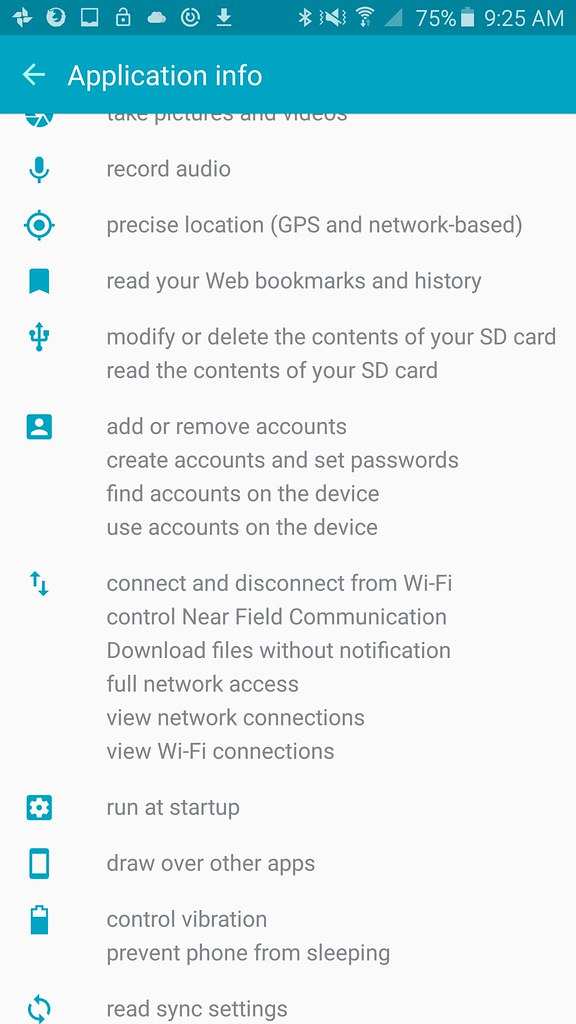
The fix: Open Settings, then Apps, then find the app. Tap "App info," then "Display over other apps" (or "Draw over other apps"). Toggle it on.
If it turns off again later, the app might have been put to sleep by your phone's battery optimization. Check the "App battery management" settings and set it to "Unrestricted" or "Not optimized."
"Floating window appears but I can't move or resize it"
This happens when you're actually in PiP mode, not true floating window mode. PiP windows are more restricted. They can be dragged but not freely resized.
The fix: use the floating window method for your device instead of simply pressing the home button. On Samsung, use the Edge Panel pop-up or the Recent Apps menu. On Xiaomi, use the gesture from the bottom corner.
"I enabled everything but nothing happens"
Sometimes a simple restart fixes it. A settings toggle may not take effect until the app or system refreshes.
The fix: restart your phone. Then open the app you want to float, start playing content or open a screen, and press the home button. If it still doesn't work, go back to the app's permissions and recheck both PiP and overlay permissions.

Similar Posts





















