Yes, many curved monitors do support HDR. HDR (High Dynamic Range) enhances contrast and color, making visuals more vibrant and lifelike. This guide will explore how curved displays integrate HDR technology, what to look for when purchasing, and how to optimize your HDR experience. You’ll learn about the benefits and potential limitations of HDR on curved screens.
Do Curved Monitors Support HDR? Unlocking a More Immersive Visual Experience
The world of display technology is constantly evolving, bringing us more immersive and visually stunning experiences. Two popular features in modern monitors are curvature and HDR (High Dynamic Range). This has led many consumers to ask: “Do curved monitors support HDR?” The answer is a resounding yes, but it’s not as simple as just looking for a curved screen. Understanding how these two technologies work together, what to look for, and how to get the most out of them is crucial for making an informed purchase and enjoying your content to its fullest.
This comprehensive guide will demystify the relationship between curved monitors and HDR. We’ll break down what each technology is, explain why they are often found together, and guide you through the process of selecting and optimizing an HDR-capable curved monitor. By the end of this guide, you’ll have a clear understanding of whether curved monitors support HDR and how to leverage this powerful combination for an unparalleled visual journey.
Contents
- 1 Key Takeaways
- 2 Understanding the Technologies: Curve and HDR
- 3 Do Curved Monitors Support HDR? The Compatibility Question
- 4 What to Look for in an HDR Curved Monitor
- 5 Putting It All Together: How to Enjoy HDR on Your Curved Monitor
- 6 Troubleshooting Common HDR Issues on Curved Monitors
- 7 The Benefits of HDR on a Curved Display
- 8 Conclusion: Embracing HDR on Your Curved Monitor
Key Takeaways
- HDR Capability is Separate from Curve: A monitor’s curvature and its HDR support are independent features. You can find curved monitors without HDR, curved monitors with HDR, and even flat monitors with HDR.
- HDR Standards Matter: Look for specific HDR certifications like HDR10, HDR10+, or Dolby Vision for guaranteed quality. HDR400 is entry-level, while HDR600 and HDR1000 offer significantly better performance.
- Panel Technology Influences HDR: VA and IPS panels can both support HDR, but VA panels often offer better contrast ratios which can enhance HDR’s impact. OLED offers the best HDR experience but is rare in curved monitors.
- Brightness is Crucial for HDR: For HDR to truly shine, a monitor needs to achieve high peak brightness levels (typically 400 nits or more) to display bright highlights effectively.
- Local Dimming Enhances HDR: Monitors with local dimming capabilities (especially full-array local dimming – FALD) can significantly improve HDR performance by dimming specific zones of the backlight.
- Content is Key: To enjoy HDR, you need HDR content (games, movies, streaming services) and your playback device (PC, console, streaming box) must also support HDR.
- Settings Optimization is Important: Once you have an HDR-capable curved monitor and HDR content, you’ll need to configure your operating system and applications to enable and optimize HDR playback.
Understanding the Technologies: Curve and HDR
Before we dive into how they combine, let’s quickly recap what curvature and HDR bring to the table.
What is a Curved Monitor?
A curved monitor features a screen that gently bends inward, conforming to a curve. This design is often seen in ultrawide and large-screen displays. The primary benefit of a curved monitor is that it can create a more immersive viewing experience by bringing the edges of the screen closer to your peripheral vision. This can also reduce eye strain by creating a more consistent viewing distance across the entire screen, especially in larger or ultrawide formats. The degree of curvature, measured by a radius (e.g., 1800R, 1500R, 1000R), indicates how pronounced the curve is. A smaller ‘R’ number signifies a tighter, more noticeable curve.
What is HDR (High Dynamic Range)?
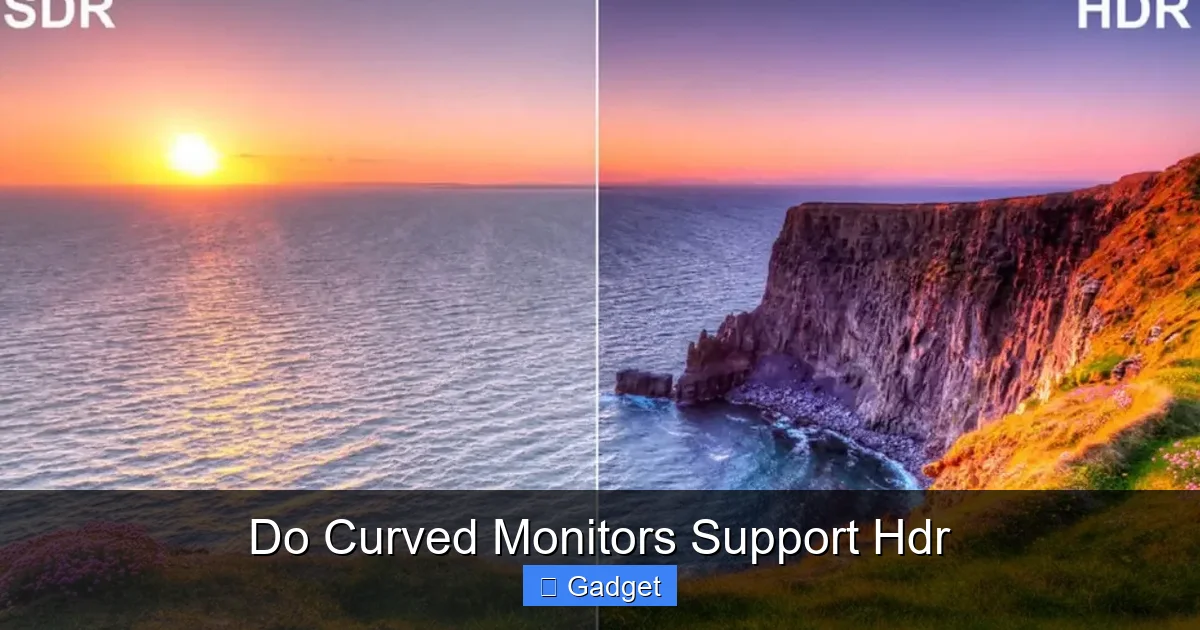
HDR, in the context of displays, is a technology designed to significantly enhance the contrast and color range of images and video. Traditional displays, often referred to as SDR (Standard Dynamic Range), have limitations in how bright they can get and how dark they can go, as well as the variety of colors they can reproduce.
HDR overcomes these limitations by:
* Wider Brightness Range: HDR monitors can display much brighter highlights and deeper blacks simultaneously, creating a more realistic and impactful image. This means the sun in a scene will actually look dazzlingly bright, and shadows will retain detail without appearing as just black blobs.
* Expanded Color Gamut: HDR supports a wider palette of colors than SDR. This allows for richer, more vibrant, and more nuanced color reproduction, making skies bluer, grass greener, and skin tones more lifelike.
* Greater Detail: The combination of improved contrast and color depth means that HDR displays can reveal more detail in both the brightest and darkest areas of an image that would be lost on an SDR display.
Do Curved Monitors Support HDR? The Compatibility Question
Visual guide about Do Curved Monitors Support Hdr
Image source: cdn.shopify.com
Now, let’s get to the core of your question. **Yes, many curved monitors do support HDR.** It’s important to understand that the curvature of a monitor and its ability to support HDR are two distinct, though often complementary, technological features.
Think of it this way: a car can have a sunroof and it can have leather seats. These are separate features. You can have a car with a sunroof but cloth seats, or a car without a sunroof but with leather seats, or a car with both. The same applies to monitors.
* You can have a curved monitor that *does not* support HDR.
* You can have a curved monitor that *does* support HDR.
* You can have a flat monitor that *does* support HDR.
Manufacturers often combine these popular features, especially in premium gaming monitors and high-end entertainment displays, to offer a more compelling package. The immersive quality of a curved screen combined with the visual fidelity of HDR can create a truly captivating viewing experience.
What to Look for in an HDR Curved Monitor
Visual guide about Do Curved Monitors Support Hdr
Image source: i.ytimg.com
Simply seeing “curved” and “HDR” on a spec sheet isn’t enough. To ensure you’re getting a genuine HDR experience and not just a marketing claim, you need to look for specific details.
1. HDR Certifications and Standards
This is arguably the most important factor. The term “HDR” is quite broad, and different levels of performance are achieved. Look for specific HDR standards and certifications:
* HDR10: This is the most common and widely adopted HDR standard. It uses 10-bit color depth and a static metadata format. It’s a good baseline for HDR but can be improved upon.
* HDR10+: An advancement over HDR10, this standard uses dynamic metadata, meaning the brightness and color information can be adjusted scene-by-scene or even frame-by-frame, leading to potentially better contrast and detail.
* Dolby Vision: A premium HDR format that also utilizes dynamic metadata, often with 12-bit color depth support. Dolby Vision content and displays can offer some of the most impressive HDR visuals, but adoption is less widespread than HDR10.
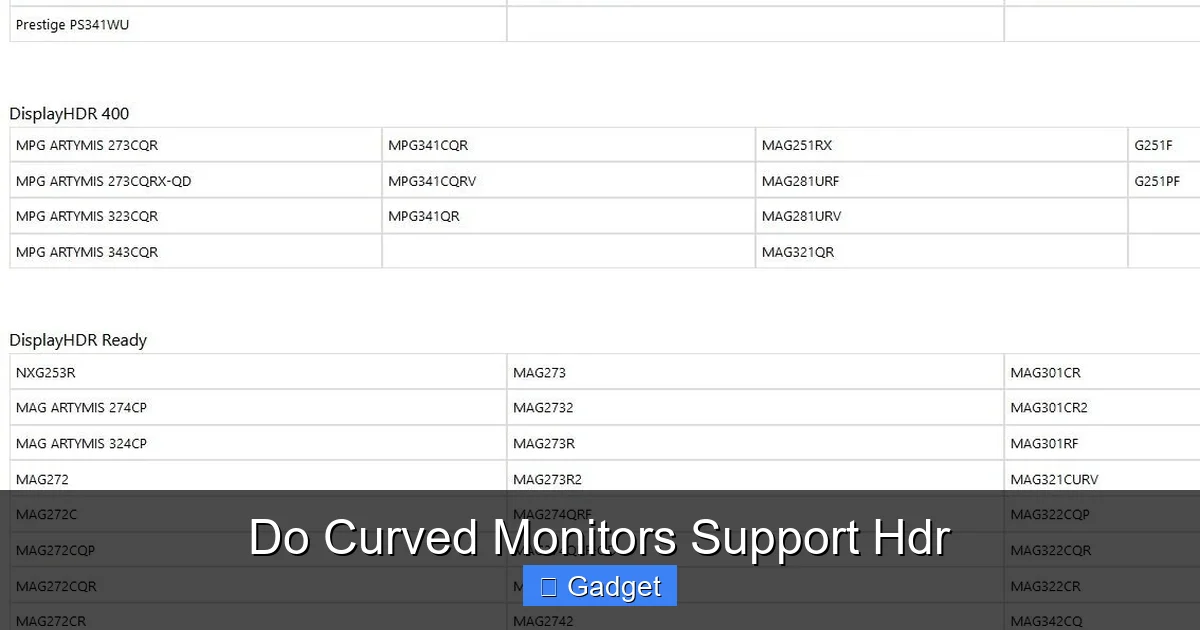
* VESA DisplayHDR Certifications: The Video Electronics Standards Association (VESA) has developed its own tiered certification program (DisplayHDR) that sets clear performance benchmarks for HDR monitors. These are often the most reliable indicators of actual HDR performance:
* DisplayHDR 400: This is the entry-level certification. It requires a minimum peak brightness of 400 nits and 8-bit color depth. While it offers some improvement over SDR, it’s often considered a minimal HDR experience by enthusiasts.
* DisplayHDR 600: Requires a peak brightness of 600 nits, wider color gamut support, and often HDR content with dynamic range. This provides a more noticeable HDR effect.
* DisplayHDR 1000: Demands a peak brightness of 1000 nits or more, along with other advanced features like local dimming. This tier delivers a truly impactful HDR experience.
* Higher tiers like DisplayHDR 1400 also exist, offering even greater peak brightness.
Tip: When comparing monitors, prioritize those with higher VESA DisplayHDR certifications (600 and above) or those explicitly mentioning HDR10+, Dolby Vision, and higher peak brightness specifications.
2. Brightness (Nits)
Brightness is fundamental to HDR. For highlights to truly pop and for the display to meet HDR standards, it needs to be able to achieve a significant peak brightness.
* Minimum Requirement: While DisplayHDR 400 is the lowest tier, many consider 600 nits and above to be where HDR starts to look truly impressive.
* Peak vs. Sustained Brightness: Pay attention to peak brightness, as this is what HDR relies on for those intense bright spots. Sustained brightness is also important for overall image quality.
3. Contrast Ratio and Panel Type
The ability to display deep blacks and bright whites simultaneously is crucial for HDR.
* VA (Vertical Alignment) Panels: These panels generally offer excellent native contrast ratios, meaning they can produce deeper blacks compared to IPS panels. This can be a significant advantage for HDR, as it allows for greater differentiation between light and dark areas.
* IPS (In-Plane Switching) Panels: IPS panels are known for their superior color accuracy and wide viewing angles. While their native contrast is typically lower than VA, some IPS panels use advanced backlighting techniques to improve contrast for HDR.
* OLED Panels: While not yet common in curved monitors, OLED technology offers perfect blacks (each pixel emits its own light and can be turned off completely) and incredibly high contrast ratios, making them the gold standard for HDR. If you find an OLED curved monitor, it will likely offer the best HDR experience.
4. Local Dimming
This is a game-changer for HDR performance, especially on monitors that don’t use OLED technology.
* What it is: Local dimming allows the monitor’s backlight to be divided into zones that can be independently dimmed or brightened.
* Full-Array Local Dimming (FALD): This is the most effective form of local dimming, where LEDs are placed across the entire back of the panel, allowing for precise control over many zones. FALD significantly improves contrast and reduces “blooming” (light haloing around bright objects on dark backgrounds).
* Edge-Lit Local Dimming: Less effective than FALD, where LEDs are only placed along the edges of the screen and light is diffused across the panel. This can lead to more noticeable blooming and less precise control.
Tip: For the best HDR experience on a non-OLED curved monitor, look for one with FALD.
5. Color Depth and Gamut
* 10-bit Color: HDR requires a wider range of colors, and 10-bit color depth (over 1 billion colors) is essential. Most modern HDR monitors support 10-bit color, either natively or through dithering (simulating 10-bit color with an 8-bit panel and rapid pixel flickering). True 10-bit panels are preferable.
* Wide Color Gamut (WCG): Look for monitors that cover a high percentage of color gamuts like DCI-P3 or Adobe RGB. This ensures that the monitor can actually display the expanded range of colors that HDR content offers. A monitor covering 90% or more of DCI-P3 is a good indicator.
Putting It All Together: How to Enjoy HDR on Your Curved Monitor
Visual guide about Do Curved Monitors Support Hdr
Image source: techpowerup.com
Once you’ve chosen an HDR-capable curved monitor, there are a few more steps to ensure you’re experiencing HDR as intended.
Step 1: Check Your Hardware and Software
* Graphics Card: Ensure your graphics card (GPU) in your PC supports HDR. Most modern NVIDIA (GeForce GTX 10-series and later) and AMD (Radeon RX 400-series and later) cards do.
* Operating System: Your operating system needs to support HDR. Windows 10 and Windows 11 have robust HDR support. Make sure your OS is up to date.
* Connection: Use a high-quality HDMI 2.0a/b or DisplayPort 1.4 cable to ensure sufficient bandwidth for HDR signals.
Step 2: Enable HDR in Your Operating System
This is a crucial step that is often overlooked.
* **On Windows 10/11:**
1. Go to Settings.
2. Click on System.
3. Select Display.
4. Under Windows HD Color settings, toggle HDR and WCG color to On.
5. You may also see an option for “Use HDR” which you should enable.
* Tip: If the option is greyed out, double-check your cable connections, driver updates, and monitor settings.
Step 3: Ensure Your Content is HDR
You won’t see the benefits of HDR if the content you’re watching or playing isn’t in HDR.
* **Games:** Many modern PC games support HDR. You’ll usually find an HDR option within the game’s graphics or display settings.
* **Movies and TV Shows:** Streaming services like Netflix, Amazon Prime Video, Disney+, and Apple TV+ offer a significant amount of HDR content (often branded as HDR, Dolby Vision, or HDR10+). Ensure you have a subscription plan that supports HDR streaming and that your streaming app is configured correctly.
* **Blu-ray Discs:** UHD Blu-ray discs often come in HDR formats (HDR10 or Dolby Vision). You’ll need a compatible UHD Blu-ray player.
Step 4: Optimize Monitor Settings
* **Monitor’s HDR Mode:** Most HDR monitors have a dedicated HDR picture mode. Experiment with this mode to see which setting provides the best visual experience for different types of content.
* **Brightness and Contrast:** You may need to adjust the monitor’s brightness and contrast settings manually, even when HDR is enabled, to fine-tune the look.
* **Local Dimming Settings:** If your monitor has local dimming, explore its different settings (e.g., low, medium, high) to find a balance between contrast enhancement and avoiding distracting artifacts.
Troubleshooting Common HDR Issues on Curved Monitors
Even with the right hardware, you might encounter some problems.
* **HDR Looks Washed Out or Dim:** This is a common complaint.
* Solution: Ensure HDR is enabled in Windows. Check your monitor’s HDR settings and try different picture modes. Make sure your content is actually HDR. Sometimes, SDR content can look poor when HDR is forced on.
* **Colors Seem Inaccurate:**
* Solution: Recalibrate your monitor or use a colorimeter if you have one. Ensure your graphics drivers are up to date. Some monitors may require specific color profiles for optimal HDR.
* **Flickering or Artifacts:**
* Solution: Try a different, high-quality cable. Update your graphics card drivers. If the issue persists, it might be a problem with the monitor itself or its firmware.
* **HDR Not Available/Greyed Out:**
* Solution: Verify that your monitor, GPU, and connection all support the required HDR standards. Ensure you are using the correct display port (DisplayPort 1.4 or HDMI 2.0a/b). Check that your monitor is set to its highest refresh rate and resolution in display settings.
The Benefits of HDR on a Curved Display
Combining HDR with a curved display offers a synergistic experience that enhances immersion and visual fidelity.
* **Deeper Immersion:** The curve pulls you into the scene, and HDR makes that scene more vibrant, detailed, and lifelike, creating a truly cinematic or intensely engaging gaming experience.
* **Enhanced Realism:** The expanded color and contrast of HDR, coupled with the wider field of view from the curve, makes virtual worlds feel more tangible and natural.
* **Improved Detail in Dark Scenes:** Curved monitors can sometimes suffer from light bleed at the edges. HDR’s ability to display deep blacks and detailed shadows helps mitigate this, making dark scenes in games or movies clearer and more atmospheric.
* **Reduced Eye Strain (Synergy):** While the curve itself helps reduce eye strain by maintaining a consistent viewing distance, the more natural-looking images produced by HDR can also contribute to a more comfortable viewing experience over long sessions.
Conclusion: Embracing HDR on Your Curved Monitor
So, to reiterate the main point: **yes, curved monitors absolutely can support HDR**, and when they do, they can offer a significantly enhanced visual experience. The curvature draws you in, while HDR brings the image to life with stunning detail, vibrant colors, and dramatic contrast.
However, achieving that stunning HDR experience requires more than just buying a monitor with both features. It’s about understanding the specifications – looking for robust HDR certifications like VESA DisplayHDR 600 or higher, ample brightness, and ideally, local dimming. It’s also about ensuring your entire setup, from your PC to your content, is HDR-ready.
By following the steps outlined in this guide, you can confidently navigate the world of HDR curved monitors, make an informed purchase, and unlock the full potential of your gaming, movies, and everyday computing. Prepare to see your digital world in a whole new light.