Checking Battery Health Using Diagnostic Tools Or Apps For

Checking Battery Health Using Diagnostic Tools or Apps
Understanding Why Battery Health Matters
Maintaining good battery health is crucial for your device’s performance and longevity. Over time, batteries lose capacity, which can cause devices to drain quickly or shut down unexpectedly. Regularly checking your battery’s health helps you identify problems early and take action to improve your device’s lifespan. Healthy batteries provide longer usage times and better efficiency. Knowing how to monitor and interpret battery health can save you money and prevent device failure. This section explains why keeping an eye on battery health is essential for both smartphones and laptops.What Are Diagnostic Tools and Apps?
Diagnostic tools are software programs or built-in device features that analyze your battery’s condition. These tools give you detailed data about battery capacity, charge cycles, and overall health. Apps designed for battery health checkups are user-friendly and often free or inexpensive. Most diagnostic tools provide insights such as remaining capacity, current charge level, and the number of charge cycles your battery has undergone. They work across different operating systems like iOS, Android, Windows, and macOS. Using these tools helps you understand when it’s time for a battery replacement or other maintenance.How to Check Battery Health on Smartphones
Smartphones come with various methods for checking battery health. For iPhones, Apple offers a built-in feature called “Battery Health,” accessible through Settings. It shows maximum capacity and peak performance capability at a glance. Android phones may have different options depending on the manufacturer. Some Android devices include a hidden service menu, while others require third-party apps. Popular apps like AccuBattery and GSam Battery Monitor provide detailed reports on battery health and usage patterns.Using Built-in Features on iPhone
Go to Settings, then select Battery. Tap on Battery Health & Charging. Here, you’ll see the maximum capacity percentage, which indicates how much the battery can hold compared to when it was new. A value below 80% suggests that the battery might need replacement soon. This section also highlights Peak Performance Capability, informing you if your device can still support demanding tasks without unexpected shutdowns. Apple recommends replacing batteries when capacity drops significantly to ensure optimal device performance.Checking Battery Health on Android Devices
Many Android phones hide battery info within their secret menus. To access this, type *#*#4636#*#* into your dialer or navigate through Settings > About Phone > Battery Status, depending on your device. Third-party apps like AccuBattery can give more in-depth data. These apps analyze battery consumption over time, reveal charge cycles, and estimate remaining capacity. They’re useful for users who want detailed insights beyond the basic readings.Using Diagnostic Tools for Laptops
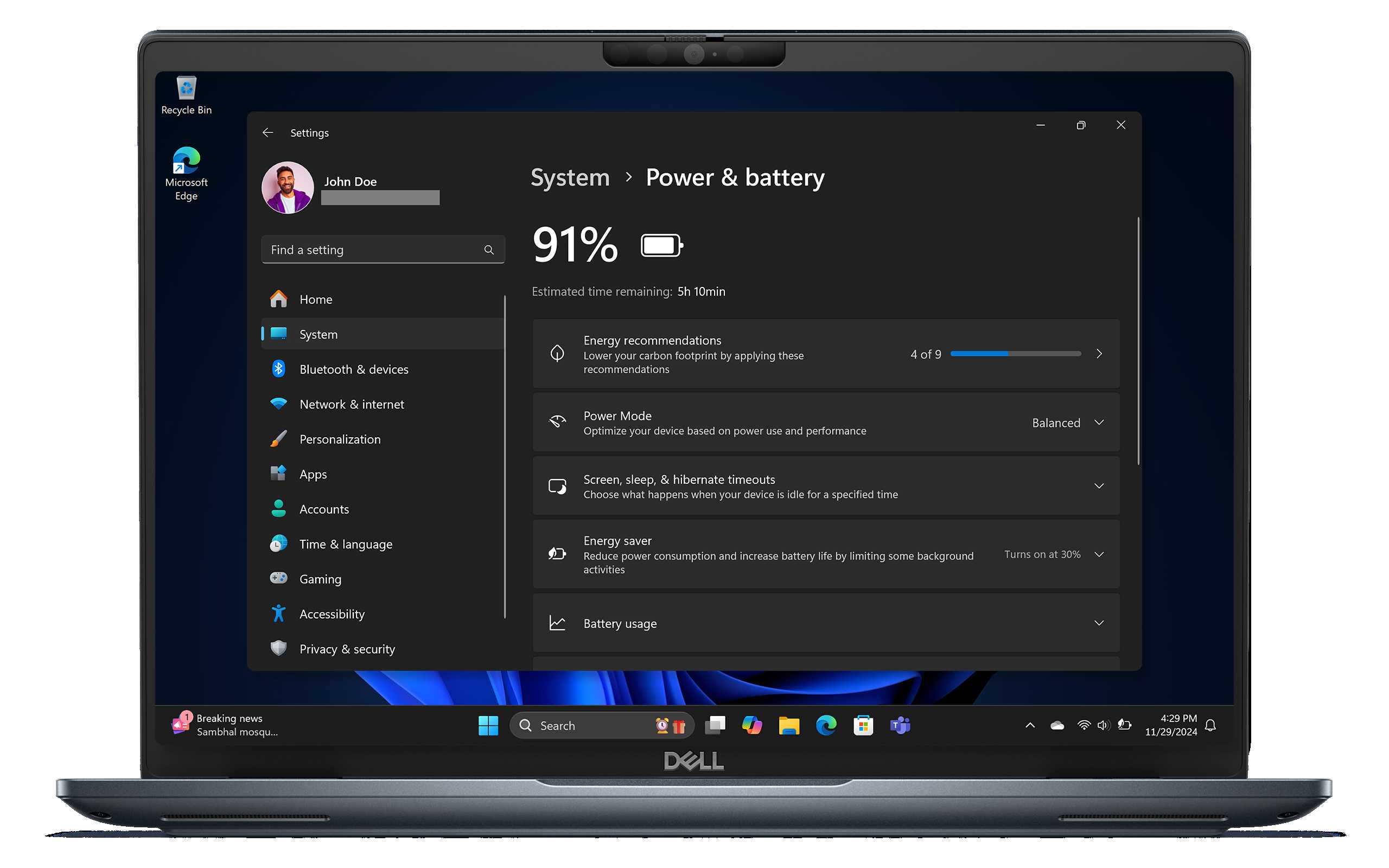
Laptop users also have several options for monitoring battery health. Windows devices often include built-in tools or utilities from manufacturers like Dell, HP, or Lenovo. macOS users can use the System Information app or third-party tools. Regular diagnostics on laptops help prevent sudden shutdowns and improve troubleshooting. These tools provide data on battery capacity, cycle count, and whether the battery is functioning within optimal parameters.Checking Battery Health on Windows
In Windows, you can generate a detailed battery report using Command Prompt. Type **powercfg /batteryreport** and press Enter. This creates an HTML file stored on your computer, which you can open in any browser. The report shows design capacity, full charge capacity, and number of charge cycles. Comparing these figures tells you how much your battery has degraded over time.Assessing Battery Status on macOS
On Macs, hold the Option key and click the battery icon in the menu bar. This reveals an overview of your battery condition. You can also access detailed data via System Information > Power. Third-party apps like coconutBattery provide even more detailed insights, including current capacity, cycle count, and health status. These tools help macOS users understand if their battery needs replacement.Interpreting Battery Health Data
Understanding the information provided by diagnostic tools is key to proper maintenance. The main metric to watch is **maximum capacity**—the percentage of the original battery capacity remaining. A capacity above 80% generally indicates good health. Values below this suggest your battery is aging and may start to show issues like shorter usage times. Cycle count also matters; most batteries are designed for a certain number of charge cycles before performance drops.Key Metrics to Focus On
- Maximum Capacity: Indicates how much charge your battery holds compared to when new.
- Charge Cycles: Total number of complete charges your battery has undergone.
- Battery Age: How long the battery has been used since manufacturing.
- Peak Performance Capability: Whether the device can perform at optimal levels.
How to Improve and Maintain Battery Health
Optimizing battery health involves both monitoring and adjusting usage habits. Avoid letting your device’s battery drain completely before charging. Instead, keep the charge level between 20% and 80% for best results. Avoid exposing your device to excessive heat, which accelerates battery degradation. Using the original charger and avoiding overnight charging can also help maintain battery longevity. Calibrating your battery periodically ensures diagnostic tools provide accurate readings.Additional Tips for Device Users
- Turn off background apps that drain power unnecessarily.
- Reduce screen brightness and turn on battery saver modes when needed.
- Keep your device’s software up to date for optimal battery management.
- Avoid exposing batteries to extreme temperatures.
When to Replace Your Battery
If diagnostic tools show a capacity below 70% or if your device experiences rapid power loss, it’s time to consider a battery replacement. Many devices have simplified options for visiting authorized service centers. Replacing an aging battery can restore device performance and extend its lifespan. For laptops, replacing the battery is often straightforward, either DIY or through professional service. Consider replacing batteries early to avoid sudden shutdowns or data loss.Additional Tools for Advanced Diagnostics
Advanced users seeking detailed analysis may use third-party hardware diagnostic tools. These include battery analyzers and specialized software that test internal resistance and other parameters. Battery management software like BatteryCare or iMazing offers an in-depth look at performance trends over time. These tools are ideal for tech-savvy users or professionals who need precise data to make maintenance decisions.Related Topics to Explore
- Best practices for extending battery lifespan
- Signs your device’s battery needs replacement
- Differences between lithium-ion and other battery types
- How to calibrate your device’s battery for better readings
- Impact of apps and background processes on battery life
How To Check Real Battery Health On iPhone?
Frequently Asked Questions
How can I interpret the battery health report from diagnostic tools?
Battery health reports typically provide information about the battery’s capacity compared to its original state, its current status, and any potential issues. Look for metrics like maximum capacity percentage and cycle count. A higher capacity percentage indicates a healthier battery, while a lower percentage suggests reduced performance. Pay attention to any warning messages that highlight needed maintenance or replacement to keep your device functioning optimally.
Are there any risks associated with using third-party apps to check battery health?
Using third-party apps can sometimes pose risks if they do not come from reputable sources. Some may request unnecessary permissions or provide inaccurate readings, leading to misunderstandings about your battery’s condition. To minimize risks, only choose well-reviewed and trusted diagnostic tools, and avoid installing apps from unofficial sources. Always cross-check results with device manufacturer recommendations if possible.
Can diagnostic tools provide real-time updates on battery performance?
Yes, many diagnostic tools display real-time information about your battery’s current status, including charge level, temperature, and voltage. These tools allow you to monitor how the battery responds under different usage scenarios. Regular updates can help you identify abnormal behavior early, such as rapid discharging or overheating, enabling timely actions to preserve battery life.
What are the limitations of using diagnostic apps to assess battery health?
While diagnostic tools offer valuable insights, they might not reveal all underlying battery issues. Some problems, like internal degradation or cell imbalance, may not be detectable through software alone. Moreover, results can vary between tools, and certain apps might provide estimates rather than precise measurements. Combining software diagnostics with physical inspection or professional advice offers the most comprehensive assessment.
Final Thoughts
Checking battery health using diagnostic tools or apps provides a quick and effective way to evaluate your device’s performance. These tools give clear insights into battery capacity, cycle count, and overall health, helping you identify potential issues early. Regularly assessing your battery’s condition can prevent unexpected shutdowns and extend its lifespan. Stay proactive by using reliable diagnostic apps to maintain your device’s optimal performance efficiently.
Similar Posts































