Android Studio How To Make An App: Step-By-Step Guide

Android Studio: How to Make an App
Creating an app for Android might seem like a daunting task at first, but with the right tools and step-by-step guidance, you can develop your own app successfully. In this section, we’ll go through the entire process, starting from setting up Android Studio to publishing your app on the Google Play Store. Whether you’re a beginner or someone with minimal coding experience, this guide will help you understand each step clearly and efficiently.Getting Started with Android Studio
Before diving into coding, you need to set up your environment. Android Studio is the official IDE for Android app development. It offers all the tools you need in one place, such as code editing, debugging, and testing features.Downloading and Installing Android Studio
– Visit the official Android Developer website and find the download link for Android Studio. – Choose the version compatible with your operating system (Windows, Mac, Linux). – Follow the installation prompts, which involve accepting terms, selecting installation paths, and setting up SDK components. – Once installed, launch Android Studio.Setting Up Your First Project
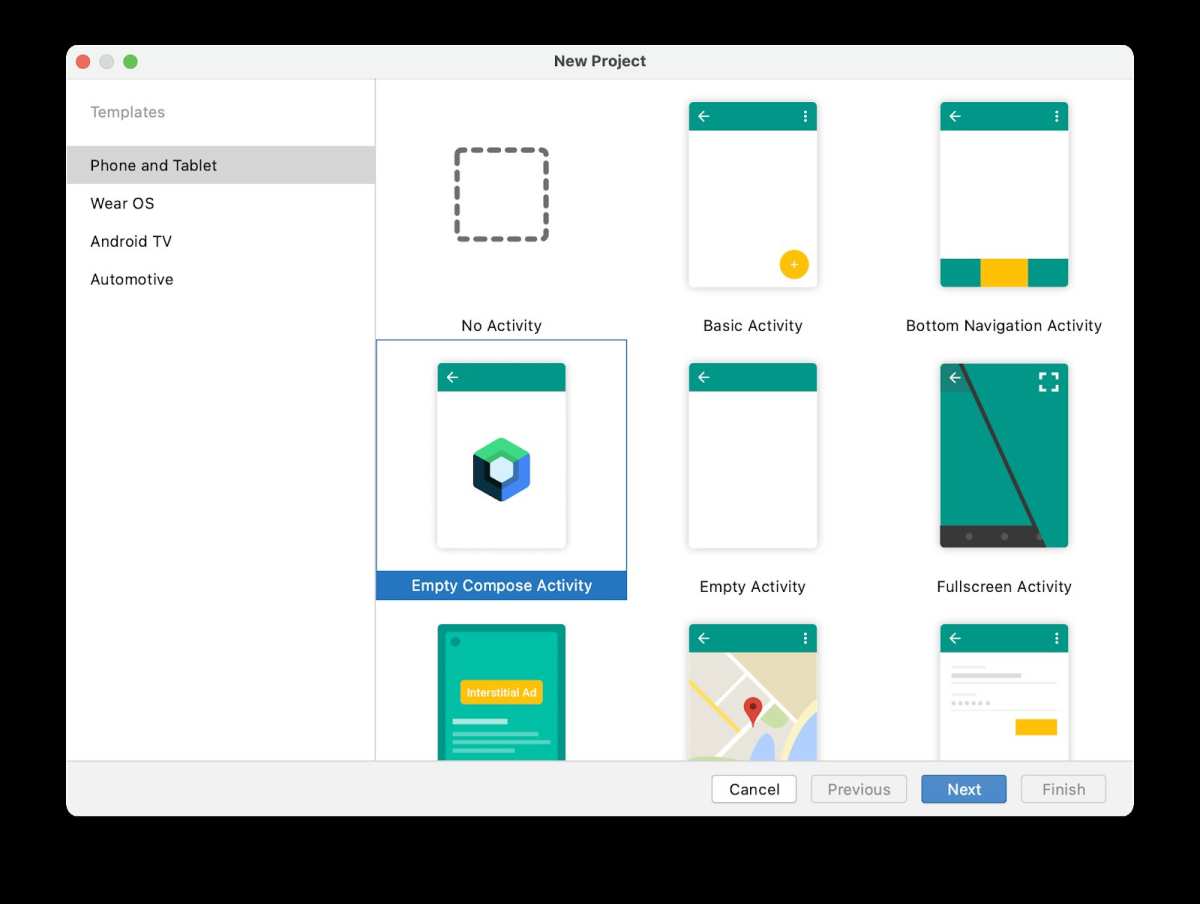
– Launch Android Studio and click on “Start a new Android Studio project.” – Choose a project template. For beginners, “Empty Activity” works well. – Enter your project name, package name, save location, and language (Java or Kotlin). – Set the minimum SDK; typically, selecting API 21 or higher covers most Android devices. – Click “Finish” to generate your project files.Understanding the Structure of an Android App
Knowing how your app is organized helps in customizing and debugging effectively.Key Files and Folders
- app > src > main: Contains most of your app’s code and resources.
- Java/Kotlin folder: Houses your app’s main source code.
- res (resources folder): Stores layouts, images, strings, and styles.
- AndroidManifest.xml: Declares app components like activities and permissions.
Designing Your User Interface
Creating an attractive and user-friendly interface is crucial. In Android Studio, you can design layouts either through a drag-and-drop visual editor or by editing XML code directly.Using the Layout Editor
– Open the layout file, usually named activity_main.xml. – Drag and drop widgets like buttons, text boxes, and images onto the design canvas. – Adjust properties such as size, color, and position using the properties panel. – Preview your layout on different device sizes and orientations.Writing XML Code for Layouts
For more precise control, you can write layout XML code directly:
<LinearLayout
    android:layout_width="match_parent"
    android:layout_height="match_parent"
    android:orientation="vertical">

    <TextView
        android:id="@+id/welcomeText"
        android:layout_width="wrap_content"
        android:layout_height="wrap_content"
        android:text="Welcome to My App!"
        android:textSize="24sp"
        android:margin="16dp"/>

    <Button
        android:id="@+id/pressButton"
        android:layout_width="wrap_content"
        android:layout_height="wrap_content"
        android:text="Click Me!"
        android:margin="16dp"/>

</LinearLayout>
This structure sets up a simple vertical layout with a welcoming message and a button. Programming Your App’s Behavior
Once the user interface is ready, you need to assign actions to buttons and other components.Connecting UI Elements to Code
– Open your activity’s Java or Kotlin file (e.g., MainActivity.java). – Use functions like findViewById() to link layout elements to code variables. – For example, in Java:Button myButton = findViewById(R.id.pressButton);– In Kotlin:
val myButton: Button = findViewById(R.id.pressButton)
Adding Functionality with Event Listeners
– Set up click listeners to respond to user actions: In Java:
myButton.setOnClickListener(new View.OnClickListener() {
    @Override
    public void onClick(View v) {
        Toast.makeText(MainActivity.this, "Button was clicked!", Toast.LENGTH_SHORT).show();
    }
});
In Kotlin:
myButton.setOnClickListener {
    Toast.makeText(this, "Button was clicked!", Toast.LENGTH_SHORT).show()
}
This code displays a message when the button is pressed. Running and Testing Your App
Testing lets you see how your app works before publishing it. Android Studio provides two main options:Using an Emulator
– Set up an Android Virtual Device (AVD) by clicking the AVD Manager. – Select a device profile and system image. – Launch the emulator and run your app to test various screen sizes and Android versions.Using a Physical Device
– Enable Developer Options and USB debugging on your device. – Connect your device to your computer via USB. – Allow your computer to access the device when prompted. – Select your device from the run configuration and click run.Debugging and Improving Your App
Debugging helps identify problems so you can fix bugs and improve user experience.Using Logcat
– Logcat displays system messages, errors, and logs from your app. – Use it to identify crashes or unexpected behaviors. – Add log statements to your code, like: In Java:
Log.d("MainActivity", "Button clicked");
In Kotlin:
Log.d("MainActivity", "Button clicked")
Handling Common Errors
– Check for typos in code or resource IDs. – Make sure all necessary permissions are declared in AndroidManifest.xml. – Use the debugger to step through code and find issues.Publishing Your App
Once your app functions well and looks good, it’s time to share it with the world by publishing on Google Play.Preparing Your App for Release
– Generate a signed APK or App Bundle. – Create app icons, screenshots, and a clear description. – Ensure your app complies with Google Play policies.Publishing on Google Play Store
– Sign in to your Google Play Developer account. – Upload your APK or App Bundle. – Fill out the store listing details. – Set pricing and distribution options. – Submit your app for review.Tips for Making a Successful Android App
– Keep your interface simple and intuitive. – Test your app across different devices. – Get feedback from friends or users before final release. – Regularly update your app with improvements and bug fixes. – Promote your app through social media or online communities. Making an Android app might seem like a lot at first, but breaking it down into smaller steps makes it manageable. Focus on designing a nice layout, adding simple functionalities, testing thoroughly, and finally sharing your creation. With time and practice, creating more complex apps becomes easier, and you’ll gain confidence in your development skills.Frequently Asked Questions
What are the initial steps to set up a new project in Android Studio?
To begin creating an app in Android Studio, start by opening the IDE and selecting “Start a new Android Studio project.” Choose a template that matches your app’s purpose, such as Empty Activity. Enter your project’s name, package name, and save location. Configure the minimum SDK version to determine device compatibility. Click “Finish” to generate the project structure, which includes essential files and directories to start developing your app.
How can I add new features or screens to my Android app?
To add new features or screens, create additional activities or fragments within your project. Right-click on your app module, select “New,” then choose “Activity” or “Fragment.” Name the component and specify layout details. Android Studio automatically generates the necessary Java or Kotlin files along with XML layout files. You can then customize these files to include UI elements and functionality specific to your new feature.
What are effective ways to test my app during development?
Test your app by using the built-in emulator in Android Studio, which simulates various device configurations. Connect physical devices via USB with developer options enabled for real-device testing. Utilize Android Studio’s debugging tools, logcat, and breakpoints to identify issues. Regularly run your app on different devices and screen sizes to ensure consistent performance and appearance across platforms.
How do I prepare my app for release on the Google Play Store?
Prepare your app for release by generating a signed APK or App Bundle through Android Studio’s build menu. Create a secure keystore and signing key, then configure build settings accordingly. Optimize your app by removing debug features and testing stability. Write detailed app descriptions, add appropriate screenshots, and fill out metadata in the Google Play Console. Finally, upload your signed package and submit your app for review and publication.
What are some best practices for designing user interfaces in Android Studio?
Use Android Studio’s layout editor to design intuitive and responsive interfaces. Leverage ConstraintLayout for flexible and adaptive UI layouts. Follow Material Design guidelines to create visually appealing components. Ensure buttons and touch targets are appropriately sized and spaced for easy interaction. Test the UI on multiple devices and orientations to maintain consistency and usability across different screen sizes.
Final Thoughts
In summary, creating an app with Android Studio involves setting up your environment, designing your interface, and writing code to bring your ideas to life. Practice makes perfect, so explore tutorials and experiment with features to improve your skills. Remember, understanding how to make an app in Android Studio empowers you to develop innovative solutions. Focus on your goals, stay persistent, and enjoy the process of building something meaningful. Android Studio how to make an app becomes clearer as you gain hands-on experience and confidence.
Similar Posts