Effective Android Battery Check Tips For Better Phone
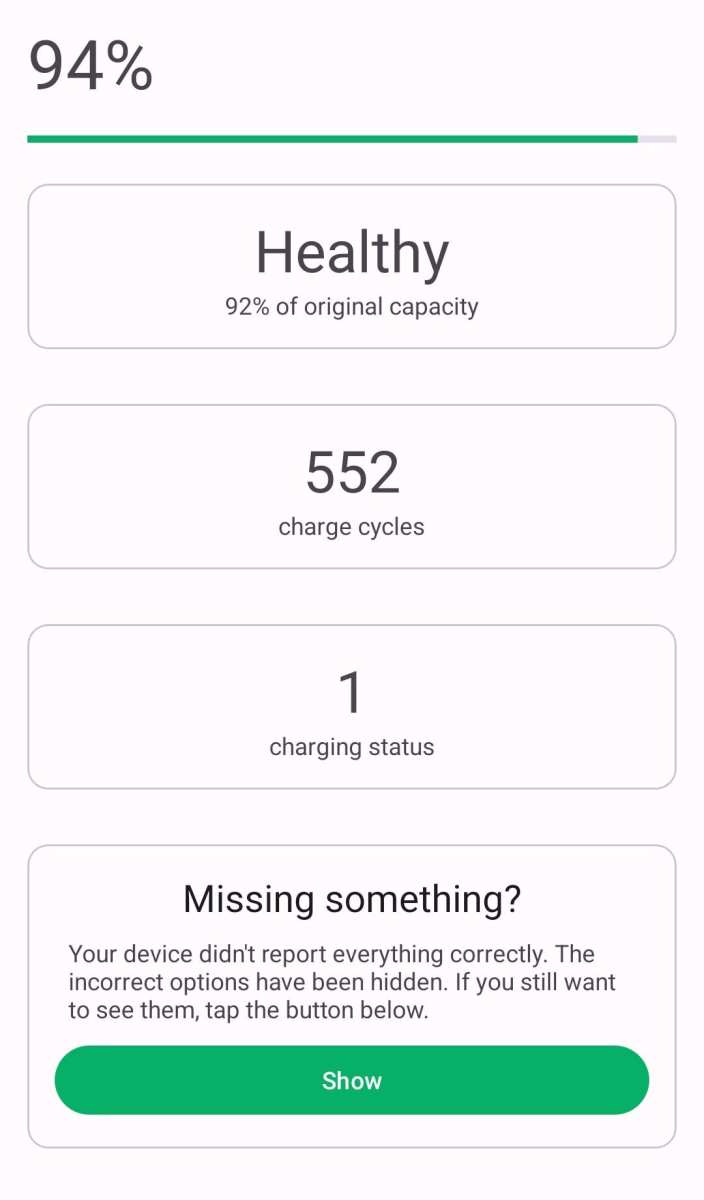

Comprehensive Guide to Android Battery Check
Keeping your Android device’s battery healthy is essential for ensuring your phone lasts longer and performs better throughout the day. Many users overlook the importance of regular battery checks, which can lead to unexpected shutdowns and reduced device lifespan. In this guide, we will explore everything you need to know about checking your Android battery, from understanding battery health indicators to useful tools and tips for maintaining optimal performance.Understanding Your Android Battery
Before diving into how to check your battery, it’s helpful to learn some basics about how Android batteries work. Most Android smartphones use lithium-ion batteries because they are lightweight, have a high energy density, and hold a charge well over time. However, over time and with frequent use, a battery’s capacity to hold charge diminishes. Understanding these key points about batteries can help you recognize signs of aging and know when it’s time to seek maintenance or replace the battery:- Capacity: How much charge your battery can hold, usually measured in milliampere-hours (mAh).
- Health: The overall condition of your battery, which affects capacity and charging efficiency.
- Performance: How quickly your battery charges and discharges during use.
How to Check Android Battery Status and Health
Checking your Android battery’s status can be done through different methods, ranging from built-in system tools to third-party applications. Each method offers varying levels of detail about your battery’s health and usage patterns.Using Built-in Android Battery Settings
Most Android devices come equipped with a battery menu that provides essential information about current usage and remaining charge. To access this:- Open the Settings app on your Android device.
- Scroll down and tap on “Battery” or “Battery & Device Care,” depending on your device model.
- You’ll see current battery percentage and a graph showing recent usage patterns.
- To get more detailed insights, look for options like “Battery Usage” or “Battery Health,” if available.
Using the Android *Dialer* for Hidden Battery Information
Some Android phones allow users to access hidden battery information via a code in the dialer. Here’s how:- Open the Phone app and dial *#*#4636#*#*.
- This code opens a menu called “Testing” or “Phone Information.”
- Tap “Battery Information” or “Battery Details.”
- Here, you can see data like battery health, voltage, temperature, and capacity estimates.
Third-Party Apps for Detailed Battery Analysis
For a more comprehensive view of your battery health, third-party apps can be invaluable. Popular apps include:- AccuBattery: Tracks real-time battery consumption, estimates battery capacity, and provides detailed health reports.
- GSam Battery Monitor: Offers insights into app usage, battery drain, and estimated remaining time.
- Battery Master: Monitors battery health, temperature, and charging behavior.
Understanding Battery Health Indicators
Knowing what the data means is key to effective battery management.Battery Capacity Percentage
This tells you how much charge your battery can hold compared to when it was new. For example:- 100% capacity indicates a brand-new or healthy battery.
- Below 80% suggests significant wear, and it may be time to consider replacing the battery.
Battery Temperature and Safety
High temperatures can damage your battery. When checking your battery, monitor temperature readings:- Normal operating temperature ranges from 20°C to 35°C (68°F to 95°F).
- If your battery exceeds 40°C (104°F), it’s a sign to reduce usage or seek professional help.
Charging Cycles and Their Impact
Every battery has a limited number of charge cycles, which is the number of complete charge and discharge cycles before capacity drops below optimal levels. A typical lithium-ion battery can handle around 300-500 cycles. To extend these cycles:- Charge your battery before it reaches 0%, ideally between 20% and 80%.
- Avoid overcharging by unplugging once the battery reaches 100%.
- Use the original charger or a certified one compatible with your device.
Effective Tips for Maintaining Healthy Android Batteries
Maintaining your Android battery involves simple habits and best practices. Here are some tips:Keep Your Battery’s Charge Level Flexible
Avoid letting your battery completely drain or stay fully charged for extended periods:- Try to keep the charge between 20% and 80% for daily use.
- Use a power bank or portable charger if you need a quick boost throughout the day.
Use Original or Certified Chargers
Charging with non-certified chargers can harm your battery:- Use chargers recommended by the device manufacturer.
- Avoid cheap, unbranded chargers that may deliver inconsistent voltage or current.
Limit Exposure to Extreme Temperatures
Temperature significantly affects battery health:- Keep your device away from direct sunlight or cold environments.
- Avoid charging in very hot conditions to prevent overheating.
Reduce Background App Activity
Background apps drain battery unnecessarily:- Close apps not in use.
- Disable unnecessary notifications from apps taking up battery power.
- Use the battery saver mode available on your device.
Optimize Screen Brightness and Timeout Settings
The display consumes the most power:- Lower screen brightness or enable adaptive brightness.
- Reduce screen timeout duration to prevent unnecessary battery drain.
When to Consider Replacing Your Android Battery
If your battery shows persistent issues despite following maintenance tips, it might be time to replace it:- The capacity drops below 80% and remains there.
- The battery drains quickly even after full charge.
- Your device heats up during charging or use.
- You experience unexpected shutdowns or reboots.
Final Thoughts on Android Battery Check
Regularly checking your Android device’s battery health helps catch potential problems early and prevents inconvenience. Use built-in tools, codes, or third-party apps to gather detailed insights about capacity, temperature, and usage patterns. Maintain good charging habits, avoid extreme temperatures, and minimize unnecessary background activity to keep your battery in top shape. When signs of wear appear, replacing the battery is the best way to prolong your device’s lifespan and keep it running smoothly. Remember, a well-maintained battery not only extends your device’s usability but also provides peace of mind knowing your phone is ready when you need it most. Be proactive about battery health, and your Android device will serve you reliably for years to come.Frequently Asked Questions
How can I check the overall health of my Android battery?
To assess your Android battery’s health, use the built-in device diagnostics feature or third-party apps like AccuBattery. These tools provide information on battery capacity, usage patterns, and potential issues. Regularly monitoring these metrics helps you identify if your battery is degrading and when it might need replacement.
What steps should I take if my Android battery drains quickly?
If your battery drains faster than usual, start by examining the battery usage details to see which apps consume the most power. Reduce activity in high-drain applications and disable unnecessary features like Bluetooth or GPS. Additionally, perform a proper restart and consider updating your device software, as updates often include improvements for battery efficiency.
Are there recommended apps or methods to track battery performance over time?
Yes, apps such as AccuBattery, GSam Battery Monitor, or Battery Widget Show provide detailed insights into your battery’s performance. They track charge cycles, estimated remaining capacity, and usage patterns, helping you make informed decisions about your device’s power management and when to replace the battery if needed.
How can I identify if my Android device’s battery needs replacement?
Look for signs like rapid power loss, longer charging times, or the device shutting down unexpectedly. Using battery health diagnostic tools can reveal low capacity or other issues. If your battery capacity drops below 80%, it may be time to consider replacing it to restore optimal device performance.
Does charging habits impact my Android battery’s longevity?
Yes, frequent full discharges and overcharging can shorten your battery’s lifespan. To maintain battery health, keep your device charged between 20% and 80%, and avoid leaving it plugged in overnight. Proper charging habits help preserve battery capacity over time.
Final Thoughts
In conclusion, regular android battery check helps you monitor your device’s health and prevent unexpected shutdowns. It allows you to identify apps or processes draining power unnecessarily. Performing these checks ensures you extend your battery life and optimize device performance. Staying proactive with android battery check techniques keeps your phone running smoothly and ready for use whenever needed.
Similar Posts































