

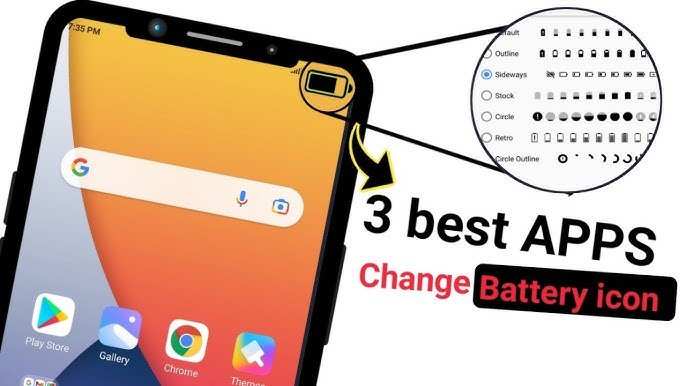
Want to change your Android battery icon? **You can easily do this by installing a custom launcher or using specific apps designed for icon customization.** Changing the Android battery icon allows you to personalize your device and keep track of your battery life in style. It’s a straightforward process that can be completed in just a few minutes. Whether you prefer a minimalistic or more colorful design, adjusting the icon gives your phone a fresh look and better functionality.

How to Change Android Battery Icon: A Complete Guide
If you’re someone who loves customizing your Android device, changing the battery icon is a great way to give your phone a fresh look. The battery icon not only shows how much charge is left but also adds to the overall style of your device. Many Android users wonder how to change this icon because stock Android doesn’t offer a straightforward option to do so. Luckily, there are multiple ways to customize the battery icon, whether through settings, apps, or custom launchers. In this guide, we will explore different methods in detail, helping you choose the best way to personalize your Android device’s battery icon.
Understanding Why You Might Want to Change Your Battery Icon
Before diving into how to change the battery icon, let’s look at why you might want to do this. Customizing your battery icon can:
- Improve aesthetics: Make your device look more stylish and unique.
- Enhance functionality: Some customized icons can display more detailed battery information.
- Match your theme: Keep everything on your device cohesive with custom icons and themes.
- Express your personality: Show off your style through personalized icons.
Methods to Change the Android Battery Icon
There are generally three main approaches to changing the battery icon on your Android phone:
Using Built-in Settings and Themes
Installing Custom Launchers
Applying Custom ROMs or System Mods
We will go in-depth into each method, explaining how you can implement them easily.
Changing Battery Icon Using Built-in Settings and Themes
Many Android devices, especially those from manufacturers like Samsung, Huawei, or Xiaomi, include built-in options for customizing the battery icon. These options are usually part of the device’s theme or display settings.
Accessing Theme Settings
On many devices, you can change the battery icon by following these steps:
- Open the Settings app on your device.
- Look for Themes or Display options.
- Tap on Themes if available. Some phones bring up theme stores where you can select different icon styles.
- Browse through available themes and select one that includes a new battery icon.
- Apply the theme, and your battery icon should update automatically.
**Note:** This method works best on phones with built-in themes or skin options like Samsung’s One UI or Xiaomi’s MIUI.
Using Icon Packs with Theme Support
Some manufacturers allow custom icon packs to change system icons, including the battery. Here’s a simple way:
- Go to the Play Store and search for icon pack.
- Choose an icon pack that mentions support for status bar or system icons.
- Install the icon pack and open your device’s theme or launcher settings.
- Apply the icon pack, which should update your battery icon along with other icons.
**Tip:** Always pick icon packs compatible with your device and launcher.
Using Custom Launchers to Change Battery Icons
If your device doesn’t support customization through built-in settings, custom launchers are a powerful alternative. They let you change icons on your home screen and sometimes the status bar.
Choosing the Right Launcher
Popular launchers like Nova Launcher, Action Launcher, and Lawnchair offer extensive customization options. Here’s how to use them:
- Download and install your preferred launcher from the Play Store.
- Set the launcher as your default home app.
- Open the launcher’s settings menu.
- Look for an option called Appearance, Icon Style, or similar.
- Select or download an icon pack that includes customized battery icons.
Customizing the Status Bar with Launchers
Most launchers allow you to hide or modify elements of the status bar, but changing the battery icon might require additional apps or modules:
- Install a launcher that supports status bar customization.
- Use a plugin or extension like Substratum themes or status bar icons mods.
- Apply your selected theme or icon pack, which changes the battery icon in the status bar.
**Note:** Changing system icons through launchers might not work on all devices due to Android’s restrictions.
Applying Custom ROMs for Advanced Customization
For tech-savvy users, installing a custom ROM offers the most control over your device’s appearance, including the battery icon. Custom ROMs like LineageOS, Pixel Experience, or Paranoid Android often support extensive customization options.
Preparation and Caution
Before installing a custom ROM:
- Back up all your data.
- Ensure your device is unlocked (developer options enabled).
- Download the necessary tools like custom recovery (TWRP).
- Choose a ROM compatible with your device model.
Flashing the ROM and Customizing Icons
Once you follow proper procedures:
- Boot into recovery mode.
- Flash the custom ROM.
- After installation, you may have options to customize icons via settings or pre-installed themes.
- Some ROMs include built-in themes that let you change the battery icon directly.
**Warning:** Installing custom ROMs can void your warranty and carries risks of bricking your device if not done correctly. Proceed carefully.
Third-Party Apps to Change Battery Icon
If you prefer a non-technical approach, several apps can help you customize the appearance of your battery icon without rooting or flashing:
- Battery Widget Reborn: Offers customizable battery widgets, including icon styles.
- Material Notification Shade: Lets you tweak notification and status bar appearance, including icons.
- Custom Status Bar: Apps that replace or overlay status bar icons with custom designs.
**How to Use These Apps Effectively:**
– Download your preferred app from the Play Store.
– Follow the app’s instructions to customize the battery icon.
– Some apps may require accessibility permissions or overlay permissions.
Additional Tips for Smooth Customization
– Always backup your device before making significant changes.
– Read reviews and instructions carefully before installing third-party apps or themes.
– Ensure your device’s software is up to date for compatibility.
– Use reputable apps and sources to avoid security issues.
Possible Challenges and Solutions
While customizing your battery icon is straightforward in many cases, some challenges may occur:
- Limited options on stock devices: Use custom launchers or icon packs for more flexibility.
- Icon not updating immediately: Clear cache or restart your device.
- Compatibility issues: Check if your device supports theme changes or custom ROM installation.
If you encounter persistent problems, forums like XDA Developers and Reddit have dedicated communities that can provide specific advice for your device model.
Best Practices for a Seamless Customization Experience
– Keep a backup of your device’s current settings and data.
– Use trusted sources for apps and themes.
– Follow step-by-step guides carefully.
– Test changes gradually to avoid system instability.
Customizing your Android’s battery icon can be a fun way to personalize your device. Whether you prefer simple theme changes, using launchers, or deep system customization, there’s a method suitable for everyone. Take your time exploring these options, and soon you’ll have a device that matches your style perfectly.
Frequently Asked Questions
Can I change the battery icon style on my Android device?
Yes, many Android devices allow you to customize the appearance of your battery icon. You can choose different styles, such as a percentage display, a battery outline, or an icon that integrates with your overall theme. To do this, explore your device’s display or notification settings, or use third-party apps that offer extensive customization options.
How do I add a percentage indicator to my battery icon?
Adding a percentage indicator varies depending on your device model. Usually, you can enable this feature through the Status Bar or Battery settings in your device’s system settings. If your device doesn’t support this natively, consider downloading a custom launcher or a third-party app that provides a toggle for battery percentage display.
Are there apps that can help me change the battery icon?
Yes, several apps available on the Google Play Store allow you to customize your battery icon. These apps often provide options to change the style, color, and visual representation of your battery status. Always choose reputable apps with good reviews and ensure they are compatible with your device and Android version before installing.
Can I replace the default battery icon with a custom one?
Replacing the default battery icon with a custom image generally requires rooting your device or installing a custom launcher or theme. Use caution with modifications, as they may affect device stability or void warranties. For a safer alternative, look for launchers or themes that support custom icons and integrate them into your home screen or notification bar.
Final Thoughts
Changing your Android battery icon allows for a personalized device appearance. You can customize it through various launcher apps or system settings, depending on your device. This simple update enhances your phone’s look and functionality.
In conclusion, change Android battery icon to better personalize your device experience. It’s an easy way to make your Android phone feel more unique and functional.
