

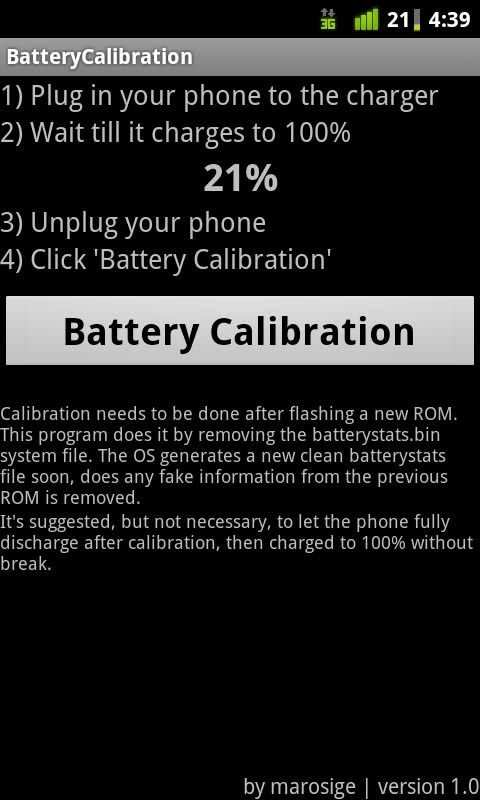
If your Android device’s battery drains quickly or shows inaccurate readings, calibrating the battery can fix these issues. **Android battery calibration involves resetting the battery’s software perception, improving accuracy and performance.** To calibrate, fully drain your battery then recharge it to 100% without interruption. This simple process can extend your device’s battery life and ensure your readings are reliable. Performing regular calibration keeps your Android device functioning smoothly and helps prevent unexpected shutdowns.

Understanding Android Battery Calibration and How to Do It
Taking good care of your Android phone’s battery is essential if you want it to last longer and perform better over time. One effective way to do this is through battery calibration. Many users notice their phone’s battery percentage acting strangely, such as suddenly dropping or staying at a certain level for a long time. These issues often happen because the phone’s battery indicator becomes inaccurate, even though the actual battery level is different. Battery calibration helps fix this problem by resetting the phone’s understanding of the battery’s true capacity and charge status.
In this article, we’ll explore everything you need to know about Android battery calibration. From what it is and why it matters to practical steps on how to do it, we will explain each part clearly and in detail. This way, you’ll better understand how to keep your Android device’s battery healthy, making sure your device runs smoothly and efficiently for years to come.
What Is Android Battery Calibration?
To start, it’s helpful to understand what we mean by battery calibration. Your Android phone uses a device called a battery management system (or BMS) to keep track of how much power is left in the battery. When you charge your phone, the BMS monitors the flow of electricity and displays a percentage that tells you how much battery remains.
However, over time, this system can become inaccurate. The battery’s capacity can shrink or the system’s readings might drift due to repeated charging cycles, software updates, or extreme temperature exposure. This inaccuracy causes the battery indicator to show incorrect information, which can be frustrating.
Battery calibration is the process of resetting the battery’s internal statistics so that the system’s readings match the real battery capacity. Once calibrated, your phone can better estimate how much power is left, ensuring the battery percentage display is reliable. It doesn’t physically change or improve the battery’s health but helps the phone correctly interpret the battery’s current state.
Why Is Battery Calibration Important?
You might wonder whether calibration is necessary. Here are some reasons why calibrating your Android device’s battery really matters:
- Accurate Battery Level: Calibration helps your phone correctly show how much battery is left, so you don’t run out unexpectedly.
- Better Battery Life Management: When your battery indicator is accurate, your device can better manage power consumption, which extends overall battery life.
- Prevents Early Battery Replacement: Inaccurate readings may lead you to think the battery is bad, even if it’s still in good health, leading to unnecessary replacements.
- Fixed Charging and Discharging Issues: Sometimes, because of incorrect readings, your device may stop charging early or turn off unexpectedly.
Keep in mind, calibration doesn’t make the battery last longer or restore its original capacity. Instead, it ensures the device understands the current battery condition accurately.
Signs That Your Android Battery Needs Calibration
Knowing when to calibrate can save you time and prevent bigger problems. Here are some common signs of a battery that might need calibration:
- The battery percentage jumps or fluctuates suddenly (from 20% to 0%, for example)
- The device turns off before reaching 0% or switches on when the battery appears to be dead
- The battery drains quickly even when you aren’t using the device
- The battery percentage remains the same for a long period despite heavy use
- Charging stops unexpectedly or takes longer than usual
If you experience these issues frequently, calibration can restore the accuracy of your battery readings and improve your user experience.
How to Calibrate Your Android Battery: Step-by-Step Guide
Calibrating your battery involves a simple process, but it must be done carefully to work correctly. Here’s a detailed guide to help you through the steps:
Step 1: Fully Charge Your Device
First, plug your Android phone into a charger and charge it to 100%. Ensure the device is connected directly to a power source, and avoid using the phone during this time. It’s best to keep the screen off and let it charge undisturbed.
Step 2: Keep the Phone Charging Even After Reaching 100%
Once your phone says it’s fully charged, wait about 15 to 30 minutes. This period allows the battery to reach a true full charge, including the tiny amount of power needed to stabilize the system.
Step 3: Use Your Phone Until It Turns Off
Unplug your device from the charger and start using it normally. Use your apps, browse the internet, or watch videos. Keep an eye on the battery percentage.
Continue using your phone until it turns off automatically because the battery has drained completely. This step ensures the device recognizes the battery’s actual capacity.
Step 4: Charge the Device to Full Again
Now, plug your phone back into the charger, and charge it uninterrupted until it reaches 100%. Do not turn on the device during charging this time.
Step 5: Turn On and Use Normally
Once fully charged, turn on your device and use it normally. The battery indicator should now be more accurate.
Important Tips:
- Avoid charging your device in extremely hot or cold conditions, as this can affect battery performance.
- Don’t perform calibration frequently—once every few months is enough unless you notice ongoing problems.
- If your battery health is poor, calibration won’t improve capacity, but it can ensure your readings are accurate.
Additional Tips for Maintaining Battery Health
While calibration helps with battery reporting accuracy, maintaining good habits extends your battery’s lifespan overall. Here are some suggestions:
- Charge in Small Steps: Instead of always charging from very low to full, keep your battery between 20% and 80% most of the time.
- Avoid Overcharging: Don’t leave your device plugged in after it reaches 100%. Overcharging can harm the battery over time.
- Use Official Chargers: Always use chargers and cables approved for your device to ensure proper voltage and current flow.
- Keep Your Device Cool: Heat damages batteries. Avoid leaving your phone in hot environments or under direct sunlight.
- Update Your Software: Keep your Android system updated, as newer versions often include battery management improvements.
Common Mistakes to Avoid During Calibration
To ensure the calibration process is effective, steer clear of these common mistakes:
- Don’t interrupt the charging process once it starts or during the calibration steps.
- Avoid using intensive apps or playing games while calibrating, as this can give false readings.
- Do not turn off the device during the charging process unless needed; keep it plugged in until fully charged.
- Refrain from repeatedly calibrating your battery—do it only when necessary or if you see signs of inaccurate readings.
When to Seek Professional Help
If calibration does not improve the accuracy of your battery readings or your device’s battery drains very quickly, it might be time to consider replacing the battery. Old or damaged batteries lose their capacity to hold charge, and calibration can’t restore their original function.
Visit a certified repair shop or contact your device manufacturer for advice. Sometimes, a hardware replacement is the only solution for persistent battery issues.
Summary of Key Points
Understanding how to calibrate your Android battery can help maintain the accuracy of the battery indicator and improve your overall experience with your device. Remember:
- Calibration involves fully charging, draining, and then recharging the battery.
- Perform calibration when you notice inaccurate battery readings or unusual behavior.
- Follow careful steps to prevent damage and ensure effective calibration.
- Proper battery maintenance extends battery life and performance.
Keeping your Android device’s battery properly calibrated and maintained is a simple way to keep your phone running smoothly and avoid unnecessary frustrations. Regular attention and good charging habits can significantly improve how well your device performs over time.
Frequently Asked Questions
How can I tell if my Android battery needs calibration?
If your Android device’s battery drains quickly or the battery percentage jumps unexpectedly, it may need calibration. Additionally, if the battery percentage shows inconsistent readings or the device shuts down unexpectedly at high battery levels, these are signs that calibration could help improve battery accuracy.
What are the steps to calibrate my Android battery properly?
First, fully drain your battery until the device shuts down naturally. Then, charge it uninterrupted to 100% without using the device. Once fully charged, keep it plugged in for an additional 30 minutes. This process helps the system recalibrate the battery sensor for more accurate readings.
Can calibrating my Android battery extend its lifespan?
Battery calibration mainly improves the accuracy of battery level readings, but it doesn’t directly extend the battery’s overall lifespan. Proper calibration ensures you get a clearer picture of your battery’s health, which can help you manage usage better and prevent unnecessary charge cycles that might degrade the battery over time.
Is it safe to calibrate my Android battery regularly?
Yes, calibrating your Android battery occasionally is safe if done correctly. However, frequent full discharges can strain the battery over time. It’s best to calibrate only when you notice inconsistent battery readings or performance issues and avoid frequent deep discharges.
Are there any risks involved with calibrating my Android battery myself?
Performing battery calibration by following proper steps generally poses no risks. However, forcing your device to shut down by draining the battery could cause data loss if you haven’t saved your work. Additionally, avoid using third-party calibration apps, as they might interfere with your device’s system or cause unintended issues.
Final Thoughts
In summary, maintaining optimal battery performance often requires proper calibration. Performing an android battery calibration can improve misreadings and extend your device’s usability. Regular calibration ensures accurate battery percentage readings, saving you time and frustration. Focusing on this simple yet effective step keeps your device running smoothly.
