

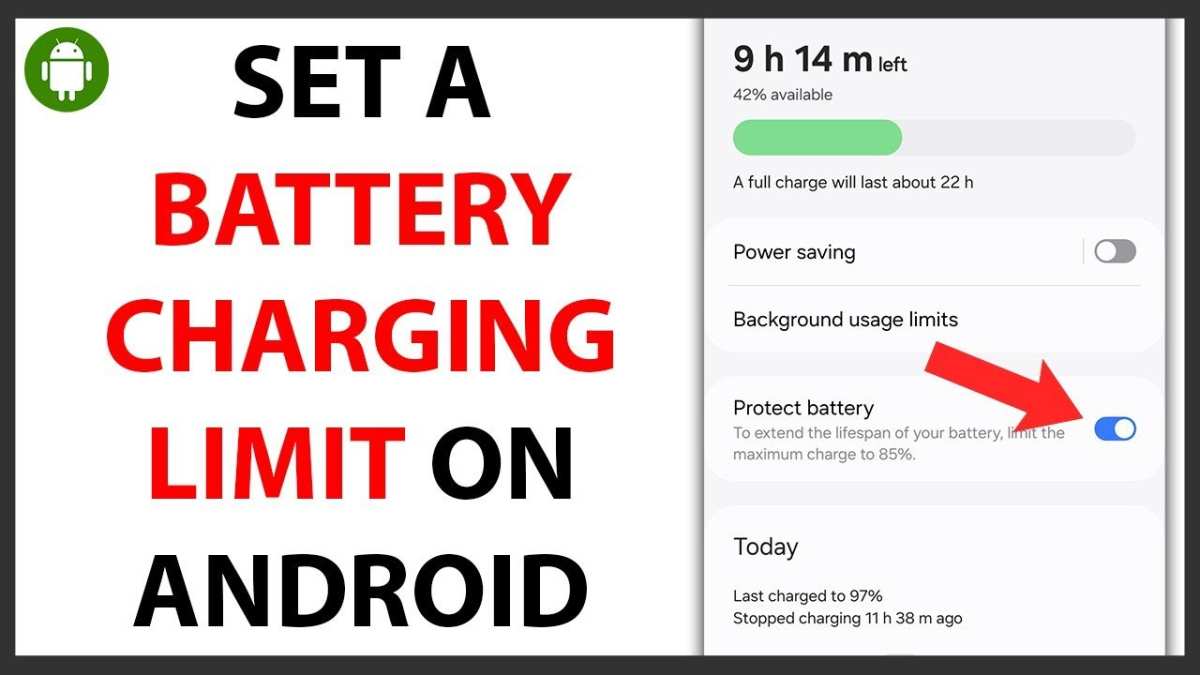
Setting a limit on your Android battery charge can extend its lifespan significantly. **Adjusting the charge limit is straightforward with built-in features or third-party apps.** By controlling how much your battery charges, you prevent overcharging and reduce long-term wear. Android users often seek easy ways to manage this without complicated setups. This article guides you through simple steps to set and optimize your android battery charge limit effectively.

Understanding the Android Battery Charge Limit
Many Android users want to keep their devices running smoothly for as long as possible. One way to do that is by managing how your battery charges. The concept of an “Android battery charge limit” refers to setting a maximum level for your phone’s charge to help protect the battery. This section explains what battery charge limits are, why they matter, and how they can extend the lifespan of your device.
What Is an Android Battery Charge Limit?
An Android battery charge limit is a feature or practice that restricts how much your phone’s battery charges. Instead of charging to 100%, the device stops charging at a lower percentage, such as 80% or 90%. This helps reduce battery wear and tear, especially for users who keep their phones plugged in for long periods.
For example, many modern Android phones come with built-in settings or apps that allow users to set a cap on charging. If your device doesn’t have this option, you can use third-party apps or custom software to achieve similar results.
Why Is Limiting Your Battery Charge Important?
Batteries, especially lithium-ion types found in most Android phones, have a limited number of charge cycles. Every time you fully charge and discharge your battery, it loses a tiny bit of its capacity. Over time, this leads to reduced battery life and the need for replacements.
Limiting your charge can help in several ways:
- Prolongs Battery Life: Charging to full capacity constantly speeds up battery aging. Keeping the charge below 100% reduces the stress on the battery’s cells.
- Reduces Heat Generation: Charging generates heat, which can damage the battery over time. Limiting the charge reduces heat buildup.
- Prevents Overcharging: Some chargers keep charging even after reaching 100%, which can harm the battery. Using charge limits prevents this issue.
By adopting a charge limit, you help your battery stay healthy longer, saving you money and hassle in the future.
How to Set a Battery Charge Limit on Your Android Device
Different Android devices and brands offer various ways to manage your battery charge. Here are some common methods:
Using Built-In Battery Management Features
Many high-end Android phones now come with features like “Battery Care” or “Adaptive Charging.” These options are usually found in the Settings app.
- Open Settings and go to “Battery” or “Device Maintenance.”
- Look for options such as “Battery Health,” “Charge Limit,” or “Adaptive Charging.”
- Activate the feature and set your preferred maximum charge level, like 80% or 90%.
For example, some phones from Samsung or Xiaomi have proprietary tools designed specifically for this purpose.
Using Third-Party Apps
If your device lacks built-in features, third-party apps can help. Many apps available on the Google Play Store allow you to set a maximum charge limit.
- Search for apps like “Battery Charge Limit,” “AccuBattery,” or “Battery Limiter.”
- Download and install the app following its instructions.
- Configure the app to stop charging at your desired percentage.
Note: Always check the app’s permissions and reviews before installation to ensure safety.
Using Custom Firmware or Root Access
For tech-savvy users, rooting your Android device or installing custom firmware like LineageOS opens up additional options.
- Access advanced battery management settings that can set precise charge limits.
- Use specialized apps or kernel modifications to automate charging thresholds.
Keep in mind that rooting or flashing custom firmware can void your warranty and may cause issues if not done correctly. Proceed with caution.
Best Practices When Managing Your Battery Charge Limit
Managing your battery’s charge isn’t just about setting a limit; it’s about doing it correctly for the best results.
Choose the Right Charge Limit
While 100% might seem ideal, experts recommend charging up to 80% or 90% for daily use. This approach minimizes stress on the battery.
Don’t Always Keep Your Phone Plugged In
A common mistake is leaving your phone plugged in for extended periods, even after reaching the set limit. Disconnect your device once it hits the targeted percentage.
Utilize Scheduled Charging
Some devices allow scheduled charging, where your phone starts charging at a specific time and stops at your set limit. This feature ensures your phone isn’t constantly being overcharged.
Maintain Proper Charging Habits
Avoid letting your battery drain completely before recharging. Lithium-ion batteries perform best when kept between 20% and 80%.
Tools and Accessories to Help Manage Battery Charge
Besides software solutions, certain hardware tools can help you control your battery charge better.
- Smart Plugs and Timers: Schedule charging times to prevent overcharging.
- Battery Management Cases and Ports: Some cases have built-in features to limit charging levels.
- Wireless Charging Stations with Limits: Choose stations that support charging regulation or include intelligent management features.
Using these accessories can make maintaining your battery easier and more effective.
Potential Challenges and Limitations of Battery Charge Limits
While setting a charge limit can benefit your battery, it isn’t without drawbacks.
Compatibility Issues
Not all Android devices support built-in charge limit features. Users with older or budget phones might need third-party apps, which can sometimes be unreliable.
Battery Calibration
Over time, the battery’s calibration may become inaccurate, leading to incorrect readings of charge levels. Regular calibration (charging to 100% occasionally) helps maintain accuracy.
Impact on Daily Usage
Limiting your charge might mean your battery doesn’t last as long between charges. You need to balance battery health with daily needs.
Possible Software Conflicts
Some third-party apps may interfere with device performance or cause unexpected issues. Always use reputable apps and keep your system updated.
Summing Up the Benefits of Managing Your Android Battery Charge Limit
By carefully controlling how much your phone charges, you extend the lifespan of your battery and ensure your device remains reliable longer. Although it requires some effort and attention, implementing charge limits is a straightforward way to safeguard your investment.
Remember, whether you use built-in features, third-party apps, or hardware tools, the main goal is to keep your battery within safe limits and avoid unnecessary stress. Proper management helps your device stay in good shape, saving you money and frustration down the line.
Frequently Asked Questions
Can I set a custom limit for my Android device’s battery charging?
Some Android devices allow users to set a specific maximum charge level to protect battery health. You can do this through built-in battery management features or third-party apps. Check your device’s settings or consult the manufacturer’s guidelines to see if this feature is available and how to configure it appropriately.
What advantages does setting a battery charge limit provide?
Limiting the maximum charge can slow down battery aging, prolong its lifespan, and reduce the risk of overheating during charging. This practice helps maintain optimal battery performance over time, especially for users who keep their devices plugged in frequently or use them heavily.
Are there risks associated with configuring a battery charge limit manually?
While setting a charge limit can protect the battery, improperly configuring it might prevent the device from reaching full charge, which could affect usage duration. Always follow official instructions or manufacturer recommendations to avoid issues and ensure your device operates smoothly.
How can I monitor my battery’s charging status to stay within the recommended limits?
You can use built-in battery health tools or third-party applications to track your current charge level. These tools display real-time information, allowing you to disconnect the charger once you’ve reached your set limit, thereby maintaining battery health effectively.
Does charging my Android device to 100% damage the battery?
Charging to 100% periodically isn’t harmful, but keeping the battery at full charge for extended periods can contribute to faster wear over time. If possible, avoid consistently charging to full capacity and consider unplugging your device once it reaches a slightly lower threshold to preserve battery longevity.
Final Thoughts
In conclusion, setting a battery charge limit on Android devices helps extend battery life and improve overall device performance. The ‘android battery charge limit’ feature allows users to prevent overcharging, reducing battery wear over time. Implementing this setting can lead to healthier batteries and fewer replacements. Taking control of your device’s charging habits ensures its longevity and reliable operation.
