

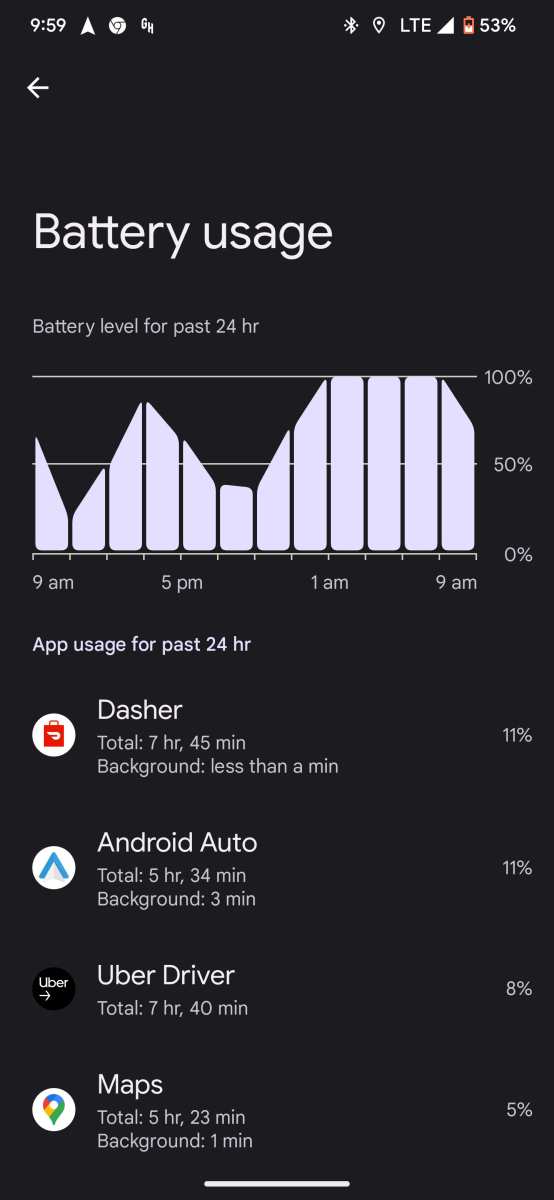
If you’re concerned about your Android Auto draining your phone’s battery quickly, a simple solution is to adjust your settings and limit background activity. **Reducing screen brightness and disabling unnecessary features can significantly cut down battery usage.** Android Auto battery usage often spikes when apps run in the background or when the display stays on for long periods. To keep your phone charged during long drives, it’s essential to manage these factors effectively. Staying mindful of these tips helps you enjoy a smooth, connected experience without worrying about running out of power.

Understanding Android Auto Battery Usage
When you connect your smartphone to your car using Android Auto, you might notice that your device’s battery drains faster than usual. This is because running Android Auto involves several processes that consume power. Understanding how Android Auto uses your phone’s battery can help you manage your device better and improve your driving experience without constantly worrying about battery life.
In this section, we’ll explore what causes battery drain when using Android Auto, which features consume the most power, and how you can optimize your device to extend your battery life. We’ll also look at common misconceptions about Android Auto’s power consumption and provide practical tips to keep your device charged during long drives. Whether you’re a daily commuter or someone who enjoys road trips, knowing the ins and outs of Android Auto battery usage can make a big difference.
Why Does Android Auto Use So Much Battery?
Android Auto has become a popular way to access navigation, music, messages, and other apps safely while driving. However, every feature you use on your phone while connected to Android Auto requires power. Here’s why it tends to drain your battery:
- Screen Usage: The display on your smartphone stays active to show maps, messages, or calls. Bright screens consume a lot of energy.
- GPS and Navigation: Using GPS for turn-by-turn directions requires continuous location tracking, which is a significant battery drain.
- Data Transmission: Real-time data transfer between your phone and vehicle, like streaming music or syncing notifications, uses network resources and power.
- Background Processes: Android Auto keeps certain apps active in the background, which can add up in power consumption.
- Bluetooth Connection: Maintaining a Bluetooth link with your car’s system consumes power, especially when paired with other sensors or devices.
Understanding these factors can help you identify where most of your energy is being used and which features you can modify to save battery.
Features That Consume the Most Power in Android Auto
Some features of Android Auto drain your battery more than others. Let’s look into which ones are the biggest culprits:
Navigation and Maps
Navigation apps like Google Maps or Waze are often the prime power consumers because they continuously track your location, update routes, and show real-time traffic data. The constant use of GPS and screen illumination makes this feature a major factor in battery drain.
Music Streaming
Streaming music, podcasts, or audiobooks uses substantial data and CPU power, especially with high-quality audio streams. Keeping audio playing while navigating adds to power consumption.
Notifications and Messaging
Android Auto displays notifications, messages, and calls. While useful, actively managing these alerts can lead to frequent screen wake-ups, which consume more battery.
Screen Brightness and Timeout Settings
The display is one of the biggest energy hogs. Bright screens or longer screen timeout periods increase power usage, especially in daylight or bright environments.
How to Optimize Android Auto to Save Battery
Fortunately, there are simple steps you can take to reduce battery drain when using Android Auto. Implementing these tips can significantly extend your device’s battery life during car trips:
Adjust Screen Brightness and Timeout
Reduce your screen brightness and set a shorter screen timeout. This minimizes the duration the display stays active without interaction, preserving power.
Use Power-Saving Mode
Most smartphones offer a power-saving mode. Enable it before connecting to Android Auto to limit background activities, reduce CPU usage, and disable non-essential features.
Limit Background Apps
Close unused apps before connecting your phone. Background processes in apps like social media or email can drain battery even when not actively used.
Disable Unnecessary Notifications
Manage notifications to only show essential alerts. This reduces screen wake-ups and unnecessary data transfer.
Optimize Navigation Settings
– Choose a lower update frequency for GPS.
– Switch to offline maps if possible.
– Use dark mode or night mode for navigation apps to reduce screen power usage.
Turn Off Bluetooth When Not Needed
If you’re not using Bluetooth for music or calls, disable it to save power.
Keep Your Software Updated
Manufacturers release updates that often include improvements in power management and bug fixes. Keep your Android system and Android Auto app current.
Additional Tips for Extending Battery Life During Drives
Beyond optimizing Android Auto, other practical steps can help you conserve battery life:
- Carry a Portable Charger: Use a power bank to recharge your device if your battery runs low during long trips.
- Use Car Charger with Fast Charging: Invest in a quality car charger to quickly replenish your phone’s battery when needed.
- Switch to Dark Mode: Many apps, including Google Maps, offer dark mode, which consumes less power on OLED screens.
- Limit Screen Usage: Interact with your phone only when necessary; avoid fiddling with apps while driving.
Common Myths About Android Auto Battery Usage
Some misconceptions about how Android Auto affects your phone’s power are worth clarifying:
- Myth: Android Auto Always Drains Your Battery
While it can drain your battery, proper settings and precautions can minimize this effect. - Myth: Using Offline Maps Prevents Draining
Offline maps reduce data use, but GPS tracking still consumes power. Adjusting GPS settings is crucial. - Myth: Bluetooth Significantly Drains Battery
Bluetooth does use power but is generally less demanding than screen or GPS usage when managed properly.
Monitoring Your Battery During Use
To keep track of how Android Auto impacts your battery, use built-in battery usage tools on your phone. These help identify which apps or features drain your power the most, so you can tweak your settings accordingly.
Using Battery Settings on Android Devices
Check your device’s battery section in Settings to see detailed info on app power consumption. Look for patterns when connected to Android Auto and adjust settings if needed.
Third-Party Battery Monitoring Apps
Apps like AccuBattery or GSam Battery Monitor provide more detailed insights into battery usage, helping you make informed decisions about your device management.
Summary
Using Android Auto enhances your driving experience by offering easy access to navigation, music, and communication. However, it also comes with increased power demands. By understanding what features consume the most power and following simple optimization tips—like adjusting screen brightness, enabling power-saving mode, and limiting background activity—you can extend your device’s battery life. Keeping your software updated and managing notifications wisely also help reduce unnecessary power drain. With this knowledge, you can enjoy the convenience of Android Auto without constantly worrying about your phone’s battery running out during your journeys.
Frequently Asked Questions
How can I extend my Android Auto’s battery life during long drives?
To conserve your device’s battery while using Android Auto, reduce screen brightness and set your device to battery saver mode. Avoid running unnecessary background apps and disable Wi-Fi or Bluetooth if not needed. Using a high-quality car charger can also help keep your device charged throughout your journey, ensuring consistent connectivity without draining the battery quickly.
Does keeping Android Auto connected to my phone significantly impact my battery over time?
Yes, prolonged connection to Android Auto can drain your phone’s battery more quickly, especially if the system is actively syncing data or using location services. Regularly monitor your battery level during extended use and consider charging your device while driving. Turning off unused features and minimizing background activity can also help reduce power consumption.
Are there specific settings within Android Auto to optimize battery usage?
Yes, you can optimize battery life by adjusting settings such as disabling notifications that aren’t necessary during driving, reducing screen brightness, and turning off automatic updates. Additionally, enabling dark mode can decrease screen power consumption. Regularly updating your app can also fix bugs that may cause excessive battery drain, ensuring efficient operation.
Final Thoughts
Android auto battery usage is a common concern for many users. Regularly monitoring app activity helps identify which functions drain power the most. Optimizing settings, such as reducing screen brightness and disabling unnecessary notifications, can extend battery life during use. Being mindful of these steps ensures smoother driving experiences without worrying about battery drain.
