

If you’re frustrated because your iCloud isn’t syncing your data properly, don’t worry—you’re not alone, and there are straightforward steps to fix it. The key is to identify the cause—whether it’s a network glitch, outdated software, or account issues—and then apply the right solution. Typically, you can resolve common sync problems by checking your internet connection, updating your device, or signing out and back into iCloud. In this article, we’ll walk through simple troubleshooting tips to get your iCloud syncing smoothly again. Keep reading to discover how quick fixes and some patience can restore your seamless cloud experience. Whether your photos, contacts, or documents aren’t syncing correctly, these practical steps will help you troubleshoot effectively and get back to using iCloud with ease.
**Quick answer:** Restart your device, ensure you have a stable internet connection, update your iOS or macOS, and verify your iCloud account settings. If problems persist, signing out and back into iCloud or contacting Apple Support can often resolve lingering issues.
Troubleshooting iCloud sync problems can seem daunting at first, but most issues are easy to fix with a few simple steps. Sometimes, the problem is as simple as a poor internet connection or outdated software, which can easily be corrected. Other times, minor account settings or permissions need adjustment. By understanding common causes and following step-by-step solutions, you’ll be able to identify and resolve sync issues quickly. This not only saves you time but also ensures that your important data stays up-to-date across all your Apple devices, keeping your digital life running smoothly.

Contents
How to troubleshoot iCloud sync problems
iCloud is a handy tool that keeps your photos, contacts, and documents up to date across all your Apple devices. However, sometimes it doesn’t sync properly, which can be frustrating. In this section, you’ll learn how to identify and fix common iCloud sync issues effectively.
Check iCloud System Status
The first step is to verify if Apple’s iCloud servers are working smoothly. Visit the Apple System Status webpage to see if there are any outages or maintenance events affecting iCloud services. If there is an ongoing problem, it might be best to wait until Apple resolves it before troubleshooting further.
Ensure Proper Internet Connection
A stable internet connection is essential for iCloud to sync data regularly. Check if your device is connected to Wi-Fi or cellular data. Restart your router if needed, and consider switching networks to see if the sync issue persists.
Update Your Device Software
Running the latest version of iOS or macOS can fix bugs that cause sync problems. Go to Settings > General > Software Update on iPhone or iPad. On Mac, open System Preferences > Software Update. Install any available updates and restart your device for them to take effect.
Verify iCloud Settings Are Correct
Sometimes, the sync issues happen because iCloud settings are misconfigured. On iPhone/iPad, go to Settings > [Your Name] > iCloud and ensure that the toggle for the data you want to sync (like Contacts, Photos, or Notes) is turned on. On Mac, open System Preferences > Apple ID > iCloud and check similar settings.
Check Storage Space
If your iCloud storage is full, it can prevent new data from syncing. Navigate to Settings > [Your Name] > iCloud > Manage Storage on iPhone or iPad to review your storage. Delete unnecessary files or upgrade your storage plan if needed.
Sign Out and Sign Back Into iCloud
Signing out and then back into iCloud can resolve various sync issues. Before doing this, back up important data. To sign out, go to Settings > [Your Name], scroll down, and select Sign Out. Then, sign back in with your Apple ID credentials.
Restart Your Device
A simple restart often clears temporary glitches that interfere with iCloud. Turn off your device completely, wait a few seconds, and turn it back on. This can help refresh the connection to iCloud servers.
Reset Network Settings
If internet connectivity remains unstable, resetting network settings can help. On iPhone or iPad, go to Settings > General > Reset > Reset Network Settings. Keep in mind that this will erase saved Wi-Fi passwords and network preferences.
Check Date and Time Settings
Incorrect date or time can cause synchronization errors. Ensure your device’s date and time are set correctly, ideally to “Set Automatically”. On iPhone, find this under Settings > General > Date & Time. On Mac, go to System Preferences > Date & Time.
Disable and Re-enable iCloud Sync for Specific Data
Sometimes, turning off and then re-enabling sync for particular data types helps. For example, disable Contacts in Settings > [Your Name] > iCloud, then enable it again after a few moments. Repeat for Photos, Notes, or other services experiencing issues.
Use iCloud.com for Troubleshooting
If synchronization issues persist across devices, log into iCloud.com via a browser. Check if your data appears correctly there. If it does, the problem may be specific to your device and not the server.
Check for App-Specific Issues
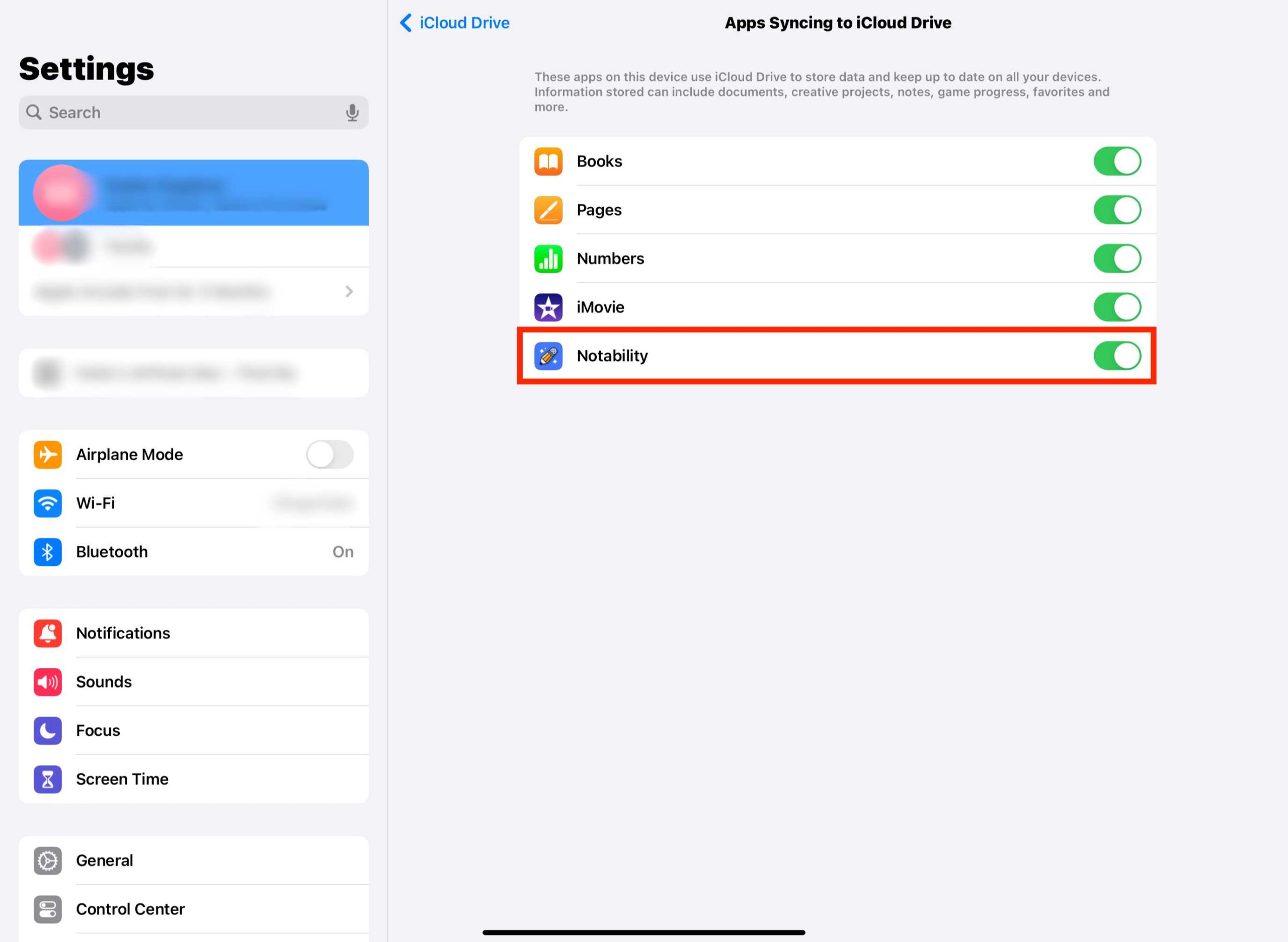
Some apps may have trouble syncing with iCloud. Update apps to their latest versions via the App Store. Also, make sure app permissions are properly set to access iCloud data.
Clear Cache and Data in iCloud
On some devices, clearing cache or resetting app data can fix sync errors. For example, in Photos or Mail, try deleting and reinstalling the app if possible. Be cautious to avoid losing important data during this process.
Reset iCloud Settings
If none of the above steps work, consider resetting iCloud settings entirely. Sign out of iCloud, then erase your device and restore from backup, or perform a factory reset if necessary. Always back up your data before proceeding.
Contact Apple Support
When all else fails, reaching out to Apple Support can provide tailored assistance. They may identify underlying account or server issues that require specialized attention.
Additional Tips for Maintaining Smooth iCloud Syncing
- Keep your device connected to Wi-Fi during large sync operations.
- Regularly update your device’s software to benefit from bug fixes and improvements.
- Monitor your iCloud storage to prevent it from filling up unexpectedly.
- Ensure the time zone and date are correct to avoid sync conflicts.
Related Topics to Explore
- How to back up your iPhone to iCloud
- Best practices for syncing Photos with iCloud
- Managing iCloud storage efficiently
- How to recover lost data from iCloud
Following these steps carefully can help resolve most iCloud sync problems. Regular maintenance and updates ensure your data stays synchronized effectively across all your Apple devices, making your digital life smoother and more reliable.
iCloud Syncing Issues Fixed! iPhone and Mac iCloud
Frequently Asked Questions
What should I do if my iCloud data is not updating across devices?
If your iCloud data isn’t syncing properly, start by ensuring that all your devices are connected to the internet with a stable connection. Check if iCloud is enabled for the specific data types you’re trying to sync, such as Contacts, Calendars, or Photos. Restart your devices to refresh their connection to iCloud. Additionally, verify there’s enough storage space available in your iCloud account, as insufficient space can prevent updates. Logging out and back into iCloud can also resolve syncing issues in some cases.
How can I verify if my iCloud account is functioning correctly?
To confirm your iCloud account works properly, try accessing iCloud.com from a web browser. Sign in with your Apple ID and check if your data appears correctly. If the website loads your information without errors, your account is active. If not, reset your password or contact Apple Support. Also, ensure that your device has the latest iOS or macOS updates installed, as outdated software can cause connectivity problems with iCloud.
What steps should I take if iCloud synchronization is slow or stuck?
When synchronization slows down or pauses, first check your internet connection, making sure it’s strong and stable. Pause any ongoing large uploads or downloads that could be consuming bandwidth. Restart your device to clear temporary glitches. If the problem persists, sign out of iCloud and sign back in. Additionally, check for available system updates and install them to improve overall performance and compatibility with iCloud services.
Final Thoughts
To troubleshoot iCloud sync problems, start by ensuring your device has a stable internet connection. Check if you are signed into the correct Apple ID and verify iCloud settings are enabled for the specific data you want to sync. Restart your device and update iOS or macOS to the latest version. If issues persist, log out and back into iCloud or consider turning off and on the sync feature. By following these steps, you can resolve common problems and restore smooth sync performance. Knowing how to troubleshoot iCloud sync problems helps keep your data up-to-date and accessible across devices.
