

To stop your iPhone photos from being backed up to Google Photos, you simply need to adjust some settings within the app. First, open Google Photos and go to the settings menu. From there, you can disable the “Back up & sync” option. This will prevent new photos from being uploaded to Google Photos, allowing you to keep your images solely stored on your device or in iCloud, if you prefer. If you’re looking to manage your storage or just want to keep things organized, this quick change can make a big difference in how you access and save your pictures.
It’s not uncommon to feel overwhelmed by the number of apps and storage solutions available today, especially when it comes to managing your precious photos. With Google Photos being such a popular option for backup and organization, many iPhone users find themselves accidentally syncing their images without realizing it. Whether you’re looking to preserve your device’s storage or simplify your photo management, knowing how to stop Google Photos from accessing your iPhone photos can be a game-changer. Let’s dive into the steps you need to take to regain control over your photo backups and ensure that your images are just where you want them.

How do I stop my iPhone photos from Google Photos?
If you’re an iPhone user and you find that your photos are automatically syncing to Google Photos, you might want to stop this process for various reasons. Maybe you’d prefer storing your images locally or using a different cloud service. Whatever the reason, learning how to stop your iPhone photos from uploading to Google Photos is straightforward.
In this guide, we’ll walk you through the steps to halt the syncing, discuss why you might want to do this, and explore some alternatives for photo storage.
Understanding Google Photos Syncing
Google Photos offers many benefits, such as unlimited storage for compressed photos and automatic backups. However, these features can lead to unwanted uploads. When your iPhone is connected to Wi-Fi, Google Photos may automatically back up your pictures. To manage this effectively, you need to know how these settings work.
- Google Photos can sync over Wi-Fi and cellular data.
- Automatic backup is usually enabled by default.
- You can customize these settings through the app.
Steps to Stop Google Photos from Syncing
Stopping your iPhone photos from Google Photos can be done easily through the app’s settings. Here’s how you can do this:
Disable Backup & Sync
1. **Open the Google Photos App:** Start by launching the app on your iPhone.
2. **Access Settings:** Tap your profile picture in the top right corner.
3. **Select ‘Photos Settings’:** Scroll down to find this option.
4. **Tap on ‘Back up & Sync’:** You’ll see an option for backing up photos.
5. **Toggle Off:** Simply switch off the ‘Back up & sync’ option.
Remove Google Photos App (if needed)
If you want to go a step further, you can delete the app altogether:
1. **Find the App:** Locate the Google Photos app on your home screen.
2. **Long Press the Icon:** Hold down on the app until it jiggles.
3. **Tap ‘Remove App’:** Select this option and confirm by choosing ‘Delete App.’
Managing Your Google Account
Aside from turning off the sync in the app, you should also consider controlling your entire Google account settings. This will help you manage what gets stored and what doesn’t.
Check Google Drive Settings
1. **Open Google Drive:** Use the Google Drive app or website.
2. **Settings Option:** Go into the settings menu.
3. **Manage Storage Settings:** Here you can see what photos are being backed up and take further action.
Deleting Existing Photos from Google Photos
If you wish to remove previously uploaded photos, follow these steps:
1. **Open Google Photos:** Access the app.
2. **Select Photos to Delete:** Tap on the pictures you wish to remove.
3. **Delete:** Choose the trash bin icon to delete them.
Why Stop Photos from Syncing?
While Google Photos is a fantastic tool, there are valid reasons for wanting to stop syncing your iPhone photos:
- Privacy Concerns: Automatically uploading your photos may pose a privacy risk.
- Storage Management: Keeping your photos only on your device can help manage local storage.
- Preference for Other Services: You might want to use another platform for backups, such as iCloud.
Managing your digital footprint helps you stay organized and secure.
Alternatives for Photo Storage
If you decide to stop using Google Photos, several other options are available for securely storing your photos.
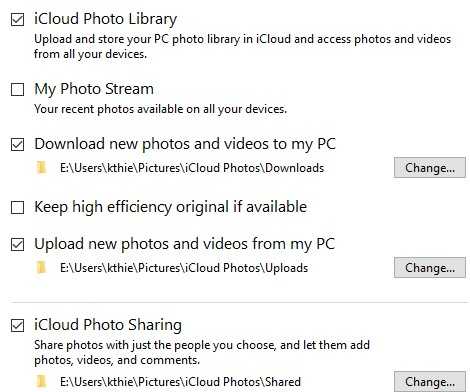
1. iCloud Photos
Using iCloud is a seamless way to back up your photos. Here’s how to set it up:
1. **Go to Settings:** Open the settings app on your iPhone.
2. **Select Your Name:** Tap your name at the top.
3. **Select iCloud:** Choose the iCloud option.
4. **Photos Option:** Enable ‘Photos’ by toggling it on.
With iCloud, you can keep your photos synced across all your Apple devices.
2. Dropbox
Dropbox is another user-friendly option:
1. **Download the App:** Install Dropbox from the App Store.
2. **Create an Account:** Sign up if you don’t already have an account.
3. **Upload Photos:** You can manually upload your photos or set automatic uploads.
Dropbox gives you ample space for photos and documents alike.
3. OneDrive
OneDrive is ideal for Microsoft users:
1. **Download OneDrive:** Get it from the App Store.
2. **Sign In:** Use your Microsoft account to log in.
3. **Upload Photos:** The app allows for manual uploads or automatic backup settings.
With OneDrive, you can store files and share them easily.
Tips for Managing Photos on Your iPhone
Now that you’ve decided to stop syncing your photos with Google Photos, here are additional tips for managing your images directly on your iPhone:
Organizing Photos
1. **Use Albums:** Create albums to keep your photos organized.
2. **Tagging:** You can tag your photos to find them more easily.
Freeing Up Space
If your iPhone storage is full, consider removing duplicate photos or old ones. Regularly check your library for images you don’t need anymore.
Backup Regularly
Make it a habit to back up your photos regularly to your chosen service. Setting up a schedule can help you remember this essential task.
In summary, stopping your iPhone photos from syncing with Google Photos is a simple process that can enhance your photo management experience. By following the outlined steps, you can control where your images are stored while exploring various alternatives. Remember to take the time to manage your photos effectively so that they remain secure and organized. Taking charge of your digital content is key to enjoying your photo collection without worry.
How to stop Google photos to backup photos in iPhone
Frequently Asked Questions
How can I delete photos from Google Photos without removing them from my iPhone?
To delete photos from Google Photos without affecting those stored on your iPhone, open the Google Photos app, select the images you wish to remove, tap the trash can icon, and confirm the deletion. Make sure to choose “Remove from device” if prompted, ensuring the photos remain on your iPhone while being deleted from Google Photos.
What settings should I change to prevent Google Photos from backing up my iPhone photos?
To stop Google Photos from backing up your iPhone photos, open the app, tap on your profile icon in the top right corner, and go to “Photos settings.” From there, select “Back up & sync” and toggle it off. This action will stop any further backups from occurring.
Can I disable Google Photos access to my iPhone’s camera roll?
Yes, you can disable Google Photos access to your camera roll by going to the Settings app on your iPhone. Scroll down to Privacy, tap on Photos, find Google Photos in the list, and set the access to “None.” This will prevent the app from accessing any photos on your device.
What steps should I follow to unlink Google Photos from my iCloud account?
To unlink Google Photos from your iCloud, open the Google Photos app and navigate to your profile icon. Select “Manage your Google Account,” then go to the “Security” tab. Look for “Third-party apps with account access,” find iCloud, and choose to remove access. This way, Google Photos will no longer sync with your iCloud account.
How can I manage my photo storage preferences in Google Photos?
To manage your photo storage preferences, open the Google Photos app and tap on your profile icon. Choose “Photos settings,” then select “Back up & sync.” Here, you can adjust your upload size settings, choose to back up using Wi-Fi only, or turn off backups completely. This allows you to control how Google Photos uses your storage.
Final Thoughts
To stop your iPhone photos from Google Photos, you need to disable backup and sync. Open the Google Photos app, go to Settings, and turn off the ‘Backup & sync’ option. This action will prevent any new photos from being uploaded to Google Photos.
Additionally, consider deleting existing photos from Google Photos if you want to clear out older images. You can do this in the app under your photos section. By following these steps, you can effectively manage how you handle your photos and address the question, ‘How do I stop my iPhone photos from Google Photos?’
