Mounting an ultrawide monitor is not only possible but can dramatically enhance your workspace. This guide provides a comprehensive walkthrough on how to securely wall mount your ultrawide display, covering everything from choosing the right mount to the installation process. By following these steps, you can achieve a clean, ergonomic, and visually stunning setup that frees up desk space and elevates your computing experience.
Ultrawide monitors are absolutely mountable: Despite their size and weight, most ultrawide monitors can be securely wall mounted using the correct hardware.
VESA mount compatibility is crucial: Check your monitor’s VESA mounting pattern to ensure it matches the specifications of your chosen wall mount.
Choosing the right mount is paramount: Select a mount designed for the weight and size of your ultrawide monitor, considering tilt, swivel, and articulation needs.
Proper wall preparation is essential: Identifying wall studs or using appropriate heavy-duty anchors is critical for a safe and secure installation.
Installation requires careful planning: Measure twice, drill once, and follow the mount manufacturer’s instructions meticulously for a successful and safe setup.
Cable management enhances aesthetics: Plan how you’ll manage cables to maintain a clean and professional look after mounting.
Can Ultrawide Monitors Be Wall Mounted
So, you’ve got that beautiful, expansive ultrawide monitor. It’s incredible for gaming, productivity, and immersing yourself in content. But as you look at your desk, you might be thinking, “Can I get this beast off my desk and onto the wall?” The answer is a resounding yes! Ultrawide monitors can absolutely be wall mounted, transforming your setup into a sleek, modern, and incredibly functional space.
Mounting an ultrawide monitor not only frees up valuable desk real estate but also allows for more ergonomic viewing angles and a cleaner aesthetic. However, their unique size and often greater weight compared to standard monitors require careful consideration and the right approach. This guide will walk you through everything you need to know to successfully and safely wall mount your ultrawide display.
We’ll cover how to determine if your monitor is mountable, what types of mounts are suitable, how to prepare your wall, and the step-by-step installation process. By the end of this guide, you’ll be well-equipped to give your ultrawide monitor the elevated position it deserves. If you’re wondering how much desk space an ultrawide monitor typically occupies, understanding its physical dimensions can help you plan your setup more effectively.
Understanding Ultrawide Monitor Mounting
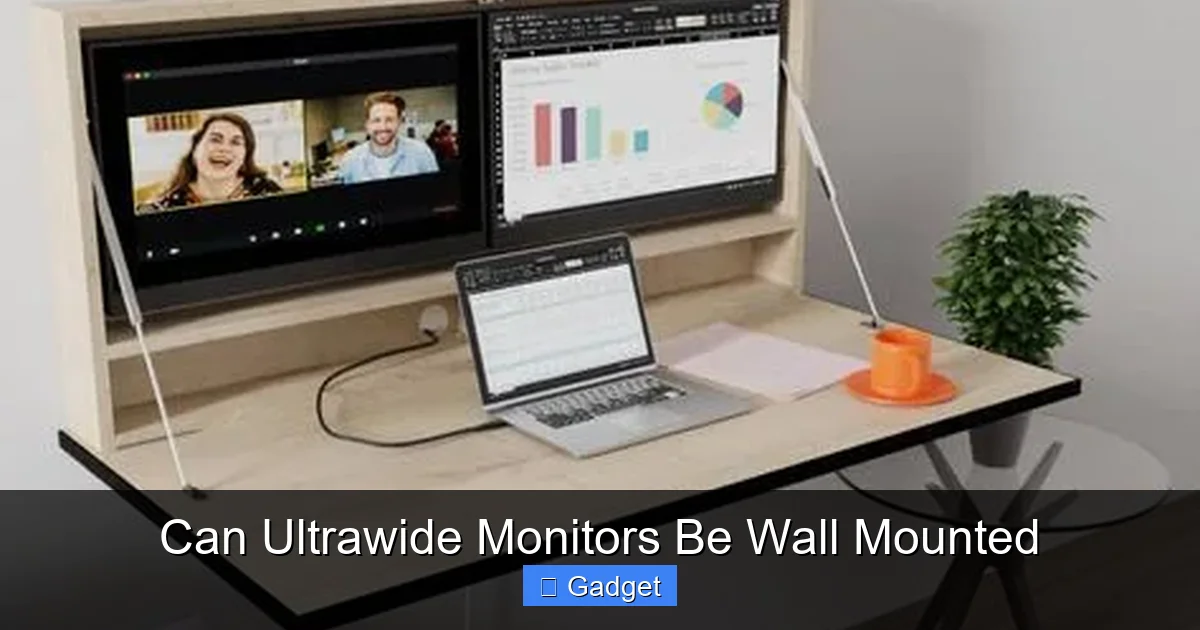
Visual guide about Can Ultrawide Monitors Be Wall Mounted
Image source: i.pinimg.com
Before we dive into the nitty-gritty of installation, let’s establish a few fundamental concepts.
What Makes a Monitor Mountable?
The key to mountability lies in the VESA mounting interface. Most modern monitors, including ultrawide models, feature threaded screw holes on the back, typically arranged in a square or rectangular pattern. These holes are standardized by the Video Electronics Standards Association (VESA). Your monitor’s VESA pattern (e.g., 100x100mm, 200x100mm, 200x200mm) will dictate which wall mounts are compatible.
Why Wall Mount an Ultrawide Monitor?
Space Saving: This is often the primary driver. Removing the monitor from your desk instantly creates more usable surface area.
Ergonomics: Wall mounts, especially those with articulation, allow you to position your monitor at the optimal height, distance, and angle for comfortable viewing, reducing neck and eye strain.
Aesthetics: A wall-mounted monitor can create a clean, minimalist look, making your space feel more organized and sophisticated.
Cable Management: While not inherent to mounting, it’s an opportunity to implement better cable management for a truly clutter-free setup.
Enhanced Viewing Experience: For gaming or media consumption, positioning the monitor perfectly can significantly boost immersion.
Step 1: Check Your Monitor’s VESA Compatibility
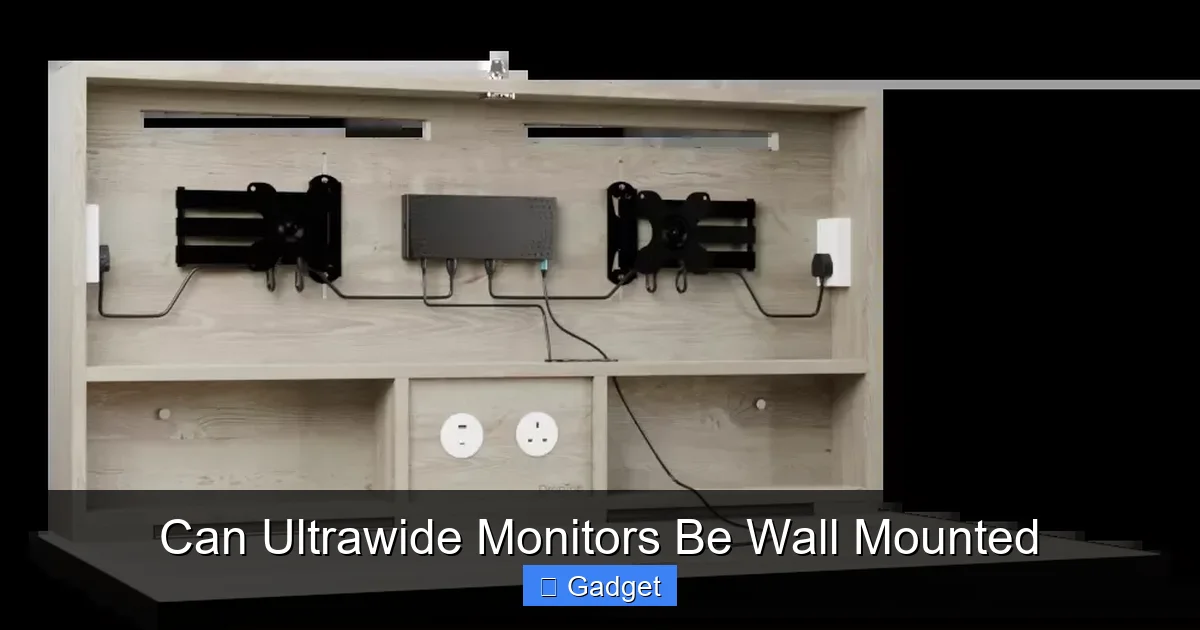
Visual guide about Can Ultrawide Monitors Be Wall Mounted
Image source: i.pinimg.com
This is the most critical first step. If your monitor doesn’t have VESA mounting holes, you won’t be able to use a standard wall mount.
1. Consult Your Monitor’s Manual: The most reliable place to find VESA information is in the user manual that came with your ultrawide monitor. It will explicitly state the VESA pattern size (e.g., 100x100mm, 200x200mm).
2. Inspect the Back of Your Monitor: Look for a square or rectangular pattern of threaded holes on the rear of your monitor, usually below the brand logo or near the stand attachment point.
3. Measure the Hole Spacing: If the manual isn’t available and the holes are visible, you can measure the distance between the centers of two adjacent horizontal holes and two adjacent vertical holes. These measurements will give you the VESA pattern dimensions (e.g., 100mm x 100mm).
4. Check Online Specifications: Search for your monitor’s model number on the manufacturer’s website or retail sites. The specifications section should list its VESA compatibility.
What if My Monitor Isn’t VESA Compatible?
In rare cases, a monitor might not have built-in VESA compatibility. Some third-party adapters exist, but they can be risky, especially with heavier ultrawide displays. It’s generally safer and more reliable to purchase a monitor that is VESA compatible from the outset if wall mounting is a priority.
Step 2: Choose the Right Wall Mount
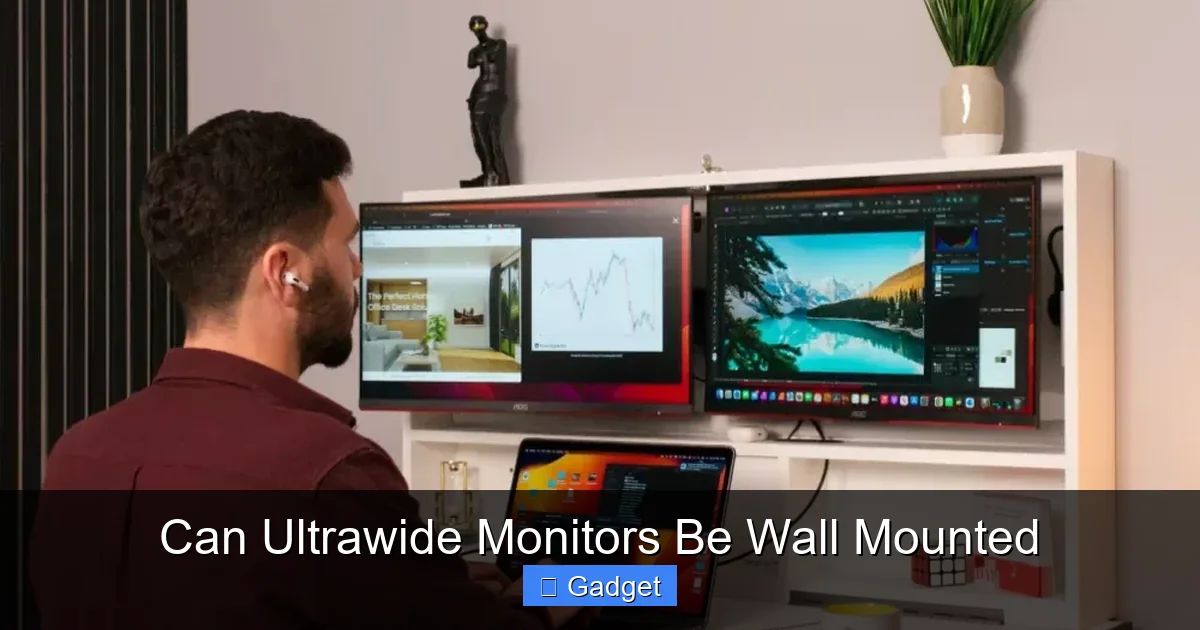
Visual guide about Can Ultrawide Monitors Be Wall Mounted
Image source: i.pinimg.com
With your VESA pattern confirmed, it’s time to select a wall mount that’s up to the task of holding your ultrawide monitor securely.
Understanding Mount Types
* Fixed Mounts: These are the simplest and often the slimmest. They hold the monitor flat against the wall with no adjustability. Best for situations where you have the perfect viewing height and angle already.
* Tilting Mounts: These allow you to tilt the monitor up or down, which is useful if you need to adjust for glare or a slightly higher/lower viewing position.
* Swiveling/Articulating Mounts (Full-Motion): These are the most versatile. They typically feature one or more arms that allow you to tilt, swivel (turn left/right), and extend the monitor away from the wall. This is ideal for flexible workspaces where you might need to adjust the monitor for different tasks or viewing distances.
Key Considerations for Ultrawide Mounts
1. Weight Capacity: This is paramount. Ultrawide monitors can be significantly heavier than their standard counterparts. Always choose a mount with a weight capacity that *exceeds* your monitor’s weight. Check your monitor’s specifications for its weight (often listed with or without the stand).
2. VESA Pattern Compatibility: Ensure the mount supports your monitor’s specific VESA pattern. Mounts often list supported VESA sizes.
3. Screen Size and Width: While VESA is the primary compatibility factor, some mounts also have a maximum screen width they can accommodate. This is less common but worth checking for extremely wide ultrawide monitors.
4. Arm Reach/Extension (for Articulating Mounts): If you opt for an articulating mount, consider how far you need the monitor to extend from the wall. Measure the distance from where the mount will be to your ideal viewing position.
5. Durability and Build Quality: Invest in a reputable brand known for sturdy construction. Look for steel or heavy-duty aluminum.
Examples of Suitable Mounts
For ultrawide monitors, especially those on the larger side (34 inches and above), a robust articulating mount is often the best choice for flexibility. Brands like Ergotron, AmazonBasics (ensure it’s rated for the weight/size), Monoprice, and HumanCentric offer high-quality options. Always double-check the product description for weight limits and VESA support. If you’re using your ultrawide for gaming, you may also want to explore whether a 144Hz monitor is good for gaming to maximize smoothness and responsiveness.
Step 3: Prepare Your Wall
This is where safety and structural integrity come into play. The wall must be strong enough to support the weight of the monitor and the mount.
Locating Wall Studs (The Gold Standard)
Mounting directly into wall studs is the most secure method. Wall studs are vertical wooden beams within your wall that provide strong anchor points.
1. Use a Stud Finder: Electronic stud finders are the easiest way. Slide them along the wall where you plan to mount. They will typically beep or light up when they detect a stud.
2. Tap the Wall: Lightly tap the wall. A stud will sound more solid than drywall alone.
3. Use a Small Nail or Awl: Once you suspect a stud, you can carefully poke a small nail or awl into the wall at an inconspicuous spot. If you hit solid wood, you’ve found a stud.
4. Mark Stud Centers: Once a stud is located, mark its center. You’ll want to drill your mounting screws into the center of the studs.
When Stud Mounting Isn’t Possible (Heavy-Duty Anchors)
If you cannot align your mount with studs, or if the mount’s screw holes don’t line up perfectly with studs, you’ll need to use heavy-duty drywall anchors. This is generally not recommended for heavy ultrawide monitors, but if absolutely necessary, use anchors specifically rated for significant weight (e.g., toggle bolts, molly bolts rated for 50+ lbs each).
* IMPORTANT NOTE: Always ensure the anchors you choose can support more than the combined weight of your monitor and mount. Consult the anchor’s packaging for its weight rating. Even with robust anchors, there’s a greater risk than with stud mounting.
Choosing the Right Wall Type
* Drywall: The most common interior wall material. Requires stud mounting or very strong anchors.
* Plaster: Similar to drywall, but often more brittle. Stud mounting is highly recommended.
* Concrete/Brick: These walls are very strong. You’ll need a masonry drill bit and specific concrete anchors (e.g., sleeve anchors, wedge anchors). These are very secure.
Step 4: Mark and Drill Pilot Holes
Precision is key here. Measure carefully before you make any holes.
1. Determine Mount Placement: Decide on the ideal height and position for your monitor. Consider your typical viewing position (seated, standing) and the monitor’s bezel height.
2. Hold the Mount (or Template) Against the Wall: Many mounts come with a drilling template. If not, hold the mounting plate against the wall at your desired location. Use a level to ensure it’s perfectly straight.
3. Mark Screw Hole Locations: While holding the mount or template level, mark the center of each screw hole with a pencil.
4. Double-Check Measurements: Measure the distance between your marks to ensure they align with the mount’s screw hole pattern and your chosen wall anchors or studs.
5. Drill Pilot Holes:
* For Studs: Use a drill bit that is slightly smaller than the diameter of your mounting screws. Drill into the center of the stud at the marked locations.
* For Anchors: Use the drill bit size recommended on the anchor packaging. Drill holes at the marked locations.
* For Concrete/Brick: Use a masonry bit and the appropriate size drill bit for your concrete anchors.
Step 5: Mount the Wall Plate
Now it’s time to attach the main part of the mount to the wall.
1. **Align the Wall Plate:** Position the wall plate over the pilot holes, ensuring it’s correctly oriented (usually indicated by arrows or text on the plate).
2. **Insert Mounting Hardware:**
* For Studs: Drive the lag bolts (or screws provided with the mount) through the wall plate and into the pilot holes in the studs. Use a socket wrench or drill with a socket adapter.
* **For Anchors:** Insert the appropriate screws or bolts through the wall plate and into the installed anchors. Tighten securely.
* For Concrete/Brick: Insert the concrete anchors into the drilled holes and then secure the wall plate with the provided bolts or screws.
3. **Ensure it’s Secure:** Once all screws/bolts are tightened, gently tug on the wall plate to ensure it is firmly attached and does not move. It should feel absolutely solid.
Step 6: Attach the Monitor Brackets
Most mounts have separate brackets that attach to the back of your monitor.
1. **Remove Monitor Stand (if applicable):** If your monitor still has its stand attached, you’ll need to remove it. This usually involves unscrewing a few screws at the base.
2. **Attach Monitor Brackets:**
* Locate the VESA holes on the back of your ultrawide monitor.
* Align the monitor brackets with these holes. The brackets should be oriented correctly as per the mount’s instructions (often there’s a specific top/bottom).
* Use the screws provided with your wall mount. These screws typically come in various lengths and diameters to fit different monitors. Crucially, use the correct length screws. Screws that are too long can damage your monitor’s internal components, while screws that are too short won’t secure the bracket properly. If in doubt, err on the side of caution and use slightly shorter screws with washers if needed, or contact the mount manufacturer.
* Tighten the screws securely, but do not overtighten.
This is where the magic happens, but it requires two people for larger ultrawide monitors.
1. **Get Help:** For ultrawide monitors, it is highly recommended to have a second person to help lift and guide the monitor. They are heavy and unwieldy.
2. **Lift and Align:** Carefully lift the monitor with the attached brackets. Align the brackets with the corresponding hooks or mounting points on the wall plate.
3. **Secure the Monitor:** Gently lower the monitor onto the wall plate. Most mounts have a locking mechanism to prevent the monitor from accidentally dislodging. Ensure this lock clicks into place. Consult your mount’s manual for its specific locking procedure.
4. **Test Stability:** Gently wiggle the monitor to ensure it is seated correctly and securely locked onto the wall plate.
Step 8: Adjust and Manage Cables
The final touches to a professional setup.
Adjusting the Monitor
1. Tilt and Swivel: If you have a tilting or articulating mount, now is the time to adjust the monitor to your preferred viewing angle. Fine-tune until you achieve comfortable visibility and minimize glare.
2. **Tighten Tension (if applicable): Some articulating mounts have tension adjustment screws. If your monitor droops or drifts, you may need to tighten these screws slightly.
Cable Management
A wall-mounted ultrawide looks best when cables are managed neatly.
* Cable Sleeves/Wraps: These are flexible tubes that bundle cables together, creating a single, neater run.
* Cable Clips/Ties: Use adhesive cable clips or zip ties to secure cables to the underside of the mount arm or along the wall.
* In-Wall Cable Management Kits: For a truly seamless look, consider using an in-wall cable management kit. This involves cutting holes in your drywall and running cables behind the wall. This is a more advanced task and may require electrical knowledge if power cables are routed.
* **Monitor Arms with Built-in Cable Management:** Many modern monitor arms have integrated channels or clips for managing cables.
Troubleshooting Common Issues
* **Monitor Sagging/Drooping:**
* Cause: Mount not tightened enough, monitor too heavy for the mount, or tension needs adjustment.
* Solution: Ensure the monitor is properly seated on the wall plate. Tighten the mounting screws on the wall plate if needed. Adjust the tension screws on articulating arms according to the manual. Double-check that your mount’s weight capacity is sufficient.
* **Wobbly Monitor:**
* Cause: Wall plate not securely attached, or mounting screws not tight.
* Solution: Re-tighten all screws on the wall plate and monitor brackets. Ensure you’ve hit studs or used appropriately rated anchors.
* **Mount Doesn’t Fit VESA Pattern:**
* Cause: Incorrect VESA measurement or wrong mount purchased.
* Solution: Double-check your monitor’s VESA specification. If it’s non-standard, you may need a different mount or adapter (use adapters with caution).
* **Screws Won’t Go In:**
* Cause: Pilot hole too small, hitting a hidden obstruction, or wrong screw type.
* Solution: Ensure pilot holes are the correct size for your screws/anchors. If drilling into studs, ensure you are centered. If you hit an obstruction, you may need to slightly reposition your mount or drill pilot holes elsewhere.
Conclusion
Wall mounting an ultrawide monitor is a fantastic way to optimize your workspace, improve ergonomics, and achieve a clean, modern aesthetic. While the process requires careful planning and execution, it is entirely achievable for most users. By understanding your monitor’s VESA compatibility, choosing a robust and appropriate wall mount, preparing your wall diligently, and following the installation steps with precision, you can confidently mount your ultrawide display. Remember to prioritize safety by getting help for lifting and ensuring all connections are secure. Enjoy your new, elevated ultrawide experience! For those using their setup for content creation, it’s also worth considering whether an ultrawide monitor is necessary for video editing to fully leverage the extra screen real estate.


 Before we dive into the nitty-gritty of installation, let’s establish a few fundamental concepts.