

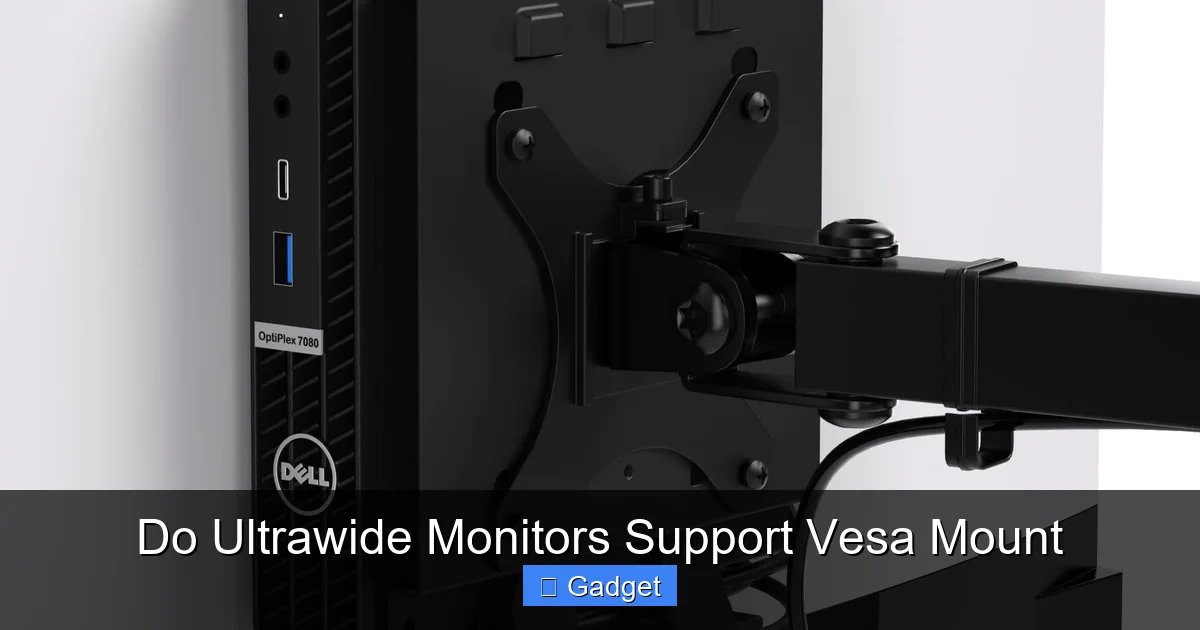
Yes, most ultrawide monitors support VESA mounts, but not all. This comprehensive guide will walk you through understanding VESA compatibility, checking your monitor’s specifications, and choosing the right VESA mount for your ultrawide display. Learn how to enhance your setup with proper mounting, from single arms to multi-monitor configurations, ensuring a clean and ergonomic workspace.
Are you eyeing a sleek, expansive ultrawide monitor to elevate your productivity or gaming experience? The immersive view of an ultrawide display is undeniable. However, the bulky stands that often come with them can eat up valuable desk real estate. This is where the magic of VESA mounting comes in. But a common question arises: do ultrawide monitors support VESA mounts?
The answer is generally yes, but with a few important caveats. In this comprehensive guide, we’ll demystify VESA compatibility for ultrawide monitors. You’ll learn how to identify if your monitor is VESA mountable, understand the different VESA standards, explore your mounting options, and get a step-by-step walkthrough of the installation process. By the end of this guide, you’ll be well-equipped to choose and install the perfect VESA mount for your ultrawide monitor, transforming your workspace for the better.
Contents
- 1 Key Takeaways
- 2 What is a VESA Mount?
- 3 Do Ultrawide Monitors Support VESA Mounts?
- 4 How to Check if Your Ultrawide Monitor Supports VESA Mount
- 5 Understanding VESA Mount Patterns for Ultrawide Monitors
- 6 Choosing the Right VESA Mount for Your Ultrawide Monitor
- 7 Important Factors When Buying a VESA Mount
- 8 Step-by-Step Installation of a VESA Mount
- 9 Troubleshooting Common VESA Mounting Issues
- 10 Conclusion
Key Takeaways
- Understanding VESA: VESA (Video Electronics Standards Association) mount compliance means your monitor has standardized screw hole patterns on the back, allowing for universal mounting solutions.
- Checking Monitor Compatibility: Most ultrawide monitors designed for desktop use will have VESA mounting holes, often found behind a removable plastic cover or the original stand. Always verify your monitor’s specifications or physically inspect it.
- VESA Patterns Explained: Common VESA patterns include 75x75mm, 100x100mm, 200x100mm, and 200x200mm. Ultrawide monitors typically utilize larger patterns like 100x200mm or 100x100mm, though some may require adapters.
- Mounting Options: VESA mounts come in various forms, including desk arms (single or dual), wall mounts, and floor stands, offering flexibility to suit your workspace and ergonomic needs.
- Weight Capacity is Crucial: Ensure the VESA mount you choose can safely support the weight and size of your ultrawide monitor. Exceeding the weight limit can lead to equipment damage or injury.
- Installation Process: Installing a VESA mount involves attaching the bracket to your monitor, securing the mount to your desk or wall, and then connecting the monitor to the mount. Always follow the manufacturer’s instructions carefully.
- Troubleshooting Common Issues: If your monitor doesn’t have VESA holes, look for monitor arm adapters. Ensure all screws are tightened securely for stability.
What is a VESA Mount?
Before diving into ultrawide specifics, let’s quickly define what a VESA mount is. VESA stands for the Video Electronics Standards Association. This organization sets industry standards for display mounting. When a monitor or TV is VESA mountable, it means it has a standardized set of screw holes on the back. These holes allow you to attach the display to various mounting solutions, such as desk arms, wall mounts, or floor stands, instead of using the manufacturer-provided base.
The primary benefit of VESA mounting is flexibility. You can position your monitor exactly where you want it for optimal ergonomics, declutter your desk, or create multi-monitor setups with ease. If you’re considering upgrading your display for gaming, pairing your ultrawide with a responsive panel can further enhance immersion—learn more in our guide on whether monitor response time matters for gaming.
Do Ultrawide Monitors Support VESA Mounts?
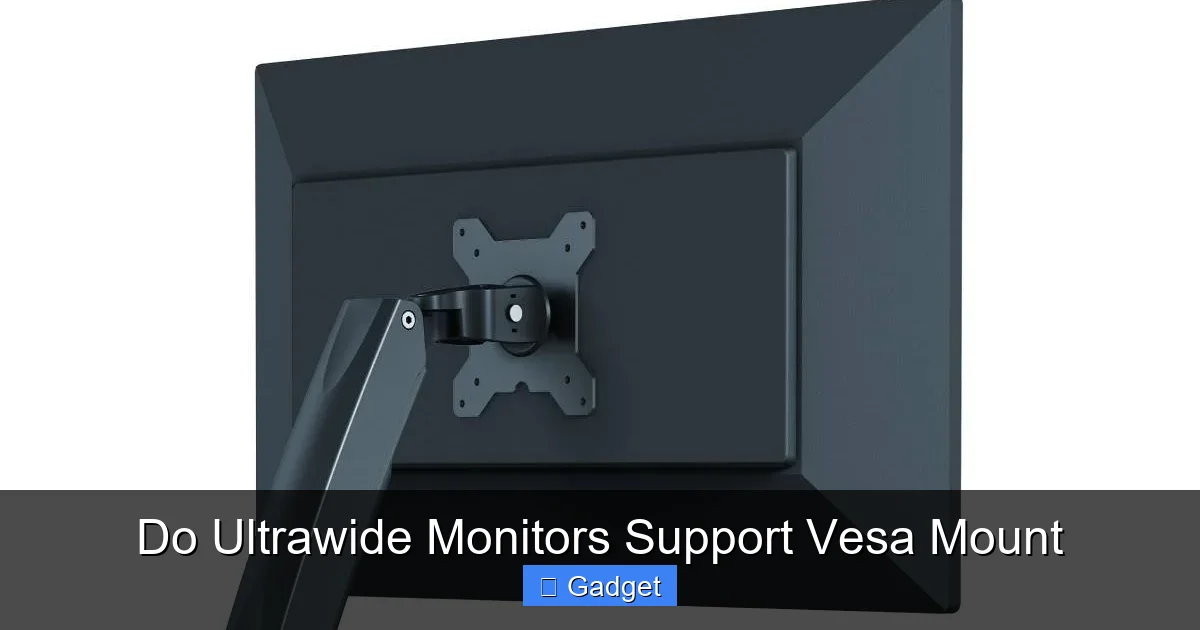
Visual guide about Do Ultrawide Monitors Support Vesa Mount
Image source: image.benq.com
The short answer is: **most do, but not all.**
Manufacturers of ultrawide monitors understand the desire for flexible setups. Therefore, a significant number of ultrawide monitors are designed with VESA mounting capabilities. These are usually found on monitors intended for desktop use, rather than very specialized or older models.
However, some manufacturers, particularly for very premium or uniquely designed displays, might omit VESA mounting to maintain a specific aesthetic or due to internal component placement. It’s crucial to verify this before you make a purchase or start shopping for a mount.
How to Check if Your Ultrawide Monitor Supports VESA Mount
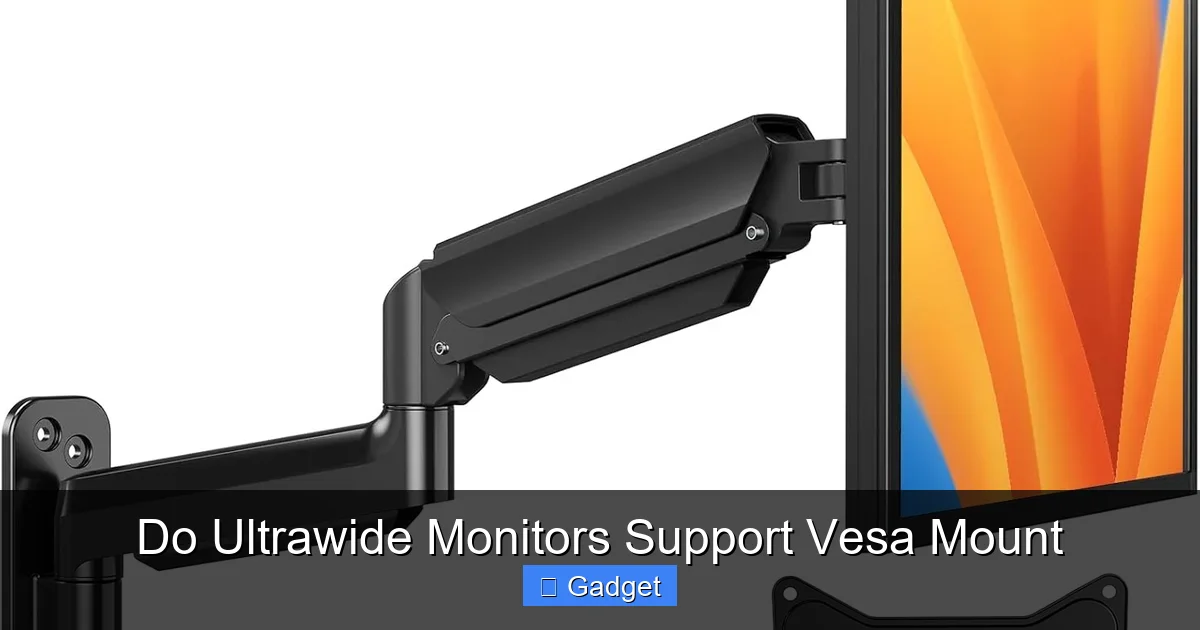
Visual guide about Do Ultrawide Monitors Support Vesa Mount
Image source: m.media-amazon.com
There are a few reliable ways to determine if your ultrawide monitor is VESA compatible.
Physical Inspection
This is the most direct method. Turn your monitor around and look at the back.
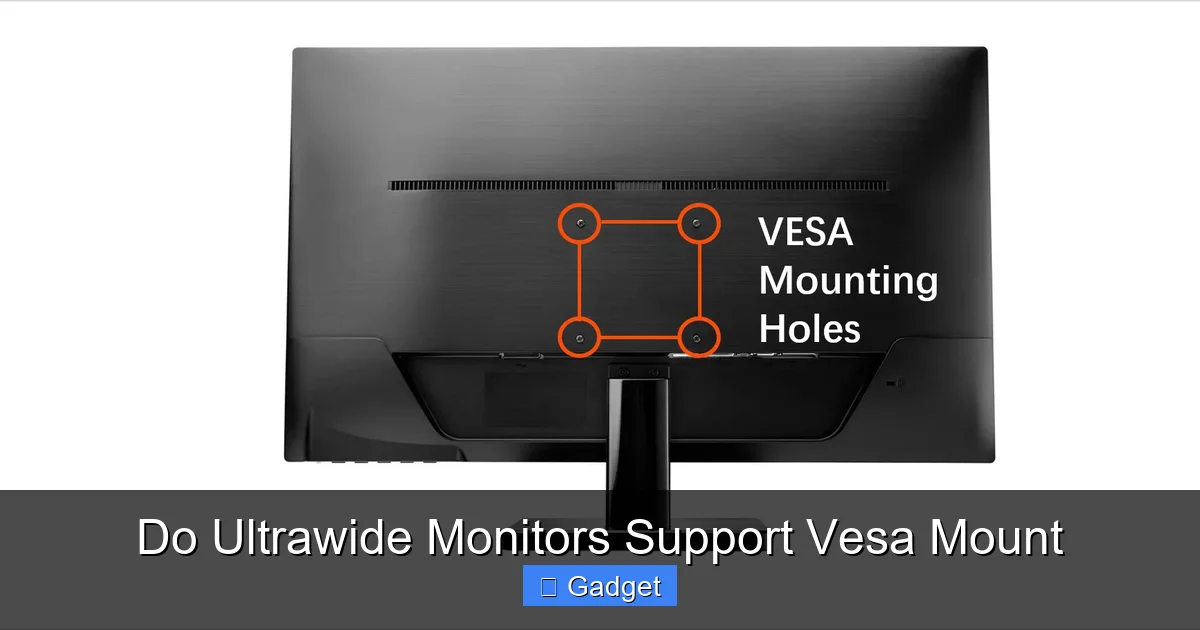
- Look for Screw Holes: You’re searching for a square or rectangular pattern of four screw holes. These holes are usually threaded and are located in the center of the monitor’s back panel.
- Check for the VESA Logo: Some monitors will have a VESA logo sticker or imprint near the mounting holes.
- Remove the Stand: Often, the original stand attaches to the monitor via a VESA mount plate. If you can detach the stand (usually by unscrewing a few screws at the top or bottom where the stand connects), you will likely see the VESA mounting holes underneath. Read your monitor’s manual for instructions on how to safely remove the stand. Some stands might have a plastic cover that needs to be removed first.
If you see these four screw holes, it’s a strong indicator of VESA compatibility.
Consult Your Monitor’s Manual
Your monitor’s user manual is your best friend when it comes to technical specifications.
- Search for “VESA”: Open the manual (or find it online on the manufacturer’s support page) and search for the term “VESA.”
- Check Specifications Section: Look for a section detailing technical specifications. It will usually list the VESA mounting pattern if supported (e.g., VESA 100x100mm, VESA 200x100mm).
If the manual mentions VESA support, you’re good to go. If it doesn’t, it’s likely not compatible out of the box.
Visit the Manufacturer’s Website
If you no longer have the physical manual, the manufacturer’s website is the next best place.
- Product Page: Navigate to your specific monitor model’s product page.
- Technical Specifications: Scroll down to the technical specifications or features section. VESA compatibility is almost always listed there.
- Support Section: Sometimes, VESA information can be found in the support or FAQ sections for that model.
Online Reviews and Forums
If you’re considering buying a monitor and want to know about its VESA compatibility, or if you can’t find the information elsewhere, check online reviews and forums.
- Product Reviews: Many tech reviewers will mention VESA compatibility, especially if it’s a desirable feature.
- User Forums: Websites like Reddit (e.g., r/ultrawide, r/monitors) are excellent places to ask questions. Other users who own the same monitor will often chime in with definitive answers and even photos.
Understanding VESA Mount Patterns for Ultrawide Monitors
Visual guide about Do Ultrawide Monitors Support Vesa Mount
Image source: hk-portal-web.oss-cn-hongkong.aliyuncs.com
Once you’ve confirmed your ultrawide monitor is VESA compatible, you’ll need to understand the VESA mounting patterns. These patterns are measured in millimeters (mm) and refer to the distance between the screw holes, horizontally and vertically.
Common VESA patterns include:
- 75x75mm
- 100x100mm
- 200x100mm
- 200x200mm
- 400x200mm
For ultrawide monitors, you’ll typically find larger VESA patterns due to their wider dimensions. The most common ones are:
- VESA 100x100mm: Some smaller ultrawides or those with a more square aspect ratio might use this standard.
- VESA 100x200mm: This is very common for many ultrawide monitors, where the horizontal distance between holes is 100mm and the vertical distance is 200mm.
- VESA 200x100mm: Less common for ultrawides, but possible.
- VESA 200x200mm: For larger and heavier ultrawide displays.
Important Note: Some ultrawide monitors, especially very large ones or those with curved designs, might not have a standard VESA pattern or might have a non-standard pattern that requires a VESA adapter plate. Always double-check the exact VESA pattern specified for your monitor model.
Choosing the Right VESA Mount for Your Ultrawide Monitor
With your monitor’s VESA pattern identified, you can now choose the perfect mount. Here are the most popular types of VESA mounts suitable for ultrawide monitors:
Single Monitor Desk Mounts (Arms)
This is the most popular choice for decluttering desks.
- Desk Clamp: The mount attaches to the edge of your desk using a clamp. This is generally the easiest and least invasive installation method.
- Grommet Mount: If your desk has a hole, the mount can be secured through it for a very stable, flush installation.
Considerations for Ultrawide Monitors:
- Weight Capacity: Ultrawide monitors can be heavy. Ensure the arm’s weight capacity comfortably exceeds your monitor’s weight. Check the monitor’s specifications for its exact weight.
- Reach and Swivel: Ultrawides are wide! Make sure the arm has enough reach to position the monitor comfortably in front of you without strain. The ability to swivel (turn left/right) is also important for screen sharing or adjusting your viewing angle.
- Vertical Height Adjustment: Look for arms that offer good vertical adjustment to ensure your monitor is at the correct ergonomic height.
- Tilt Functionality: The ability to tilt the monitor up or down is crucial for reducing glare and finding the perfect viewing angle.
- Compatibility with Curved Monitors: If you have a curved ultrawide, ensure the mount’s design and arm can accommodate the curvature and maintain stability.
Dual or Multi-Monitor Desk Mounts
If you plan to combine your ultrawide with another monitor or even create a triple-monitor setup, these are ideal.
- Side-by-Side: Mounts designed to hold two or more monitors horizontally aligned.
- Stacked: Some mounts allow you to stack monitors vertically, which can be useful with an ultrawide positioned above or below a standard monitor.
Considerations for Ultrawide Monitors:
- Individual Adjustability: Look for mounts where each monitor arm can be adjusted independently. This is vital for aligning different screen sizes or types.
- Combined Weight: Calculate the total weight of all monitors you plan to mount and ensure the mount’s capacity is sufficient.
- Arm Length and Stability: The arms need to be long enough to position your ultrawide and any other monitors effectively without them overlapping too much or feeling unstable.
Wall Mounts
For those who want to free up their entire desk or prefer a cleaner aesthetic.
- Fixed: These hold the monitor flat against the wall.
- Tilting: Allows you to tilt the monitor up or down.
- Full-Motion (Articulating): These arms extend from the wall, swivel, tilt, and often have a strong range of motion, similar to desk arms.
Considerations for Ultrawide Monitors:
- Wall Structure: Ensure your wall is strong enough to support the weight. For drywall, you’ll need to find studs or use heavy-duty anchors. For concrete or brick walls, appropriate masonry anchors are necessary.
- Reach from Wall: If you choose a full-motion mount, check how far it can extend from the wall to ensure you can position your ultrawide comfortably.
Freestanding Monitor Stands
These are not attached to the desk or wall but sit on your desk or floor.
- Desk Stands: A heavy base sits on the desk, with an arm extending upwards to hold the monitor.
- Floor Stands: These are often on wheels and are ideal for public spaces or temporary setups.
Considerations for Ultrawide Monitors:
- Base Size: Ensure the base is wide and heavy enough to provide stability for a large ultrawide monitor.
- Height and Reach: Confirm the stand provides sufficient height adjustment and reach for comfortable viewing.
Important Factors When Buying a VESA Mount
Beyond the type of mount, consider these critical details:
Weight Capacity
This cannot be stressed enough. Ultrawide monitors can range from 10 lbs to 30 lbs or even more. Your VESA mount must be rated to handle at least 1.5 times the weight of your monitor for safety and longevity. Always check your monitor’s specifications for its exact weight, and compare it against the mount’s advertised weight limit.
VESA Pattern Compatibility
As discussed, ensure the mount supports your monitor’s specific VESA pattern (e.g., 100x100mm, 100x200mm). Some mounts are versatile and support multiple patterns, while others are specific.
VESA Adapter Plates
What if your monitor doesn’t have standard VESA holes, or the holes are too close together for your mount? You might need a VESA adapter plate. These plates often attach to your monitor via the existing screw holes (or in place of the stand) and then provide a standard VESA interface for your mount. Some manufacturers even sell proprietary adapters for their specific models.
Build Quality and Materials
Look for mounts made from sturdy materials like reinforced steel. Check reviews for comments on build quality and long-term durability. A wobbly mount will detract from your viewing experience.
Ease of Installation
While most VESA mounts are designed for straightforward DIY installation, some are more complex than others. Read reviews to gauge the difficulty. Most desk clamps are very easy to install.
Cable Management Features
Many VESA mounts include built-in cable management clips or channels to help keep your setup tidy and wires out of sight. This is a great bonus for an ultrawide setup.
Step-by-Step Installation of a VESA Mount
Installing a VESA mount is usually a manageable DIY project. Here’s a general walkthrough. Always refer to the specific instructions provided with your VESA mount and your monitor.
Step 1: Prepare Your Workspace
- Clear the area where you will be working.
- Gather your tools: usually a screwdriver (Phillips head is common), possibly a hex wrench (often included with the mount), and a tape measure.
- Have a soft surface (like a blanket or towel) ready to place your monitor on if you need to lay it face down.
Step 2: Attach the VESA Bracket to Your Monitor
- If your monitor has a stand, you’ll need to remove it first. There are usually a few screws at the point where the stand connects to the monitor. Consult your monitor’s manual for specific instructions on stand removal.
- Locate the VESA mounting holes on the back of your monitor.
- Align the VESA bracket (the plate that attaches to the monitor, often included with the mount) with the screw holes.
- Use the screws provided with the VESA mount to secure the bracket to the monitor. Crucially, use the correct screw length and type. Most VESA mounts come with a variety of screws to fit different monitors. If screws are too long, they can damage the monitor; if too short, the mount will be unstable. If unsure, use the shortest screws that feel secure, or consult your monitor’s manual for screw depth recommendations.
Step 3: Install the Mount Base
This step varies significantly depending on the type of mount:
For Desk Clamps:
- Position the clamp on the edge of your desk where you want the monitor.
- Tighten the clamp securely to ensure a firm grip on the desk. Make sure the desk edge is strong enough to support the weight and leverage of the monitor and mount.
For Grommet Mounts:
- If your desk has a grommet hole, insert the mount’s base through the hole.
- Secure it from underneath with the provided hardware, tightening it firmly.
For Wall Mounts:
- Locate studs in your wall or prepare your wall for anchors. Use a stud finder if necessary.
- Position the wall plate on the wall according to the mount’s instructions and mark the screw hole locations.
- Drill pilot holes.
- Secure the wall plate to the wall using the appropriate screws and anchors for your wall type. This is a critical step for safety; ensure it is extremely secure.
Step 4: Mount the Monitor Arm to the Base
- Attach the monitor arm (or the main support structure of the mount) to the base you just installed on your desk or wall. This usually involves sliding it into place and then tightening a locking screw or bolt.
Step 5: Attach the Monitor to the Arm
- Carefully lift your monitor (or have someone help you) and align the VESA bracket on the monitor with the mounting plate on the end of the arm.
- Slide the bracket onto the plate or align the screw holes and secure it. Most monitor arms have a quick-release or locking mechanism to securely attach the monitor. Ensure it clicks into place or is securely bolted.
Step 6: Adjust and Secure
- Once the monitor is mounted, gently adjust its position.
- Most arms have tension adjustment screws. You’ll want to adjust these so the monitor stays in your desired position without drifting down or being too stiff to move. Consult your mount’s manual for specific tension adjustment instructions.
Step 7: Cable Management
- Route your monitor cables (HDMI, DisplayPort, power) along the arm using any built-in clips or channels. This will make your setup look much cleaner and prevent wires from dangling freely.
Troubleshooting Common VESA Mounting Issues
Even with the best planning, you might encounter a hiccup.
My Monitor Doesn’t Have VESA Holes
Don’t despair!
- VESA Adapter: As mentioned, VESA adapter plates are available for many monitors. Search online for “VESA adapter for [your monitor model]” or “non-VESA monitor mount adapter.”
- Universal Monitor Mount Kits: Some kits are designed to clamp around the monitor’s rear panel or attach to the stand’s mounting points, providing a VESA interface.
The Screws Don’t Fit
- Double-check VESA size: Ensure you are using the correct screw size for your monitor’s VESA pattern. Most mounts come with M4, M6, and M8 screws of varying lengths.
- Monitor Manual: Refer to your monitor’s manual for recommended screw sizes for VESA mounting.
- Adapter Plates: If you are using an adapter plate, ensure you are using the screws recommended for attaching the adapter to the monitor and the mount to the adapter.
The Mount Feels Wobbly or Unstable
- Tighten Everything: Re-check all screws and bolts, especially where the arm connects to the base and where the monitor connects to the arm.
- Desk Clamp: Ensure the desk clamp is fully tightened and the desk edge is sturdy.
- Wall Mount: If it’s a wall mount, the issue might be with how it’s anchored to the wall. Ensure it’s properly secured into studs or using appropriate heavy-duty anchors for your wall type.
- Tension Adjustments: Fine-tune the gas spring or gas shock tension on the monitor arm. If it’s too loose, the monitor will sag; too tight, and it will be hard to move.
My Ultrawide Monitor Sagging
- Weight Limit: The most common reason is exceeding the mount’s weight capacity.
- Tension Adjustment: If your monitor is within the weight limit, you likely need to increase the tension on the arm. Most gas spring arms have an adjustment screw (often an Allen key bolt) that controls the tension. Turn this screw clockwise to increase tension until the monitor stays in place.
Conclusion
The question, “Do ultrawide monitors support VESA mount?” is a vital one for anyone looking to optimize their workspace. As we’ve explored, the vast majority of ultrawide monitors designed for desktop use are indeed VESA compatible. By understanding VESA standards, checking your monitor’s specifications, and carefully selecting a mount that matches your monitor’s weight and VESA pattern, you can unlock a world of ergonomic and aesthetic possibilities.
Whether you’re aiming for a minimalist desk setup, a multi-monitor powerhouse, or simply better ergonomics, a VESA mount for your ultrawide monitor is a game-changer. Follow the steps outlined in this guide, pay attention to the crucial details like weight capacity and screw types, and you’ll be enjoying a more organized, comfortable, and productive ultrawide experience in no time. For those using their ultrawide for creative work, discover how these displays perform in professional environments in our article on whether ultrawide monitors are good for photo editing. Happy mounting!
