

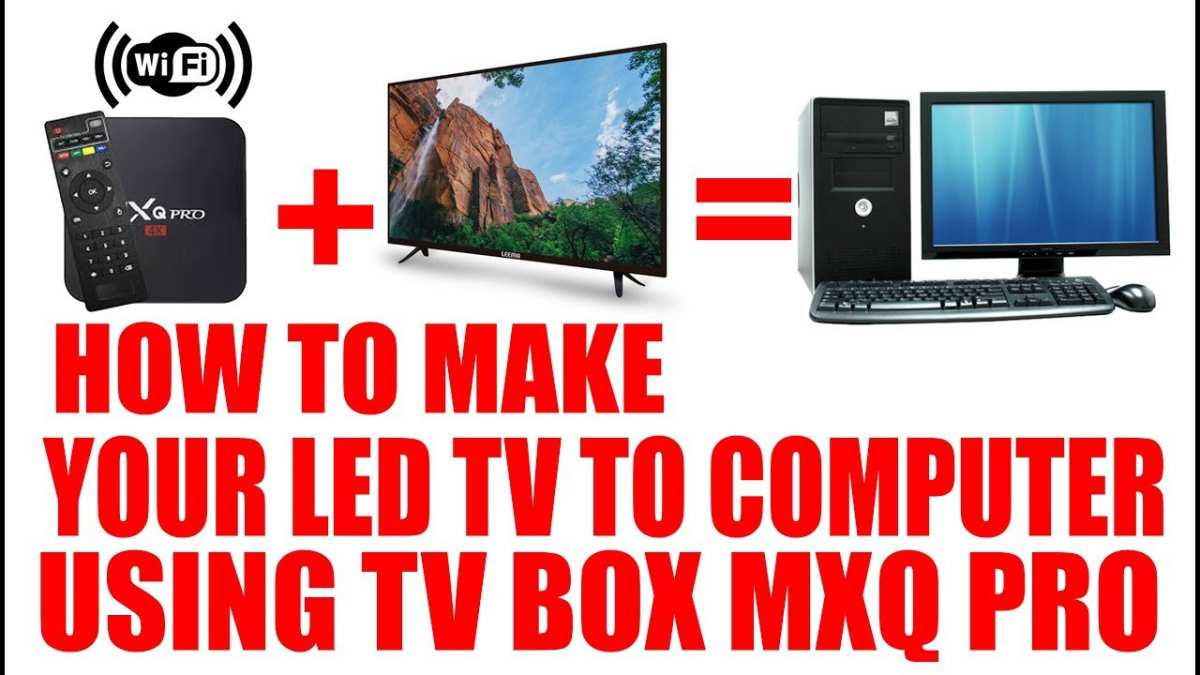
To make an Android TV function like a computer, you simply need to connect a keyboard and mouse and enable developer options. **This setup allows you to use your Android TV as a full-fledged computer.** If you’re wondering how to make Android TV to computer, start by installing remote desktop apps or connecting peripherals via OTG cables. It’s a straightforward process that turns your TV into a versatile workspace. Whether you want to browse, work, or enjoy media, this quick setup provides a simple solution.

How to Make Android TV into a Computer: A Complete Guide
Transforming your Android TV into a functioning computer can seem complicated at first, but with the right tools and steps, you can easily turn your TV into a versatile device. Whether you want to browse the web, work on documents, or stream content with a larger screen, this guide walks you through everything you need to know to make your Android TV feel like a full-fledged computer.
Why Convert Your Android TV into a Computer?
Before diving into the steps, let’s understand why you might want to convert your Android TV into a computer:
- Large Screen Experience: Enjoy browsing, gaming, or working on a bigger display.
- Cost-Effective: Use your existing Android TV instead of buying a new computer or monitor.
- Enhanced Media Center: Turn your TV into a media hub with access to apps, files, and internet browsing.
- Educational and Productivity Uses: Use it for online learning, video editing, or casual work tasks.
Prerequisites for Turning Your Android TV into a Computer
Before starting, gather the essentials:
- Android TV Device: Make sure your TV runs on Android OS and has internet access.
- Stable Wi-Fi Connection: A strong connection ensures smooth streaming and data transfer.
- Keyboard and Mouse: Wireless or wired peripherals for easy input.
- USB Drive or External Storage: Optional, for file transfers.
- Computer or Laptop (for setup): To prepare software and configurations.
Also, check your TV’s specifications to see if it supports installing additional apps or connecting peripherals.
Methods to Convert Android TV into a Computer
There are multiple ways to achieve this transformation, each suited to different needs and technical comfort levels. Let’s explore the most common and effective methods.
Using Remote Desktop Apps
One of the easiest ways to turn your Android TV into a computer is by using remote desktop applications. These allow you to control your PC or Mac from your TV screen.
Step-by-Step Guide for Remote Desktop
- Install a remote desktop app on your Android TV, such as Microsoft Remote Desktop, TeamViewer, or Chrome Remote Desktop.
- Set up the remote desktop software on your computer first. Obtain the access code or IP address needed for connection.
- Open the same app on your Android TV and enter the connection details.
- Connect and control your computer from your TV. Now, you can view your desktop, use apps, and work as if you’re on your computer.
This method is perfect for casual use, browsing, or lightweight tasks. Plus, it doesn’t require any hardware modifications.
Using Screen Mirroring and Casting
Another popular approach involves casting your computer’s screen onto your Android TV.
Steps to Cast from Your Computer to Android TV
- Ensure both devices are connected to the same Wi-Fi network.
- On your computer, open the casting feature (for example, Chrome browser’s cast option).
- Select your Android TV from the list of available devices.
- The TV will mirror your computer’s screen, allowing you to use it as a second monitor or display.
While casting is quick and simple, it’s better suited for viewing content or light work rather than replacing a dedicated computer.
Utilizing Android Emulators on Your TV
In some cases, running Android emulators on your TV can simulate a computer environment, especially if your Android TV supports installing apps outside the Google Play Store.
Steps to Use an Android Emulator
- Download an Android emulator app compatible with your TV, like BlueStacks or NoxPlayer. Note: Compatibility may vary.
- Install the emulator on your Android TV, following the app-specific instructions.
- Launch the emulator, which creates a virtual Android environment similar to a computer.
- Use the emulator to run desktop-style Android apps or simulate a PC environment.
This method is good for app testing or gaming but may not provide a full Windows or Linux experience.
Connecting Keyboards and Mice to Your Android TV
No matter which method you choose, input peripherals like keyboards and mice are essential for productivity.
Wired vs. Wireless
- Wired: Connect via USB or HDMI adapters. Make sure your TV has the necessary ports.
- Wireless: Use Bluetooth or Wi-Fi-connected peripherals for more convenience and less clutter.
How to Connect Peripherals
- For Bluetooth devices, enable Bluetooth on your TV, pair your device, and start using.
- Wired devices can be plugged into USB ports or via compatible adapters if your TV lacks standard ports.
Installing and Using Desktop-Like Applications on Android TV
Once you set up remote access or mirroring, installing applications similar to those on a desktop can enhance your experience.
Popular Apps for Android TV as a Desktop Replacement
- Google Chrome: For web browsing and online work.
- Microsoft Office or Google Docs: For document editing.
- VLC Media Player: To watch videos and listen to music.
- File Managers: For managing files stored locally or in the cloud.
- Remote Desktop Apps: As discussed earlier for controlling a PC.
Improving Your Android TV’s Functionality as a Computer
To make your Android TV more computer-like, consider these enhancements:
Installing a Custom Launcher
This helps organize your apps like a desktop environment, making navigation more user-friendly.
Setting Up Network Storage
Connect your TV to network-attached storage (NAS) or shared folders for easy access to files.
Using Cloud Services
Integrate Google Drive, Dropbox, or OneDrive for quick access to documents and media.
Adding External Storage
Use USB drives or external hard drives to expand storage and transfer files easily.
Safety and Security Tips
While setting up your Android TV as a computer, keep these security tips in mind:
- Use strong passwords for remote access apps.
- Keep your device’s software updated.
- Disable remote access if not in use to prevent unauthorized control.
- Back up important files regularly to avoid data loss.
Converting your Android TV into a computer opens up a world of possibilities, from browsing and streaming to light productivity work. The method you choose depends on your needs, whether it’s remote desktop control, casting, or emulation. With a little setup, you can make your TV a central hub for entertainment, work, and learning. Remember to keep your peripherals connected, install helpful apps, and secure your device for the best experience. Now you’re all set to turn your Android TV into a versatile computer!
Frequently Asked Questions
How can I connect my Android TV to my computer using a cable?
To connect your Android TV to your computer with a cable, use an HDMI cable if both devices support it. Plug one end of the HDMI cable into your computer’s HDMI port and the other end into your Android TV’s HDMI input. Once connected, select the appropriate HDMI input on your TV. Your computer screen should now appear on your Android TV, allowing you to use it as a monitor.
What software options are available to mirror my computer screen on Android TV?
You can use screen-mirroring apps like Google Cast, Miracast, or third-party applications such as AirScreen. Install the app on your Android TV and ensure your computer supports the same technology. Follow the app’s instructions to establish a connection, which typically involves selecting your TV from the computer’s cast or screen mirroring menu. This method enables real-time display of your computer screen on your Android TV.
Is it possible to use my Android TV as a second monitor for my PC?
Yes, you can turn your Android TV into a second monitor for your PC using applications like SpaceDesk or Splashtop. Install the server software on your computer and the viewer app on your Android TV. Connect both devices to the same Wi-Fi network, then follow the app’s instructions to extend or mirror your desktop display onto the TV. This setup can improve your multitasking experience by adding extra screen space.
What steps should I follow to enable wireless screen sharing between my PC and Android TV?
Enable wireless screen sharing by ensuring both your PC and Android TV are connected to the same Wi-Fi network. On your PC, open the display settings or use the Windows Connect feature. On your Android TV, activate the screen mirroring or cast feature from the settings menu. Select your TV from the list of available devices on your PC. Once paired, your computer screen will display on the Android TV without the need for cables.
Can I use a Chromecast device to connect my computer to Android TV?
Yes, a Chromecast device allows you to wirelessly cast your computer screen to your Android TV. Plug the Chromecast into your TV’s HDMI port and set it up with your Wi-Fi network. On your computer, open the Chrome browser, click the three-dot menu, and select “Cast.” Choose your Chromecast device from the list. You can then select “Cast desktop” to mirror your entire screen or cast specific tabs, providing an easy way to display your computer content on your TV.
Final Thoughts
To make android tv to computer, start by connecting your Android TV to the same Wi-Fi network as your PC. Use a screen mirroring app like AirDroid or Vysor to display your computer on the TV. Adjust your PC settings to enable screen sharing or cast.
In conclusion, how to make android tv to computer involves using compatible apps and a stable Wi-Fi connection. Follow these steps, and you can easily turn your Android TV into a computer display.
