

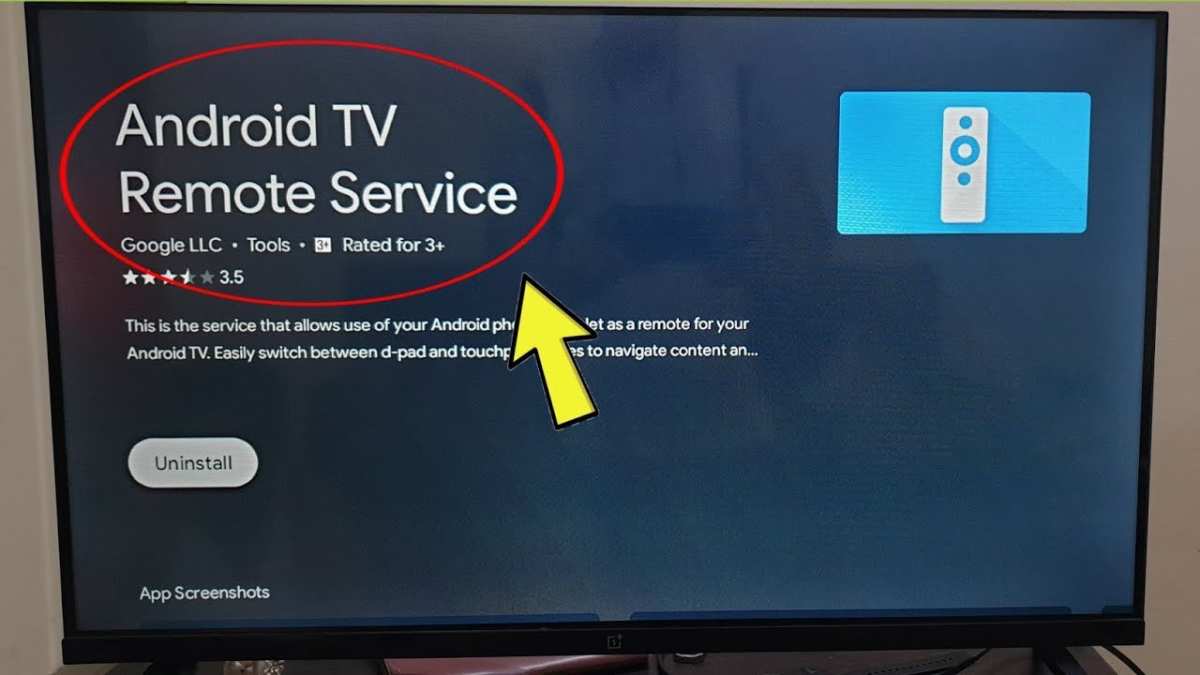
To use the Android TV remote service, simply connect your device via Bluetooth or Wi-Fi and open the app. **This allows you to control your TV seamlessly from your smartphone.** If you want to know how to use Android TV remote service effectively, ensure your device is compatible and properly paired.
Once connected, navigate effortlessly through menus, adjust volume, or launch apps using your phone. The process is straightforward, making your TV experience more intuitive and convenient.

How to Use Android TV Remote Service
Using your Android TV remote service can seem tricky at first, but once you understand how it works, it becomes much easier to navigate and control your TV smoothly. This guide will walk you through every step, from setting up the remote service to troubleshooting common issues. Whether you’re using the official Android TV remote app or a third-party option, you’ll find clear instructions and helpful tips to make your experience seamless.
Understanding Android TV Remote Service
Before diving into how to use the remote service, it’s important to understand what it is and how it functions. Android TV Remote Service is a built-in app that allows your smartphone or tablet to act as a remote control for your Android TV. It connects via Wi-Fi or Bluetooth, so you don’t need extra hardware. This service simplifies navigating the TV, typing text, and controlling playback without using the physical remote.
This service is compatible with most Android TVs and devices running Android 6.0 (Marshmallow) and above. It provides several features like voice commands, touch controls, and even keyboard input, making your TV experience more interactive and user-friendly.
Setting Up Android TV Remote Service
Getting started with the Android TV Remote Service involves installing the remote app and connecting it to your TV. Here’s a step-by-step process to set everything up properly:
Downloading the Remote App
– Open the Google Play Store on your smartphone or tablet.
– Search for “Android TV Remote Control” or “Google TV Remote.”
– Tap “Install” to download the app.
– For iOS users, download “Google TV” or “Android TV Remote” through the App Store.
Connecting Your Device to Your TV
– Make sure your Android TV and your mobile device are connected to the same Wi-Fi network.
– Open the remote app on your device.
– The app will automatically scan for available Android TVs on the network.
– Select your TV from the list of devices.
– If prompted, enter a pairing code that appears on your TV screen into your device.
– Once paired, the app is ready to use.
Alternative: Using Bluetooth
In some cases, especially if Wi-Fi connection is unstable, you can connect your remote app via Bluetooth:
– Enable Bluetooth on both your TV and mobile device.
– Open the remote app and select “Bluetooth pairing.”
– Follow the on-screen instructions to connect your device to the TV.
Using the Android TV Remote Service Features
Once set up, you can explore various features that make controlling your Android TV easier and more fun.
Navigating Your TV
The app offers a virtual directional pad, arrow keys, and select buttons:
– Use the directional pad to move through menus.
– Tap the center button to select options.
– Swipe gestures, if supported, allow quick navigation.
Typing Text Easily
Typing on a remote can be a hassle, but with the remote app:
– Bring up the keyboard in the app.
– Type as you would on your phone.
– The text appears instantly on your TV screen.
– Use predictive text for faster typing.
Controlling Playback and Volume
Control your media with simple buttons:
– Play, pause, rewind, and fast forward.
– Adjust volume with dedicated buttons or sliders.
– Mute or unmute with one tap.
Using Voice Commands
Most remote apps support voice input:
– Tap the microphone icon.
– Speak your command, like “Open Netflix” or “Search for funny videos.”
– The app processes your voice command and performs the action.
Customizing Your Remote Control Experience
Personalize how you control your Android TV for maximum convenience.
Creating Shortcuts and Favorite Apps
– Most remote apps allow you to set shortcuts for your favorite streaming apps.
– Organize your home screen by adding frequently used apps.
– Use the app’s settings to assign specific commands to buttons.
Adjusting Settings for Better Performance
– Check your connection quality; switch from Wi-Fi to Ethernet if possible.
– Update the remote app regularly to gain new features.
– Turn off unnecessary devices to reduce interference.
Troubleshooting Common Issues
Sometimes, things don’t work as expected. Here are tips to resolve common problems:
Remote App Not Detecting Your TV
– Confirm both devices are connected to the same Wi-Fi network.
– Restart your TV and mobile device.
– Ensure that the Android TV Remote Service app is enabled on your TV.
– Update the remote app or your TV firmware.
Pairing Problems
– Double-check the pairing code displayed on your TV.
– Retry the pairing process.
– Clear the app cache and data, then try again.
– Reinstall the remote app if needed.
Connectivity Drops or Lag
– Move closer to your Wi-Fi router.
– Reduce network traffic by closing other apps or devices using the network.
– Restart your router and TV.
Using Alternative Remote Options
If the official Android TV Remote Service isn’t working for you, there are other ways to control your TV.
Third-Party Remote Apps
Some apps offer additional features:
– Remote control with customizable buttons.
– Support for older Android TV models.
– Better voice recognition and keyboard input.
Popular options include “AnyMote,” “ Peel Smart Remote,” and “Unified Remote.”
Physical Remote Controls
– Use universal remotes compatible with Android TV.
– Purchase dedicated Android TV remotes with added features.
– Connect Bluetooth remotes for a more traditional control experience.
Best Practices for Using Android TV Remote Service
To get the most out of your remote control experience, follow these tips:
– Keep your device’s software up-to-date.
– Maintain a strong Wi-Fi connection.
– Regularly restart your devices if you encounter issues.
– Keep your TV’s firmware current.
– Use voice commands for quick searches and commands.
– Keep the remote app installed on multiple devices for convenience.
By understanding each of these elements, controlling your Android TV becomes much more straightforward. Whether you’re switching between apps, typing long searches, or adjusting settings, the remote service enhances your TV experience. Remember, the key is to stay connected and keep your devices updated to enjoy uninterrupted control.
Adopting these steps and tips will help you navigate your Android TV effortlessly. Over time, controlling your TV will feel natural, keeping you focused on enjoying your favorite shows and content without frustration.
Frequently Asked Questions
How can I connect my Android TV remote service to my television?
To connect your Android TV remote service, ensure your device and TV are connected to the same Wi-Fi network. Open the remote app on your Android device, select your TV from the list of available devices, and follow the on-screen prompts to pair them. Once paired, you can control your TV directly through the app.
What should I do if my Android TV remote service is not responding?
If the remote service stops responding, first check your internet connection and ensure both your device and TV are connected properly. Restart the app and your TV, and try re-establishing the connection. If problems persist, clear the app’s cache or reinstall it to resolve any possible glitches.
Can I customize the buttons or functions in the Android TV remote app?
Yes, many Android TV remote apps allow you to customize button functions or add shortcuts for frequently used features. Navigate to the app settings, locate the customization options, and assign specific functions or remap buttons according to your preferences for more efficient control.
Is it possible to use voice commands with the Android TV remote service?
Most Android TV remote apps support voice commands. To use this feature, tap the microphone icon within the app and speak your command clearly. You can search for content, open apps, or control volume using your voice, making navigation easier.
How do I update the Android TV remote service to ensure compatibility?
Keep the remote app updated by visiting the Google Play Store or the app store relevant to your device. Check for updates regularly to access new features, improvements, and security patches. Enable automatic updates for seamless upgrades without manual intervention.
Final Thoughts
To use android tv remote service effectively, start by pairing your remote with your device via Bluetooth or Wi-Fi. Ensure both devices are on the same network for seamless connection. Navigate to the settings menu on your Android TV and select the remote options to connect or configure your remote.
Once connected, use the remote to easily control your TV, navigate menus, and access apps. For quick access, customize shortcut buttons if available. Remember, understanding how to use android tv remote service helps you enjoy smooth and effortless control of your entertainment system.
