

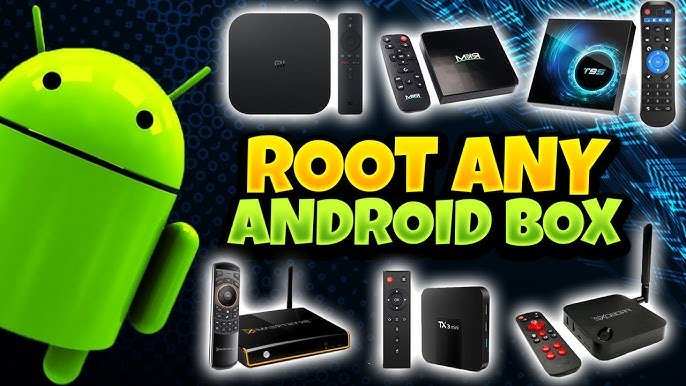
To quickly find out if your Android TV box is rooted, simply check for superuser apps or try running a root checker app from the Play Store. **The process to check if Android TV box is rooted is straightforward and quick.** If you’re unsure about the device’s status, examining root files or using specialized apps can provide clarity. Knowing whether your device is rooted helps you manage security and updates more effectively. A simple check saves you time and keeps your device safe from potential risks.

How to Check If an Android TV Box Is Rooted
When you get a new Android TV box, you might wonder whether it’s been rooted. Rooting gives users special access to the device’s system files, allowing them to make advanced modifications. But sometimes, you just need to know if your box has been rooted, especially before installing certain apps or updates. In this guide, we’ll walk through clear, simple steps to check if your Android TV box is rooted.
Understanding What Rooted Means
Before diving into how to check if your device is rooted, let’s clarify what rooting is.
Rooting is the process of gaining administrative permission on an Android device. It’s like being the administrator of a computer, giving you the power to change settings, remove pre-installed apps, or install custom software.
Some key points:
- Rooting provides full control over your Android TV box.
- It can improve performance or customization options.
- However, it may void your warranty or make your device less secure.
- Not all devices are rooted by default. Some come with security features that prevent rooting.
Knowing whether your device is rooted helps you decide what apps to use or avoid and what security precautions to take.
Reasons You Might Want to Check If Your TV Box Is Rooted
Understanding whether your Android TV box is rooted can be essential for a few reasons:
- Ensuring the device’s security — rooted devices might be more vulnerable to malware.
- Compatibility with certain apps — some apps require unrooted devices to work properly.
- Performing system updates — rooted devices sometimes prevent updates or cause errors.
- Deciding whether to root or unroot — if you want to remove root restrictions.
Now, let’s explore simple methods to find out whether your device is rooted.
Method 1: Using a Root Checker App
One of the easiest ways to check if your Android TV box is rooted is by using a root checker application. These apps examine your device and tell you the root status instantly.
Step-by-step Guide to Using a Root Checker App
- Open the Google Play Store on your Android TV box.
- Search for “Root Checker” or a similar app.
- Select a trusted app, like “Root Checker” by Evolution XR, and install it.
- Launch the app once installed.
- Tap on the “Verify Root” button or similar option.
- The app will automatically scan your device and display whether it is rooted or not.
Why Use a Root Checker App?
- Fast and straightforward method.
- No technical knowledge needed.
- Provides a clear, definitive answer.
Important Tips When Using Root Checker Apps
- Ensure the app is downloaded from a trusted source to avoid security risks.
- Be aware that some newer devices might show false negatives or positives due to security features.
- If the app says your device is rooted but you’re unsure, consider trying other methods for confirmation.
Method 2: Check for Superuser or SU Binary Files
The presence of certain files on your device indicates root access.
Understanding the SU Binary
The “su” binary is a file that grants superuser permissions. If you find it on your device, it suggests that root access exists.
How to Check for SU Binary
- Download a file explorer app from the Google Play Store that allows access to system files, such as “Solid Explorer” or “FX File Explorer.”
- Open the file explorer and navigate to the root directory, typically labeled “/”.
- Look for a folder named “su” or a file called “su” in directories like “system/bin” or “system/xbin.”
- If you find the file, your device is likely rooted.
Note on Accessing System Files
Some devices restrict access to system files without root. However, if your device is rooted, these files are generally accessible.
Safety Tip
Be cautious when exploring system files and avoid deleting or modifying files unless you are confident about what you are doing.
Method 3: Use ADB Commands
Another way to check root status is through Android Debug Bridge (ADB), a command-line tool.
Prerequisites
- Enable Developer Options on your Android TV box.
- Turn on USB debugging in Developer Options.
- Connect your device to a computer via USB or use wireless ADB (if supported).
Steps for Using ADB to Check Root Status
- Connect your device to your computer with ADB set up.
- Open a command prompt or terminal window on your computer.
- Type the command:
adb shelland press Enter. - At the prompt, type:
suand press Enter. - If your device switches to a new prompt without error, it indicates root access.
- If you get an error or the command is denied, your device is likely not rooted.
Alternatives for ADB Users
If you don’t want to use ADB, some apps can run the “su” command directly within the app interface, revealing root status.
Signs Your Android TV Box Might Be Rooted
Besides explicit checks, there are signs that suggest your device could be rooted:
- You see custom apps like SuperSU or Magisk Manager installed.
- Device responds differently to updates or factory resets.
- You experience unusual app behavior or crashes.
- You notice apps requesting root permissions.
- There are modifications to the user interface or system files.
Unrooting Your Android TV Box
If you find out your device is rooted and you want to unroot it, here are some options:
- Use the unroot feature available in root management apps like Magisk or SuperSU.
- Perform a factory reset, which may or may not remove root depending on the device.
- Reinstall the original firmware or factory image provided by the device manufacturer.
Remember, unrooting can help restore your device to its original state and restore warranty and security features.
Summary of Steps to Check if Your Android TV Box Is Rooted
| Method | Ease of Use | Requirements | Effectiveness |
|---|---|---|---|
| Root Checker App | Easy and quick | Google Play Store access | High for most devices |
| Checking for SU Files | Moderate, requires file explorer | File explorer app, basic file navigation skills | Very reliable if files are present |
| Using ADB Commands | Advanced, requires setup | Computer, ADB installed, USB debugging enabled | Highly accurate |
By following these methods, you can confidently determine whether your Android TV box has been rooted or not. Keep in mind that each approach has its benefits, and using multiple checks can give you the clearest picture of your device’s status. Whether you’re troubleshooting, installing apps, or managing security, knowing whether your device is rooted is an important step in maintaining control over your Android TV experience.
Frequently Asked Questions
What signs indicate that my Android TV box might be rooted?
If your Android TV box has access to apps that typically require root privileges, or if you notice tools like SuperSU or Magisk installed, it could be rooted. Additionally, if your device behaves unexpectedly, such as crashing apps or unusual settings, it might be rooted. Checking for system modifications or altered system files can also hint at rooting.
How can I verify root status using built-in system features?
Some Android TV boxes display root information in the device settings or developer options. To check, go to Settings > About, and look for system details or advanced options. If you see options related to root management or if the device indicates access to root features, it suggests that the device may be rooted. However, this method isn’t always reliable if root access has been hidden or masked.
Are there any specific applications I can use to check if my device is rooted?
Yes, you can install specialized apps like ‘Root Checker’ from the Google Play Store. These apps perform a quick test to determine if your system has root access. Simply open the app and run the verification process. If the app confirms root access, your device is rooted. Remember to uninstall this app if you want to maintain a standard setup.
Can command-line tools help me confirm whether my Android TV box is rooted?
Using a command-line interface, such as Android Debug Bridge (ADB), you can run commands like ‘su’ to check for root access. If running ‘su’ prompts for authorization or indicates success, your device is rooted. If the command is unavailable or fails, then your device likely does not have root privileges. Make sure USB debugging is enabled before attempting this method.
What are some signs of unauthorized modifications that suggest my device might be rooted?
If you notice system files that have been altered or if apps that require root permissions are present without your installation, it could mean your device is rooted. Unexpected behavior, such as apps crashing, performance issues, or changes in the system settings, can also point towards root modifications. Performing a factory reset can sometimes remove unauthorized modifications if you prefer a device without root access.
Final Thoughts
To check if an Android TV box is rooted, you can use a root checker app available on the Play Store. Installing and running the app quickly reveals the device’s rooting status. Alternatively, you can access the device’s file system using a file explorer app to look for root-related files.
Understanding whether your device is rooted helps you manage security and permissions effectively. In conclusion, knowing how to check if android tv box is rooted ensures you maintain control over your device’s software.
