

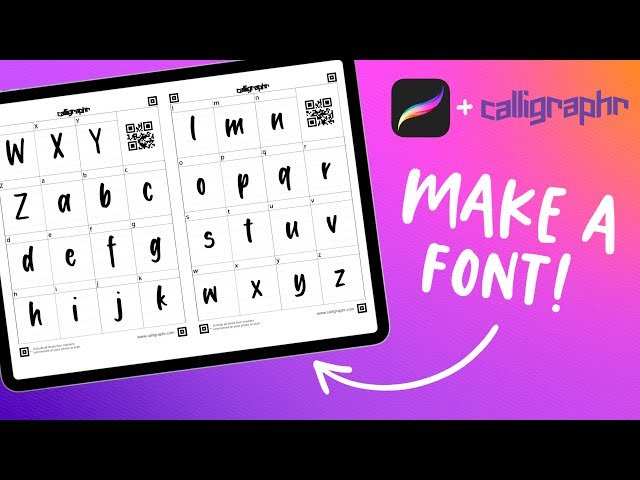
To make your handwriting a font on Android, you need to create a custom font file from your handwriting and then install it on your device. **Start by writing your alphabet and characters on paper, then scan and digitize them using a font creation app.** Once you have your font file, install it in your device’s font settings, and your unique handwriting will be ready to use. Many apps simplify this process, making it easy to personalize your typing experience. Just follow these straightforward steps, and you’ll have a font that truly reflects your style.

How to Make Your Handwriting a Font on Android
Creating a custom font from your handwriting can give your device a personalized touch and make your messages stand out. Whether you want to add a unique style to your notes or impress friends with your handwritten font, this guide walks you through each step clearly. From capturing your writing to setting it up on your Android device, we cover everything you need to know to turn your handwriting into a usable font.
Understanding the Basics of Handwritten Fonts on Android
Before diving into the creation process, it’s helpful to understand what handwritten fonts are and how they work on Android devices.
- What is a font? A font is a digital file that contains the design of characters, including letters, numbers, and symbols. When installed on your device, it changes how text appears on your screen.
- Why use a handwritten font? Personalized fonts add character to your messages, notes, or artwork. They make digital text feel more natural and expressive, mimicking your own handwriting style.
- Compatibility concerns Not all Android apps support custom fonts equally. Many messaging and note-taking apps allow font customization, but some may require specific formats or methods for installation.
Gathering Your Handwriting Samples
The first step involves capturing your handwriting clearly and accurately. Here’s how you can do it effectively:
Choosing the right tools
- Use a good quality pen or stylus to write on clean, smooth paper. This helps in capturing clear strokes.
- Maintain consistent pressure and spacing to make digitization easier.
Creating clear samples
- Write the alphabet in both uppercase and lowercase, along with numbers and common symbols. This ensures your font covers all necessary characters.
- Make each letter distinct and easy to recognize. Avoid overly decorative or cursive styles if you want clarity.
- Write several repetitions of the same letters to help the font generator understand the style better.
Scanning or photographing your samples
- Use a scanner for the best quality. Make sure the paper is flat and evenly lit to prevent shadows.
- If you don’t have a scanner, take a high-resolution photo with good lighting. Keep the camera steady and focus on your writing.
- Save the images in a high-quality format like PNG or JPEG.
Using Font Creation Apps for Android
Once you have your handwriting samples, the next step is to generate a font using specialized apps. These tools convert your handwritten images into fonts that your Android device can use.
Popular font creation apps for Android
| App Name | Features | Ease of Use |
|---|---|---|
| iFont | Supports custom fonts, offers font installation, app backup | Very user-friendly, suitable for beginners |
| Fonty | Allows creating fonts from images, supports various formats | Simple interface with step-by-step guides |
| HiFont | Customize fonts and themes, supports font import | Good for quick font changes and personal styles |
Steps to convert handwriting into a font
- Download and install your preferred font creation app from the Google Play Store.
- Open the app and select the option to create a new font.
- Upload your scanned images or photos of your handwritten characters.
- Align and crop each character to ensure proper placement.
- Assign each character to its corresponding letter or symbol in the app.
- Preview your font to make sure everything looks right. Adjust as needed.
- Save or export the font file, typically in TTF or OTF format.
Installing Your Custom Font on Android
After creating your font, you can install it on your device and use it across compatible apps.
Using font files with font manager apps
- Download a font manager app like iFont, FontFix, or Stylish Text from the Play Store.
- Open the app and select the option to install a custom font.
- Locate the font file you exported earlier, usually in your Downloads folder.
- Follow the prompts to install the font system-wide or within specific apps.
Applying the font in different apps
- In messaging or note apps, check if they support custom fonts or font styles.
- Some apps may require you to select your custom font from their settings or use a keyboard app that supports font customization.
- If your app doesn’t support custom fonts directly, consider using third-party keyboards like Gboard, which allow font customization and text styling.
Creating and Using Custom Keyboard with Your Handwriting Font
One of the best ways to make your handwriting font more accessible is through a custom keyboard.
Setting up a custom keyboard app
- Download a keyboard app that supports custom fonts and themes, such as Gboard or AnySoftKeyboard.
- Open the app and navigate to its customization settings.
- Import your handwriting font or select it if available.
- Activate the keyboard in your device settings under Language & Input options.
Tips for using your handwriting font on Android
- Switch between different keyboards easily by tapping the keyboard icon on your screen.
- Practice typing with your custom font to get used to its style and spacing.
- Use your handwriting font for creative projects, personalized messages, or social media posts.
Additional Tips for Better Handwriting Font Creation
Creating a high-quality font takes patience and attention to detail. Here are some tips to improve your results:
- Write larger and clearer characters to make digitization easier.
- Maintain consistent letter size and style throughout your samples.
- Avoid overly decorative strokes that might complicate the font creation process.
- Test your font on different devices and apps to see how it displays. Make adjustments if necessary.
- Keep backup copies of your font files, especially after making modifications.
Exploring Advanced Font Customization Options
If you want to add more personal touches or refine your font further, consider these advanced options:
Editing font files directly
- Use font editing software on a PC or Mac, such as FontForge or Glyphs, to tweak your font for perfect spacing and consistency.
- Transfer the edited font back to your Android device for use.
Using multiple handwritten styles
- Create different versions of your handwriting—casual, formal, playful—and switch between them based on your mood or purpose.
- Organize your fonts in folders for easy access.
Integrating your font into design projects
- Use your handwritten font in graphic design apps like Canva or Adobe Spark to personalize posters, invitations, or digital artwork.
- Combine your font with other styles for creative effects.
Summary and Final Thoughts
Transforming your handwriting into a usable font on Android involves capturing high-quality samples, using font creation apps to generate and refine your font, and installing it so you can access it across your device. By following these steps carefully, you’ll have a personalized, unique font that reflects your style and personality. Keep experimenting with different styles and techniques to develop fonts that suit your projects and make your digital communication more engaging. Remember, patience and attention to detail will help you produce the best results possible, making your handwritten fonts a fun and creative addition to your Android experience.
Frequently Asked Questions
What tools can help you create a font from your handwritten notes on Android?
Several apps are available on the Google Play Store that let you convert your handwriting into a font. Apps like iFont, Fontise, and Movable Type offer user-friendly interfaces where you can scan or draw your handwriting, then customize and save it as a font file. These tools typically guide you through capturing your handwriting, adjusting the style, and exporting the font for use across your device.
How do you prepare your handwriting for digitization on an Android device?
Start by writing clearly on clean, white paper using a dark pen for high contrast. Make sure your handwriting is consistent and well-spaced to ensure accurate digitization. Use good lighting when capturing the handwritten sample, and avoid shadows or glare. When scanning or photographing, keep the device steady and align the paper properly to get a clear, centered image that captures all characters distinctly.
Which steps are necessary to install and use your custom font across Android applications?
After creating your font, save it in a compatible format like TTF or OTF. Transfer the font file to your device, then use a font installer app such as iFont or FontFix. These apps will allow you to install the font system-wide or within specific apps. Once installed, navigate to your device’s font settings or select the font within supported apps to start using your personalized handwriting style.
Can you edit or refine your handwriting font after initial creation?
Yes, most font creation apps provide editing tools that let you adjust individual characters, smooth out lines, and modify spacing. You can import your font into these apps, make the necessary changes, and re-export the updated version. This process helps ensure your font appears polished and consistent across all characters.
Are there any tips for maintaining the quality of your handwriting font over time?
To keep your font crisp, use high-quality scans or images when digitizing your handwriting. Regularly update the font file if you make changes to your handwriting style. Also, ensure the font file remains compatible with your device and applications, and avoid excessive resizing or manipulation that could degrade the font’s appearance. Properly storing your font files and backing them up can help preserve their quality for future use.
Final Thoughts
To make your handwriting a font on Android, start by creating a digital version of your handwriting using a scanning app. Next, convert your handwritten notes into a font using specialized software like Calligraphr or FontForge. Upload your font file to your device and install it through your system settings or a font management app.
By following these steps, you can easily personalize your device with a unique handwritten font. how to make your handwriting a font on android becomes simple and efficient when you use the right tools.
