

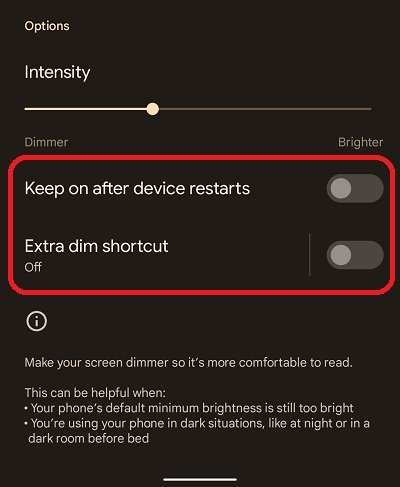
To make your brightness even lower on Android, simply turn down the brightness slider or enable the extra dim mode in quick settings. If you’re wondering how to make your brightness even lower android, there are additional options like using third-party apps or adjusting developer settings. These methods help reduce eye strain and save battery life. Tweak your device settings, and you’ll enjoy a more comfortable viewing experience with less glare and brightness. It’s quick, simple, and effective to get your screen as dim as possible.

How to Make Your Brightness Even Lower Android
When using an Android device, sometimes the default minimum brightness setting isn’t low enough for your comfort. Whether you’re trying to reduce eye strain at night, save battery life, or simply prefer a darker screen, reducing brightness below the standard limit can make a noticeable difference. Luckily, there are several methods to lower your Android screen brightness even further, and this guide will walk you through each one in detail. Read on to learn how you can make your Android device’s brightness as low as possible.
Understanding Android Brightness Settings
Before diving into advanced techniques, it’s useful to understand how brightness settings work on Android. Your device’s screen brightness controls the amount of light emitted by your screen. Android offers two primary ways to adjust brightness:
- Automatic Brightness: When enabled, your device adjusts brightness based on ambient light conditions.
- Manual Brightness: Allows you to set a specific brightness level using a slider.
While these settings are handy, they have limitations. The minimum brightness level might still be too bright for certain environments, especially in dark rooms or at night. That’s where additional methods come into play to help you go even lower.
Using Built-in Settings to Dim Your Screen Further
Most Android devices come with built-in features that can help you reduce brightness beyond the default settings.
Disable Automatic Brightness
Automatic brightness can interfere with your manual adjustments. Turning it off lets you set a fixed brightness level that you can then lower as much as possible.
- Open the Settings app on your device.
- Navigate to Display or Brightness & Wallpaper.
- Find the toggle for Automatic Brightness and turn it off.
Once disabled, slide the brightness bar to the lowest level. While this may still not be the lowest setting possible, it sets the stage for other tweaks.
Adjust Brightness While in the Dark
In very dark environments, reducing brightness to the minimum can be difficult—sometimes the slider doesn’t go low enough. To tweak beyond this, try the following:
- Minimize brightness using the slider.
- Close the Settings app or brightness menu.
- Use a dark wallpaper or enable dark mode, which effectively reduces eye strain and makes the screen appear darker.
While these steps help, if you want even darker screens, you need to consider third-party solutions or developer options.
Using Third-Party Apps to Lower Brightness Further
Third-party apps offer extra control over your screen brightness, allowing you to go below the system’s minimum level.
Blue Light Filter Apps
Apps like Twilight or Night Mode apps are designed to reduce eye strain by adding a yellowish tint and decreasing brightness. Many of these apps also include a manual brightness control that can go below the system limit.
- Download a trusted blue light filter app from the Google Play Store.
- Open the app and grant necessary permissions.
- Adjust the brightness or filter opacity to make your screen darker.
These apps not only dim your display but also filter out blue light, which is helpful for nighttime use.
Screen Dimmer Apps
Apps like “Dimly” or “Screen Dimmer” provide a straightforward way to lower your screen brightness considerably.
- Install a recognized screen dimmer app.
- Open the app and grant permission to overlay over other apps.
- Use the control sliders to reduce brightness well below the default lowest setting.
Always choose apps with good ratings and reviews to ensure they work smoothly without causing issues.
Activating Developer Options for Advanced Brightness Control
Developer options in Android unlock hidden features, including more granular control over display settings.
How to Enable Developer Options
- Open Settings > About phone.
- Tap on Build number seven times until you see a message confirming that developer options are enabled.
- Navigate back to Settings, then select Developer options.
Adjusting Brightness Using Developer Options
Within Developer options, you can modify certain display parameters:
- Scroll to find options like Drawing or Simulate color space.
- Some devices may allow for adjustments that impact overall screen brightness indirectly.
While this method offers less direct control over brightness levels, it’s useful for experimenting with display settings.
Modifying System Files for Lower Brightness
Advanced users can tweak system files to set custom brightness levels.
Root Your Device
Please note that rooting your Android device can void your warranty and carries some risks. Proceed only if you are comfortable with the process.
Use a File Explorer with Root Access
Once rooted, you can access system files:
- Navigate to /sys/class/leds/lcd-backlight or similar folder.
- Edit the brightness file to a lower value than the default minimum.
Values for brightness typically range from 0 to 255. Set a value closer to 0 for darker screens.
Install Custom ROMs or Kernel Mods
Some custom ROMs or kernels provide additional sliders and options for fine-tuning brightness beyond stock limits.
Additional Tips for Comfortable Nighttime Use
Reducing brightness isn’t the only way to make your device easier on your eyes at night.
Use Dark Mode
Enable Dark Mode in your device’s settings or individual apps to reduce glare and brightness perception.
Activate Night Mode or Blue Light Filters
Most Android devices have built-in night modes, which dim the screen and add a warm tone. If yours doesn’t, third-party apps can do the job.
Adjust Screen Timeout Settings
Set your screen to turn off sooner when not in use, reducing unnecessary brightness and saving power.
Wear Blue Light Glasses or Use Physical Screen Protectors
For prolonged nighttime use, blue light glasses or physical screen protectors can help reduce eye strain.
Summary of Methods to Make Your Brightness Even Lower
Below is a quick table summarizing the available options:
| Method | Description | Difficulty |
|---|---|---|
| Adjust system brightness | Use manual slider and disable auto-brightness | Easy |
| Use third-party apps | Install apps that dim the screen below system limit | Easy to Moderate |
| Developer options | Enable hidden features for more control | Moderate |
| Modify system files (rooted devices) | Change system brightness values directly | Advanced |
| Custom ROMs or kernels | Flash custom software for additional settings | Advanced |
Choosing the right method depends on your comfort level with your device’s settings and your specific needs. For most casual users, third-party apps combined with standard settings will suffice. Advanced users seeking maximum control might explore system modifications or rooting.
By following these detailed steps, you can lower your Android device’s brightness far below the default minimum, making your screen more comfortable in dark environments and helping you reduce eye strain during nighttime use.
Frequently Asked Questions
Can I reduce my Android device’s brightness beyond the minimum setting?
Yes, some Android devices allow you to go lower than the default minimum brightness. You can enable Developer Options by tapping the build number in your device’s settings multiple times. Once enabled, access Developer Options and find the “Simulate Display Brightness” or similar setting to manually set a lower brightness level. Alternatively, third-party apps from the Play Store may offer more granular control over your screen brightness.
Are there specific apps that can help lower my Android screen brightness further?
Several apps can provide advanced brightness control features, allowing you to set your screen to even dimmer levels. Apps like “Lux Auto Brightness,” “Custom Brightness,” or “Dimmer” let you adjust brightness sliders more precisely than the default settings. These apps usually require permission to modify display settings or overlay on your screen, but they can help you achieve a softer display environment.
How do I enable dark mode or reduce screen brightness for battery saving?
Enabling dark mode can decrease eye strain and, in many cases, reduce overall screen power consumption, making the display appear dimmer. You can activate dark mode in your device’s display or appearance settings. Additionally, enabling battery saver mode often dims the screen further by adjusting brightness automatically. Combining these options helps you maintain a lower brightness level without manually adjusting settings constantly.
Final Thoughts
To make your brightness even lower on Android, you can adjust the brightness slider in your device settings or use third-party apps for more control. Some devices also offer a “Dark Mode” or “Night Mode” that reduces eye strain. Additionally, lowering the screen timeout can help conserve battery and reduce brightness usage.
In conclusion, understanding how to make your brightness even lower Android can enhance comfort and save battery life. Use built-in brightness controls or apps to achieve the perfect low-light setting effortlessly.
