

To make your Android sound louder, boosting the volume settings and using built-in features can do the trick. **Adjust the volume levels and enable sound enhancements like equalizers or loudness boost.** Many Android devices also offer specific settings for increasing volume beyond the default limits.
Simply exploring your device’s sound settings and using third-party apps can significantly improve the audio output. Getting your Android to produce louder sounds is straightforward with these quick adjustments.

How to Make Your Android Sound Louder
When your Android device’s sound isn’t loud enough, it can make listening to music, watching videos, or receiving calls quite frustrating. Luckily, there are several simple and effective ways to boost the volume on your Android phone or tablet. In this guide, we will explore multiple strategies to make your device sound louder, covering both built-in features and useful apps. Whether your device’s volume is too low for noisy environments or you just want to enjoy a richer audio experience, these tips will help enhance the loudness of your Android device.
Check and Adjust Volume Settings
The first step in making your Android sound louder is to ensure all volume settings are properly adjusted. Sometimes, the problem is as simple as a muted or reduced volume setting.
Using the Physical Volume Buttons
Most Android devices have physical buttons dedicated to volume control. To enhance sound:
- Press the volume up button located on the side of your device.
- Watch the volume slider pop up on your screen. Drag it to the maximum level.
- If your device has separate volume controls for media, calls, and notifications, ensure you increase all these sliders to the maximum.
Remember, some phones have additional settings for specific audio types, so check the sound settings for each category.
Adjust Volume via Settings Menu
Beyond the physical buttons, you can tweak volume controls through your device settings:
- Open the Settings app on your Android device.
- Tap on “Sound” or “Sound & Vibration” (depending on your device model).
- Locate the volume sliders for media, calls, alarms, and notifications.
- Slide each one to the maximum level.
Doing this ensures that all audio channels are set to loud levels, providing a better overall sound experience.
Enable and Adjust Sound Enhancements
Many Android devices come with built-in sound enhancement features that can significantly boost audio output.
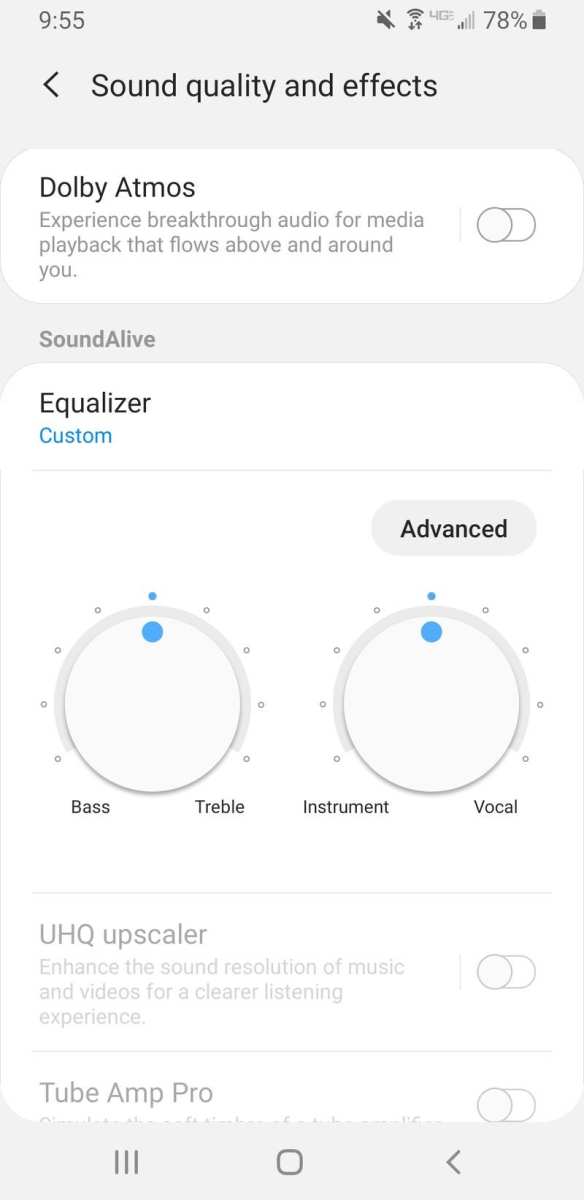
Use the Equalizer Settings
An equalizer adjusts the bass, treble, and midrange frequencies, making sound clearer and sometimes louder:
- Navigate to Settings > Sound & Vibration > Equalizer (if available).
- Turn on the equalizer feature.
- Choose pre-set profiles like “Bass Boost,” “Treble Boost,” or “Vocal” for enhanced loudness.
- You can also manually tweak the sliders to get the desired loudness and clarity.
If your device doesn’t have a built-in equalizer, you can download third-party equalizer apps from the Google Play Store.
Activate Sound Effects and Boosters
Many Android phones include sound effect options such as:
- “Dolby Atmos”
- “DTS:X”
- “Hi-Res Audio”
These features improve sound quality and can contribute to a perception of louder, richer audio. To enable these:
- Go to Settings > Sound.
- Look for options like “Sound Effects” or “Audio Effects.”
- Toggle the feature on and select a preset that emphasizes loudness.
Additionally, some devices support dedicated sound booster apps that can amplify volume beyond the default limits.
Use Volume Boosting Applications
If your device’s maximum volume still feels insufficient, third-party apps can help increase loudness further. Be cautious and choose reputable apps from the Google Play Store.
Popular Volume Booster Apps
Some of the most trusted and effective apps include:
- Volume Booster GOODEV: A simple app that increases your device’s volume output.
- equalizer & Bass booster: Combines equalizer functions with additional boosting capabilities.
- Super Volume Booster: Uses advanced algorithms to push your volume higher.
How to Use Volume Booster Apps
Follow these steps for safe and effective use:
- Download the app from Google Play Store.
- Open the app and grant necessary permissions.
- Adjust the volume or booster slider to the highest safe level.
- Test the sound to ensure clarity and avoid distortion or damage.
Remember, using volume booster apps excessively can damage your headphones or speaker components, so increase volume gradually.
Optimize Media and App Settings
Different media apps have their own sound settings. Sometimes, adjusting these can make your audio louder and clearer.
Check App Volume Settings
Popular apps such as YouTube, Spotify, or Netflix often have their own volume controls:
- While playing media, look for volume or sound enhancement options within the app.
- Increase these settings to the maximum.
- Ensure the app’s volume isn’t muted or lowered.
Update Apps and System Software
Outdated software can cause sound issues. Regularly check for updates:
- Go to Google Play Store > My Apps & Games.
- Update all media apps involved.
- Navigate to Settings > System > Software Updates to ensure your device has the latest firmware.
An updated system often includes improved sound management and additional features to boost loudness.
Remove Obstructions and Clean Hardware
Sometimes, hardware issues prevent your device from producing loud sound. Dust or debris blocking speakers can reduce volume significantly.
Cleaning Your Speakers
To clean the speaker grills:
- Turn off your device.
- Use a small, soft brush or a dry toothbrush to gently remove dust.
- Avoid using liquids that could damage internal components.
Check for Physical Damage
Inspect your device’s speakers for cracks or damage. If damaged:
- Visit a professional repair center.
- Consider replacing the speaker if necessary.
Properly functioning hardware ensures you get the maximum loudness your device can deliver.
Additional Tips for Better Sound Experience
Beyond boosting volume, implementing these practices can improve your overall audio quality and perceived loudness:
- Use quality headphones or external speakers—these can amplify sound considerably.
- Position your device closer to your ears for louder perceived sound.
- Reduce background noise to enjoy sound at lower volume levels.
- Turn on “Mono Audio” if your device offers it, which sometimes makes sound more prominent.
By combining hardware and software methods, you can significantly increase your Android device’s loudness and enjoy a richer audio experience.
Summary of Key Strategies
| Method | Benefit | How to Implement |
|---|---|---|
| Adjust volume settings | Simple and immediate increase | Use physical buttons and settings menu |
| Enable sound enhancements | Enhanced clarity and perceived loudness | Access equalizer and sound effects in settings |
| Use volume booster apps | Push loudness beyond default limits | Download and configure第三-party apps cautiously |
| Optimize app-specific settings | Maximize app audio output | Adjust volume within apps and update software |
| Hardware maintenance | Ensure speakers are clean and undamaged | Regular cleaning and inspection |
Implementing these strategies will help make your Android device sound much louder and clearer, enhancing your overall listening experience. Remember that safety comes first: avoid setting volumes so high that they cause distortion or damage your headphones or speaker components. With patience and the right adjustments, you can enjoy your favorite media at the volume level you desire.
Frequently Asked Questions
What are some simple adjustments to increase your Android device’s volume?
You can start by pressing the volume up button on the side of your device. Ensure that the volume slider is set to the maximum level in both the media and ringtone settings. Additionally, check if any volume limiter or sound enhancement features are enabled, and disable them if necessary to allow your device to produce louder sounds.
How can I improve sound quality and loudness using in-built Android features?
Many Android devices include built-in sound enhancement options like equalizers or sound effects. Access your device’s settings or your music app’s settings to enable these features. Adjust the equalizer settings to boost bass or treble, which can enhance perceived loudness and overall sound clarity.
Are there any third-party apps that can help increase my Android’s volume?
Yes, several apps are available that can boost your device’s volume beyond the default limits. These apps often include equalizers, volume boosters, and sound amplifiers. Be cautious when choosing such apps; look for trusted reviews and ensure they do not compromise your device’s security or audio quality.
How can I ensure my Android’s speakers are functioning properly for better sound output?
Regularly clean your device’s speaker grills to remove dust and debris, which can muffle sound. Test the speakers with different audio sources to confirm they produce sound clearly and loudly. If you notice distorted or weak sound, consider restarting your device or consulting a professional if necessary, as hardware issues could be the cause.
What settings should I check if my Android device’s volume doesn’t increase beyond a certain point?
Verify that the volume limiter or headset safety features are disabled in your device’s sound settings. Some devices have software limits designed to protect your hearing. Also, ensure that no accessibility options, such as mono audio or hearing aid settings, are restricting output loudness. Adjust these settings to raise the maximum volume level.
Final Thoughts
Pour rendre votre Android plus fort, commencez par augmenter le volume dans les paramètres. Vérifiez aussi si les applications tierces peuvent améliorer le son. Utilisez des applications de réglage du son pour optimiser la sortie audio.
Nettoyez les haut-parleurs pour éliminer toute poussière ou débris. Essayez d’éloigner votre téléphone des surfaces réfléchissantes pour améliorer le son.
En résumé, comment faire votre Android sound louder? En ajustant les paramètres, en utilisant des applications adaptées, et en entretenant les haut-parleurs, vous pouvez facilement augmenter le volume.
