

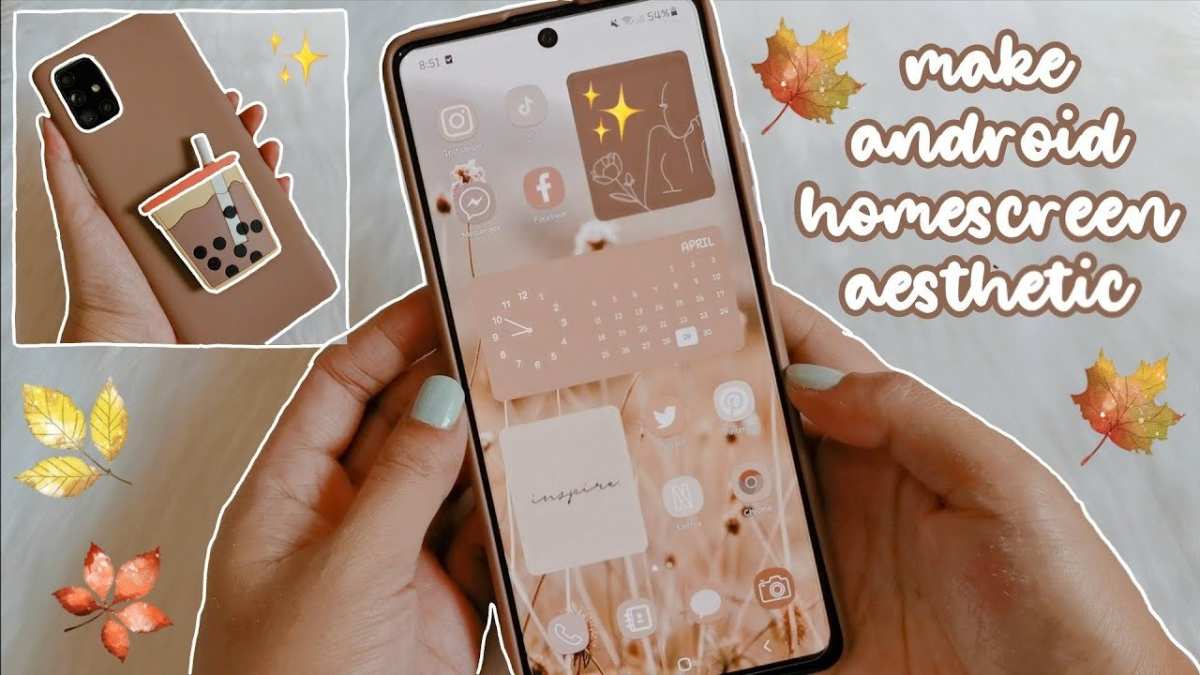
To make your android home screen aesthetic, start by choosing a cohesive theme and matching icons, wallpapers, and widgets. **Personalize your layout to reflect your style and preferences.** It’s easy to create a visually pleasing setup by selecting minimalist icons or vibrant backgrounds. Experiment with different arrangements and app placements to find what feels right. With a bit of creativity, you can craft a home screen that’s both functional and visually inspiring. Just take your time, mix and match elements, and enjoy redesigning your Android experience.

How to Make Your Android Home Screen Aesthetic
Creating an attractive and personalized Android home screen can make your device more enjoyable and efficient to use. With countless customization options available, you can craft a look that matches your style and helps you stay organized. Whether you prefer a minimalistic design or a vibrant, colorful setup, this guide walks you through everything you need to know to make your Android home screen truly aesthetic.
Understanding the Basics of Android Home Screen Customization
Before diving into specific tips, it’s essential to grasp what makes a home screen visually appealing. Your home screen is the first thing you see every day, so it should reflect your personality and make you feel comfortable. The main elements to consider include:
- Wallpaper: The background image sets the tone for your entire screen.
- Icons and App Layout: How apps are arranged impacts the visual flow and ease of access.
- Widgets: These add functionality and flavor, making your screen more dynamic.
- Color Scheme: Consistent colors create harmony and coherence in your design.
- Fonts and Labels: Changing font styles can add a unique touch.
Getting familiar with these elements helps you plan your aesthetic design effectively.
Choosing the Perfect Wallpaper for Your Aesthetic
The wallpaper acts as the foundation of your home screen. Picking the right one makes everything else pop. Here are some tips for selecting a wallpaper that complements your aesthetic:
Opt for High-Quality Images
Ensure your wallpaper is sharp and clear. Blurry or pixelated images will make your setup look unprofessional.
Match Your Theme
– Minimalistic themes work well with simple, understated backgrounds, like soft pastels or monochrome images.
– Vibrant themes can be paired with bold, colorful wallpapers, such as nature scenes or abstract art.
Use Live Wallpapers Wisely
While live wallpapers can add movement, they should not drain your battery or distract you. Choose subtle, calming animations if you go this route.
Sources for Wallpapers
– Use apps like Walli, Zedge, or Unsplash to find unique images.
– Consider creating your own wallpaper using photo editing apps for a personalized touch.
Organizing Your Apps and Icons
A cluttered home screen can ruin your aesthetic. Proper organization helps keep things neat and visually pleasing.
Create App Folders
Group similar apps together, such as social media, productivity, or games. Use descriptive and clean folder names to keep your home screen tidy.
Arrange Icons Symmetrically
Align icons in neat rows and columns. Centering important apps or placing frequently used ones within easy reach enhances usability and style.
Limit the Number of Apps on Your Main Screen
Only keep the essentials visible. Use the app drawer or secondary screens for remaining apps to maintain a clean look.
Customize App Icons
Changing app icons can dramatically alter your home screen’s appearance. Use icon packs that match your theme for a cohesive design.
Utilizing Widgets to Enhance Your Aesthetic
Widgets add both style and functionality to your home screen. They can display weather, calendar events, battery status, and more.
Choose Stylish and Minimal Widgets
Select widgets with sleek designs that blend seamlessly with your wallpaper. Avoid cluttering your screen with too many.
Placement and Size
– Place widgets where they balance the overall layout.
– Resize them to fit the space and match the proportions of app icons for harmony.
Popular Widget Apps
– KWGT and UCCW allow you to design custom widgets.
– Google Keep, Calendar, and weather apps offer attractive, functional widgets.
Color Schemes and Themes for a Cohesive Look
Color plays a crucial role in making your home screen aesthetically pleasing.
Pick a Color Palette
Choose 2-4 primary colors that resonate with your style. Use these colors for your wallpaper, icons, and widgets to create a unified look.
Apply a Theme
Many devices support themes that change icon packs, wallpapers, and system UI. Use your device’s theme store or third-party apps like Nova Launcher for extensive customization.
Consistency Is Key
Stick to your chosen palette and theme throughout your home screen to maintain harmony and avoid visual chaos.
Personalizing Fonts and Labels
Text can add personality to your home screen. Custom fonts and labels make it stand out.
Change Font Styles
Most launchers and customization apps allow you to select different font styles. Choose one that complements your overall aesthetic.
Rename App Labels
Shorten or rename app labels for a clean or quirky look, depending on your style.
Typography Tips
– Keep labels minimal and easy to read.
– Use contrasting colors for text to enhance visibility.
Choosing the Right Launcher for Maximum Customization
Launchers are apps that replace your default home screen, giving you access to advanced customization options.
Popular Custom Launchers
– Nova Launcher
– Action Launcher
– Lawnchair
– Pixel Launcher (with modifications)
Features to Look For
– Custom icon packs
– Flexible grid layouts
– Customizable gestures and animations
– Compatibility with widgets and themes
How to Install a Launcher
– Download the launcher from the Google Play Store.
– Set it as your default home screen.
– Explore customization options within the launcher settings.
Final Tips for a Perfect Android Home Screen Aesthetic
– Keep your design simple; avoid overloading with too many elements.
– Use matching icons, wallpapers, and widgets to create harmony.
– Regularly update your setup as your style or preferences change.
– Use online communities and social media for inspiration and new ideas.
Additional Customization Tools
– Wallpaper apps for fresh backgrounds
– Icon packs for unique icons
– Widget creators for personalized widgets
– Theme apps for consistent style
By paying attention to each element and maintaining consistency, you can craft an Android home screen that not only looks fantastic but also makes everyday phone use more enjoyable. Remember, the key is to experiment with different styles and have fun expressing your personality through your device’s interface.
Frequently Asked Questions
How can I choose the right color scheme for my Android home screen?
Select colors that reflect your personality and create a harmonious look. Opt for a primary color for your wallpaper and app icons, and use complementary shades for widgets and folders. Consistency in tone helps make your home screen visually appealing and not overwhelming.
What are some tips for organizing apps to enhance aesthetics?
Group similar apps into folders to reduce clutter and create a clean layout. Arrange frequently used apps in easily accessible spots, such as the bottom dock. Use grid sizes that provide enough space for icons, and consider spacing to give your home screen an uncluttered appearance.
How do I select wallpapers that complement my overall aesthetic?
Choose wallpapers that match or contrast with your app icon styles and colors. Minimalist or nature-themed backgrounds work well for a sleek look, while vibrant images can add energy to your layout. Ensure the wallpaper does not overpower icons, maintaining a balanced visual effect.
What customizations can I make to personalize my home screen further?
Implement custom widgets, change icon shapes, and utilize launchers that offer additional themes. Adjust font styles and sizes to suit your preferences. These modifications help create a unique interface that aligns with your aesthetic vision.
Which tools or apps can assist in designing an aesthetic Android home screen?
Use popular launcher apps like Nova Launcher, Action Launcher, or Lawnchair to customize icon packs, layouts, and behavior. Wallpaper apps such as Walli or Zedge offer high-quality images, while widget organizers like KWGT allow for personalized widget designs. Exploring these tools can significantly enhance your home screen’s appearance.
Final Thoughts
Pour rendre votre écran d’accueil Android esthétique, commencez par choisir un launcher personnalisé. Optez pour des icônes et des thèmes qui reflètent votre style. Organisez vos applications pour un aspect épuré.
Utilisez des fonds d’écran attrayants, comme des images minimalistes ou des paysages apaisants. Ajoutez des widgets simples pour une touche fonctionnelle sans encombrer l’écran.
En résumé, pour faire de votre Android home screen aesthetic, sélectionnez des éléments cohérents et gardez la simplicité. Adoptez ces astuces pour créer un espace visuellement plaisant et pratique.
