

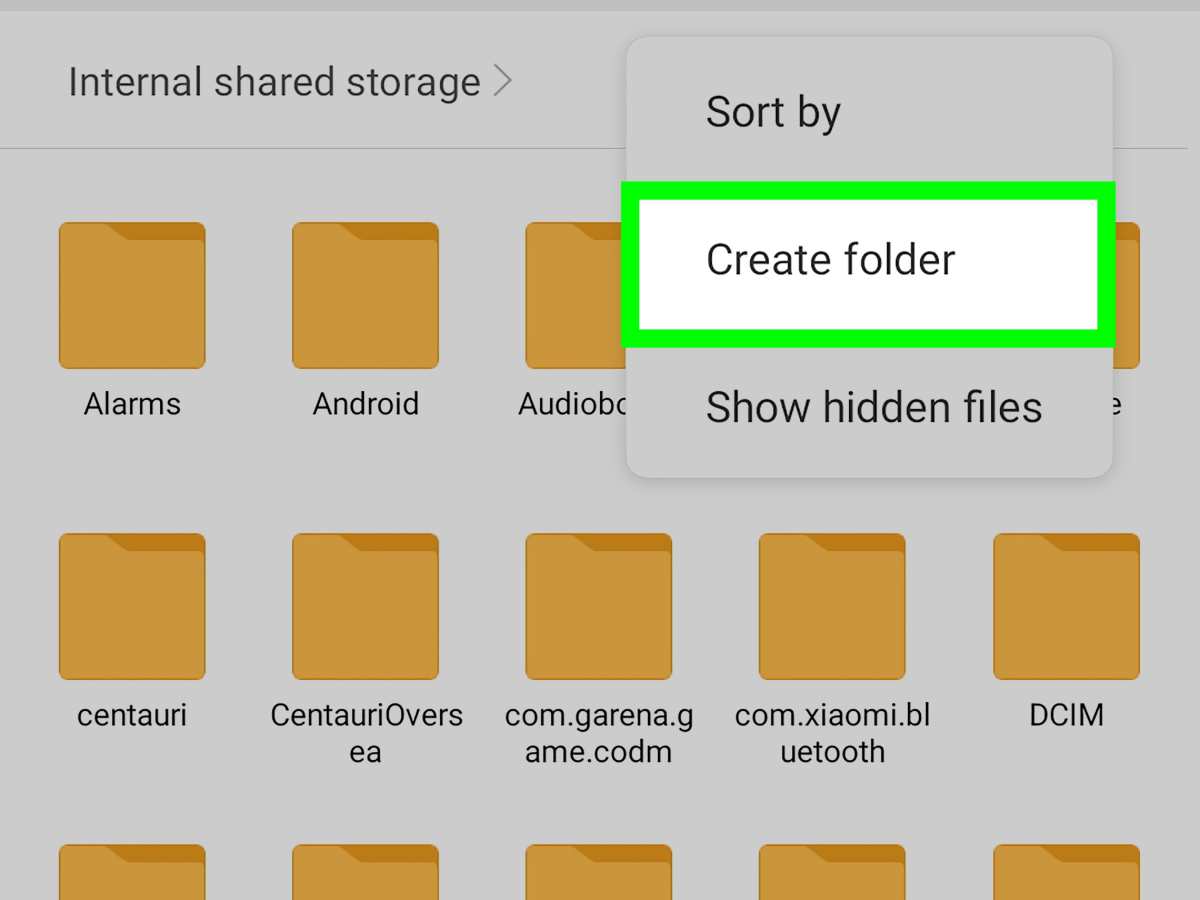
To make a folder on your Android device, simply tap and hold an app icon, then drag it over another app you’d like to group. **Android how to make a folder easily involves this straightforward drag-and-drop method.** Creating folders helps organize your home screen and saves space. Just follow these quick steps, and you’ll have everything neatly arranged in no time. Whether you want to categorize work apps or social media, making folders becomes a simple task once you get the hang of it.

Android How to Make a Folder
Creating folders on your Android device can make it much easier to keep your apps, files, and shortcuts organized. Instead of having all your icons scattered across your home screen, creating folders helps you access everything quickly and keeps your device looking tidy. This straightforward process is simple, but understanding different methods and tips can make managing your folders even more efficient. Let’s explore the steps and tips on how to make a folder on Android.
Understanding Why Creating Folders Matters
Before diving into the how-to steps, it’s helpful to understand why making folders is beneficial. When you have numerous apps and files, finding what you need can become frustrating. Folders allow you to:
- Group related apps together, such as social media, games, or work tools
- Save space on your home screen
- Keep your device clean and organized, reducing clutter
- Access multiple apps quickly from one place
Whether you use your phone for work, entertainment, or daily tasks, folders help make your experience smoother.
Steps to Make a Folder on Android
Creating a folder on your Android device involves a few simple steps, which might vary slightly depending on your device manufacturer (like Samsung, Google Pixel, or OnePlus). Generally, the process is similar across most Android phones and tablets.
Step-by-step guide to creating a folder on your Android home screen
- Go to your device’s home screen.
- Tap and hold on an app icon that you want to include in a new folder.
- While holding the app icon, drag it over another app icon that belongs to the same category or group.
- Release the app icon once it overlaps the other app. This action automatically creates a folder containing both apps.
Once the folder appears, you can customize it further.
Adding more apps or files to your folder
- Open the folder by tapping on it.
- Tap the “Add” icon or drag additional apps or files into the folder.
- You can keep adding apps following the same drag-and-drop method.
Renaming your folder for easy identification
- Open the folder by tapping on it.
- Look for the folder name area at the top of the folder.
- Tap on the existing name or the “Rename” option.
- Type a new name that best describes what’s inside, such as “Games” or “Work Tools.”
- Confirm the rename by tapping “Done” or pressing enter.
Using Widgets and Other Methods to Make Folders
Besides creating folders by dragging apps, you can also organize content with widgets or specific launcher features.
Using Widgets to organize your apps and files
Widgets provide shortcuts or interactive elements directly on your home screen. You can:
- Place a folder widget by long-pressing on the home screen, then selecting “Widgets.”
- Choose a folder widget and position it where you want your organized content to appear.
This helps you access multiple apps or functions without opening individual folders.
Creating folders with custom launchers
Some Android devices support custom launchers like Nova Launcher or Action Launcher, which offer advanced folder options and more customization freedom. These launchers allow you to:
- Create nested folders (folders inside folders)
- Customize folder icons and colors
- Set specific behaviors when opening folders
Installing a launcher can enhance your organization experience significantly.
Tips for Managing and Customizing Your Folders
Once you’ve created folders, managing them efficiently improves your user experience.
Organize folders by categories
Group similar apps into folders based on their use. For example:
- Social Media
- Music and Entertainment
- Work Tools
- Games
Having categories makes it easier to find what you need quickly.
Delete or remove unnecessary folders
If you no longer need a folder:
- Open the folder and remove apps by dragging them out or deleting them.
- If the folder becomes empty, it will automatically disappear, or you can delete it manually by long-pressing the folder and selecting “Delete.”
Change folder icons or appearance
Some launchers or customization apps allow you to:
- Change folder icons to match your style
- Adjust folder colors or backgrounds
- Add labels or emojis to make folders more identifiable
These small tweaks help your device reflect your personal preferences.
Troubleshooting Common Issues When Making Folders
Sometimes, creating or managing folders can encounter hiccups. Here are solutions to common problems:
Folder creation doesn’t work
– Ensure you are dragging the app icons directly onto each other.
– Check if your device or launcher supports folder creation.
– Restart your device and try again.
Unable to rename folders
– Make sure the folder is open.
– Tap on the folder name area; if it’s greyed out, try using a different launcher.
– Update your device software or launcher app.
Folders disappear unexpectedly
– They might have been deleted accidentally.
– Check for app or launcher updates.
– Recreate the folder if needed.
Additional Tips for Better Folder Management
To make the most of folders on your Android device, consider these extra tips:
- Use consistent naming conventions for easier searching.
- Arrange folders in a logical order on your home screen.
- Combine folders with widgets for quick access to information or controls.
- Regularly review and clean your folders to keep your home screen organized.
Making folders on an Android device is a simple yet powerful way to keep your apps and files organized. By following the easy steps, customizing your folders, and managing them regularly, you can make your device more user-friendly and efficient. Whether you prefer the default Android launcher or a custom one, creating folders helps you find what you need faster and keeps your home screen neat. Remember to explore different methods and tips, so your Android experience is tailored perfectly to your needs and style.
Frequently Asked Questions
How can I create a new folder directly on my Android home screen?
To create a new folder on your Android home screen, press and hold on an app icon until a menu appears or it gets selected. Drag this icon over another app you want in the same folder. When the icons overlap, release the app, and a folder will automatically be created. You can then tap the folder to open it and tap the name area to rename it to your preference.
Is it possible to add multiple apps to an existing folder on Android?
Yes, you can add multiple apps to an existing folder. Open the folder by tapping on it, then tap the “Add” button or drag additional app icons into it. To add an app, press and hold the app icon, then drag it into the open folder. This method works on most Android devices and launchers.
Can I customize the appearance of folders on my Android device?
Customizing folder appearance depends on your Android launcher. Some launchers allow you to change folder icons, colors, or add a background. To do this, open your launcher’s settings, locate the folder customization options, and select your preferred style. If your current launcher lacks these options, consider installing a third-party launcher from the Google Play Store that provides more customization features.
How do I delete a folder on my Android home screen?
To delete a folder, open it by tapping on it. Then, drag the folder icon to the “Remove” or trash area that appears at the top or bottom of your screen. The folder will disappear, along with any apps stored inside if you choose to remove them. Note that this process may vary slightly depending on your device or launcher.
Can I organize my apps into folders on the Apps Drawer as well?
Most Android launchers do not support creating folders within the Apps Drawer directly. However, some launchers or custom ROMs do offer this feature. If your launcher allows it, open the Apps Drawer, press and hold an app, and look for options to create or add to folders. Otherwise, organizing apps into folders primarily happens on the home screens.
Final Thoughts
To make a folder on your Android device, press and hold an app icon until options appear. Drag the app onto another app to create a new folder automatically. You can then name the folder by tapping on its default name. This simple process helps you organize your apps efficiently.
In summary, understanding how to make a folder on Android helps keep your home screen tidy. Android how to make a folder is straightforward, making app management easier and faster for everyone.
