

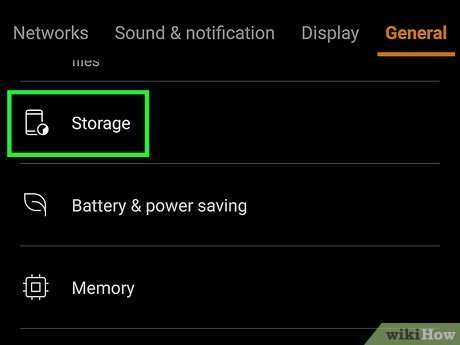
To set your SD card as the default storage on Android, you need to format it properly and adjust some settings. **Yes, you can make your SD card the primary storage, and here’s how to do it.**
First, insert your SD card and ensure it’s formatted correctly. Then, go to your device’s storage settings and set the SD card as the default storage location. Knowing how to make SD card default storage in Android helps manage your files more efficiently and frees up internal memory.

How to Make SD Card Default Storage in Android
When using an Android device, you might notice that your phone or tablet often stores new files, apps, photos, and videos in its internal storage. If your device supports an SD card, you may want to set it as the default storage so that your files automatically save there. This can help free up space on your phone’s internal memory, making your device run smoother and faster. In this guide, you will learn how to set your SD card as the default storage in Android step by step, what options are available, and tips to get the best performance from your SD card.
Understanding Storage Options on Android Devices
Before diving into the steps, it’s essential to understand different storage options on your Android device. Knowing these will help you make the right choices and understand how your device manages data.
Internal Storage
Internal storage is built into your device. It is faster and more reliable but has limited space. When you purchase a new phone, most apps and data automatically save here.
External SD Card
An SD card is a removable storage card that you insert into your device. It usually offers more space at a lower cost. Using an SD card as default storage means your device saves media, apps (if supported), and other files on the SD card instead of internal storage.
What Does “Default Storage” Mean?
Default storage determines where your device automatically saves new files, apps, and media. Setting the SD card as default storage ensures that your photos, videos, and even some apps store directly there, saving internal space.
Check if Your Android Device Supports SD Card Storage
Not all Android phones support SD cards. Some newer models, especially from brands like Google or Samsung, have removed support for expandable storage.
How to Verify SD Card Support
- Look at the side or back of your device for a slot labeled “microSD” or similar.
- Check your device specifications online or in the user manual.
- Insert an SD card and see if your device recognizes it.
If your device does not support SD cards, then setting SD as default storage is not possible. In such cases, you may need to consider alternative solutions like cloud storage.
Preparing Your SD Card for Use as Default Storage
Before making your SD card the default storage, make sure it is ready.
Formatting the SD Card
Formatting ensures the card is clean and compatible with your device.
- Go to Settings > Storage.
- Find your SD card and tap on it.
- Select the option to format or erase and format the SD card.
*Note:* Formatting will erase all data on the SD card. Backup important files before proceeding.
Choosing the Right SD Card
Use a high-quality SD card, preferably Class 10 or UHS-I for faster read/write speeds. This ensures your device runs smoothly when saving and accessing files.
Setting SD Card as Default Storage in Android
Different Android devices and versions may have varying options to set the SD card as default storage. Below are common methods.
Method 1: Using Device Settings
This is the most straightforward way if your device supports it.
- Open the Settings app on your device.
- Tap on “Storage” or “Device Care” depending on your device.
- Look for an option labeled “Default Storage” or “Storage Settings.”
- Tap on it and select your SD card as the default save location.
**Note:** Some devices might not have this option directly. In that case, proceed to the next method.
Method 2: Move Apps to SD Card
While you can’t always set SD card as default for all data, you can move supported apps.
- Go to Settings > Apps & Notifications.
- Select the app you want to move.
- Tap on “Storage”.
- Choose “Change” or “Move to SD card.”
*Note:* Not all apps support being moved to SD card, especially system apps.
Method 3: Use File Manager for Media Files
You can manually save media files to your SD card.
- Open your preferred File Manager app.
- Create folders on the SD card for photos, videos, and downloads.
- When saving new files, choose the SD card as the save location.
Changing Default Camera and Download Settings
Many Android devices let you set the SD card as the default location for media and downloads.
Setting Camera Storage to SD Card
- Open the Camera app.
- Go to Settings (usually a gear icon).
- Find “Storage location” or “Storage” option.
- Select “SD Card” as your default storage.
Changing Download Location
- Open your browser or download manager app.
- Access the app’s settings menu.
- Look for “Download location” or “Save files to.”
- Select your SD card as the default destination.
Advanced Tips for Managing Storage Effectively
Optimizing how you use your SD card can improve device performance and avoid problems.
Use High-Speed SD Cards
Choosing the right class (like Class 10 or UHS-I) speeds up data transfer, which helps apps load faster and files save quicker.
Keep Your SD Card Organized
Regularly delete unnecessary files and organize folders to prevent clutter and make it easier to find files later.
Backup Your Data
Use cloud services or external drives to back up important files. This reduces the risk of losing data if the SD card gets corrupted.
Monitor SD Card Health
Tools like SD Card Formatter can check the health of your card and help you format it properly if needed.
Common Troubleshooting Tips
Sometimes, setting your SD card as default storage might not work perfectly. Here are some solutions.
SD Card Not Recognized
- Remove and reinsert the SD card.
- Try formatting the card again.
- Test the card on another device to confirm it works correctly.
Slow Performance
- Use a higher-class SD card.
- Limit the number of files stored on the SD card.
- Keep the card free of errors with regular scans.
Apps Not Moving to SD Card
- Ensure the app supports moving to SD card.
- Update your device’s software.
- Clear cache and restart your device.
Setting your SD card as the default storage in Android can make a big difference in how much space is available on your device. Although options and steps may vary based on your device model and Android version, the core idea remains the same: prepare your SD card, recognize the settings, and manually set files, media, and supported apps to save there. Remember to keep your SD card in good condition, regularly back up important data, and choose a quality card for the best experience. With these steps, managing your storage becomes easier, and your device can run more efficiently.
Frequently Asked Questions
Can I set my SD card as the default storage for all apps on my Android device?
Most Android devices do not allow users to set the SD card as the default storage for all apps simultaneously. However, you can move individual apps to the SD card if the app supports it. To do this, go to Settings > Apps, select the app, then tap on Storage and choose ‘Change’ to move it to the SD card. Keep in mind that not all apps are compatible with this option.
What steps should I follow to format my SD card to be used as internal storage?
To use your SD card as internal storage, insert it into your device, then navigate to Settings > Storage. Select the SD card, tap on the menu (three dots), and choose ‘Format as internal’ or ‘Format.’ Confirm your choice, and the system will erase all data on the card before integrating it as part of the device’s internal storage. Be sure to back up important data beforehand.
Why does my Android device sometimes revert to internal storage over the SD card?
This can happen if the SD card becomes unmounted or if the system detects issues with the card’s performance. Additionally, some updates or factory resets can reset default storage preferences. To prevent this, ensure your SD card is properly formatted, remains mounted, and is free of errors. Reformatting the card may help if the system continues to revert to internal storage.
Is it possible to make new files automatically save to the SD card?
Yes, some Android devices allow you to set the SD card as the default location for new media or downloads. To do this, go to Settings > Storage, then select the SD card as the preferred location for saving photos, videos, and downloads if the option is available. Note that app-specific data and system files may still save to internal storage.
How do I transfer existing data from internal storage to my SD card?
To move existing data to the SD card, open the Settings app and navigate to Storage or Apps. For media files, use a file manager app to select files or folders and move or copy them to the SD card. For specific apps, go to Settings > Apps, select the app, then tap ‘Storage’ and choose ‘Change’ to move the app data to the SD card if supported.
Final Thoughts
To make sd card default storage in android, start by inserting your SD card into your device. Navigate to Settings > Storage, then select your SD card. Tap the menu icon and choose the option to set as default storage.
Ensure your device supports this feature, as some models may not allow changing default storage easily. If available, select your SD card, and confirm the change.
In conclusion, learning how to make sd card default storage in android helps optimize your device’s storage space efficiently. Follow the steps, and you’ll quickly set your SD card as the default storage option.
