

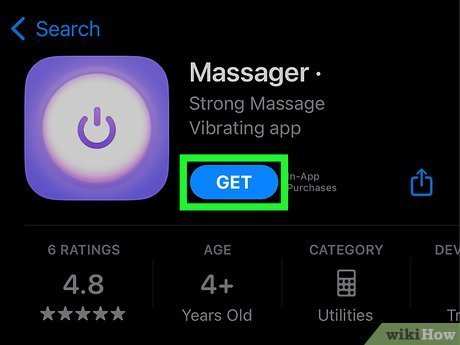
To make your phone vibrate on Android, simply go to Settings, then Sound & Vibration, and toggle the vibration options. **This quick adjustment ensures your device alerts you with tactile feedback whenever needed.** If you’re wondering how to make your phone vibrate Android, this straightforward method works for most devices.
You can also customize vibration intensity or set different patterns for notifications. Whether for calls or messages, adjusting these settings keeps you in tune with your device without sound. It’s a simple step that enhances how you receive alerts daily.

How to Make Your Phone Vibrate on Android
Making your Android phone vibrate might seem simple at first, but there are several ways to customize and control how your device vibrates for different notifications, calls, or even when using specific apps. Whether you want your phone to vibrate when someone calls, receives a message, or simply when you press on certain buttons, understanding how to manage vibration settings can improve your experience significantly. In this comprehensive guide, we will explore all the options available to ensure your Android device vibrates exactly how and when you want it to.
Understanding Android Vibration Settings
Before diving into how to make your phone vibrate, it’s essential to understand the built-in vibration options that come with most Android phones. These settings control the general behavior of vibrations for calls, notifications, and system interactions.
System Vibration Options
Android offers default vibration settings that can be accessed through the device’s main settings menu. These include:
- Vibration for Calls: Controls whether your phone vibrates when receiving a call.
- Notification Vibration: Manages vibration for incoming notifications like messages, emails, and app alerts.
- Touch Feedback: Vibrates when you tap or press on the screen or buttons.
Adjusting these settings allows you to customize the basic vibration behavior, ensuring you get tactile feedback for important notifications or interactions.
Vibration Intensity
Most Android devices let you control how strong the vibration feels. This feature helps balance between a gentle buzz and a more noticeable shake. You can usually find these options under:
- Settings > Sound & Vibration > Vibration Intensity
- Or directly through Accessibility settings
Adjust the slider to set your preferred vibration strength. A stronger vibration can help you notice alerts more clearly, especially if you tend to keep your phone in your pocket or bag.
Customizing Vibration for Different Notifications
To make your Android vibrate in more personalized ways, you can assign specific vibration patterns to different types of notifications. This way, you can identify without looking whether it’s a message, email, or app alert.
Using Default Vibration Patterns
Android provides several built-in vibration patterns you can select:
- Basic vibrate (one steady buzz)
- Patterned vibrations (alternating short and long buzzes)
- Silent vibrations (vibrates quietly without sound)
To change these, follow these steps:
- Open your device’s Settings app.
- Tap on Sounds & Vibration.
- Select Notification categories (such as Messages or Calls).
- Look for Vibration pattern or Vibration style options.
- Choose the pattern that suits you best.
Creating Custom Vibration Patterns
Some Android phones and third-party apps allow you to design your own vibration patterns, giving you even more personalized feedback.
- Use built-in settings if available: Some devices let you create custom vibrations through the notification settings.
- Download third-party apps: Apps like ‘Vibration Pattern Maker’ or ‘Vibrate Tool’ enable you to craft unique vibration sequences.
To create a custom pattern with a third-party app:
- Install a vibration pattern creator from the Google Play Store.
- Follow the app’s instructions to generate your pattern, often by tapping on the screen to set the timing of buzzes and pauses.
- Save and assign your pattern to specific contacts or notifications.
Making Your Phone Vibrate for Specific Actions
Apart from notification vibrations, you may want to activate vibration for particular actions, like when you press a button, unlock your device, or use a specific app.
Vibration When Pressing Buttons or Keys
Most Android phones have tactile feedback when pressing virtual or physical buttons. To verify or change this:
- Go to Settings > Sound & Vibration.
- Look for Touch Feedback or Haptic Feedback options.
- Enable or disable the option as needed.
Enabling haptic feedback makes your device vibrate briefly when you press keys, helping you know you’ve pressed correctly.
Vibration for Screen Unlocking
Some devices vibrate when unlocking via fingerprint or PIN. To manage this:
- Navigate to Settings > Security & Location > Fingerprint.
- Look for Vibration or Feedback options.
- Adjust or disable as you prefer.
Vibrate on Specific App Actions
Certain apps, such as messaging or social media platforms, let you customize vibration settings for alerts within their own menus.
For example:
- Open the app, go to Settings or Notifications.
- Find Vibration or Sound & Vibration options.
- Select your preferred vibration pattern or turn it off.
This flexibility ensures you get relevant vibrations without overwhelming signals from other sources.
Using Accessibility Features to Enhance Vibration
Accessibility options can help users with different needs to optimize vibration settings for better feedback.
Vibration Alerts for Notifications
You can turn on vibration alerts for all notifications:
- Go to Settings > Accessibility > Hearing or Vibration & Alerts.
- Enable options like ‘Notification Vibration’ or ‘Alert Vibrations.’
Adjusting Vibration Intensity for Accessibility
Adjust the strength of vibrations to avoid discomfort:
- Navigate to Settings > Sound & Vibration > Vibration Intensity.
- Set the level that feels comfortable and noticeable.
Managing Vibration with Do Not Disturb Mode
If you want your phone to vibrate only during specific times, set up Do Not Disturb (DND) mode.
- Open Settings > Sound > Do Not Disturb.
- Configure rules to allow vibrations for certain notifications or calls during DND hours.
This feature helps you stay connected with subtle vibrations without constant disturbances.
Vibration settings on your Android device are versatile and customizable, allowing you to tailor your experience in many ways. Whether you want simple vibrations for incoming calls, personalized patterns for notifications, or tactile feedback for system interactions, understanding and adjusting these features makes your device more responsive and aligned with your preferences. Take the time to explore your settings thoroughly and experiment with different patterns and intensities. By doing so, you’ll ensure your Android phone vibrates precisely when and how you want it to, making your mobile experience more comfortable and efficient.
Frequently Asked Questions
How can I enable vibration for notifications on my Android phone?
To enable vibration for notifications, go to your device’s Settings app. Tap on ‘Sound & Vibration’ or just ‘Sounds’. Look for ‘Notification Vibration’ and toggle it on. This will ensure that your phone vibrates whenever you receive a notification, keeping you alerted without sound.
What steps should I follow to adjust vibration intensity on an Android device?
Navigate to Settings and select ‘Sound & Vibration’ or ‘Sound’. Within this menu, find the ‘Vibration Intensity’ or similar option. Use the slider to increase or decrease the vibration strength according to your preference. Some devices may have additional options for specific apps or system alerts.
How do I turn off vibration for specific apps on my Android phone?
Open the Settings app and tap on ‘Apps & Notifications’. Find and select the app you want to customize. Tap on ‘Notifications’ and then choose the specific notification category. Here, you can toggle off vibration for that particular app or category, allowing you to personalize your notification experience.
Is it possible to set different vibration patterns for various alerts on Android?
Yes, many Android devices allow you to customize vibration patterns. Go to Settings > Sound & Vibration > Vibration Pattern or similar. Choose from pre-set patterns or create your own if your device supports this feature. Assign these patterns to different notifications or contacts to easily identify alerts by feel.
Final Thoughts
To make your phone vibrate android, start by opening the Settings app. Navigate to the Sound or Notifications section to find vibration options. You can customize vibration patterns or enable vibration for specific notifications.
Adjust the toggle switches to turn vibration on for calls, messages, or other alerts. Additionally, check your phone’s volume settings to ensure vibration isn’t disabled when sound is muted.
In conclusion, understanding how to make your phone vibrate android ensures you stay alert to notifications without sound. These simple steps help you customize your device for better usability and awareness.
