

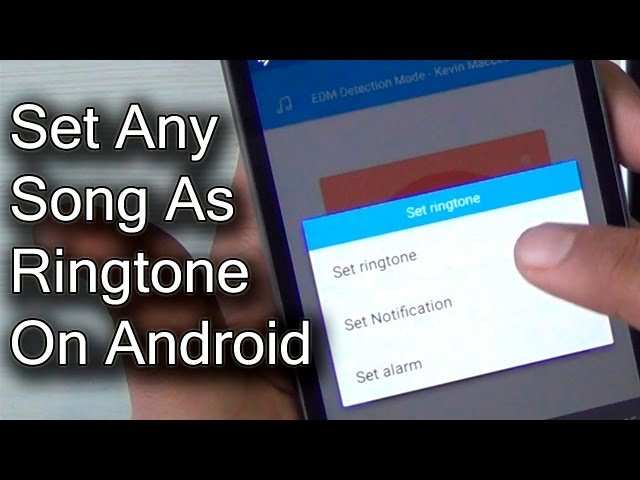
To make a song ringtone on Android, you can easily do it using built-in features or third-party apps. **You need to select the song, trim it to the desired length, and set it as your ringtone.** If you’re unsure how to make song ringtone android, don’t worry—it’s straightforward. You can cut the song directly on your device or use apps like Ringdroid for quick edits. This process lets you personalize your ringtone efficiently and effortlessly.

How to Make Song Ringtone on Android
Making your own ringtone on an Android device might seem tricky at first, but with the right steps, it becomes a fun and easy task. Whether you want to set a favorite song as your ringtone or create unique alert tones, this guide covers everything you need to know. We will walk through the entire process — from choosing the right song to editing it perfectly, and finally setting it as your ringtone. Follow along and learn how to personalize your Android phone with your favorite tunes.
Understanding Ringtones and Why Customization Matters
Before diving into the technical steps, it’s good to understand why making your own ringtone is worth it. Think about how many times you hear your phone ring each day. Having a custom ringtone helps you recognize calls instantly and adds a personal touch to your device.
- Personal Expression: Pick a song that makes you smile or suits your mood.
- Easy to Recognize: Stand out from the crowd with a unique ringtone.
- Improves Experience: Prevents confusing your phone with others’ ringtones, especially in busy places.
Now, let’s explore the easiest ways to create your own ringtone on Android.
Preparing Your Song Files
The first step in creating a ringtone is choosing the right song file. Here’s what you need to know:
Supported File Formats
Most Android devices work well with common audio formats such as:
- MP3
- WAV
- OGG
- AAC
Make sure your song is in one of these formats. If not, you might need to convert it using a free audio converter app or online service.
Selecting the Perfect Part of the Song
You don’t need to use the entire song. Usually, a 15 to 30-second clip works best as a ringtone. Choose the part that feels right—whether it’s the chorus, a catchy intro, or a favorite line.
Organizing Your Files
Save your selected song or clip in a folder that’s easy to find. You might want to create a folder called “Ringtones” in your device’s internal storage or SD card.
Using Built-in Android Features to Create Ringtones
Many Android phones include basic tools to make ringtones directly. Here’s how to do it:
Using the Default Music Player or Files App
Some Android devices, like Samsung or Pixel phones, include a “Create Ringtone” feature:
- Open your music app or file manager.
- Find the song you want to use.
- Tap on the song and select the “Edit” option if available.
- Locate the “Create Ringtone” or “Trim” feature.
- Use the sliders to select the part you want for your ringtone.
- Save the clip as a ringtone.
Make sure to give your ringtone a name so you can easily find it later.
Limitations of Built-in Tools
This method works well for simple edits. However, it might not allow advanced editing like adding fade-ins or precise trimming, which is why third-party apps can be very helpful.
Creating Ringtones Using Third-Party Apps
Third-party apps offer more control and better editing tools. Here are some popular options:
- Ringtone Maker
- MP3 Cutter and Ringtone Maker
- Ringdroid
Let’s walk through the typical process using one of these apps:
Steps to Make a Ringtone with Ringtone Maker
- Download and install the app from Google Play Store.
- Open the app and grant necessary permissions to access your files.
- Select your desired song from your storage.
- Use the waveform view to pinpoint the start and end points of your clip.
- Preview your selection to ensure it sounds perfect.
- Save the trimmed clip as a ringtone. You might have options to name it and save it in specific folders.
Most of these apps also allow you to set the created clip directly as your ringtone without leaving the app.
Editing and Fine-Tuning Your Ringtone
When creating a ringtone, the details matter. Here are some tips for fine-tuning your clip:
Using Editing Tools Effectively
– Zoom in on the waveform to get precise start and end points.
– Listen to the preview repeatedly to ensure it begins and ends smoothly.
– Avoid abrupt cuts which may sound jarring when your phone rings.
– Adjust the volume or add fade-in/out effects if available.
Converting Audio Files for Compatibility
If your file format isn’t compatible, use free online tools or apps to convert it. Just upload the file, select the desired format (like MP3), and download the converted version.
Saving and Managing Your Custom Ringtones
Once your ringtone is ready, you need to save it properly for easy access:
- Save your ringtone in the default ringtone folder, usually located at Internal Storage/Ringtones.
- Ensure the file name is simple and descriptive.
- If your phone supports it, you can also store multiple ringtones and assign different tones to specific contacts.
Managing your ringtone files is simple with a file manager app. You can delete unused ringtones or reorganize them in folders for convenience.
Setting Your Custom Ringtone on Android
The final step is applying your created ringtone:
Using the Phone Settings
- Open the Settings app on your Android device.
- Navigate to Sound & Vibration or simply Sound.
- Tap on Ringtone or Phone Ringtone.
- Scroll through the list of available tones and select Add from Files or My Ringtones.
- Locate your custom ringtone and tap on it to set as the default.
Tip: On some phones, you can assign different ringtones to individual contacts via the Contacts app.
Using Quick Settings for Faster Changes
Some Android phones allow you to change ringtones directly from the volume or sound shortcut:
- Press the volume button.
- Tap the gear icon or settings button next to the volume slider.
- Select your custom ringtone from the list.
This method provides a quicker option to switch your ringtone when needed.
Tips for Creating Perfect Ringtones
– Keep the clip short—about 15 to 30 seconds.
– Use the chorus or a catchy part of the song.
– Avoid abrupt starts or ends for smooth ringtone playback.
– Test your ringtone by calling your phone to see how it sounds in real life.
– Remember to save backups of your favorite ringtones.
Common Mistakes to Avoid
– Using files in unsupported formats without converting them.
– Cutting the clip too abruptly, which can sound unpleasant.
– Saving ringtones in the wrong folder, making them inaccessible.
– Forgetting to set your new ringtone after creation.
By following these steps and tips, you can easily put your favorite song on your Android device as a ringtone. Personalizing your phone makes it more fun and ensures you’re never confused about who’s calling!
Frequently Asked Questions
How can I trim a song to create a ringtone on my Android device?
To trim a song, open a ringtone maker app or your default music editor. Import the song you want to use, select the portion you wish to set as your ringtone, and use the trimming tools to cut it precisely. Save the edited segment, then set it as your ringtone through your phone’s sound settings.
What is the easiest method to convert a part of a song into a ringtone without using third-party apps?
You can use your Android device’s built-in editing features by opening the music file in the default music app, selecting the desired segment, and using the cut or trim option if available. After saving the edited clip, navigate to your sound settings to set it as your ringtone. Alternatively, some devices allow setting a song directly as a ringtone without extra apps.
Can I make a customized ringtone from a YouTube audio file on my Android phone?
First, download the audio from YouTube using a trusted converter tool. Then, import the downloaded file into a ringtone maker app or music editor. Follow the app’s steps to select and cut your preferred segment, save it, and set it as your ringtone. Be sure to respect copyright laws when using downloaded content.
Is there a way to set a specific part of a song as a ringtone directly from my music library?
Some Android devices allow you to select a specific segment of a song directly within the music app. You can usually do this by opening the song, choosing the edit or options menu, and selecting a portion of the track to be saved as a separate file. Once saved, you can set this file as your ringtone through the sound settings.
What tools or apps are recommended for creating custom ringtones on Android?
Popular apps for creating ringtones include Ringdroid, Zedge, and Ringtone Maker. These apps provide user-friendly interfaces to trim, crop, and customize your audio files easily. They also allow you to directly set the created ringtones without navigating away from the app.
Final Thoughts
Pour faire un ringtone de chanson sur Android, commencez par choisir la musique que vous souhaitez utiliser. Utilisez une application d’édition audio pour couper la partie désirée. Ensuite, enregistrez le fichier dans le format compatible avec Android, comme MP3 ou OGG.
Accédez à vos paramètres, puis à son ou sonnerie, et sélectionnez le fichier modifié. Vous pouvez également utiliser une application spécifique pour définir la chanson comme ringtone.
En résumé, faire un ‘song ringtone android’ nécessite de sélectionner, éditer et enregistrer la chanson. Suivez ces étapes pour personnaliser votre téléphone efficacement.
