

To make your number private on Android, simply adjust your caller ID settings in the phone app. **You can easily hide your number by changing the settings or dialing a specific code before calling.** If you want to know how to make my number private android, this quick fix is all you need. It’s straightforward and keeps your calls discreet, providing peace of mind in every conversation.

How to Make My Number Private on Android
Having your phone number private can be a great way to protect your privacy, especially if you want to prevent strangers from seeing your number when you make calls or send messages. Many Android users wonder how they can hide their number or make it private temporarily or permanently. In this guide, we will explore all the methods and options you can use to keep your number hidden on Android devices. Whether you want to do this for a one-time call or set it up permanently, we’ve got you covered with simple steps, explanations, and helpful tips.
Understanding Why and When to Make Your Number Private
Before diving into the how-to steps, it’s useful to understand the reasons behind making your number private and situations where it’s most appropriate.
- Privacy protection: If you don’t want certain contacts or strangers to see your number, hiding it keeps your identity secure.
- For personal safety: When reaching out to someone for the first time or in sensitive situations, keeping your number hidden adds an extra layer of security.
- Professional reasons: Sometimes, businesses or freelancers prefer to keep their personal numbers private during initial contacts.
- Temporary privacy: You might want to hide your number for just one call or message, not permanently.
Understanding these reasons helps you decide which method of hiding your number works best for your needs. Now, let’s explore the different ways you can make your number private on Android.
Using Built-in Android Settings to Hide Your Number
The easiest way to hide your number is through your Android device’s built-in settings. Most Android phones, whether from Samsung, Google, or other brands, give you an option to hide your number for all outgoing calls.
Steps to hide your number via Settings
- Open the Phone app on your Android device.
- Tap the three-dot menu icon in the top-right corner of the screen.
- Select Settings or Call settings from the menu.
- Look for an option labeled Additional settings or More settings.
- Find and tap on Caller ID.
- Choose Hide number or Network default to hide your number on outgoing calls.
Once you enable this option, your number will be hidden for all outgoing calls until you change this setting back.
Important Notes
- This setting may be labeled differently on some phones, such as Show my caller ID with options to show or hide.
- Hiding your number via settings will affect all outgoing calls unless you turn it off.
- Depending on your carrier, this feature may sometimes be overridden or blocked. If it doesn’t work, try alternative methods.
Using the Phone Dialer Shortcut to Hide Your Number for a Single Call
If you want to hide your number just for one specific call, you can do so by dialing a special code before the number.
How to hide your number for one call using the dialer
- Open the Phone app on your Android device.
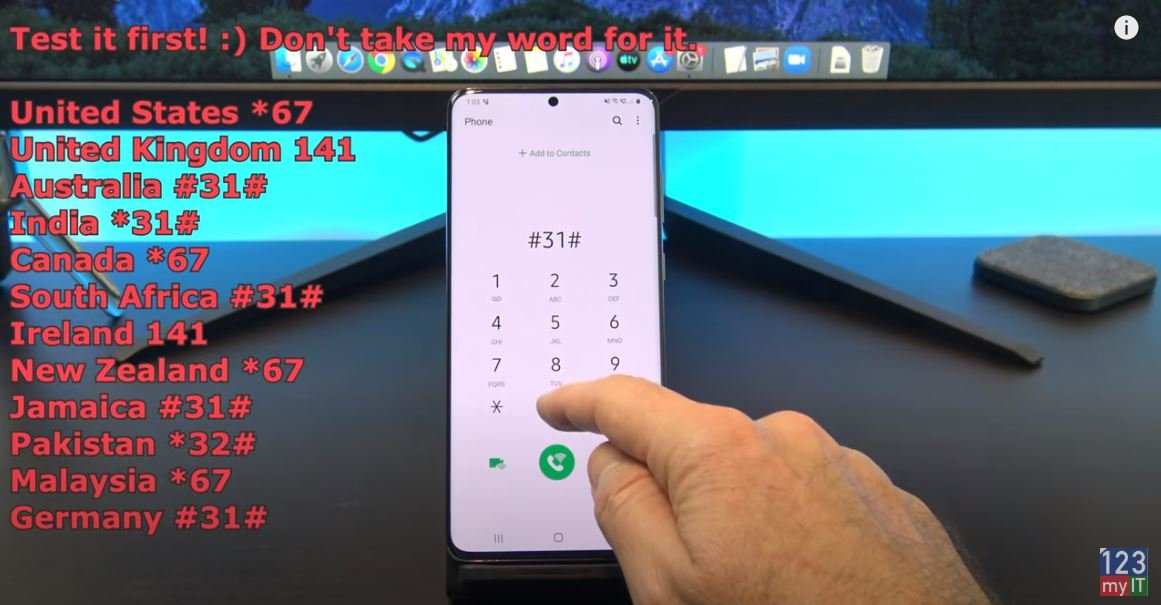
- Enter the code *67 followed by the full phone number you want to call. For example, *67 123-456-7890.
- Tap the call button to initiate the call.
This method is quick and effective for a single call but does not change your settings permanently. The recipient will see Private, Anonymous, or Blocked, depending on their phone settings.
Important considerations
- The code *67 works in most countries, especially in North America. If it doesn’t work, your carrier might have a different code or restrictions.
- This method only affects one call. If you want to hide your number for all calls, use the settings method above.
Modifying Your Carrier Settings to Permanently Hide Your Number
Sometimes, device settings alone aren’t enough, especially if your carrier has restrictions or overrides. You can contact your mobile service provider to hide your number from their end.
Contact your carrier to hide your number
- Call your carrier’s customer support or visit their website.
- Request to set your number as private on the network level.
- Follow their instructions, which might involve changing your account settings or applying a specific plan feature.
This approach offers a more permanent solution but might involve some waiting or extra charges based on your carrier.
Using carrier-specific apps
Some carriers provide their own apps that allow easy management of call privacy options. Check if your carrier offers an app and explore its privacy features.
Using Third-Party Apps to Hide Your Number
There are several third-party apps available on the Google Play Store that can give you more control over your caller ID and privacy.
Popular apps to hide or customize caller ID
- Caller ID & Call Blocker: Allows you to hide your caller ID for specific calls.
- Hiding Caller ID: Specialized app to make your number private without changing device settings.
- Truecaller: Offers caller identification and filtering, with options for privacy settings.
How to use third-party apps
- Download and install your preferred app from Google Play.
- Follow the app’s setup instructions, granting necessary permissions.
- Select options to hide your caller ID for outgoing calls.
- Make calls through the app if needed, or set it as default for your dialer.
Important Tips
- Always check the app’s reviews and permissions for security reasons.
- Remember that some apps may require in-app purchases to unlock all features.
- Using third-party apps might not work with all carriers or regions.
Additional Tips to Protect Your Privacy on Android
Aside from hiding your number, consider these practices to enhance your overall privacy:
- Limit sharing your number: Be cautious when giving out your phone number online or to new contacts.
- Use messaging apps: Use services like WhatsApp, Signal, or Telegram that don’t expose your phone number publicly.
- Set privacy controls in social media: Adjust privacy settings to restrict who can see your number.
- Enable spam filters: Use built-in or third-party spam filters to avoid unwanted calls and messages.
Making your number private on Android is straightforward, whether you choose to do it through device settings, dialer codes, carrier services, or third-party apps. Consider your needs—whether for a single call or ongoing privacy—and select the method that suits you best. Always remember to check your carrier’s rules and regional restrictions, as these can influence how effectively you can hide your number. Protecting your privacy is essential, and with these options, you have control over who can see your phone number and when.
Frequently Asked Questions
Can I hide my number during a specific call on Android?
Yes, you can hide your number for a single call on Android. When you dial the number, enter *67 before the phone number. This code temporarily blocks your caller ID, making your number appear as private to the recipient for that call only.
How can I prevent my number from showing up on all outgoing calls on Android?
To hide your number for all outgoing calls, go to your phone settings, select ‘Call Settings’ or ‘Additional Settings’, then tap on ‘Caller ID’ or ‘Show My Number’. Choose the option labeled ‘Hide number’ or similar. This change applies to all future outgoing calls until you decide to turn it off.
What should I do if my Android phone’s caller ID does not hide my number?
If your caller ID doesn’t hide your number, verify your carrier’s policies, as some providers disable or restrict caller ID blocking. Contact your carrier’s customer service to ensure your account permits caller ID hiding. Additionally, double-check your phone settings to confirm you selected the correct option to hide your number.
Are there third-party apps to make my number private on Android?
Yes, you can find third-party apps designed to manage caller ID settings. These apps often allow you to hide your number temporarily or permanently. However, use trusted apps from reputable sources and review permissions before installation to maintain your privacy and security.
Can I make my number private when calling international numbers on Android?
Most Android devices support hiding your number when making international calls. Before dialing, check your caller ID settings to ensure your number is hidden by default. If not, you can use specific codes, such as *67 or #31#, depending on your carrier and country, to hide your number for international calls too.
Final Thoughts
To make your number private android, you need to adjust your phone’s settings or contact your carrier for assistance. Start by navigating to your phone’s settings menu, then go to ‘Phone’ or ‘Call Settings.’ Enable the option for ‘Hide My Number’ or ‘Private Number.’ Alternatively, dial *67 before making a call to keep your number confidential. These simple steps will help you maintain your privacy during calls. Remember, how to make my number private android is straightforward with these adjustments, ensuring your calls stay discreet whenever needed.
