

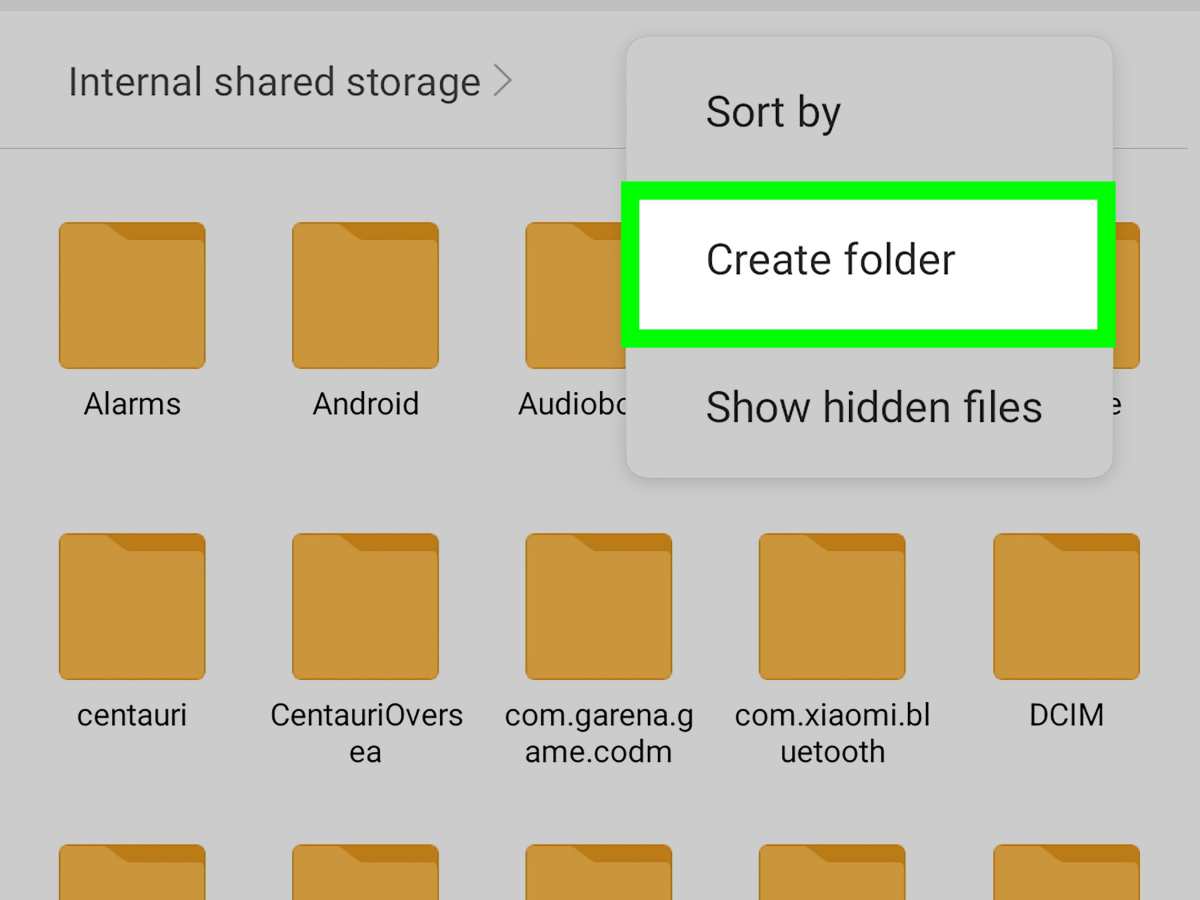
To make a folder in Android, simply tap and hold on an app, then drag it over another app to create a new folder. **This quick method helps you organize your home screen effortlessly.** If you want to add more apps, just tap the folder and use the menu to include additional icons. Learning these steps makes navigating your device smoother and keeps your apps neatly sorted.

How to Make a Folder in Android
Creating folders on your Android device is a simple way to keep your home screen tidy and organize your apps efficiently. Whether you’re new to Android or just want to learn some helpful tips, this guide will walk you through every step of the process. You’ll also find useful tips on customizing your folders, adding apps, and managing them for easy access.
Let’s start with understanding why folders are helpful and then move into detailed, step-by-step instructions on creating and managing them.
Why Creating Folders on Android Matters
Many Android users find that their home screens can quickly become cluttered with too many app icons. This can make it hard to find the app you’re looking for and can slow down your device’s usability. Folders allow you to group similar apps together, making your screen more organized and your apps more accessible.
Some of the main benefits of creating folders include:
- Reducing clutter on your home screen
- Quickly locating apps by category
- Saving space for more apps and widgets
- Personalizing your device for easier use
By learning how to create folders, you can keep your Android device neat and efficient.
How to Create a Folder in Android: Step-by-Step Guide
Creating a folder on your Android device is straightforward, but the exact steps can vary slightly depending on your device’s manufacturer and Android version. Here, we’ll cover the most common procedures that work on most Android phones, such as Samsung Galaxy, Google Pixel, OnePlus, and others.
Basic Method to Create a Folder on Your Home Screen
Follow these simple steps:
- Start by unlocking your Android device and navigating to the home screen where you want to create the folder.
- Identify the apps you want to group together. It’s best to choose apps that belong to the same category, such as social media, productivity, or entertainment.
- Press and hold the icon of one of the apps until it becomes able to be moved. Usually, you’ll see a menu pop up, or the icon will enlarge slightly.
- While holding the app icon, drag it over to another app icon that you want to include in the same folder.
- Release the app icon once it’s over the second app. Your device will automatically create a folder containing these two apps.
At this point, the folder is created, but you can customize it further.
Customizing Your Folder
After creating the folder, you can personalize it to make it more useful and visually appealing.
- Rename the Folder: Tap on the folder to open it. Then tap on the default folder name (e.g., “Folder” or app name) to enter a new name. Choose a descriptive name like “Games,” “Work Apps,” or “Photos.”
- Add More Apps: To add more apps to the folder, simply open the folder and drag additional app icons into it.
- Remove Apps: To remove an app, open the folder and press and hold the app icon. Drag it outside of the folder onto the home screen or to another folder.
- Rearrange Apps Inside the Folder: Open the folder, press and hold an app, then drag it to change its position within the folder.
Moving or Deleting a Folder
Sometimes, you may want to move a folder to a different location or delete it altogether.
- Move a Folder: Tap and hold the folder, then drag it to the new location on your home screen.
- Delete a Folder: Push the folder to the trash icon or remove it by dragging it outside of the home screen. Remember, deleting a folder does not delete the apps inside it—only the folder itself.
Advanced Tips for Managing Folders on Android
While basic folder creation is easy, you can do more to make your Android home screen highly organized.
Using App Drawer for Folders
Some Android devices allow you to create folders directly in the app drawer (the list of all installed apps). To do this:
- Open your app drawer.
- Tap and hold an app icon, then drag it over another app to form a folder.
- Name the folder to categorize all apps inside it.
This method helps you organize apps without cluttering your home screen.
Creating a Folder with Widgets
You can also combine app folders with widgets for quick access. For example, create a folder for your favorite games and add a game launcher widget inside the folder. This way, you can open multiple apps or functions directly from the folder.
Using Third-Party Launchers for Better Folder Management
Some Android launchers (custom home screen apps) like Nova Launcher or Action Launcher offer advanced folder management features, including:
- Multiple folder layouts
- Custom icons for folders
- Animated folder opening effects
- Folder grouping based on smart categories
If you find your stock Android launcher limiting, consider trying one of these launchers for a more flexible experience.
App Bookmarking and Folder Optimization
Besides creating folders, you can enhance your Android organization by bookmarking important apps or websites, and using shortcuts or app groups. Here are some tips:
- Use folder colors or icons to differentiate categories easily.
- Rearrange your folders based on usage frequency, placing the most-used groups in the most accessible spots.
- Remove duplicate apps or unused apps to keep your folders clean.
- Update folder names periodically for better clarity.
Common Problems and How to Solve Them
Even with simple steps, you might run into issues creating or managing folders.
Folder Not Creating or Moving
If dragging apps doesn’t create a folder:
- Ensure you’re pressing and holding the app long enough.
- Check if your device’s touchscreen is responsive.
- Update your device to the latest Android version for compatibility.
If you can’t move the folder:
- Make sure you have enough space on the home screen.
- Restart your device and try again.
- Inspect if any third-party launcher settings interfere with folder creation.
App Icons Disappear or Reset
Sometimes, apps may disappear from your home screen after creating folders:
- Check if the apps are still installed in the app drawer.
- Re-add apps manually if they seem missing.
- Clear your launcher cache or restart your device.
Final Tips for Effective Folder Management
To keep your Android home screen organized and easy to navigate:
- Regularly review your folders to remove unused apps.
- Create new folders based on shifting priorities or new app installations.
- Keep folder names clear and concise for easy recognition.
- Use consistent naming conventions to make navigation faster.
- Experiment with different layouts to find what works best for you.
By understanding these detailed steps and tips, you can manage your Android home screen efficiently. Creating and customizing folders helps you keep everything in order, making your device more user-friendly and personalized. Whether you prefer simple organization or advanced customization, mastering folder management enhances your overall Android experience.
Frequently Asked Questions
What steps should I follow to create a new folder on my Android home screen?
To create a new folder on your Android home screen, press and hold an app icon until options appear. Drag the app icon over another app you want in the same folder. Release the icon to automatically create a new folder containing both apps. You can then tap the folder to open it, and tap the name at the top to rename it as desired.
Can I add multiple apps to a folder on Android, and how?
Yes, you can add multiple apps to a folder on Android. After creating a folder by dragging one app onto another, you can open the folder and tap outside the apps to return to the home screen. Then, drag additional app icons into the folder. Repeat this process for all apps you want to include, organizing them within the folder as needed.
How do I change the name of a folder on my Android device?
To rename a folder, tap to open it on your home screen. Once open, tap the folder’s name at the top or tap and hold the folder icon and select ‘Rename’ from the menu. Enter your preferred folder name and confirm. The new name will now display on the folder on your home screen.
What should I do if I want to delete a folder on Android?
If you want to delete a folder, open it to see its contents. Then, remove all apps from the folder by dragging them back to the home screen. Once the folder is empty, it will automatically disappear. Alternatively, you can tap and hold the folder icon and select ‘Delete’ or drag it to the ‘Remove’ option, depending on your device’s options.
Is it possible to create folders inside other folders on Android?
Most Android devices do not support creating folders within folders, as this can lead to navigation issues. However, some custom launchers or third-party apps may allow nested folders. To keep your icons organized, consider grouping related apps within a single folder or creating separate folders for different categories instead.
Final Thoughts
Making a folder in android is straightforward. Tap and hold an app icon until options appear. Drag it over another app icon to create a new folder. You can then name the folder to keep your screen tidy. This simple process helps organize apps efficiently.
In summary, how to make a folder in android involves a few quick taps and drags. Organizing your apps becomes easier, saving time and space. Follow these steps to keep your device neat and accessible.
