

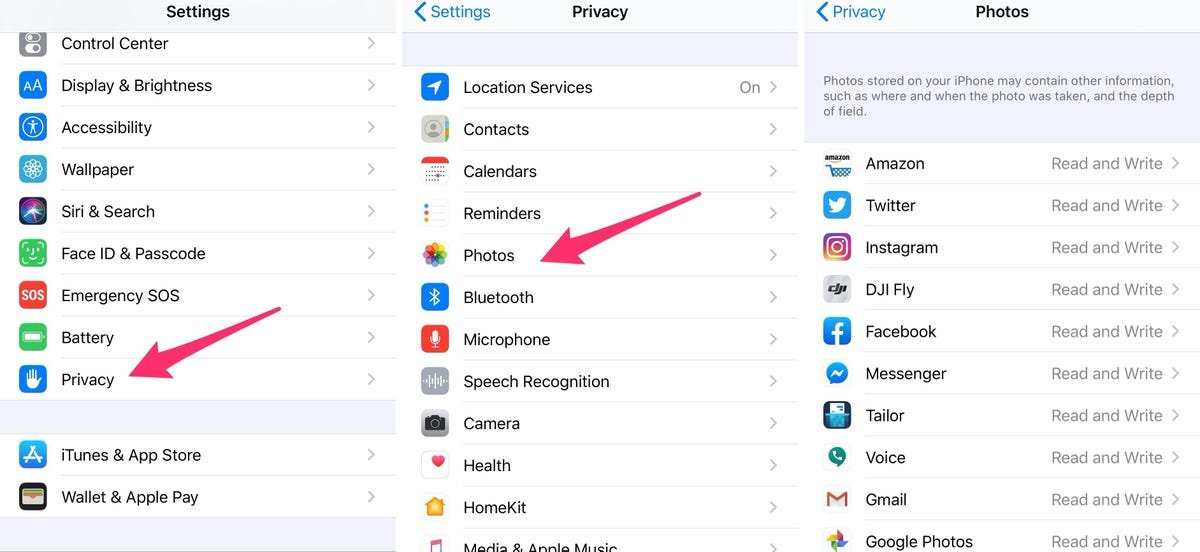
To set up screen mirroring on your iPhone, just enable the screen mirroring option in Control Center and select your device. **iPhone setting screen mirroring is straightforward once you know where to tap.** This feature allows you to display your iPhone’s content on larger screens, perfect for presentations or entertainment. Navigating the settings is simple, and you’ll be mirroring in no time, making your iPhone more versatile and convenient to use.

iPhone Setting Screen Mirroring: How to Connect Your iPhone to a Larger Screen
If you’re trying to share your favorite videos, photos, or presentations from your iPhone, screen mirroring can be a game-changer. It allows you to display your iPhone’s screen on a larger device like a TV, monitor, or projector. The process might seem straightforward, but there are many features and options you should understand to use screen mirroring effectively. In this guide, we’ll explore everything you need to know about iPhone setting screen mirroring, including step-by-step instructions, troubleshooting tips, compatible devices, and ways to optimize your experience.
Understanding Screen Mirroring on iPhone
Screen mirroring is the process of transmitting what’s on your iPhone’s display to another screen in real time. This feature is perfect for sharing photos during family gatherings, giving presentations, or just enjoying videos on a bigger screen. With iPhone, you can mirror your screen via wireless connections or through wired options, depending on the device.
– **Wireless Mirroring:** Most commonly used and involves Wi-Fi connections, making it convenient and easy.
– **Wired Mirroring:** Uses cables like HDMI adapters for situations where wireless isn’t reliable or available.
Knowing the difference between these methods helps you choose the best one for your needs.
Supported Devices for Screen Mirroring with iPhone
Before diving into how to set up screen mirroring, it’s essential to know which devices can receive your iPhone’s display.
- Apple TV: The most common and seamless option, offering AirPlay support.
- Smart TVs: Many modern smart TVs from brands like Samsung, LG, Sony, and Vizio support Apple’s AirPlay 2 technology.
- Wi-Fi-enabled Devices: Screen mirroring is possible with compatible third-party devices or reflectors that use AirPlay or similar protocols.
- Wired Devices: Using an Apple Lightning Digital AV Adapter, you can connect your iPhone directly to an HDMI-enabled TV or monitor.
Ensure your device supports the specific type of connection you want to use. Most Apple devices released after 2018 natively support AirPlay 2, making mirroring smooth and straightforward.
How to Enable Screen Mirroring on Your iPhone
Getting started with screen mirroring is simple when you follow these steps. Here’s a detailed look:
Prerequisites for a Smooth Mirroring Experience
Before you begin, check the following:
- Your iPhone is running iOS 12 or later, as AirPlay 2 is supported on all devices from iPhone 5s onwards after updates.
- Your receiver device (Apple TV or AirPlay 2-compatible smart TV) is turned on and connected to the same Wi-Fi network as your iPhone.
- Wi-Fi network is stable for uninterrupted streaming. A weak signal can cause lag or disconnections.
- Your iPhone and receiver are close enough to ensure strong Wi-Fi connectivity.
Steps to Mirror Your iPhone Screen Wirelessly
Follow these simple steps:
- Open the Control Center:
- On iPhone X or later, swipe down from the top-right corner of the screen.
- On iPhone 8 or earlier, swipe up from the bottom edge of the screen.
- Tap on the Screen Mirroring icon, which looks like two overlapping rectangles.
- A list of available devices will appear. Select your Apple TV or compatible smart TV from the list.
- If prompted, enter the AirPlay code displayed on the TV into your iPhone.
- Once connected, your iPhone screen will appear on the device. You can now show photos, videos, or presentations.
When you want to stop mirroring, return to the Control Center, tap on the Screen Mirroring icon again, and select Stop Mirroring or the device name.
How to Connect Using a Wired Adapter
For a wired connection, follow this process:
- Get an Apple Lightning Digital AV Adapter or a similar certified product compatible with your iPhone.
- Connect the adapter to your iPhone’s Lightning port.
- Plug an HDMI cable into the adapter and connect the other end to your TV or monitor.
- Switch your TV to the HDMI input source.
- Your iPhone display will automatically appear on the TV screen.
Using a wired connection can be more reliable and is often preferred for gaming or professional presentations.
Optimizing Screen Mirroring for Better Performance
To ensure you enjoy a smooth and clear mirroring experience, consider these tips:
- Use a strong Wi-Fi network with minimal interference. Avoid crowded networks when possible.
- Keep your iPhone and receiver close to each other to strengthen the signal.
- Close background apps that might impact data transmission or cause lag.
- Update your iPhone to the latest iOS version and keep your TV or streaming device updated as well.
- Restart your devices if you experience lag or disconnections; sometimes, a simple reboot solves connectivity issues.
If streaming video or playing games, turn off other devices that may be hogging bandwidth.
Troubleshooting Common Screen Mirroring Issues
Sometimes, things don’t go as planned. Here are some common issues and how to fix them:
No Devices Showing in Screen Mirroring List
– Ensure your device is compatible and connected to the same Wi-Fi network.
– Restart your Wi-Fi router, iPhone, and mirroring device.
– Make sure AirPlay or screen mirroring options are enabled on the receiver.
Weak Streaming Quality or Lag
– Switch to a 5 GHz Wi-Fi band if available.
– Reduce the number of devices connected to your Wi-Fi.
– Keep devices closer together to improve signal strength.
Unable to Connect via Wi-Fi
– Check if both devices are on the same network.
– Update iOS and your Smart TV or Apple TV firmware.
– Disable VPNs or firewalls that could block connections.
No Sound During Mirroring
– Confirm that the audio output is set correctly on your iPhone.
– Check your TV or receiver’s sound settings.
– Restart your devices to reset audio pathways.
Security and Privacy Considerations
When using screen mirroring, be mindful of privacy:
– Only connect to devices you trust.
– Use AirPlay passwords or PINs when available, especially in public or shared spaces.
– Stop sharing your screen when done to prevent accidental exposure of sensitive information.
Additional Tips to Enhance Your Mirroring Experience
– Use high-quality cables and adapters for wired connections.
– Use a dedicated Wi-Fi network for your streaming devices if possible.
– Keep your device’s software updated to access new features and patches.
– Explore third-party apps if your device isn’t compatible with AirPlay but supports other protocols.
Screen mirroring on your iPhone opens a world of possibilities, making it easy to share content, give presentations, or simply enjoy media on a bigger screen. With a clear understanding of setup options, device compatibility, and troubleshooting, you can enjoy seamless mirroring anytime you want. Remember, the key to a great experience lies in a stable connection and the right tools.
Frequently Asked Questions
How do I connect my iPhone to an Apple TV for screen mirroring?
To connect your iPhone to an Apple TV, ensure both devices are on the same Wi-Fi network. On your iPhone, swipe down from the top-right corner to access the Control Center. Tap the Screen Mirroring button, then select your Apple TV from the list. If prompted, enter the AirPlay code displayed on your TV to establish a connection.
What should I do if my iPhone isn’t showing the available devices for screen mirroring?
First, check that your iPhone and the device you want to mirror to are connected to the same Wi-Fi network. Restart both your iPhone and the target device to resolve temporary glitches. Make sure the device supports screen mirroring and that AirPlay is enabled. Updating your iPhone to the latest iOS version can also fix compatibility issues.
Can I mirror my iPhone screen to a non-Apple device?
Mirroring your iPhone to non-Apple devices depends on the device’s compatibility with AirPlay or third-party apps. Some smart TVs and streaming devices support AirPlay, allowing seamless connection. For others, you may need to use third-party apps or HDMI adapters to mirror your screen. Always check if your device supports these options before attempting to connect.
How do I stop screen mirroring on my iPhone?
To stop mirroring, open the Control Center by swiping down from the top-right corner of your iPhone. Tap the Screen Mirroring button, then select “Stop Mirroring” or turn off the toggle next to your active device. Your iPhone will immediately disconnect from the mirrored screen.
Are there any privacy considerations to keep in mind when using screen mirroring?
Yes, ensure you only mirror your screen to trusted devices, as screen sharing can display sensitive information. Before starting, verify the device you’re connecting to is secure. When finished, turn off mirroring to prevent unintentional screen sharing. Avoid mirroring in public or unsecured networks to protect your privacy.
Final Thoughts
In summary, navigating the iPhone setting screen mirroring options allows users to connect their device seamlessly to compatible displays. With straightforward steps, users can mirror content effortlessly, enhancing their viewing experience. Whether for presentations or entertainment, understanding this feature ensures smooth and efficient usage. Remember, the key to successful screen mirroring starts with familiarizing yourself with the correct settings. By doing so, you optimize your device’s capabilities and enjoy a more connected experience.
