

Setting up email on your iPhone can be quick and straightforward. **You just need the right server details and login credentials.** If you’re unsure how to start, don’t worry. With a few simple steps, you can configure your email to send and receive messages seamlessly.
When you understand the iPhone setting email process, it becomes even easier to stay connected on the go. Follow along, and you’ll be managing your email accounts effortlessly in no time.

iPhone Setting Email: A Complete Guide to Configuring Your Email on iPhone
Setting up your email account on your iPhone can seem intimidating at first, but with the right steps, it becomes a straightforward process. Whether you want to add your personal email or set up your work account, knowing how to configure the email settings properly ensures you stay connected and organized. This guide will walk you through every aspect of setting up and managing your email account on your iPhone, from initial setup to troubleshooting common issues.
Understanding iPhone Email Settings
Before diving into the setup steps, it’s essential to understand what email settings your iPhone requires. When adding an email account, your iPhone needs specific information:
- Account type (IMAP or POP3)
- Incoming mail server (host name, port, security protocol)
- Outgoing mail server (host name, port, security protocol)
- Your email address and password
- Additional settings like SMTP authentication and SSL options
Knowing these details helps you configure your email accurately, which reduces issues like emails not syncing or being unable to send messages.
Choosing the Right Email Account Type
When setting up your email, your iPhone typically asks whether you want to add an IMAP or POP3 account. Here’s how they differ:
IMAP (Internet Message Access Protocol)
- Syncs your emails with the server, keeping everything consistent across devices
- Best for those who check email on multiple devices (phone, tablet, computer)
- Emails stay on the server unless explicitly deleted from the device
POP3 (Post Office Protocol 3)
- Downloads emails onto your device and removes them from the server
- Suitable if you mainly check email on one device
- If the server storage is limited, POP3 can help save server space
Most modern users prefer IMAP because it keeps emails synchronized across all devices.
Adding a New Email Account to Your iPhone
Now, let’s step through the core process of adding your email account to an iPhone.
Step 1: Open Settings on Your iPhone
– Tap the Settings app on your home screen to get started.
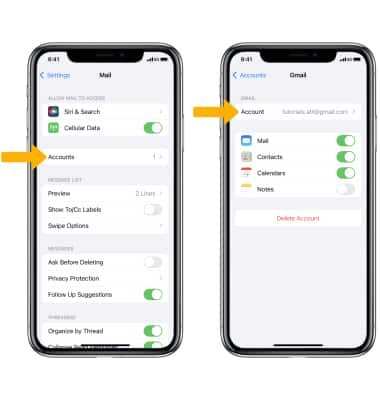
– Scroll down and select “Mail,” then tap on “Accounts.”
Step 2: Tap on Add Account
– You will see a list of email providers like iCloud, Google, Yahoo, Outlook, and others.
– If your email provider is listed, select it to proceed.
– If not, tap “Other” to manually add your account.
Step 3: Choose “Add Mail Account”
– Enter your name, email address, password, and a description for your account.
– Tap “Next” to continue.
Step 4: Configure Incoming Mail Server Settings
Depending on your provider or the options you’ve selected, you will need the following:
- Host Name: Usually something like imap.gmail.com or mail.yourdomain.com
- Username: Typically your full email address
- Password: Your email password
Step 5: Configure Outgoing Mail Server Settings
Similarly, you’ll need this info:
- Host Name: Often smtp.gmail.com or mail.yourdomain.com
- Username: Your email address or sometimes optional
- Password: Your email password
Step 6: Save Settings and Test Your Email
– After entering the server details, tap “Save.”
– Your iPhone will attempt to verify the account settings.
– If everything is correct, your email will be added successfully.
– If not, you’ll see an error message prompting you to double-check your details.
Adjusting Advanced Email Settings for Better Performance
Once your email account is added, you might want to tweak some settings to optimize how your emails sync and appear.
Sync Frequency
– Navigate to Settings > Mail > Accounts > Fetch New Data.
– Choose how often your iPhone checks for new emails:
- Push: Real-time updates (best for instant alerts)
- Fetch: Regular intervals (every 15 minutes, 30 minutes, hourly)
- Manual: Only when you open the Mail app
Notification Settings
– Customize notifications for new emails.
– Go to Settings > Notifications > Mail.
– Select your email account and choose your alert preferences.
Signature and Reply Settings
– Personalize your email signatures.
– In the Mail settings or within your account, add signatures to identify your emails.
– Decide if replying or forwarding uses the default or custom email address.
Popular Email Providers and Their Setup Details
Different email providers may have specific settings. Here’s a quick reference:
| Provider | Incoming Server (IMAP) | Outgoing Server (SMTP) | Additional Notes |
|---|---|---|---|
| Gmail | imap.gmail.com | smtp.gmail.com | Enable IMAP in Gmail settings before setup |
| Yahoo Mail | imap.mail.yahoo.com | smtp.mail.yahoo.com | Use app-specific password if 2FA is on |
| Outlook | imap-mail.outlook.com | smtp-mail.outlook.com | Check account security settings for app access |
| Other Email | Check with your email provider | Check with your email provider | Use manual setup if needed |
Troubleshooting Common Email Setting Problems
Even with careful setup, you might encounter issues. Here are common problems and how to fix them:
Email Not Sending or Receiving
- Ensure server details are correct
- Check your internet connection
- Verify your email password is accurate
- Make sure your account isn’t blocked or locked
- Try removing and re-adding your account
Verification Errors
- Enable SSL in the server settings if it’s not already
- Use the correct port numbers (usually 993 for IMAP and 465 or 587 for SMTP)
- Check if two-factor authentication (2FA) is enabled; create app-specific passwords if necessary
Emails Not Syncing Properly
- Adjust fetch schedule to more frequent intervals
- Ensure “Mail Days to Sync” is set appropriately
- Restart your iPhone to refresh settings
Maintaining Your Email Settings for Long-Term Health
Managing your email account isn’t just about setup; it involves keeping everything up to date:
- Update your password regularly for security
- Review account permissions and security settings periodically
- Remove old or unused email accounts from your iPhone
- Ensure your iPhone’s software stays current for compatibility and security patches
By understanding each step and customizing your settings according to your needs, you ensure your email experience on your iPhone remains smooth and efficient. Whether it’s for personal use or work, proper configuration helps you stay connected, organized, and productive every day.
Frequently Asked Questions
How do I set up my email account on an iPhone for the first time?
To set up your email account on your iPhone, go to the Settings app and select “Mail.” Tap on “Accounts,” then choose “Add Account.” Select your email provider or tap “Other” for manual setup. Enter your email address and password, then follow the prompts to configure server settings if required. Once completed, your email will sync and be ready to use on your device.
What should I do if my iPhone is not sending or receiving emails properly?
If your email isn’t working correctly, start by checking your internet connection to ensure it’s active. Verify your account settings, including server details and login credentials. Attempt to refresh your inbox by pulling down the email list. If problems persist, remove your email account from your iPhone and add it again. Updating your iOS software can also resolve compatibility issues.
Can I set up multiple email accounts on my iPhone?
Yes, the iPhone supports adding multiple email accounts. To do this, go to Settings, select “Mail,” then “Accounts,” and tap “Add Account.” Follow the setup process for each account you want to add. Your Mail app will then display emails from all connected accounts, allowing easy management of multiple email addresses in one place.
How do I customize notification settings for my email on iPhone?
You can customize email notifications by opening the Settings app and tapping “Mail.” Select “Notifications,” then choose the account or “All Accounts” to modify how you receive alerts. You can set alert styles, sounds, and banners, and choose whether to display notifications on the lock screen or in the Notification Center. Adjust these settings to suit your preferences for each email account.
What steps should I follow to delete an email account from my iPhone?
To remove an email account, navigate to Settings, tap “Mail,” then “Accounts.” Select the account you wish to delete, and tap “Delete Account.” Confirm your action when prompted. This will remove the account and all associated emails from your device, but it won’t delete the emails from your email provider’s server.
Final Thoughts
In summary, understanding how to manage your email settings on iPhone is essential for smooth communication. Whether adding a new account or troubleshooting, knowing ‘iphone setting email’ helps you stay connected effortlessly. By following simple steps, you can ensure your emails sync correctly and avoid issues. Staying updated with your email configuration keeps your device functioning optimally.
