Why Does It Say My Mac Is Not Charging Troubleshooting Tips
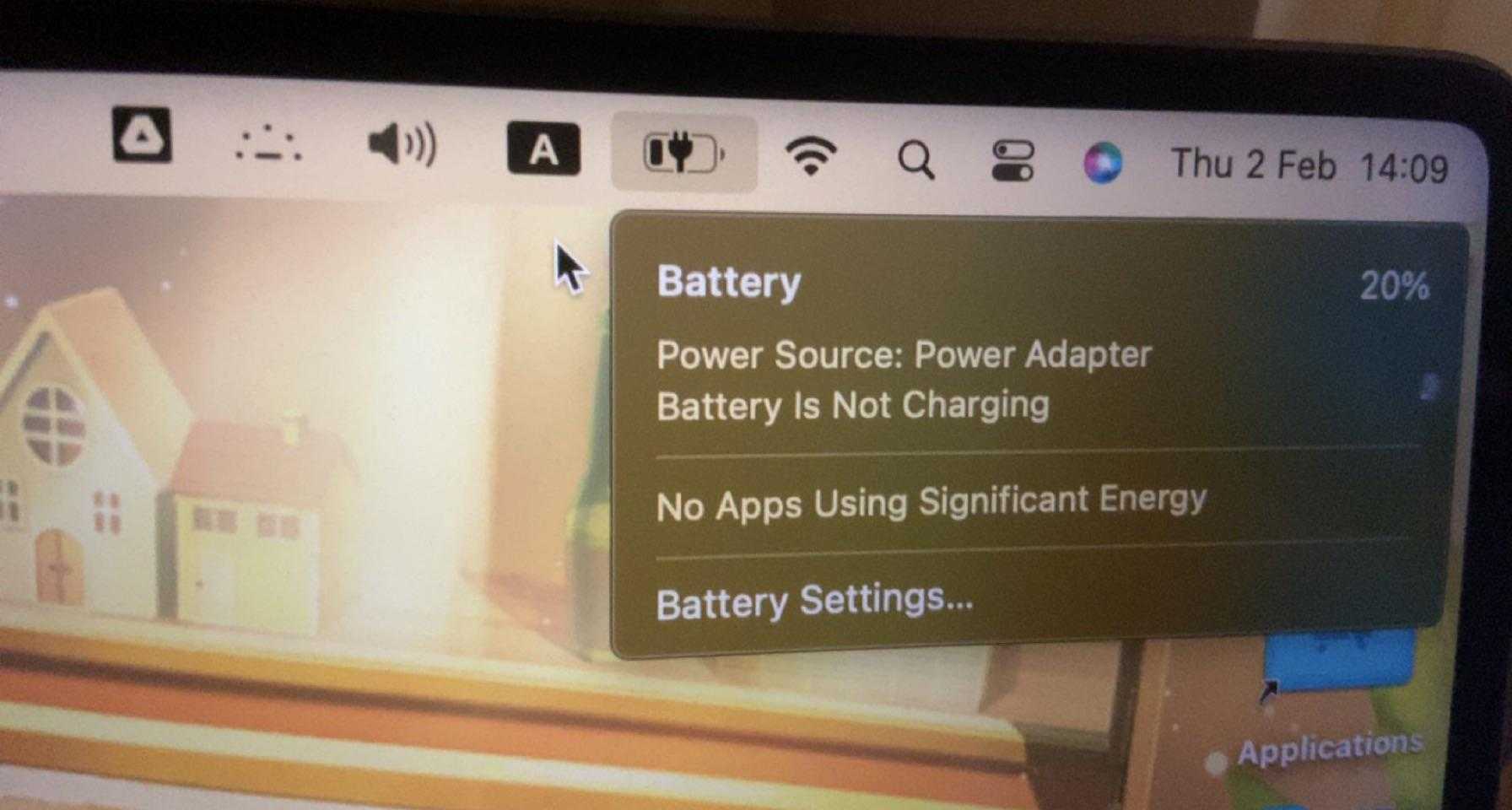

Why Does It Say My Mac Is Not Charging?
Understanding the Charging System of Your Mac
Your Mac’s charging system is designed to keep your device powered up efficiently. When it shows a message indicating it is not charging, it could be due to various reasons. Recognizing how the system works helps you troubleshoot and fix issues faster. Most Macs use either a USB-C charger or MagSafe connector depending on the model. The system monitors the connection and adapts to provide the right amount of power. If something blocks or disrupts this process, your Mac might prevent charging to protect its internal components.Common Reasons Your Mac Might Not Be Charging
Several factors can cause your Mac to display that it’s not charging. Understanding these can help you identify the root problem. Hardware issues are a primary cause. These include damaged cables, faulty ports, or worn-out chargers. If the hardware isn’t working properly, power can’t flow from the charger to your Mac. Software glitches can also interfere. Sometimes, bugs in macOS or incorrect settings could prevent charging notifications or functions from working correctly. Battery health affects charging capability. Over time, batteries degrade, and your Mac might refuse to charge to protect its remaining battery life. By examining each of these areas, you can narrow down the possible reasons and find a solution more quickly.Hardware Troubleshooting for Charging Problems
Hardware problems are often the first reason to check when your Mac isn’t charging.Inspect Your Charging Cable and Adapter
Examine the cable closely for any visible damage like frays, kinks, or exposed wires. Damaged cables won’t transfer power effectively and might cause charging issues. Test your charger with another Mac if possible. Sometimes the charger itself may be faulty, especially if it doesn’t light up or show any indicator when plugged in.Check the Charging Port for Debris or Damage
Look at the port where your charger connects. Dust, lint, or dirt can prevent a good connection. Use a soft brush or compressed air to clean out the port gently. Inspect the port for signs of damage like bent pins or corrosion. If damaged, you might need to get the port repaired or replaced.Test Different Power Outlets
Sometimes, the issue isn’t with your Mac but the power source. Plug your charger into a different wall socket to see if it makes a difference. Avoid using outlets with power strips or extension cords that might have faults. Directly connecting to the wall socket ensures a stable power supply.Software Solutions and Settings to Fix Charging Issues
Software problems can also lead to charging issues. Here are some steps to troubleshoot and resolve them.Restart Your Mac
A simple restart can fix minor glitches that might interfere with the charging process. Click the Apple menu and select Restart. Wait a few moments before plugging in your charger again.Update macOS to the Latest Version
Outdated software may have bugs affecting hardware communication. Check for updates by opening System Preferences and clicking Software Update. Install any available updates to ensure your system has the latest fixes and improvements.Reset SMC (System Management Controller)
The SMC manages power functions on Macs. Resetting it can resolve charging issues, especially if your Mac isn’t recognizing the charger. The reset process varies by model, but it typically involves shutting down your Mac, then pressing specific key combinations like Shift + Control + Option + Power for a few seconds before restarting.Reset NVRAM/PRAM
NVRAM or PRAM stores certain settings. Resetting it can fix hardware recognition problems. To do this, turn off your Mac, then turn it on while holding Option + Command + P + R keys. Keep holding these keys until you hear the startup sound twice.Battery Health and Its Impact on Charging
Over time, Mac batteries degrade, leading to charging problems.Checking Battery Condition
Click the battery icon in the menu bar while holding the Option key. It will show status like “Normal” or “Service Recommended.” If your battery needs service, replacing it can restore proper charging.When to Consider Battery Replacement
If your battery health is below 80% or the system suggests service, it’s wise to consider replacing the battery through Apple or authorized service providers. A new battery can improve overall charging and usage performance.Additional Tips to Resolve Charging Issues
Sometimes, small adjustments can make a big difference.- Use original or Apple-certified chargers and cables for reliable power transfer.
- Avoid placing your Mac or charger in extremely hot or cold environments, as temperature affects charging ability.
- Ensure the charging port and cable connections are secure and snug.
- Close unnecessary applications that might be causing system overloads or conflicts.
When to Seek Professional Help
If none of these troubleshooting steps resolve the issue, it might be time to see an Apple technician. Internal hardware damage, like a faulty logic board or damaged charging port, requires professional repair. Scheduling an appointment at an Apple Store or authorized service provider can help diagnose hidden problems and ensure your Mac gets back to optimal functioning quickly.Related Topics to Consider
Understanding other related issues can also help.Mac Overheating and Charging Problems
High temperatures can cause your Mac to disable charging temporarily to prevent damage. Keeping your Mac cool helps maintain proper charging.Using a Power Surge Protector
Using a surge protector can prevent voltage spikes from damaging your charger and Mac, ensuring consistent power flow.Impact of External Devices
Connecting many external devices might strain your Mac’s power management, potentially causing charging issues. Disconnect unnecessary peripherals to test.Monitoring System Status with Built-in Tools
Use tools like Activity Monitor or System Report to check for hardware issues or software conflicts that could be affecting charging. By paying attention to these areas, you can maintain your Mac’s health and prevent future charging issues. — Addressing the question of why your Mac displays that it is not charging involves examining both hardware and software factors. Regular maintenance, timely updates, and understanding your device’s health can prevent many problems. When issues persist despite troubleshooting, professional support ensures your Mac stays reliable and functional.MacBook Not Charging? Here’s the Fix!
Frequently Asked Questions
What are common reasons my Mac might not be charging even when connected to power?
Your Mac may not be charging due to a variety of reasons, such as a faulty charging cable, a loose connection, or an incompatible power adapter. Dust and debris inside the port can also interfere with charging. Additionally, software issues or system settings might prevent your Mac from recognizing the charger properly.
How can I check if my Mac’s charging port is causing the issue?
Inspect the charging port carefully for any dirt, lint, or debris that may obstruct the connection. Use a soft brush or compressed air to clean the port gently. If the port appears damaged or bent, it could prevent proper contact, and you might need professional repair. Testing with a different charger can also help determine if the port or the cable is at fault.
Why does my Mac display a ‘service battery’ message or show battery health issues?
The ‘service battery’ alert indicates that the battery’s capacity has significantly decreased or that it has internal damage. When the battery health declines, your Mac may stop charging to preserve its remaining lifespan. Replacing the battery could be necessary if this message persists, especially if your device’s battery no longer holds a full charge.
Could software updates or settings impact my Mac’s charging process?
Yes, outdated software or incorrect system settings can prevent proper charging detection. Ensuring your macOS is up to date can resolve known bugs affecting charging behavior. Resetting the SMC (System Management Controller) may also fix issues related to power management. Check your energy saver settings to confirm there are no restrictions affecting charging.
What steps should I take if my Mac still won’t charge after troubleshooting?
If your Mac continues to refuse charging, try restarting the device and reconnecting the charger. Test with a different charger and cable if available. Reset the SMC to resolve potential power management issues. If these steps don’t resolve the problem, contacting Apple Support or visiting an authorized service provider is advisable for further diagnosis and repair.
Final Thoughts
The issue of your Mac not charging can stem from several causes, such as faulty cables, dirt on the charging port, or software glitches. Ensuring your charger and cable are in good condition often resolves the problem quickly. Restarting your Mac or resetting the SMC can also help. Understanding why it says my Mac is not charging helps you troubleshoot effectively. Regular maintenance and checking connections keep your device functioning optimally. Addressing these common causes prevents inconvenience and extends your Mac’s lifespan.
Similar Posts































