How To Solve Macos Update Errors For A Smooth Upgrade
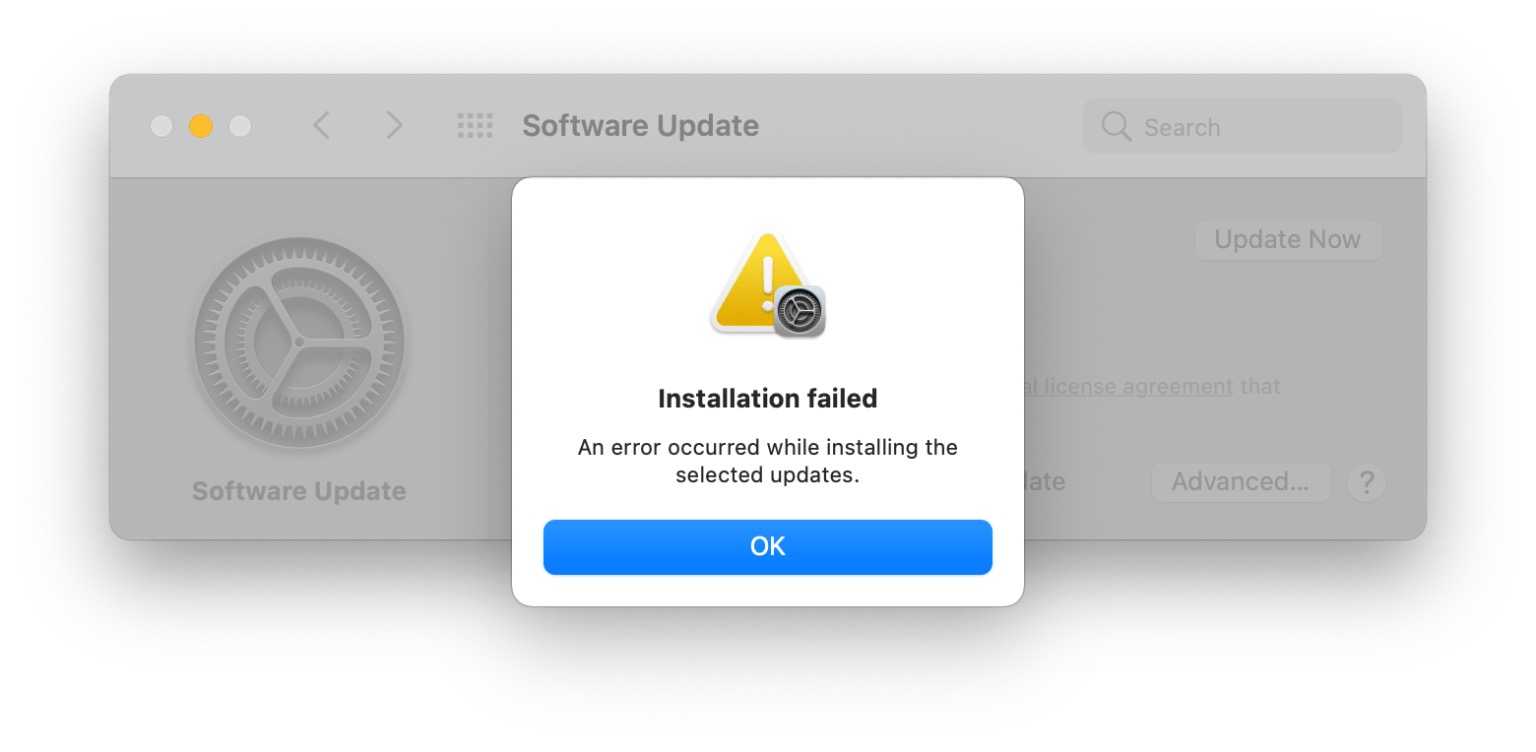

How to solve macOS update errors
Many Mac users face frustrating issues when trying to update their operating system. These errors can prevent you from accessing the latest features and security improvements. Fortunately, there are several steps you can take to fix these problems and get your Mac back on track.
Understanding common macOS update errors
Before fixing the errors, it’s helpful to know what causes them. Some common issues include error messages like “Update Failed,” “Installation Could Not Continue,” or “An Error Occurred.” These errors can be caused by network problems, insufficient storage space, or software conflicts.
Check your internet connection
Your Mac needs a stable internet connection to download updates. Slow or unstable Wi-Fi can interrupt the process and cause errors. Ensure you’re connected to a reliable network with good signal strength before starting an update.
Steps to improve your connection
- Restart your Wi-Fi router to refresh the connection.
- Move closer to your Wi-Fi router for a stronger signal.
- Switch to a wired Ethernet connection if possible for more stability.
- Disable any VPNs or firewalls that might block the update download.
Free up storage space on your Mac
Insufficient storage is a common cause of update failures. macOS requires extra space to download and install updates. Check your available storage and delete unnecessary files if needed.
How to check storage
- Click the Apple menu and select About This Mac.
- Go to the Storage tab to view available space.
Tips to free up space
- Delete old files or move them to an external drive.
- Empty the Trash bin regularly.
- Remove unused apps or large files using the Storage Management tool.
- Clear cache files and temporary data.
Restart your Mac in Safe Mode
Booting into Safe Mode can resolve temporary glitches that hinder updates. Safe Mode runs diagnostics, disables third-party software, and clears some caches.
Steps to restart in Safe Mode
- Shut down your Mac completely.
- Press the power button, then immediately hold down the Shift key.
- Release the key when the login window appears.
- Log in and try to update your macOS.
Use the macOS Recovery Mode for update repair
If normal update methods fail, Recovery Mode offers tools to repair your system or reinstall macOS. This process can fix corrupted files blocking the update.
How to enter Recovery Mode
- Shut down your Mac.
- Turn it on and immediately press and hold Command + R until the Apple logo appears.
- Release the keys once you see the macOS Utilities window.
- Select Reinstall macOS and follow the prompts.
Reset NVRAM/PRAM
NVRAM (Non-Volatile Random-Access Memory) stores settings like volume and display preferences. Resetting it can address errors related to startup and updates.
Steps to reset NVRAM/PRAM
- Shut down your Mac.
- Turn it on and immediately press and hold Option + Command + P + R.
- Keep holding the keys for about 20 seconds, then release.
- Let the Mac restart and try updating again.
Check for software conflicts and third-party apps
Some apps or security software can interfere with the update process. Temporarily disable or uninstall third-party antivirus or firewall programs and then attempt the update.
How to do this safely
- Quit any running third-party security apps.
- Review startup items and disable unnecessary extensions.
- After updating, re-enable or reinstall your security software.
Update macOS through Terminal
If the usual update methods don’t work, you can try updating via the Terminal command line. This can bypass some GUI issues.
Steps to update using Terminal
- Open the Terminal app (found in Applications > Utilities).
- Type the following command and press Enter:
softwareupdate -l - This lists available updates.
- To install all updates, type:
sudo softwareupdate -i -a - Enter your admin password when prompted and wait for the process to finish.
Ensure your macOS is compatible with updates
Older Macs might face errors if they don’t support the latest macOS versions. Verify your device’s compatibility before attempting an update.
How to check compatibility
- Go to the official Apple support website and find the system requirements for the macOS version you want to install.
- Check your Mac model in About This Mac.
Update macOS manually using the Combo Update
Apple offers Combo Updates that contain all previous updates combined, which can fix issues for certain errors. Download the Combo Update from Apple’s official website and install it manually.
Steps to install a Combo Update
- Visit the Apple support page for Combo Updates.
- Download the appropriate file for your Mac model.
- Open the downloaded file and follow the prompts to install.
Contact Apple Support for persistent errors
If all other methods fail, your issue might be more complex. Contacting Apple Support or visiting an Apple Store can help diagnose hardware problems or deeper software conflicts.
When to seek help
- The error persists after multiple attempts.
- You see specific error codes you can’t resolve.
- Your Mac exhibits unusual behavior or startup problems.
Taking these steps systematically can resolve most macOS update errors. Remember to back up your data before making significant changes to your system to prevent any loss of important files.
How To FIX MacOS Update Errors! (2020)
Frequently Asked Questions
What steps can I take if my macOS update gets stuck during the installation process?
If your macOS update stalls, first try freeing up space on your device by deleting unnecessary files. Then, restart your Mac and attempt the update again. If the problem persists, boot into Safe Mode by holding the Shift key during startup, which can help resolve software conflicts. Finally, consider resetting the NVRAM or PRAM if the issue continues. These actions often resolve stuck updates and allow the process to complete successfully.
How do I address compatibility issues when updating macOS?
Before initiating an update, verify your Mac’s model and hardware specifications to ensure they meet the requirements for the new OS version. Check the official Apple support page for compatibility details. If your Mac isn’t compatible, avoid installing the update to prevent potential errors. If it is compatible but problems arise, try reinstalling the current macOS or contact Apple Support for guidance. Ensuring compatibility helps prevent update failures caused by hardware limitations.
What should I do if I receive error messages during the update process?
When an error message appears, note down the specific code or message. Search for this information in Apple’s official support resources or community forums for tailored solutions. Often, errors relate to network issues, corrupted installer files, or permission problems. Restart your Mac and ensure your internet connection is stable. If the error persists, consider manually downloading the update from the Apple website or running Disk Utility to repair disk permissions. Addressing these specific issues can resolve most update errors effectively.
Final Thoughts
To solve macOS update errors, start by checking your internet connection for stability. Restart your Mac and try updating again. If issues persist, ensure enough storage space is available or reset the Software Update preferences. Reviewing system logs can also identify specific problems. Addressing these common causes helps in resolving update errors efficiently.
Similar Posts































