How To Make Toast In Android: Simple Step-By-Step Guide

How to Make Toast in Android
Making a toast in Android might sound simple, but understanding how to do it correctly can improve your app’s user experience significantly. Toasts are small pop-up messages that appear for a short period, giving users feedback or showing quick information. Whether you’re a beginner developing your first app or someone looking to polish your skills, learning how to make toast in Android is essential. In this detailed guide, you’ll learn the ins and outs of creating and customizing toast messages, explore different types of toasts, and see practical examples to get started. By the end, you’ll have a comprehensive understanding of how to use toasts effectively in your Android applications.Understanding the Role of Toasts in Android
Before diving into the how-to, let’s understand what toasts are and why they matter in Android development. Toasts are brief messages that slide in and out of the screen, typically used to notify users about the status of an action or provide helpful hints. Unlike dialog boxes or snackbars, toasts do not require user interaction—they appear automatically and disappear after a set time. **Why use toasts?**- They deliver quick feedback without interrupting the user experience.
- They’re simple to implement, saving development time.
- They can be customized with different styles and durations.
- Confirming that an action was successful (e.g., “Saved!”).
- Informing about errors or issues (e.g., “Network unavailable”).
- Providing tips or hints during app usage.
Basics of Creating a Toast in Android
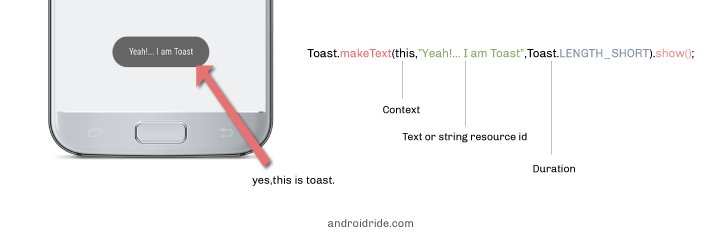
Creating a toast in Android is straightforward. The core method is using the static function `Toast.makeText()`. It requires three parameters: the context, the message text, and the duration. **Simple example:** “`java Toast.makeText(context, “Hello, World!”, Toast.LENGTH_SHORT).show(); “` Here’s what each part does:- context: Usually your activity or application context.
- message: The text displayed in the toast.
- duration: How long the toast stays visible. Use `Toast.LENGTH_SHORT` or `Toast.LENGTH_LONG`.
Customizing the Duration of Toasts
By default, Android provides two durations:- Toast.LENGTH_SHORT: Appears for about 2 seconds.
- Toast.LENGTH_LONG: Lasts around 3.5 seconds.
Creating a Toast with a Custom Layout
Sometimes, you might want your toast to have a unique appearance, such as a different background or font. To do this, you create a custom layout. **Steps to make a custom toast:** 1. Design your custom layout XML (e.g., `custom_toast.xml`): “`xmlUsing Toasts Correctly in Different Android Components
Toasts are most commonly used within activities, but they can also work in fragments or background services. **In an Activity** “`java Toast.makeText(this, “Welcome to the app!”, Toast.LENGTH_SHORT).show(); “` **In a Fragment** “`java Toast.makeText(getContext(), “Fragment loaded!”, Toast.LENGTH_SHORT).show(); “` **In a background thread or service** Always use the main thread’s context to show toasts: “`java new Handler(Looper.getMainLooper()).post(new Runnable() { @Override public void run() { Toast.makeText(getApplicationContext(), “Background process done”, Toast.LENGTH_SHORT).show(); } }); “` **Important tip:** Never forget to run toast code on the main thread to avoid errors or crashes.Best Practices When Using Toasts in Android
Using toasts effectively requires some best practices. Here are some tips:- Limit frequency: Don’t spam toasts; too many can annoy users.
- Be concise: Keep messages short and meaningful.
- Avoid blocking interactions: Do not use toasts for critical alerts that require user action.
- Use custom styles carefully: When customizing, ensure readability and accessibility.
- Consider alternatives: For persistent or more informative messages, use snackbars or dialogs instead.
Troubleshooting Common Issues with Toasts
While creating toasts is simple, certain problems can crop up: **Issue:** Toasts don’t display or appear delayed. **Solutions:**- Ensure you call `.show()` after creating your toast.
- Use the correct context, especially when in fragments or services.
- Make sure the activity or app isn’t paused or destroyed when showing a toast.
- Verify your layout XML is correctly formatted.
- Inflate the layout correctly using `LayoutInflater`.
- Set the custom view to the toast object before calling `.show()`.
Summary of Key Takeaways
– Use `Toast.makeText()` to create simple toasts with message, context, and duration. – Call `.show()` after creating a toast to make it visible. – Customize toasts by creating custom layouts and inflating views. – Use toast wisely: avoid overuse or creating distracting notifications. – Always run toast code on the main thread, especially from background processes. – Remember that toasts are not suitable for critical alerts or user input. Understanding how to make toast in Android allows you to communicate effectively with users without interrupting their experience. Practice customizing toasts to match your app’s style, and keep user feedback concise and friendly. These small messages, when used correctly, enhance the overall quality of your application and keep your users informed in a non-intrusive way.Frequently Asked Questions
How do I display a toast message in my Android app?
To display a toast message, call the static method `Toast.makeText()` with the application context, the message you want to show, and the duration (either `Toast.LENGTH_SHORT` or `Toast.LENGTH_LONG`). Then, invoke the `.show()` method on the Toast object. For example: `Toast.makeText(context, “Hello, World!”, Toast.LENGTH_SHORT).show();`.
Can I customize the appearance of a toast in Android?
Yes, you can customize a toast by creating a custom layout. Inflate a layout XML file that defines your desired appearance, set its properties as needed, and then set this view to a new Toast object using `setView()`. Finally, call `.show()` to display the customized toast. This approach allows you to include images, styled text, and complex layouts.
How can I make a toast appear for a longer duration?
Android provides only two duration options: `Toast.LENGTH_SHORT` and `Toast.LENGTH_LONG`. If you need a toast to stay visible longer, consider creating a custom toast with a custom view and manage its visibility with a handler or timer to dismiss it after a set period. Alternatively, you can use Snackbar for more flexible, persistent messages.
Is it possible to show multiple toasts sequentially without overlapping?
To prevent multiple toasts from overlapping, cancel any existing toast before showing a new one. You can keep a reference to the current toast and call `.cancel()` on it before creating and displaying a new toast. This approach ensures that only one toast appears at a time, avoiding clutter.
How do I show a toast message in response to a user action, like a button click?
Set an `OnClickListener` on the button, and within its `onClick()` method, create and display a toast using `Toast.makeText()`. For example, when the button is pressed, call `Toast.makeText(context, “Button clicked!”, Toast.LENGTH_SHORT).show();`. This provides immediate feedback to user interactions.
Final Thoughts
To make toast in Android, start by creating a simple Toast object and setting its message. Use the `Toast.makeText()` method with context, message, and duration. Call `.show()` to display the toast on the screen. You can customize your toast by adjusting its position or appearance for better user experience. Remember, understanding these basic steps helps you communicate quickly within your app. In conclusion, knowing how to make toast in Android ensures smooth user interactions. By applying these simple techniques, you enhance your app’s usability efficiently.
Similar Posts































