How To Keep An Android App Always Running Effectively
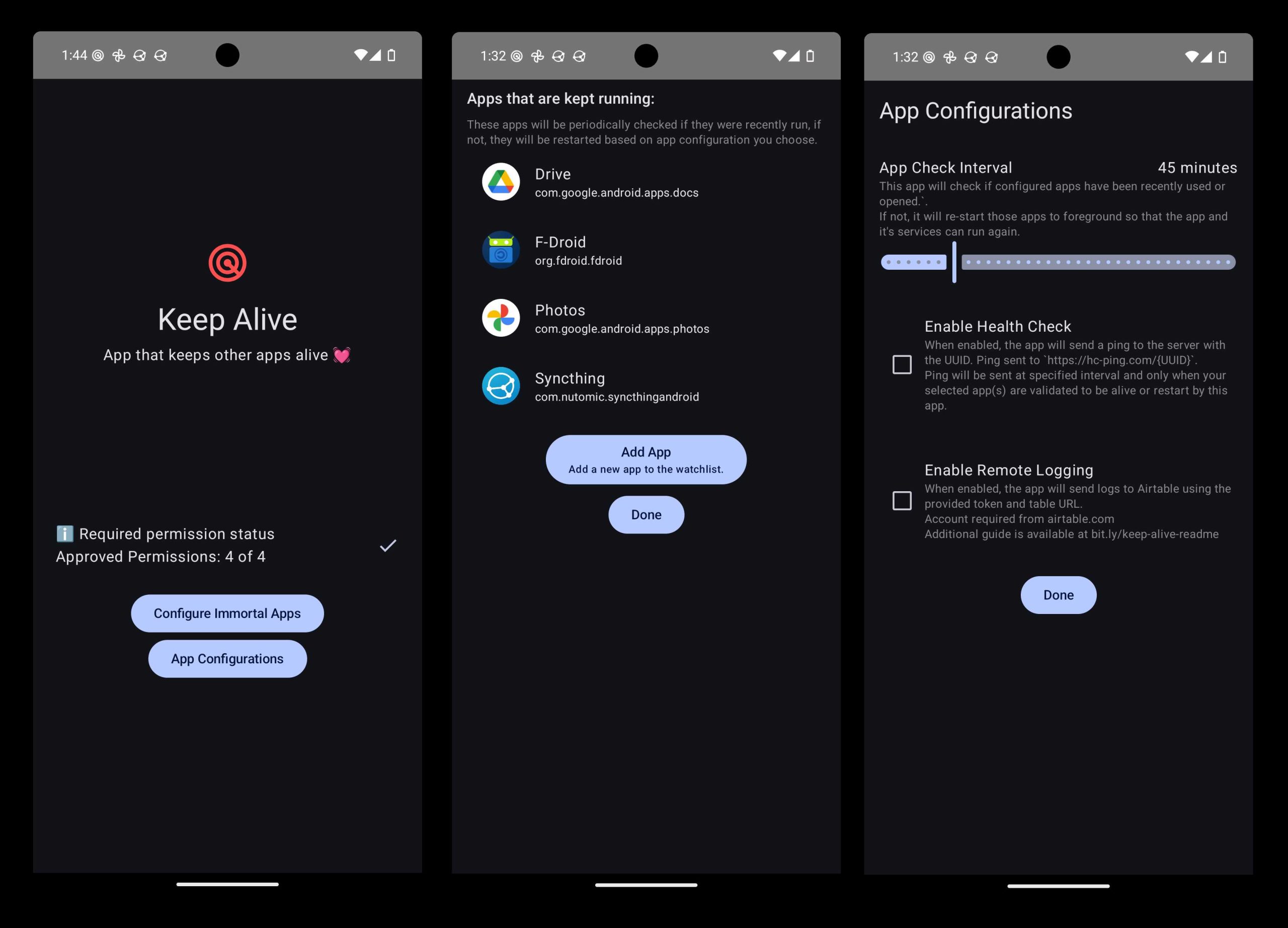

How to Keep an Android App Always Running
Many Android users want their apps to stay active at all times. Whether it’s for tracking fitness, monitoring security cameras, or running background services, keeping an app always running is essential. This section explains the core methods and considerations for achieving this goal effectively.
Understanding Android’s Background Limitations
Android has strict rules to save battery life and improve performance. It limits background activities, which can stop apps from running indefinitely. Knowing these constraints helps you plan better to keep your app active.
Android versions evolve, and each introduces new restrictions. For example, Android 8.0 Oreo introduced limitations on background services. However, developers can still find ways to work within these rules or request special permissions.
Using Foreground Services for Persistent Operations
One of the most reliable ways to keep an app running is by starting a foreground service. These services display a persistent notification, making them less likely to be killed by the system.
To implement this, create a service with the ‘startForeground()’ method. This technique signals to Android that your app needs to stay active, even when the user isn’t actively interacting with it.
Steps to Start a Foreground Service
- Create a service class extending ‘Service’.
- Build a notification channel and a notification object.
- Call ‘startForeground()’ with the notification in the service’s ‘onCreate()’ or ‘onStartCommand()’ method.
- Ensure proper permissions are set in your manifest, such as ‘FOREGROUND_SERVICE’.
This approach effectively keeps your app active, but it should be used responsibly to avoid draining the user’s battery.
Implementing Wake Locks to Prevent Sleep Mode
Wake locks are another tool to ensure your app stays active, even when the device enters sleep mode. They prevent the CPU, screen, or Wi-Fi from turning off unexpectedly.
Using wake locks involves acquiring and releasing them cautiously. Holding a wake lock continuously can drain the battery, so it’s crucial to release it as soon as your app no longer needs to stay awake.
Types of Wake Locks
- Partial Wake Lock: Keeps CPU on, allowing background tasks to run.
- Screen Bright Wake Lock: Keeps the screen bright but can be power-consuming.
- Full Wake Lock: Keeps the screen and CPU on.
Best Practices for Using Wake Locks
- Request wake locks only when necessary.
- Release wake locks as soon as tasks complete.
- Use the ‘PowerManager’ class to manage wake locks effectively.
Optimizing App Lifecycle for Continuous Operation
Properly managing app lifecycle events ensures your app remains active and responsive. For example, handling ‘onStart()’, ‘onResume()’, and ‘onStop()’ appropriately helps maintain background processes.
Implement background tasks with ‘WorkManager’ or ‘JobScheduler’ for reliability. These APIs schedule tasks that can run periodically or under specific conditions, even if the app isn’t active.
Using WorkManager for Reliable Background Tasks
‘WorkManager’ ensures tasks are executed reliably across different Android versions. It adapts to constraints and system restrictions, making it a good choice for continuous operations.
| Feature | Benefit |
|---|---|
| Periodic Work | Runs tasks at regular intervals |
| Chained Tasks | Sequences multiple tasks efficiently |
| Constraints | Runs only under specified conditions, like network availability |
Handling Doze Mode and App Standby
Starting with Android 6.0 Marshmallow, Doze mode conserves battery by restricting background activity. To keep your app running, you must work around these restrictions carefully.
Requesting whitelisting for Doze mode allows your app to run during Doze. Use ‘PowerManager.isIgnoringBatteryOptimizations()’ to check, and prompt the user to grant permission if necessary.
Strategies to Address Doze Mode Challenges
- Register your app for ‘PARTIAL_WAKE_LOCK’ to keep CPU awake.
- Schedule background tasks with ‘WorkManager’ respecting Doze constraints.
- Prompt users to exempt your app from battery optimizations when justified.
Utilizing AlarmManager for Periodic Wake-Ups
‘AlarmManager’ can wake your app at specified times, even when the device is idle. Combining it with wake locks can help keep your app in sync without draining battery excessively.
Set repeating alarms with ‘setExactAndAllowWhileIdle’ for precise timing. Remember to cancel alarms when no longer needed to conserve resources.
Monitoring and Managing Resource Usage
Keeping an app always running can impact device performance and battery life. Monitoring resource consumption helps balance persistence with efficiency.
Use Android’s ‘Battery Historian’ or ‘Profiler’ tools to analyze your app’s power use. Optimize background tasks to run only when necessary and release resources promptly.
Legal and Ethical Considerations
Always inform users about background activity and obtain permissions. Respect user privacy and avoid unnecessary battery drain. Ethical app design improves user trust and compliance with app store policies.
Clearly state your app’s background functionalities in the privacy policy and provide options to disable background operations if users prefer.
Additional Tips for Keeping Your Android App Always Running
- Test your app across different devices and Android versions for compatibility.
- Implement fallback mechanisms if a method to keep the app running fails.
- Stay updated with Android’s evolving restrictions and best practices.
Combining techniques like foreground services, wake locks, and careful resource management ensures your app remains active without causing excessive battery consumption. Remember, balancing persistence with user experience is key to success.
How to Keep Android Apps Running in the Background (No Closing) | [background apps auto close]
Frequently Asked Questions
How can I prevent my Android app from closing automatically when the device is idle?
To prevent your app from closing when the device is idle, you can set the wake lock feature within your app. This keeps the CPU running, ensuring your app continues to operate. Implement a partial wake lock using the PowerManager class, and release it appropriately when your app no longer needs to stay active. Also, avoid relying solely on background services that may get terminated by the system to conserve resources.
What settings can I adjust to keep my app active in the background?
Adjust your device’s battery optimization settings to exclude your app from aggressive management. Navigate to Settings > Battery > Battery Optimization, and find your app in the list. Select ‘Don’t optimize’ to allow your app to run background processes consistently. Additionally, enabling ‘Background activity’ permissions for your app helps maintain its operation in the background.
Are there specific Android components I should use to keep an app running continuously?
Yes, employing foreground services can help keep your app running without interruption. Foreground services display a persistent notification, signaling to users that your app is active. This method minimizes the chances of the system terminating your app during resource constraints, ensuring continuous operation for tasks like tracking or real-time updates.
How does implementing background fetch or periodic tasks assist in keeping an app always active?
Using background fetch or scheduled jobs allows your app to run tasks at specified intervals, maintaining its activity without user interaction. Android’s JobScheduler or WorkManager APIs enable you to schedule these tasks efficiently. They help your app perform necessary functions consistently, even if the user isn’t actively engaging with it.
What precautions should I take to ensure my app remains active without draining the device’s battery excessively?
Balance keeping your app active with conserving battery life by optimizing background operations. Use efficient algorithms, schedule tasks during periods of device idle, and minimize the frequency of updates. Additionally, monitor your app’s power consumption and inform users when your app requires extended background activity, so they can adjust permissions or settings accordingly.
Final Thoughts
Pour que votre application Android reste toujours active, utilisez des services en arrière-plan qui s’exécutent indépendamment de l’interface utilisateur. Configurez des notifications pour maintenir l’application en vie et évitez qu’elle soit tuée par le système d’exploitation. Implémentez également des WakeLocks pour garantir que votre application reste active même lorsque l’écran est éteint. En suivant ces stratégies, vous pouvez assurer que votre app fonctionne constamment. En résumé, pour que votre application Android fonctionne toujours, il est essentiel d’optimiser la gestion des services et des ressources système.
Similar Posts































