How to get YouTube floating window on Android?
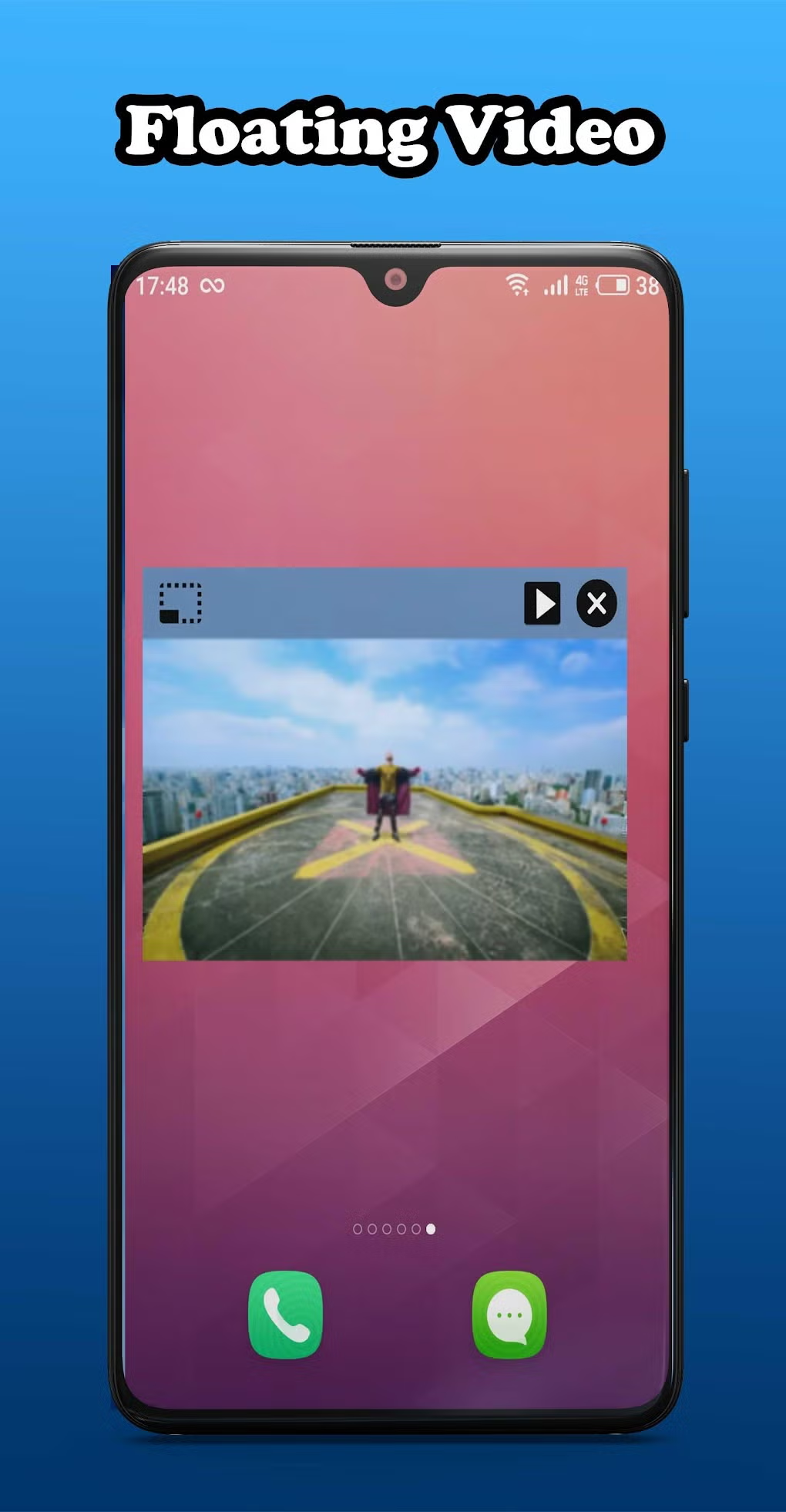
You just want to watch a video and reply to a message. That’s the most natural multitask in the world. But YouTube stops playing the moment you leave the app.
"How to get YouTube floating window on Android?" is the exact question we are answering. The answer is simpler than you think, but it depends entirely on your setup.
As of 2026, Android's picture-in-picture (PiP) system has been a standard feature for almost a decade. Yet Google restricts it behind a subscription. We researched the official documentation, the common user workarounds, and the risks involved to give you the clearest path forward.
Let's get your video floating.
Problem / Pain Point – Why Doesn't My YouTube Video Float for Free?
You hit the Home button. The music stops. The video disappears.
It feels like a bug. It is not a bug.
Google wants you to subscribe to YouTube Premium. It costs $13.99 per month. The PiP feature is a key benefit of that subscription.
The official YouTube app checks your account status constantly. If you are not paying, the app shuts down audio and video when it goes into the background.
This is a deliberate design choice. Do not waste time digging through settings looking for a hidden toggle. You will not find one for free accounts.
The solution lies outside the official app.
Quick Answer / Key Insight – Here's the One Thing You Need to Know First
YouTube blocks its floating window for free users.
You need YouTube Premium for the official feature.
If you are not paying, use a browser trick.
Open Chrome. Go to YouTube. Request the desktop site.
Play any video. Then go home.
It will float in a corner of your screen.
Core Explanation / How Picture-in-Picture Works on Android
Android's Native PiP System (Version 8.0+)
Picture-in-picture is a core Android function. It launched with Android 8.0 Oreo. It lets any app shrink its video player into a small movable window.
The system handles the rendering. The app handles the permission. If an app supports it, you get the button.
YouTube supports PiP. But YouTube also controls the button. The app hides the PiP toggle for non-subscribers.
This is a server-side check. It happens every time you open the app.
How YouTube Treats Free vs. Paid Accounts
When you press Home in the YouTube app, the app sends a signal to Android. For Premium users, the signal triggers the PiP window. For free users, the signal triggers a pause and a close.
This is not a technical limitation. The hardware and software support it. It is a business decision coded into the app.
Decision Branch 1 – Do You Have YouTube Premium?
This is the only fork in the road that matters. Your next step depends entirely on your answer.
Premium Users: Turn on PiP in Two Taps
If you subscribe to YouTube Premium, you are three taps away from floating.
- Open the YouTube app.
- Tap your profile picture. Go to Settings then General.
- Toggle "Picture-in-picture" to on.
That is it. Play a video. Swipe up to go home.
The video will shrink to a small square. You can drag it to any corner. You can tap back to the app to expand it.
This is the smoothest, most reliable method.
Free Users: Your Options (Ranked by Ease)
If you are not paying, you have two real options. The browser trick is the safest and fastest. The third-party app route gives you more features but requires more work.
We break down both methods in the next section. Pick the one that fits your technical comfort level.
Step-by-Step Process – Free User Workarounds
Let's get into the actual steps. These methods are verified to work on Android 12 through 14 as of early 2026.
The Browser Trick (Chrome, Firefox, or Kiwi)
This is the simplest workaround. You do not install anything. You use the web browser you already have.
The trick is to force YouTube to load its desktop version. The desktop site uses the standard HTML5 video player. Your Android phone treats this video player like any other media file.
It offers the PiP button automatically.
Steps in Chrome:
- Open the Chrome app.
- Go to youtube.com.
- Tap the three-dot menu in the top right corner.
- Check the box that says "Desktop site".
- Find a video and tap to play it.
- Now tap the Home button or swipe up.

The video should shrink into a floating window. You can drag it around. You can resize it by pinching.
It works perfectly for music, podcasts, and tutorials.
Why does this work? The desktop version of YouTube loads a standard HTML5 video player. Android treats this like any other video.
It offers the PiP button. This works for free users because it is not the YouTube app. It is just a website.
Why does it sometimes not work? A common issue is the page not fully loading. Make sure you wait for the entire page to load before pressing Home.
If the video stops, refresh the page and try again. Another issue is the overlay permission.
Using Kiwi Browser:
Kiwi Browser has a built-in "Video pop-up" icon right in the video player. You do not even need to request the desktop site. Just play a video and tap the pop-up icon.
It is the fastest browser method available.
Some users prefer Firefox over Chrome for this. Firefox allows you to set it to always request the desktop site for YouTube. You can configure this in the site permissions settings.
This saves you a tap each time.
Granting Overlay Permissions:
For the browser trick to work, your browser needs permission to draw over other apps. Android calls this "Display over other apps".
Go to Settings > Apps > [Your Browser] > Advanced > Display over other apps. Toggle it on. If this permission is off, the video might just stop when you try to leave the browser.

The Third-Party App Route (NewPipe, ReVanced)
This path gives you a dedicated app experience similar to YouTube Premium. But it comes with caveats.
NewPipe:
This is an open-source YouTube frontend. It is available on GitHub and F-Droid. It has zero ads.
It has a built-in PiP mode. It also supports background playback.
How to set it up:
- Download the NewPipe APK from the official F-Droid or GitHub page.
- Open it. (You may need to enable "Install from unknown sources" in your settings).
- Search for a video and play it.
- Tap the PiP icon in the video player.
That is it. It works out of the box. It does not require a Google account.
The downside is that the user interface is basic. Some features like comments are read-only.
NewPipe is extremely lightweight. It does not use Google Play Services. This means it updates independently.
However, it also means you need to download the APK manually.
ReVanced:
ReVanced is a patcher for the official YouTube app. It modifies the app to unlock all Premium features, including PiP.
Setting it up is complex. You need to download the official YouTube APK from a trusted source. Then you use the ReVanced Manager to apply patches.
The result is an app that looks exactly like YouTube but with PiP and no ads.
The installation process uses a manager app. You provide the official YouTube APK. The manager patches it.
The whole process takes about 10 minutes.
Security considerations: Only download from official GitHub repositories or the F-Droid store. These sources have verified code. Do not download modified APKs from random websites.
These can contain malware.
Warning: ReVanced depends on the exact version of the YouTube app. If Google updates the app, your patched version might break. You will need to patch a new version.
This is an ongoing maintenance task.
Samsung Users: Built-in Pop-up View Alternative
If you own a Galaxy phone, you have a secret weapon. Samsung's One UI skin includes a feature called "Pop-up view". It works for any app, including the official YouTube app.
The gesture is simple. Swipe diagonally from the top right corner of the YouTube app window. The entire app will shrink into a floating window.
It stays in the foreground. You can use other apps underneath it.
This is different from PiP. Pop-up view shows the full YouTube interface in a small window. You can still see the comments, the description, and the play queue.
It is very powerful for multitaskers.
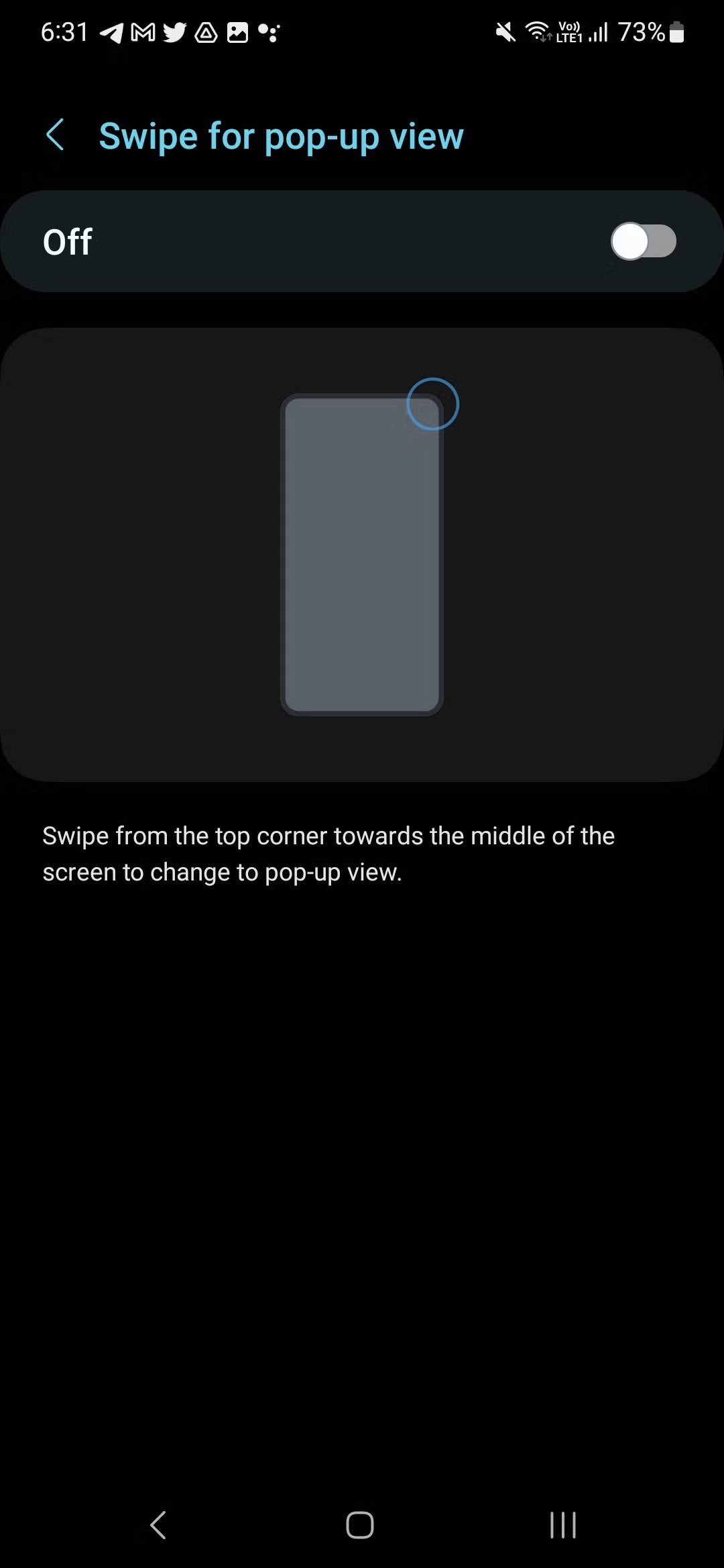
This method works even for free YouTube users. It does not require Premium. It is a system-level feature of your Samsung phone.
If you have a Galaxy, this is the first method you should try.
Mistakes to Avoid / Common Errors – Why Your PiP Isn't Working
A floating window that refuses to show up is frustrating. Almost every time, the cause is one of three things. Let's run through them.
You Didn't Enable Overlay Permission
This is the number one reason the browser trick fails. Android blocks apps from drawing over other apps by default. If the browser cannot draw over your screen, the video just dies when you leave.
Go to Settings > Apps > Chrome (or your browser) > Advanced > Display over other apps. Flip the switch on. That is all it takes.
If the toggle is off, the video will stop every single time.
Your Android Version is Too Old
Picture-in-picture is a native Android feature. It requires Android 8.0 Oreo or newer. If your phone is stuck on Android 7 or lower, the browser trick will not work.
This is not something you can fix with settings.
Check your Android version in Settings > About phone > Software information. If you are below 8.0, you need a different approach. Third-party floating apps can simulate this feature on older Android versions.
The app "Floating Player" or similar overlay apps might help. But the browser trick will never work without native PiP support.
You Installed a Fake or Malicious App
Searching for "floating YouTube" in the Play Store returns dozens of sketchy apps. Many of them request dangerous permissions. Some of them display full-screen ads.
Others can track your usage.
Only use apps from well-known sources. NewPipe is on F-Droid and GitHub. ReVanced is on GitHub.
Avoid any app that asks for SMS or contact permissions. A video player does not need that.
The Desktop Site Setting Did Not Stick
In Chrome, the "Desktop site" checkbox resets when you close the tab. You have to re-enable it every time you visit YouTube. If the video stops playing when you switch apps, it probably means the page reloaded in mobile mode.
Try using Kiwi Browser instead. It has a permanent desktop site setting. Or use Firefox and set YouTube to always request the desktop version.
Safety / Legal / Compliance – What You Should Know
The methods we covered exist in a legal gray area. Let's be clear about what is at stake.
YouTube's Terms of Service
YouTube's terms explicitly prohibit circumventing their features. Using a third-party app like ReVanced or NewPipe technically violates their terms. Google has the right to suspend or terminate your account.
In practice, Google rarely bans users for using these apps. The risk comes from using your main Google account inside a modified app. If you are worried, use NewPipe without logging in.
That way there is no account to suspend.
Browser tricks are a different story. YouTube cannot stop you from using a website. The desktop site trick exploits a normal browser behavior.
Google does not consider that a violation.
Why Overlay Permissions Can Be Risky
"Display over other apps" is a powerful permission. A malicious app with this permission can show fake login screens. It can record your taps.
It can even execute click fraud.
Only grant this permission to apps you trust absolutely. Chrome, Firefox, and Kiwi are safe. NewPipe and ReVanced are safe.
A random "floating video app" from the Play Store with 10,000 downloads is not safe.
The Maintenance Burden
ReVanced requires you to patch the app again when YouTube updates. NewPipe updates independently but occasionally breaks when YouTube changes its API. Neither method is a set-and-forget solution.
If you want zero maintenance, pay for YouTube Premium. If you are comfortable tinkering, the free methods work well.
Frequently Asked Questions
Does the browser trick still work on Android 14?
Yes. The desktop site trick works on every version of Android that supports native PiP, which is Android 8.0 and above. As of 2026, it works on Android 14 and the Android 15 beta.
How do I get YouTube PiP without Premium in 2025?
Use the Chrome browser trick. Open YouTube in Chrome, enable Desktop site, play a video, then press Home. The video will shrink to a floating window.
If it does not, check your overlay permission in Settings.
Is ReVanced safe to install?
ReVanced is safe if you download it from the official GitHub repository. The source code is open and auditable. Do not download pre-patched APKs from random websites.
Those files can contain malware.
Will Samsung Pop-up View work on any Galaxy phone?
Samsung Pop-up view is available on most Galaxy phones running One UI 3.0 or newer. The gesture is a diagonal swipe from the top corner of the app. It works for the YouTube app even without Premium.
Why does my floating video stop when I lock the screen?
This happens because the browser trick only keeps the video running in a window, not in the background. If you lock the screen, the browser pauses the tab. Use NewPipe or ReVanced for true background playback with the screen off.
Decision Guide – Which Method Should You Use?
You now have four real options. Here is how to pick the right one for your situation.
Best for Simplicity (Premium Users)
Pay for YouTube Premium. Turn on PiP in Settings. It works every time.
No effort required besides the subscription.
Best for Free and Reliable (Browser Trick)
Use Chrome or Kiwi with the desktop site trick. It takes five seconds. It is safe.
It does not require an account. The only downside is that the screen must stay on.
Best for Full Features (Third-Party Apps)
Use NewPipe or ReVanced. You get background playback, no ads, and PiP. The tradeoff is setup time and maintenance.
NewPipe is simpler to install. ReVanced looks more like the real app.
Best for Samsung Users (Pop-up View)
If you have a Galaxy phone, use the Pop-up view gesture. It works on the official YouTube app. It does not require Premium.
It does not require any setup.
Our bottom line: Start with the browser trick. It takes thirty seconds. If that works, you are done.
If you need background playback with the screen off, install NewPipe. If you want the full Premium experience for free, ReVanced is your best bet. If you own a Samsung, try the gesture first.
A floating YouTube window on Android is completely achievable without paying. Pick your path and enjoy the multitasking.

Similar Posts