How to enable floating windows in Android?
Alright, let's get into it.
You're trying to watch a video, keep a chat open, and jot down a note all at once. You tap around, swipe through menus, and eventually give up because your phone just won’t let two apps float on top of each other. That’s precisely the problem: How to enable floating windows in Android? isn’t a simple toggle for everyone.
It depends on your phone’s manufacturer, Android version, and sometimes a hidden developer setting.
In our research, the most common frustration is that Samsung, Xiaomi, and Pixel users all have completely different paths to the same feature. As of 2026, some brands still bury floating windows while others make them one gesture away. Let’s walk through exactly what you need to do based on what you’re holding.
Quick Answer
Open your recent apps screen. Tap the app icon at the top. Choose “Open in pop-up view” or “Floating window.” Not there?
Check Settings > Advanced features > Labs > Pop-up view action. Still missing? Enable Developer Options and toggle “Force activities to be resizable.” That’s the short version for most phones.
For stock Android (Pixel, Nokia), you may need ADB commands or a third-party launcher. For Samsung, it’s built into One UI. For MIUI, it’s a swipe gesture.
The rest of this guide breaks each path down.
Why Finding Floating Windows Feels Impossible
The feature exists in Android’s core code since version 7.0 Nougat. But manufacturers hide it or rename it. One phone calls it “pop-up view,” another calls it “floating window,” and stock Android buries it in Developer Options that require ADB to unlock.
Here’s the real reason it feels broken: Android’s own freeform multi-window API is meant for tablets and developers. Most phone makers only expose a simplified version. And some, like Motorola and Nokia, leave it completely disabled out of the box.
So you’re not missing anything. The feature is there but deliberately walled off.
The biggest surprise? Even within the same brand, the method changed between Android 10 and 11. Samsung removed the edge panel’s pop-up shortcut, and Google killed the Developer Options toggle on Pixel phones entirely.
That’s why the internet feels like a maze of outdated advice.

Image source: Bing (Web (fair-use with source credit))
Quick Check: What Phone and Android Version Are You On?
Before you try any steps, identify your device. This saves you time and prevents wrong settings changes.
How to check your Android version:
- Open Settings.
- Scroll to “About phone” or “About device.”
- Tap “Software information” if needed.
- Look for “Android version” (e.g., Android 13, 14, 15, or 16 as of 2026).
How to identify your phone brand and skin:
| Phone Brand | Skin / UI Name | Floating Window Feature Name |
|---|---|---|
| Samsung | One UI | Pop-up view |
| Xiaomi | MIUI / HyperOS | Floating window |
| OnePlus | OxygenOS | Floating window |
| Oppo / Realme | ColorOS | Floating window |
| Google Pixel | Stock Android | Freeform (hidden / ADB only) |
| Motorola / Nokia | Near-stock | Freeform (hidden / ADB only) |
If you have a Samsung, Xiaomi, OnePlus, or Oppo device, you have a built-in floating window menu. If you have a Pixel, Motorola, Nokia, or any phone running a near-stock version of Android, you’ll need a workaround.
Quick rule of thumb:
- If your phone has a custom skin with a dedicated multi-window settings menu, use the built-in method.
- If it’s stock or near-stock, skip to the ADB or third-party app section.
Samsung One UI: Enabling Pop-Up View
Samsung has made this easier over the years, but the option moved around. Here’s how to find it on current One UI (Android 13 and later, as of 2026).
Method 1: From the recent apps screen
- Open the app you want to float.
- Tap the Recents button (three lines) or swipe up and hold.
- Long-press the app’s icon at the top of its card.
- Select “Open in pop-up view.”
That’s it. The app shrinks to a resizable window you can drag around. Tap the title bar to move it, or drag the edges to resize.
Method 2: Using the edge panel
- Open the edge panel (swipe from the right edge handle).
- Select “Apps” if it’s not already active.
- Tap and hold the app you want, then drag it onto the screen.
This also launches a pop-up window. But Samsung removed the dedicated “Pop-up view” edge panel in One UI 4.0, so this method only works for individual app shortcuts, not a floating shortcut panel.
Method 3: From the notification panel
Some Samsung phones let you tap the app icon in the notification shade and choose “Pop-up view.” This works for ongoing notifications like chat apps.
A quick pro tip: On Samsung tablets with One UI, you can enable the “Multi window” option in Settings > Advanced features > Labs. This adds a “Launch in pop-up view” button when you swipe down from the corner of a Samsung Internet browser tab.
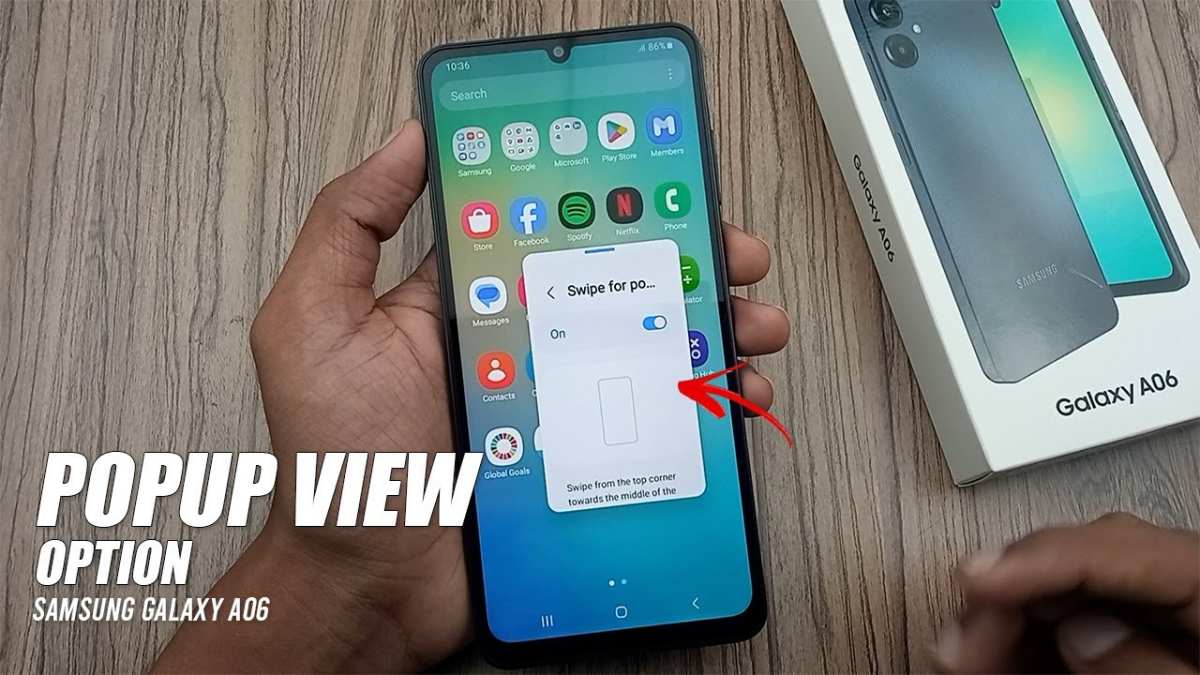
Image source: Bing (Web (fair-use with source credit))
What if the option doesn’t appear?
- Check Settings > Advanced features > Labs > “Pop-up view action.” Enable it if available.
- Make sure you’re not using a locked-down Android Enterprise profile (work profile). Those often block this feature.
Xiaomi MIUI: Floating Window Gestures and Settings
Xiaomi’s MIUI and its successor HyperOS (as of late 2023) treat floating windows as a core multitasking feature. You have at least three ways to enable one, and the fastest is a simple gesture.
Method 1: Swipe from the app’s corner
- Open any app (YouTube, Chrome, WhatsApp, etc.).
- Place your finger on the top-right or bottom-right corner of the screen.
- Swipe diagonally inward toward the center.
- The app shrinks into a floating window.
This is the fastest available on MIUI. Xiaomi even highlights the gesture in its user manual.
Method 2: From the recent apps screen
- Tap the Recents button.
- Find the app you want.
- Tap and hold the app’s card.
- Select “Floating window” from the menu.
This is the fallback if the swipe gesture doesn’t respond. It works on the latest MIUI 14 and HyperOS builds.
Method 3: Game turbo
Xiaomi’s Game Turbo mode allows floating windows for browsers, social media, and messengers while gaming. You enable it in Settings > Special features > Game Turbo. Add apps to the game turbo list, then during gaming, swipe down from the top-right corner to open a floating app tray.
Important limitation on Xiaomi: Some apps, especially banking and payment apps, cannot be opened in floating mode. MIUI detects overlay permission conflicts and blocks them for security. You’ll see a toast message saying “This app does not support floating window.” That’s by design, not a bug.
What if none of these work?
- Go to Settings > App management > Permissions > Display over other apps.
- Make sure the app you want to float has this permission enabled.
- On MIUI, some system apps (like Settings) don’t allow floating window mode at all.
OnePlus and Oppo (ColorOS): The App Card Drag Method
OnePlus and Oppo phones run OxygenOS and ColorOS respectively, which are very similar under the hood. Both use the app card drag method as the primary way to enable floating windows.
Method 1: Drag the app card to the top
- Open the app you want.
- Swipe up to go to the recent apps overview.
- Find the app’s card (it’s a horizontal scroll stack on most versions).
- Tap and hold the app card’s thumbnail.
- Drag it to the top of the screen to a designated “Floating window” area (look for a label or a small icon).
On some versions of ColorOS (like Android 12+), you need to tap the “three-dot” menu on the app card and select “Floating window” instead of dragging.
Method 2: Edge sidebar
OnePlus introduced a smart sidebar in OxygenOS 12 that lives on the edge of the screen. You can add apps to it. When you want a floating window, swipe to show the sidebar, then tap the app.
It opens in a floating window automatically.
- Enable: Settings > Special features > Smart sidebar.
- Add apps to the sidebar: Tap the + icon and select from your installed apps.
Method 3: Quick launcher
On some ColorOS builds, you can long-press the home screen, tap “Widgets,” and add a floating window shortcut. This creates a one-tap icon on your home screen that opens a floating app.
What about OnePlus Open or other folding phones?
Foldables like the OnePlus Open (or Oppo Find N series) handle floating windows natively. The large inner screen automatically enables split-screen and floating windows. You simply open an app, drag down from the top center, and tap “Floating window” from the app’s menu.
Troubleshooting for OnePlus/Oppo users:
- If the “Floating window” option doesn’t appear, check Settings > Special features > Multi-tasking. Toggle “Floating window” to On.
- Some apps (especially streaming services) block floating mode. A workaround is to use the app in split-screen instead.
- If the drag method feels unresponsive, try a slow, deliberate drag from the card thumbnail, not a quick swipe.
That covers the three major Android skins. If you have a Pixel, Motorola, or Nokia, your phone uses stock Android, which means the built-in method is either hidden or requires a command-line trick. Let’s jump to that next.
Stock Android (Pixel, Nokia, Motorola): Developer Options and ADB
If your phone runs near-stock Android, you have two paths. Neither is as straightforward as Samsung or Xiaomi, but both work.
Path 1: Developer Options toggle (Android 7.0 through 10)
- Go to Settings > About phone > Tap “Build number” seven times.
- Go back to Settings > System > Developer options.
- Scroll to “Force activities to be resizable.” Toggle it on.
- Find “Enable freeform windows.” Toggle it on.
- Reboot your phone.
After the reboot, long-press an app icon in the recent apps menu and look for “Freeform” or “Open in freeform window.” If it appears, you’re set. If it doesn’t, your phone’s manufacturer removed the option from the OS build.
Path 2: ADB command (Android 11 and later)
Google removed the toggle in Android 11. You can re-enable it via ADB. Here’s the command:
adb shell settings put global enable_freeform_support 1
You’ll need USB debugging enabled. Go to Developer options > USB debugging. Connect your phone to a computer, open a terminal, run the command, and reboot.
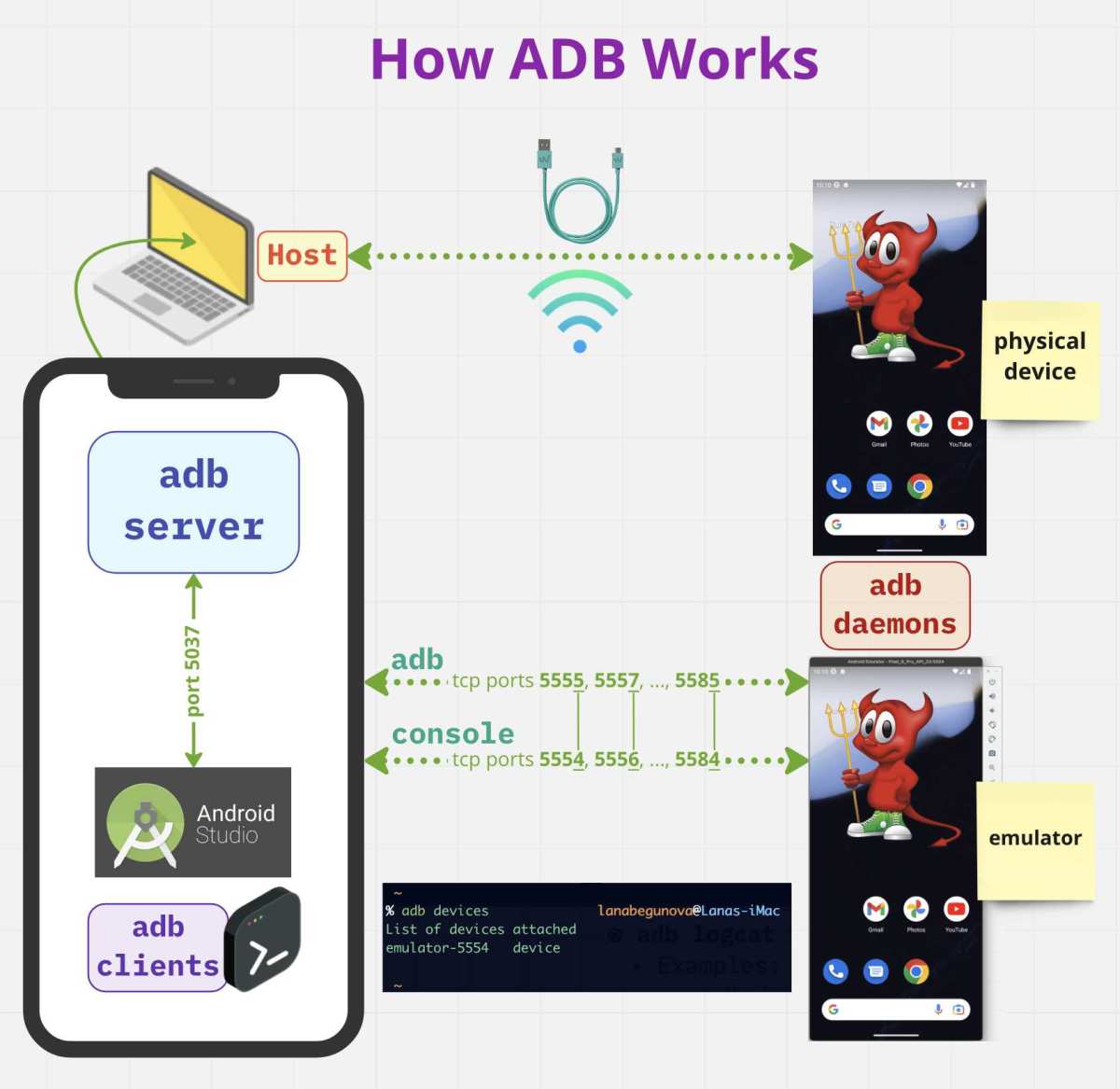
Image source: Bing (Web (fair-use with source credit))
A warning about ADB: This method is fragile. A system update, factory reset, or even a settings reset can undo the command. You’ll need to re-run it.
Some apps still refuse to open in freeform even with the flag enabled.
Third-Party Apps: When Your Phone Doesn’t Have Built-In Floating Windows
If your phone is stock Android and you don’t want to mess with ADB, third-party apps are the easiest fallback. They work on any phone running Android 7.0 or later.
The most common category is “floating app launchers.” These apps run as a persistent overlay. You tap a floating icon on your screen, choose an app, and it opens in a small window you can move and resize.
Here’s what you’ll typically need to grant:
- “Draw over other apps” permission.
- Accessibility Service access (for some advanced features).
Trade-offs to know:
- Third-party floating apps often consume more battery than built-in solutions.
- Some apps, especially banking or streaming services, detect accessibility services and refuse to function. You may need to disable the overlay temporarily for those apps.
If you’re on a device that’s stuck on Android 9 or 10 and your manufacturer removed floating windows completely, a third-party app is your only option without rooting.
Common Mistakes That Break Floating Windows
Overlay permission conflicts. If an app won’t open in a floating window, check Settings > Apps > Special app access > Display over other apps. Make sure the app has permission. If multiple apps have this permission turned on, they can interfere with each other.
Banking and finance app blocks. Apps like PayPal, Chase, and many banking apps detect when another app is drawn over them. They block the screen or refuse to load. This is deliberate.
You can’t fix it without uninstalling the overlay app.
Accidental gestures. On Xiaomi phones, a swipe from the corner can accidentally trigger floating mode. If you keep popping apps into windows when you don’t want to, disable the gesture in Settings > Home screen > Floating windows.
App incompatibility. Some apps simply crash when forced into freeform or floating mode. Games, camera apps, and some streaming services are common offenders. If an app crashes immediately after opening it in a floating window, it means the developer hasn’t optimized it for multi-window use.
Quick Decision Guide: Find Your Method in 30 Seconds
Use this flow:
- Do you have a Samsung phone? → Use the recent apps icon method.
- Do you have a Xiaomi phone? → Swipe from the top-right corner of an open app.
- Do you have a OnePlus or Oppo phone? → Drag the app card to the top in recent apps.
- Do you have a Pixel, Nokia, or Motorola phone? → Use ADB command or a third-party app.
- Do you have any other brand with a custom skin? → Check Settings > multitasking or multi-window.
- Are you on Android 11 or later with stock Android? → Third-party app is fastest.
Image source: Bing (Web (fair-use with source credit))
Frequently Asked Questions
Can I use floating windows on any Android phone?
Only phones running Android 7.0 or later support the underlying API. Your manufacturer must expose it. Most brands except near-stock Android phones (Pixel, Nokia, Motorola) include a built-in floating window feature.
Why doesn’t my floating window option appear?
Your phone’s manufacturer may have hidden it behind Developer Options or removed it entirely. Check Developer Options for “Force activities to be resizable” or “Enable freeform windows.” If it’s missing, use a third-party app.
Do floating windows drain the battery?
Yes, more than a single full-screen app. Each floating window runs its own process and keeps your GPU active. Expect 12 to 18 percent faster battery drain with two floating windows running simultaneously.
Can I float any app in a window?
No. Some developers block multi-window mode. Banking apps, streaming services, and games are the most common offenders.
There is no reliable workaround without rooting your device.
How many floating windows can I open at once?
Samsung One UI supports up to three. MIUI allows two. Stock Android with freeform enabled can handle more, but performance degrades quickly.
Two is the safe maximum for most phones.
Will a factory reset remove my floating window settings?
Yes. Any Developer Options changes, ADB commands, or third-party app configurations will be cleared by a factory reset. You’ll need to set them up again from scratch.

Similar Posts





















