

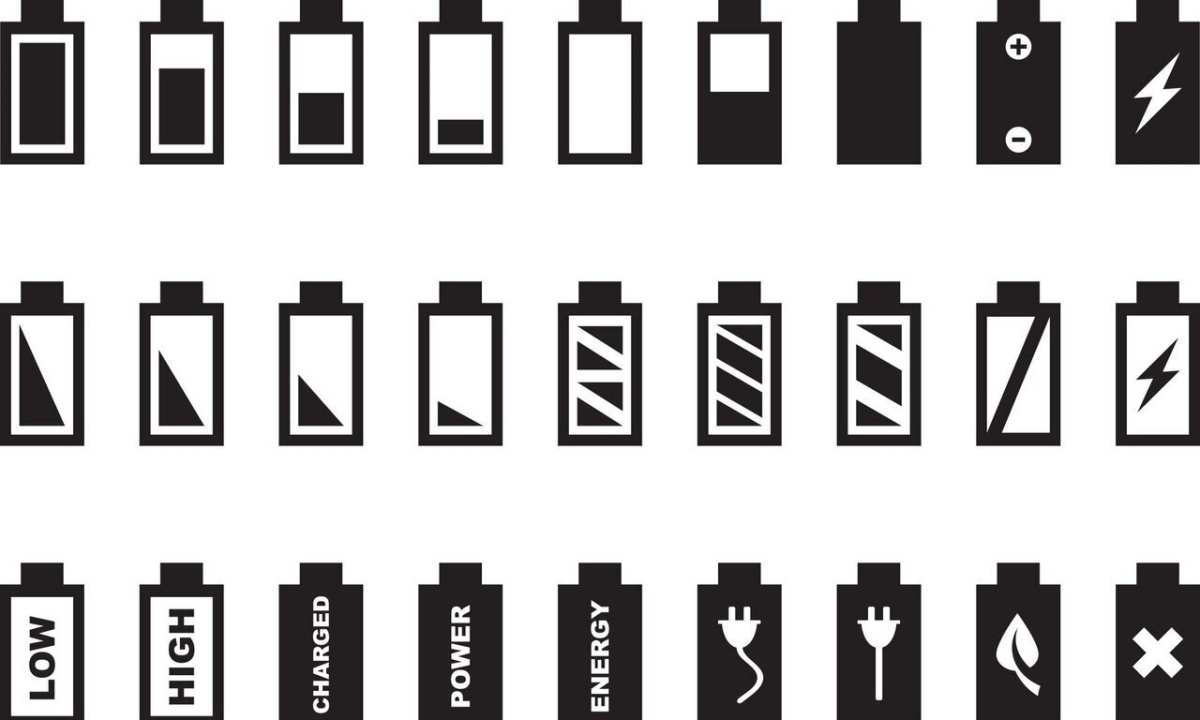
The Android battery symbol provides crucial information about your device’s power status. **If the icon shows a low charge, plugging in your charger quickly will keep your device running smoothly.** Sometimes, the battery symbol changes unexpectedly, causing concern. Understanding what each variation means helps you stay in control of your phone’s battery life and avoid sudden shutdowns. By knowing these symbols, you can manage your device more effectively and prevent inconvenience when you need your phone most.

Understanding the Android Battery Symbol: What It Means and How to Read It
When you look at your Android device, one of the first things you see is the battery symbol. It’s a small icon that shows you how much power your phone or tablet has left. But have you ever wondered what the different battery symbols mean? Or what to do if your battery icon changes to a warning sign? In this article, we’ll explore everything about the Android battery symbol, from what each icon indicates to how you can manage your device’s battery better.
The Basics of the Android Battery Icon
The battery icon is more than just a simple image. It provides vital information and helps you decide when to charge your device. Typically, the icon shows a battery shape filled with color, which indicates how much power remains. Sometimes, the icon also includes additional symbols or colors that give more details.
- Percentage of Battery Remaining: Many Android devices display the exact percentage next to the icon, so you always know how much battery life you have.
- Battery Icon Shape: The shape of the icon can change based on different states, such as charging or low battery.
- Color Indicators: Colors like green, yellow, or red tell you whether the battery is full, medium, or low.
Understanding these basics helps you keep your device running smoothly and avoid unexpected shutdowns.
Different Types of Android Battery Symbols and What They Mean
Your Android phone shows various battery symbols depending on the situation. Here are some common symbols and their meanings:
Battery with a Lightning Bolt
This symbol appears when you connect your device to a charger. It indicates that your phone is charging. The icon may also show a percentage that increases as the battery charges.
Empty Battery Icon
When the icon shows an almost empty battery or a low battery warning, it means your device is running out of power. You should plug it in soon to avoid losing your work or calls.
Battery with a Cross or Slash
Sometimes, you might see a battery icon with a cross or slash through it. This indicates that your device is not charging properly or that there’s a problem with the charging port or cable.
Battery with a Warning Sign
When you see a yellow or orange triangle with an exclamation mark, it signals a warning about your battery’s health or status. It could mean your battery is old or needs replacement.
Charging Icon with a Percentage
Some Android devices show both the charging symbol and the current battery percentage. This helps you monitor the charging process more precisely.
How to Read the Battery Percentage and Icon Effectively
Reading the battery icon alone won’t always tell you everything. Combining it with the percentage display gives you a clear picture of your device’s power level. Here are some tips:
- Always keep an eye on the percentage, especially if you need to use your device for a long time.
- If the icon turns yellow or red, it’s a sign to consider charging soon.
- When the icon shows a lightning bolt, your device is actively charging; the percentage should increase.
- Pay attention to warning signs or special symbols to prevent sudden shutdowns.
Having a good understanding of these indicators helps you plan your device use better and ensures your phone stays powered when you need it most.
Customizing the Battery Icon Display on Android
Most Android devices allow you to personalize how the battery icon appears. Customization options can help you see more detailed information or change the icon style for better visibility.
Adding Battery Percentage to the Status Bar
You can enable the display of the exact battery percentage next to the icon:
- Go to Settings
- Tap on Battery or Battery & Power
- Look for the option to Show Battery Percentage or similar and toggle it on
This feature makes it easier to keep track of your remaining power without guessing based on the icon alone.
Changing the Battery Icon Style
Some Android versions and custom skins let you switch between different styles:
- Circle icon
- Horizontal bar
- Hidden in the quick settings
Explore these options in your device settings to find the style that best suits your preferences.
Troubleshooting Common Battery Icon Issues
Sometimes, the battery icon might act strangely or not update correctly. Here are common problems and solutions:
Battery Icon Not Showing or Updating
This could happen if the system UI is not working properly. Try restarting your device or updating your software.
Incorrect Battery Percentage
If the percentage isn’t accurate, recalibrate your battery:
- Charge your phone to 100%
- Use it until the battery drops to around 5%
- Charge it back to 100% without interruption
This can help the device accurately display battery data.
Battery Status Shows Charging But Battery Isn’t Charging
Check your charging cable and port for damage or debris. Try a different charger if needed.
Battery Warning Signs
If your device shows a warning or the battery drains quickly, consider replacing the battery or consulting a professional.
Tips to Extend Your Android Device’s Battery Life
Managing your battery effectively involves more than just understanding the icon. Here are some simple tips:
- Reduce screen brightness or set it to auto-brightness
- Turn off Wi-Fi, Bluetooth, or GPS when not needed
- Close background apps that you’re not using
- Enable battery saver modes
- Avoid exposing your device to extreme temperatures
- Keep your software updated for optimal battery performance
Applying these habits can add hours to your device’s battery life, preventing unexpected shutdowns and keeping your device ready for use.
Understanding Battery Health and Replacement
Over time, all batteries degrade and hold less charge. Your device might show a full battery icon but still run out quickly. Check your Android’s battery health settings or use third-party apps to assess how healthy your battery is.
- If your battery health is poor, consider replacing it
- Look for authorized service centers for genuine replacements
- Be aware that a worn-out battery can cause the device to overheat or shut down unexpectedly
Maintaining good battery health ensures your device performs well and prolongs its lifespan.
The Android battery symbol is more than just a tiny icon on your screen. It’s a helpful indicator that guides you in managing your device’s power. By understanding what each symbol means, customizing your display, and following simple tips for battery care, you can keep your Android device running longer and more reliably. Whether you see a charging icon, a warning symbol, or a blinking low battery, knowing how to interpret these signs helps you take timely action. Keep an eye on your battery icon, and your device will serve you better each day.
Frequently Asked Questions
Why does my Android battery symbol sometimes appear as a lightning bolt?
The lightning bolt next to the battery icon indicates that your device is charging. When you connect your Android device to a charger, the battery symbol updates to show the charging status with the lightning bolt. Once the device reaches full charge, the icon typically displays a full battery without the lightning bolt. If the lightning bolt appears without charging, ensure your charger and cable are functioning correctly and that there are no issues with the charging port.
What does it mean if my Android battery icon shows a warning sign or an exclamation mark?
A warning sign or exclamation mark on the battery icon signals a potential issue with your device’s battery or charging system. It could mean that the battery is critically low, the charger is not supplying sufficient power, or there are hardware problems. Check your charging accessories and try a different port or cable. If the symbol persists, consider replacing the battery or consulting an authorized service center for further inspection.
How can I tell if my Android’s battery icon is accurately representing the remaining charge?
Your Android device estimates the remaining battery life based on recent usage patterns. To improve accuracy, avoid using your device heavily while charging and ensure the software is up to date. If the battery percentage shown conflicts with the icon’s level, restart your device or recalibrate the battery by fully charging and then discharging it. This process helps the system better gauge the actual battery capacity.
Why does my battery icon change colors, and what do these colors mean?
Color changes in the battery icon often indicate different battery states or health levels. For example, the icon might turn yellow or orange to warn you that the battery is running low. Some devices turn red as a critical alert. In certain cases, the color can also signify battery health, with greener icons indicating a healthy battery and fading or yellowing icons suggesting aging or reduced capacity. Refer to your device’s user manual for specific color codes for your model.
Final Thoughts
The android battery symbol provides quick insights into your device’s power status. Recognizing different icons helps you take timely actions to conserve battery life. Understanding what each symbol means prevents sudden shutdowns and improves device management.
Keeping an eye on this symbol ensures you stay aware of your battery health and avoid unexpected outages. Regularly checking the icon allows you to optimize settings and extend usage.
In conclusion, being familiar with the android battery symbol enhances your control over device performance and battery longevity.
