

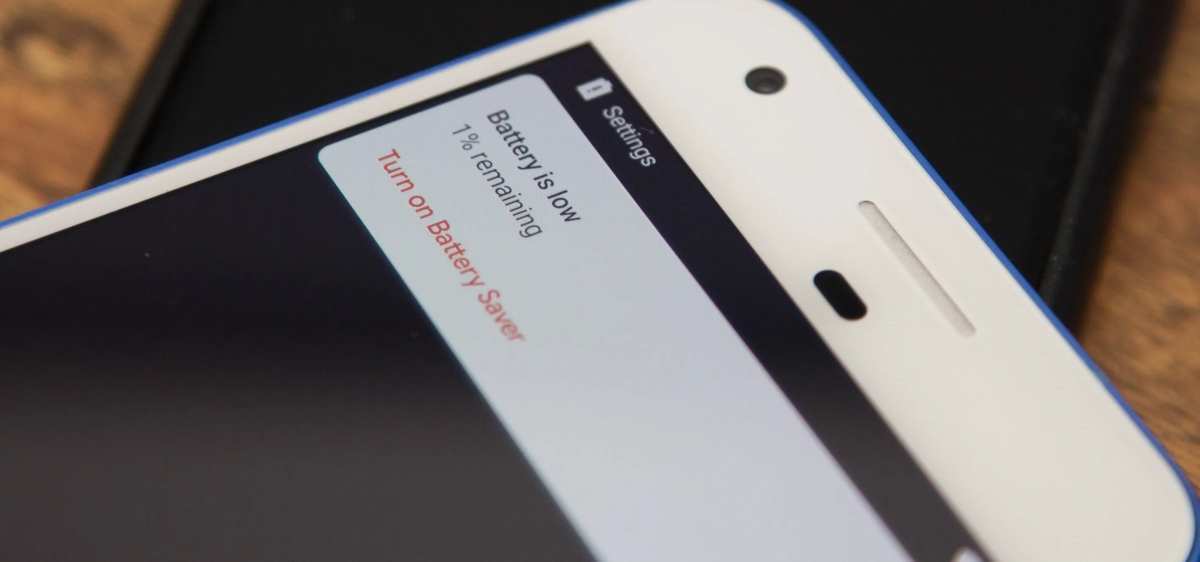
If your phone keeps shutting down unexpectedly, you might need to manage your android battery notification settings. **Turning off unnecessary notifications can help conserve power and reduce distractions.** Android battery notifications alert you when your device runs low, but they can sometimes become overwhelming.
Adjusting these alerts is simple and can extend your device’s battery life. Keep your phone running smoothly without constant interruptions by customizing the notification settings effectively.

Understanding Android Battery Notifications: How They Help You Manage Your Phone’s Power
Managing the battery life of your Android device can sometimes feel like a puzzle. You’re not sure when your battery will run out, or maybe you’re annoyed by constant notifications. But did you know that Android battery notifications are designed to help you stay informed and efficient? In this guide, we’ll explore everything about Android battery notifications — what they are, how they work, and how you can customize them to fit your needs. Whether you’re a new Android user or someone who wants to make the most of your device, this article provides clear and practical advice to improve your experience.
What Are Android Battery Notifications?
Android battery notifications are alerts that your device sends to inform you about your battery’s status. They can notify you when your battery is running low, fully charged, or if there’s a problem draining power unexpectedly. These notifications give you quick insights into your device’s power levels so you can act accordingly, like plugging in your charger or adjusting app usage.
Why are these notifications important? Because they help you:
- Avoid sudden shutdowns caused by drained batteries.
- Save battery life by knowing when to reduce background activity.
- Keep track of your device’s power consumption patterns.
- Receive alerts for potential battery health issues.
Types of Battery Notifications on Android Devices
There are several kinds of notifications related to your battery on Android phones. Each one serves a specific purpose to keep you aware of your device’s power status:
Low Battery Warning
This notification appears when your battery level drops below a certain percentage, often set at 15% or 10%. It encourages you to plug in your device to avoid shutdown, especially when you’re away from a charger.
Battery Fully Charged Alert
Some Android devices notify you once your battery reaches 100%. This helps prevent overcharging, which can sometimes harm the battery’s health over time.
Battery Health Notifications
If your device detects that the battery is aging or not performing well, it may send a warning. This alert indicates that your battery might need replacement or special care.
Power Usage Notifications
These notifications inform you of apps or processes that are consuming a lot of power. They can help you decide which apps to close or limit to save battery.
How Android Devices Generate Battery Notifications
Understanding how your phone decides to send notifications helps you manage them better. Android phones use a combination of software and hardware sensors to monitor battery health and activity.
– **Battery Level Monitoring**: The system constantly checks the percentage of battery remaining.
– **Power Consumption Tracking**: It observes which apps and processes use the most power.
– **Battery Health Checks**: The device assesses the overall health and capacity of the battery periodically.
– **User Settings and Preferences**: Based on your configured preferences, the system will generate notifications at specific thresholds.
When a certain threshold is reached (like low battery), Android triggers a notification. Sometimes, it will also predict if your battery might soon be in trouble based on usage history and send alerts proactively.
Customizing Battery Notifications for Better Control
Android provides options to tailor these notifications to your liking. Customization makes it easier to receive relevant alerts while avoiding unnecessary distractions.
Adjusting Low Battery Warning Thresholds
Most Android devices automatically set the low battery alert at 15%. However, you can tweak this threshold:
- Go to your device’s Settings.
- Select Battery or Battery & Power.
- Look for Battery Saver or Battery Optimization options.
- Find notification or alert settings and adjust the threshold if your device allows.
Note: Not all Android phones have this feature. In some cases, you might need third-party apps to set custom thresholds.
Managing Battery Notifications Through Settings
Most notifications are configurable directly through your device’s settings menu:
- Navigate to Settings > Notifications.
- Find the Battery or Power section.
- Toggle notifications on or off based on your preference.
- Adjust notification styles, sounds, or priority levels.
Using Third-Party Apps for Advanced Notification Management
If you want more control, many apps are available that can help you:
- Create custom notification thresholds beyond default settings.
- Provide detailed reports on power consumption and battery health.
- Offer options to mute or limit specific notifications.
Popular choices include “AccuBattery,” “Battery Widget Reborn,” and “GSam Battery Monitor.” These tools bring more detailed insights and customization features.
Tips for Efficient Battery Usage with Notifications
Knowing how to interpret battery notifications allows you to manage your device’s power effectively:
Respond to Low Battery Alerts Quickly
When you get a low battery notification, try to:
- Save your work or important data.
- Close background apps that are not essential.
- Switch to Battery Saver mode if available.
- Plug your device into a charger if possible.
Use Power Saving Modes Smartly
Most Android devices offer a built-in Power Saving or Battery Saver mode. Activating this mode reduces:
- Screen brightness
- Background activity
- Auto-sync and location services
It helps extend battery life when you’re running low and can’t recharge immediately.
Monitor Power-Hungry Apps and Settings
Regularly check your battery usage:
- Go to Settings > Battery.
- Identify apps that consume the most power.
- Limit background activity for these apps or uninstall if unnecessary.
Keep Your Battery Healthy for Long-Term Use
– Avoid letting your battery fully drain regularly.
– Charge your device before it drops below 20%.
– Use original chargers and cables.
– Avoid exposing your device to excessive heat, which can impact battery performance.
Understanding and Troubleshooting Common Battery Notification Issues
While notifications are helpful, sometimes they can behave unexpectedly. Here’s how to troubleshoot common problems:
No Notifications Showing Up
– Ensure notifications are enabled for the battery app or system.
– Check your device’s Do Not Disturb mode.
– Update your phone’s software to the latest version.
– Restart your device.
Frequent Low Battery Alerts
– This could indicate a failing battery or heavy app usage.
– Review power consumption.
– Consider replacing your battery if it’s old or degraded.
Overly Persistent Notifications
– Some notifications may stick around if not dismissed.
– Clear notifications manually or modify notification settings to limit alerts.
The Future of Battery Notifications on Android
Android continues to evolve, with newer versions offering smarter and more personalized battery notifications. Features like adaptive battery and AI-based power management make notifications more relevant and helpful.
Expected improvements include:
- More precise battery health diagnostics.
- Customizable and context-aware notifications.
- Better integration with device automation tools.
Such innovations will give you even greater control over your device’s power management, helping you keep your phone running longer and more healthily.
Managing your Android device’s battery notifications might seem straightforward at first, but understanding how they work and customizing them offers many benefits. By staying aware of your battery status and adjusting notifications to suit your usage, you can extend your device’s battery life and avoid surprises when you need your phone the most. Keep an eye on your notifications, respond promptly, and you’ll enjoy a smoother, more reliable mobile experience every day.
Frequently Asked Questions
How can I customize the battery notification alerts on my Android device?
To customize battery notification alerts, go to your device’s Settings app and select Battery. Tap on Battery Alerts or Notifications, then choose the types of alerts you want to receive or set specific thresholds. Some Android models also allow you to download third-party apps to further personalize how and when you get notified about your battery status.
What steps should I follow if my Android device isn’t showing battery notifications?
If your device isn’t displaying battery notifications, first ensure that notifications are enabled for the Battery app in your device’s settings. Check the Notification settings to make sure alerts are allowed. Restart your device to refresh system processes, and if needed, update your device’s software to the latest version to fix potential bugs affecting notifications.
Can I set different battery notification levels for specific apps on Android?
On most Android devices, you can’t set individual battery notifications for specific apps unless you use third-party battery management or notification apps. These apps let you customize alerts based on app usage or battery consumption, giving you more control over how and when you get notified about your device’s battery status per app.
Is it possible to disable battery notifications temporarily on Android?
Yes, you can disable battery notifications temporarily by going to your device’s Settings, selecting Notifications, then finding the Battery or Power section. Toggle off the notification options for battery alerts. Remember to re-enable them when you want to start receiving notifications again. Alternatively, you can use Do Not Disturb mode to silence all alerts during certain periods.
Why am I receiving frequent battery notifications even when my battery level isn’t low?
Frequent battery notifications may result from a misconfigured setting, a third-party app, or system glitches. Check your notification settings to ensure alerts aren’t set too aggressively. Also, review recently installed apps that might trigger battery alerts. If the issue persists, performing a system update or resetting app preferences can help resolve the problem.
Final Thoughts
In summary, managing your Android battery notification helps you stay aware of your device’s power status. Proper alerts ensure you don’t run out of battery unexpectedly, saving you from inconvenience. Familiarizing yourself with these notifications makes it easier to optimize your device’s usage. Paying attention to ‘android battery notification’ keeps your phone running smoothly and extends its lifespan effectively.
