

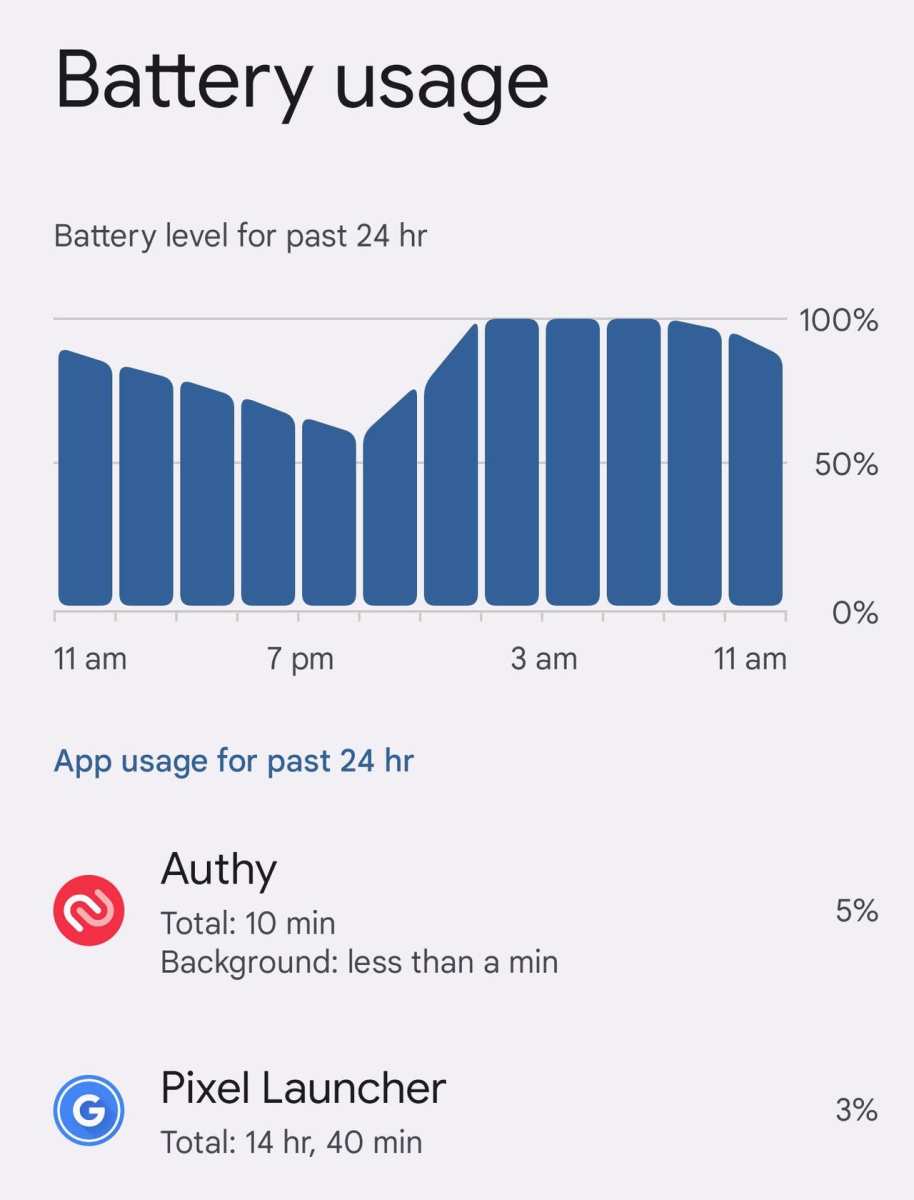
**To optimize your Android battery life, regularly monitor app usage and close apps consuming excessive power.** Many users struggle with battery drain, but managing app activity can make a noticeable difference. Android battery app usage provides detailed insights to help you identify power-hungry applications. Understanding which apps drain your battery allows you to take targeted actions. This simple approach keeps your device running longer without the need for extra batteries or complex tools.

Understanding How to Use Android Battery Apps Effectively
Managing your Android phone’s battery can feel challenging, especially with so many apps competing for power. Thankfully, battery apps can help you monitor, analyze, and improve your device’s battery life. By understanding how to use these apps properly, you can extend your phone’s usage time and keep it running smoothly throughout the day. Let’s explore everything you need to know about Android battery app usage, from choosing the right app to interpreting the data it provides.
What Are Android Battery Apps and Why Are They Important?
Android battery apps are tools designed to give you detailed insights into how your phone consumes power. They go beyond the basic battery indicator found on your device, offering in-depth information about:
- Which apps are using the most battery
- How much charge each app consumes over time
- The health and capacity of your battery
- Suggestions to optimize battery performance
Using a battery app is essential for several reasons:
- Identify power-draining apps that can be closed or restricted
- Understand your charging habits and extend battery lifespan
- Diagnose issues like rapid battery drain or overheating
- Make informed decisions about app usage and settings
Choosing the right app ensures you get accurate data and useful tips, so it’s worth exploring your options carefully.
How to Select the Best Battery App for Your Needs
Not all battery apps are created equal. When looking for a good one, focus on features that suit your usage style and provide reliable data. Here are key aspects to consider:
User Interface and Ease of Use
Choose an app with a simple, clean design that makes it easy to navigate and understand data quickly. If the app has confusing menus or cluttered screens, it might not be the best choice.
Features and Functionality
Look for apps that offer:
- Real-time battery usage charts
- Detailed breakdowns for apps and system processes
- Battery health diagnostics
- Power-saving modes and suggestions
- Notification alerts for high battery consumption
Battery Optimization Capabilities
Some apps can offer actionable recommendations, such as disabling background activity for certain apps, adjusting screen brightness, or turning off unused features.
Compatibility and Updates
Ensure your chosen app is compatible with your device’s Android version and that it receives regular updates. This guarantees compatibility and access to new features.
Privacy and Security
Since battery apps may request access to sensitive data, pick ones from reputable developers and review their privacy policies.
How to Use Your Battery App Effectively
Once you pick a good battery app, using it correctly will help you get the most benefit. Follow these steps:
Monitor Battery Usage Regularly
Open the app daily to observe how your battery is performing. Pay attention to:
- Which apps eat up the most power
- The times of day when your battery drops fastest
- Any unusual spikes or rapid drains
Identify Power-Hungry Apps
Some apps use more battery than they should, especially if running in the background. Use the app’s breakdown feature to see:
- Apps with high screen or CPU usage
- Background processes consuming energy
Once identified, you can:
- Force stop or disable these apps
- Restrict background activity in settings
Enable Power Saving Modes
Most battery apps include options to activate power-saving features:
- Reduce screen brightness
- Limit background data and activity
- Turn off location services when not needed
- Disable unnecessary notifications
Activate these modes during low battery situations or when you want to conserve energy.
Manage App Notifications and Permissions
Some apps drain battery because they constantly send notifications or run in the background. Use your battery app to see which apps are most active and:
- Disable notifications for less important apps
- Adjust app permissions to reduce background activity
Optimize Charging Habits
Battery apps can also help you develop smarter charging routines:
- Charge your phone before it drops below 20%
- Avoid overcharging past 80-90%
- Use fast charging only when necessary to reduce heat buildup
Advanced Tips for Maximizing Battery Life Using Apps
Beyond basic monitoring, you can take advanced steps to prolong your battery’s lifespan:
Calibrate Your Battery
Calibration involves fully discharging your battery to 0% and then charging it to 100% to reset the battery indicator. Some apps can assist by:
- Providing alerts to perform calibration
- Tracking battery health over time
Monitor Battery Wear and Capacity
Battery health declines with usage. Use the app to:
- Check current capacity relative to original
- Identify signs of aging or potential failure
When capacity drops significantly, consider replacing the battery.
Reduce Screen Brightness and Timeout
The screen is one of the biggest power consumers. Adjust settings directly through the app or your device:
- Lower the brightness to a comfortable level
- Set shorter screen timeout durations
Limit Background Activity and Sync
Many apps synchronize data automatically, draining battery. Use your battery app to:
- Disable auto-sync for less important accounts
- Close or restrict background activity for specific apps
Common Mistakes to Avoid When Using Android Battery Apps
Using battery apps effectively means avoiding certain pitfalls:
- Ignoring the app’s data and continuing to use high-drain apps unnecessarily
- Overlooking app permissions that could be causing extra battery use
- Ignoring the need for regular updates or calibration
- Relying solely on the built-in battery indicator instead of detailed stats
- Not adjusting power-saving settings based on your activity levels
Final Thoughts on Android Battery App Usage
Using a battery app properly can significantly improve your smartphone’s battery life and longevity. It all starts with selecting the right app, understanding the data it provides, and then acting on that knowledge. Remember, small changes in how you use your device—like limiting background activity, adjusting screen brightness, and optimizing charging habits—add up to longer battery life. Keep monitoring regularly and make smarter choices to keep your Android device powered throughout your busy day.
Frequently Asked Questions
How can I identify which apps consume the most battery on my Android device?
To see which apps use the most battery, open your device’s Settings, navigate to Battery, and then tap on Battery Usage. This section displays a list of apps ranked by their energy consumption, allowing you to pinpoint the apps that drain your battery the most. Monitoring this information helps you manage your app usage more effectively.
What steps can I take to extend my Android device’s battery life while using the app?
Reducing screen brightness, turning off Wi-Fi and Bluetooth when not needed, and limiting background activity of apps can significantly conserve battery. Additionally, enabling battery saver mode and closing apps that are not in use help prevent unnecessary power drain, ensuring your device lasts longer throughout the day.
Is there a way to see the battery impact of individual app permissions?
While Android doesn’t display permission-specific battery usage directly, reviewing app permissions in Settings can help you understand which features might be using more power. For instance, apps with location or background data access tend to use more battery. Managing these permissions can help optimize overall power consumption.
How frequently should I calibrate or reset my Android battery for optimal performance?
Calibrating your battery every few months can help improve accuracy in battery monitoring. To do this, fully discharge the battery until the device turns off, then charge it uninterrupted to 100%. Calibrating occasionally ensures the battery’s status readings remain accurate, aiding in better management of your device’s power.
Are there specific app settings that can help reduce background activity and save battery life?
Yes, adjusting app settings such as restricting background data, disabling auto-start options, and limiting background refreshes can lower unnecessary background activity. You can access these settings within each app or through the system’s App info menu, which helps prolong battery life by reducing background processes.
Final Thoughts
In conclusion, understanding your Android battery app usage helps you optimize your device’s performance. Monitoring which apps consume the most power allows you to make informed decisions. Adjust settings and close unnecessary apps to extend battery life effectively. Focusing on your battery app usage ensures you get the most out of your device without unexpected interruptions.
