

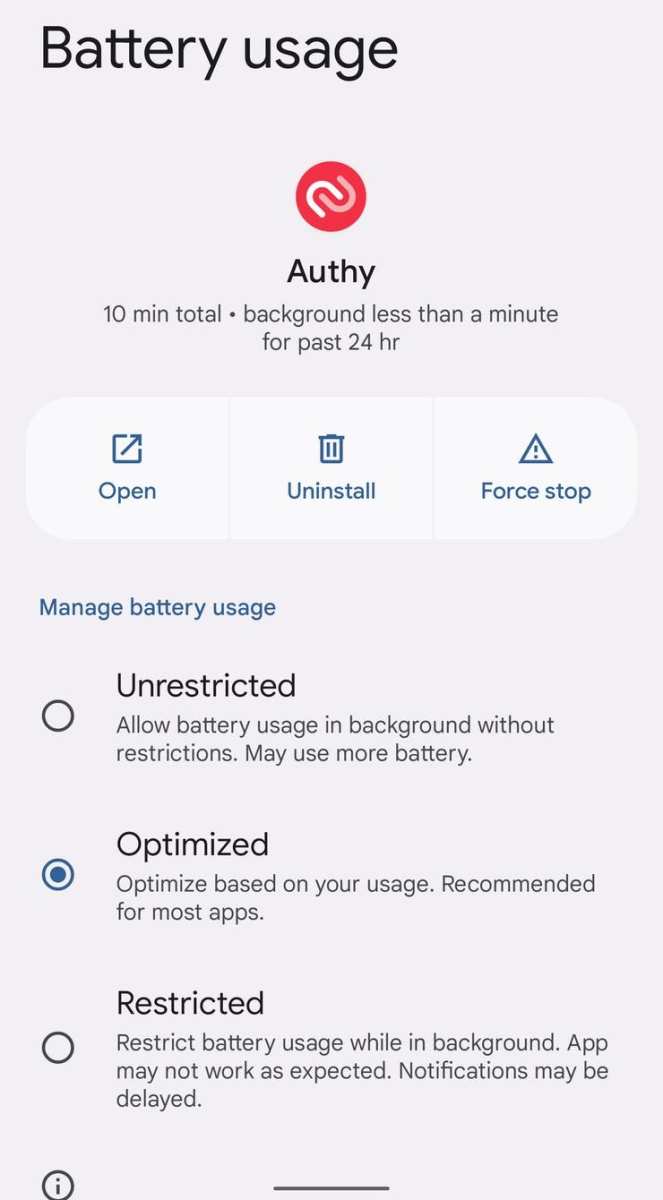
**To see what apps are using battery on Android, simply go to Settings > Battery.** If your phone drains quickly, it’s useful to check which apps consume the most power.
Android see what apps are using battery feature makes it easy to identify power-hungry applications. This helps you take control and extend your device’s battery life.
Knowing this information allows you to optimize your usage and manage background activity effectively. Staying aware of app power consumption keeps your phone running longer throughout the day.

Android See What Apps Are Using Battery
When you notice your phone’s battery draining faster than usual, it’s natural to wonder which apps are responsible. On Android devices, numerous apps run in the background, consuming power without your knowledge. Monitoring these apps helps you manage your battery life better, ensure your device stays charged longer, and avoid unwanted app behavior. In this detailed guide, we will walk through everything you need to know about how to see what apps are using your Android device’s battery, why this information matters, and how you can optimize your device’s battery consumption effectively.
Understanding Battery Usage on Android Devices
Before diving into the specifics of how to see which apps are draining your battery, it’s important to understand what exactly impacts your device’s power. Many factors influence battery consumption, including screen brightness, network activity, hardware functions, and running applications.
Why Battery Monitoring Matters
Monitoring which apps consume the most power helps you make smarter choices about your usage habits. It allows you to:
- Identify power-hungry apps that drain your battery unnecessarily
- Understand if any unfamiliar apps are running in the background
- Adjust settings or uninstall apps to extend battery life
- Improve overall device performance by managing background activity
Common Causes of Battery Drainage
Understanding what causes battery drain can help you target specific issues. Common causes include:
- Apps running in the background without your knowledge
- Location services using GPS continuously
- High screen brightness or extended screen-on time
- Poor network signals forcing your device to work harder to connect
- Frequent notifications or app updates
How to Check Which Apps Are Using Battery on Android
There are several ways to see what’s consuming your battery on an Android device. The most straightforward method is through your device’s built-in settings. Let’s walk through these steps:
Using the Settings Menu
Most Android devices come with a built-in battery usage feature that shows detailed information about app power consumption. Here’s how you can access it:
- Open the Settings app on your Android device.
- Scroll down and tap on “Battery” or “Battery & device care” depending on your device model.
- Select “Battery Usage” or “Battery drain” from the options.
- Review the list of apps and processes that are using your battery. The list typically shows the percentage of battery each app has consumed over a specified time frame, like the last 24 hours or the past few days.
This view gives you a clear picture of which apps are the main culprits draining your battery. Apps at the top of the list are usually the ones consuming the most power.
Interpreting Battery Usage Data
Once you access the battery usage details, look for:
- High percentage apps: These are typically apps that have been running actively or in the background.
- Background activity: Apps with a large background activity percentage indicate they run even when you’re not using them directly.
- Time frame: Check if the high power consumption aligns with your recent activity. If an app drains battery while you’re not using it, consider restricting its background activity.
Monitoring this data over time reveals patterns and helps you make informed decisions about app management.
Using Third-Party Battery Monitoring Apps
While the built-in tools are effective, some users prefer additional insights. Several third-party apps offer advanced battery monitoring features, such as:
- Battery HD
- GSam Battery Monitor
- AccuBattery
These apps provide detailed graphs, historical data, and notifications about power-hungry apps, giving you a deeper understanding of your device’s power usage.
Managing Apps That Consume Excessive Battery
Knowing which apps drain your battery is only the first step. Managing or limiting their activity can significantly extend your device’s battery life.
Force Stop or Uninstall Unnecessary Apps
If you notice certain apps consume a lot of power but aren’t essential, consider removing them:
- Navigate to Settings > Apps > [Specific App]
- Tap “Force Stop” if you want to temporarily halt the app’s activity
- Choose “Uninstall” to remove the app entirely from your device
Be sure to verify that the app is not critical for your device’s operation or specific functions before uninstalling.
Restrict Background Activity
Limiting what apps can do in the background saves a lot of power. Here’s how:
- Go to Settings > Apps > [App Name] > Battery
- Toggle off “Allow background activity” or similar options
- Use “Battery Saver” mode to restrict background processes system-wide
This action helps prevent apps from running in the background and consuming power while not in use.
Adjust App Permissions and Settings
Certain app permissions, especially those related to location and notifications, can cause higher battery consumption. To optimize:
- Go to Settings > Apps > Permissions
- Disable location access for apps that don’t need it
- Turn off unnecessary notifications to prevent apps from waking your device frequently
Adjusting these settings reduces app activity and conserves power.
Using Battery Saver Mode Effectively
Android devices come with a battery saver mode designed to reduce power consumption by limiting background activity, lowering screen brightness, and restricting certain device functions.
Activating Battery Saver Mode
You can activate this mode manually or set it to turn on automatically at a certain battery percentage:
- Swipe down from the top of your screen to access Quick Settings
- Look for the “Battery Saver” icon and tap to enable it
- Alternatively, go to Settings > Battery > Battery Saver and set your preferences
While active, this mode can significantly prolong your remaining battery life, especially when you’re running low.
Limitations of Battery Saver Mode
Remember, enabling battery saver mode can impact your device’s performance and functionality:
- Some apps may not work as smoothly
- Background updates may be paused
- Location services may be restricted
Use it during low battery situations but turn it off when you need full device performance.
Best Practices to Extend Your Android Device’s Battery Life
Managing battery consumption involves consistent habits. Here are some best practices:
- Reduce screen brightness or enable auto-brightness
- Limit high-drain apps, especially those using GPS or streaming media
- Close apps when you finish using them instead of leaving them open in the background
- Turn off Wi-Fi, Bluetooth, or mobile data when not needed
- Keep your device’s software updated — new updates often include power optimization improvements
- Disable location services or restrict them to when necessary
Following these tips yields noticeable improvements in your device’s battery longevity.
Keeping an eye on what apps are using your Android device’s battery offers valuable insights that enable you to manage and extend battery life effectively. By accessing built-in battery usage tools, interpreting the data clearly, and taking proactive steps to limit power-hungry apps, you can enjoy your device longer without frequent recharges. Remember, small adjustments in app permissions, background activity, and device settings can make a big difference in how long your battery lasts each day. With a little awareness and careful management, your Android device can serve you well with improved battery life.
Frequently Asked Questions
How can I see which apps are consuming the most battery on my Android device?
You can check your device’s battery usage by navigating to Settings > Battery & performance > Battery. Here, Android displays a list of apps with their corresponding battery consumption percentages. This helps you identify which applications are draining your battery the most and take appropriate actions if needed.
Is it possible to limit background activity of apps to save battery on Android?
Yes, Android allows you to restrict background activity for specific apps. Go to Settings > Apps & notifications > See all apps, select the app you want to modify, then tap Battery. From there, choose “Restricted” or “Background restriction” to prevent the app from running in the background and conserve battery life.
What steps can I take if a particular app is draining my Android battery excessively?
If an app uses an unusual amount of battery, consider updating it to the latest version, as updates often fix bugs that cause excessive drain. You can also force stop or uninstall the app if it continues to be problematic. Additionally, adjust its background activity permissions or switch to an alternative app that uses less power.
Can I see the battery usage data for individual apps over time on Android?
While Android provides real-time battery usage details, it doesn’t typically offer detailed historical data for individual apps over extended periods. However, some third-party apps can track and display this information, giving you a clearer picture of your battery consumption patterns over days or weeks.
How do I interpret the battery usage chart on my Android device?
The battery usage chart visualizes how battery life decreases over time based on your device activities. It shows which apps and features contributed most to battery drain at different times. By analyzing the chart, you can identify periods of heavy usage and make informed decisions about managing app activity to extend battery life.
Final Thoughts
Understanding which apps consume the most battery helps you manage your device more efficiently. By navigating to your settings and viewing the battery section, you can identify these apps quickly. This step allows you to optimize your usage and extend your device’s battery life.
In conclusion, to see what apps are using battery on your Android device, simply check your battery usage details. This practical approach helps you control your app activity and prolong battery longevity.
