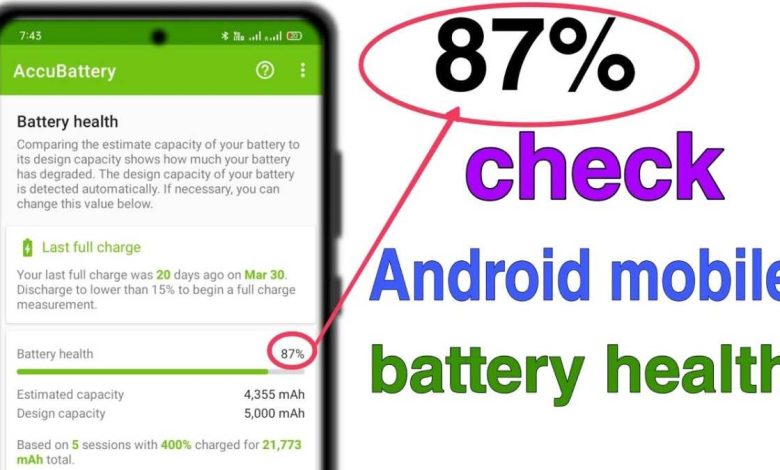
To check your Android phone’s battery health, you can quickly access the built-in diagnostic tools or use third-party apps. **The easiest way is to dial *#*#4636#*#* in your phone’s dialer to view detailed battery information.** Knowing how to check battery health on Android phone helps you spot potential issues early and extend its lifespan. Many devices also offer battery usage stats in settings, making it simple to monitor performance. Regular checks ensure your phone stays reliable and efficient.

How to Check Battery Health on Android Phone
Taking good care of your Android phone’s battery is essential for keeping your device running smoothly. Over time, batteries lose their ability to hold a full charge, which can lead to your phone turning off unexpectedly or not lasting as long as it used to. Knowing how to check your battery’s health helps you decide when it’s time to replace the battery or take other steps to improve its performance. In this guide, we will explore simple and effective ways to check battery health on Android phones, using built-in tools, third-party apps, and basic maintenance tips to keep your device in top condition.
Understanding Android Battery Health
Before diving into how to check your battery health, it’s helpful to understand what battery health means. Battery health indicates how well a battery can still hold and deliver charge compared to when it was new. Over time, all rechargeable batteries naturally degrade due to chemical wear and environmental factors. This degradation results in reduced capacity, shorter battery life, and sometimes, unexpected shutdowns.
Here are some key terms related to battery health:
- Full Charge Capacity: The maximum amount of charge your battery can hold relative to its original capacity.
- Cycle Count: The number of complete charge and discharge cycles your battery has undergone.
- Battery Wear Level: The percentage indicating how much the battery has degraded since it was new.
Knowing these terms helps you interpret the data you receive when checking your battery health.
Using Built-In Android Tools to Check Battery Health
Many Android devices come with little-to-no direct options for checking battery health in the settings. However, some manufacturers, like Samsung or OnePlus, include built-in diagnostic tools or hidden menus that provide battery information. Here’s how you can access and use these features:
Accessing the Battery Diagnostics Menu
1. Open the phone dialer app.
2. Type a special code specific to your device manufacturer. For example:
- Samsung: *#*#4636#*#*
- OnePlus: *#808#
- Motorola: *#*#6484#*#*
3. Once the menu appears, look for options like “Battery Information” or “Battery Status” to view details about your device’s battery.
Please note that not all phones support these codes, and some manufacturers disable this feature for security reasons. If these codes don’t work, you should consider using third-party tools.
Using Manufacturer-Specific Apps
Some manufacturers include diagnostic apps on their devices which can show battery health data:
- Samsung Members app offers device diagnostics, including battery health.
- OnePlus provides the “Device Toolbox” app for various device details.
- LG and others may have similar options in their support apps.
If your phone comes with such an app, explore it to find the battery health section.
Using Android’s Hidden Battery Information Menu
Outside manufacturer apps and codes, Android offers a hidden menu accessible through the device’s dialer:
- Open your phone’s dialer.
- Type *#*#4636#*#* and dial.
- A menu will open showing information about your phone, including battery status and usage.
Here, you can see data like battery level, voltage, temperature, and some basic health info. However, this menu might not offer detailed capacity or cycle count data.
Monitoring Battery Usage for Insights
Even without specific health metrics, you can observe how your battery behaves with regular use:
- Go to Settings > Battery & Power or Battery.
- Check the battery usage dashboard to see what apps and services consume the most power.
- Identify any unusual drain that might suggest battery issues.
While this doesn’t give you the precise health percentage, it helps you understand if your battery’s performance has changed over time.
Using Third-Party Apps to Check Battery Health
When built-in tools aren’t enough, third-party apps can provide detailed battery health information. These apps analyze your battery’s capacity, cycle count, and overall health status.
Popular Battery Health Apps for Android
- AccuBattery: Provides estimates of battery capacity, health, and charging habits. It measures real capacity by monitoring charge/discharge cycles.
- Battery HD: Offers detailed info about current battery status, including health estimates based on usage patterns.
- GSam Battery Monitor: Tracks battery drain and provides insights into app usage and potential issues affecting battery life.
How to Use These Apps Effectively
- Download and install your chosen app from Google Play Store.
- Open the app and grant necessary permissions.
- Use the app over a few charge cycles to gather accurate data.
- Check the battery health status and compare it to new battery benchmarks.
- Follow recommended steps if the app indicates poor health or high wear levels.
Interpreting Battery Health Data
Once you gather data from built-in tools or third-party apps, you’ll want to interpret what it means for your device:
- Good Battery Health: Usually indicates capacity is above 80%. The battery should last a reasonable time on a full charge.
- Moderate Battery Health: Capacity between 60-80%. You may notice shorter usage times, and it might be time to consider replacing the battery soon.
- Poor Battery Health: Below 60%. The battery might cause your device to turn off unexpectedly or drain quickly, and replacement is recommended.
Remember, battery health naturally declines with time and use. If your device’s battery level drops quickly or time between charges becomes very short, it’s smart to take action.
Tips to Maintain and Improve Battery Health
Regular maintenance can extend your battery’s lifespan:
- Avoid letting the battery drain completely before charging.
- Don’t overcharge beyond 80-90%. Disconnect once it reaches full charge.
- Use original chargers and cables to prevent damage.
- Avoid exposing your phone to extreme temperatures, especially heat.
- Reduce the screen brightness and turn off unused features like Bluetooth or Wi-Fi when not needed.
- Enable battery saver modes to limit background activity.
Keeping your battery in good shape involves mindful charging habits and proper device care, leading to longer-lasting performance.
When to Consider Replacing Your Battery
If your battery health check indicates significant degradation (below 70%) and you notice issues like rapid discharge, device shutdowns, or the inability to keep a charge, it’s probably time for a new battery. Many smartphones allow battery replacement, either through authorized service centers or DIY kits, depending on your model.
Replacing the battery can significantly improve your device’s battery life and overall performance, especially if it’s a few years old.
Knowing how to check battery health on your Android phone gives you the necessary information to keep your device running smoothly. Whether you use built-in diagnostic tools, manufacturer apps, or third-party programs, regularly monitoring your battery’s condition helps you plan for replacements and maintain optimal performance. Remember, good charging habits and proper device care will extend your battery’s lifespan, ensuring your Android phone remains reliable and ready to support you every day.
Frequently Asked Questions
What built-in tools can I use to evaluate my Android device’s battery condition?
Many Android phones come with integrated tools that provide insights into your battery’s health. You can go to the Settings app, select Battery, and then look for options like Battery Usage or Battery Health. Some devices offer detailed reports on battery capacity and performance, helping you understand if your battery is functioning optimally or if it needs replacement.
Are there any third-party apps that effectively monitor my Android battery health?
Yes, several reputable third-party apps can give you a comprehensive view of your battery’s status. Apps like AccuBattery, GSam Battery Monitor, or Battery Doctor analyze your battery’s capacity, usage patterns, and charging habits. These tools often provide detailed metrics such as current capacity relative to original design capacity, which helps you determine the overall health of your battery.
What signs indicate that my Android phone’s battery might be degrading?
If your phone’s battery drains quickly, takes longer to charge, or the device heats up excessively during use or charging, these could be signs of battery decline. Additionally, if your device unexpectedly shuts down at high charge levels or shows inaccuracies in remaining battery time, it might be time to check the battery’s health more closely or consider a replacement.
Can I check my battery health using secret codes or diagnostics on Android?
Some Android devices support special codes that reveal detailed hardware information, including battery status. For example, dialing *#*#4636#*#* can bring up a menu with battery information on certain models. However, the availability of these codes varies between manufacturers and Android versions, so always verify if your device supports them before use.
How does charging behavior affect my Android battery’s lifespan?
Consistently charging your phone to 100% or letting it drain completely can stress the battery and reduce its lifespan. To maintain optimal health, try to keep the battery level between 20% and 80%, and avoid exposing it to extreme temperatures. Proper charging habits contribute to better long-term battery performance and health.
Final Thoughts
Knowing how to check battery health on an android phone helps you maintain optimal device performance. You can access this information through built-in settings or third-party apps. Regular checks allow you to identify battery issues early and extend your phone’s lifespan. Ultimately, staying informed about your battery health ensures your device functions smoothly for longer.